When you open classic Outlook on your Windows 11 or 10 PC, you might see “Cannot start Microsoft Outlook. Cannot open the Outlook window. The set of folders cannot be opened.” and Outlook closes before it shows a single email. The line under it often points to the cause, such as a damaged data file, iCloud or a problem on Microsoft’s side. This guide will walk you through what that second line means and which fix to try for it.
Also see: Microsoft 365 Outlook 1001 Error “Something went wrong”
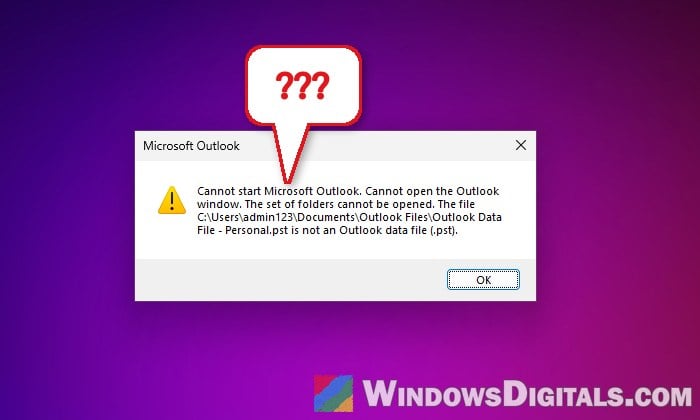
What does “The set of folders cannot be opened” mean?
Every time classic Outlook starts, it loads your profile and the data files behind it, the .pst or .ost file that holds your mail, calendar and contacts. “The set of folders” is basically that mailbox. When Outlook can’t open it, it gives up and shows this error instead of the main window.
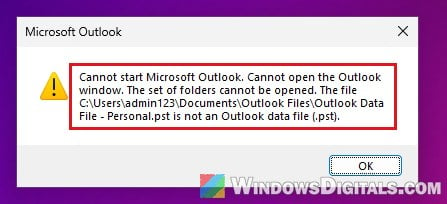
The line after “The set of folders cannot be opened” differs from PC to PC, and it’s the best clue you have:
- “An unexpected error has occurred” says nothing specific, so go through the fixes below in order.
- “The attempt to log on to Microsoft Exchange has failed” points to your Microsoft 365 or Exchange mailbox, sometimes a problem on Microsoft’s end.
- “MAPI was unable to load the information service … APLZOD64.dll” means iCloud for Windows is the problem.
- “The file … is not an Outlook data file (.pst)“, “…you must connect to Microsoft Exchange with your current profile” or “exited without properly closing your Outlook data file” points to the data file itself.
Linked issue: Classic Outlook Folders Not Syncing and Missing Emails
Check if it’s a Microsoft outage first
If your account is a Microsoft 365 work or school account, sign in to Outlook on the web or open the new Outlook. If those work and the error showed up out of nowhere, it may not be your PC at all. You can also check https://status.cloud.microsoft/ for an ongoing outage. In May 2026, for example, classic Outlook failed with this exact error for many users in several countries at once. The Microsoft 365 admin center showed an open issue with Microsoft’s sign-in services at the time, and the error went away by itself.
There’s also a known issue for the “attempt to log on to Microsoft Exchange has failed” version of this error. It’s marked as fixed, and the error has other causes too, but when it’s that issue, only Microsoft can fix it, through a support case your admin opens. Until then, use Outlook on the web or the new Outlook instead.
Might be useful: Classic Outlook Keeps Switching Back to the New Outlook
Start Outlook in safe mode and turn off add-ins
Safe mode starts Outlook without any add-ins. A faulty or outdated add-in (an old ABBYY FineReader add-in is one example) is one of the causes Microsoft lists for this error. If Outlook opens in safe mode, an add-in is most likely the problem. Here’s how to do it:
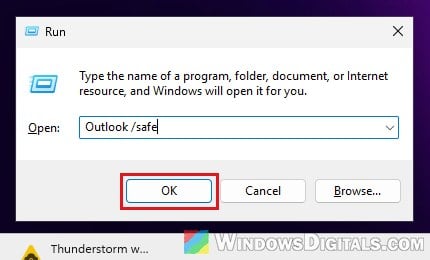
- Close Outlook, then press Win + R to open the Run dialog box.
- Type “Outlook /safe” and click “OK“.
- If asked to choose a profile, keep the default one and click “OK“.
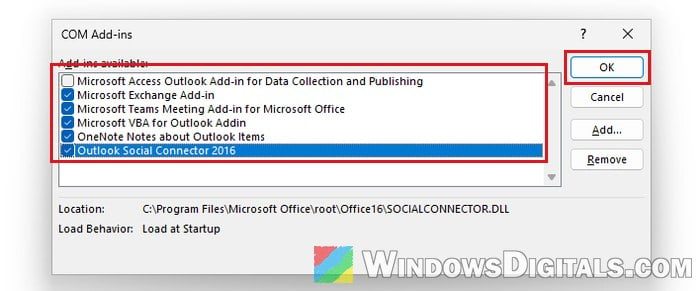
- Once Outlook opens, go to “File” > “Options” > “Add-ins“.
- Make sure the “Manage” box at the bottom shows “COM Add-ins“, then click “Go…“.
- Note which add-ins are ticked, untick all of them and click “OK“. Don’t click “Remove“.
- Go to “File” > “Exit“, then open Outlook normally.
If it opens now, turn the add-ins back on one at a time, restarting Outlook after each, until the error comes back. Keep that last one off or update it.
If the error mentions iCloud or APLZOD64.dll
When the error says “MAPI was unable to load the information service” with a path to APLZOD64.dll under the Apple folder, Outlook is failing to load the iCloud service. In the add-ins list above, untick the iCloud add-in first. If that doesn’t help, go to “Settings” > “Apps” > “Installed apps“, uninstall iCloud, restart your PC, then install iCloud again from Apple, sign in and turn its Outlook sync back on.
Reset the navigation pane
The navigation pane (the folder list on the left) has its own saved settings, and Microsoft lists them as another cause of this error. Resetting it only removes your pane customizations. To reset it, follow the steps below:
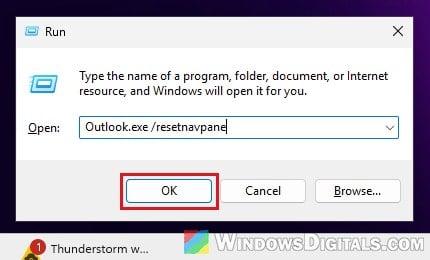
- Close Outlook and press Win + R.
- Type “Outlook.exe /resetnavpane” and click “OK“.
Then start Outlook normally and see if the error is gone.
Repair the data file, or let Outlook rebuild it
If Outlook still won’t open, your data file may be damaged. The fix depends on whether you have a .pst or an .ost file.
.pst file (POP accounts and local data files)
A .pst is often the only copy of your email, so make a copy of it before doing anything (the .ost steps below show how to find it). Then run the Inbox Repair Tool (SCANPST.EXE) that comes with Outlook:
- Exit Outlook.
- Open File Explorer and go to the Office folder. For 64-bit Office it’s usually:
C:\Program Files\Microsoft Office\root\Office16
For 32-bit Office, it’s this one instead:
C:\Program Files (x86)\Microsoft Office\root\Office16
- Double-click “SCANPST.EXE“.
- Click “Browse…“, choose your .pst file, then click “Start“.
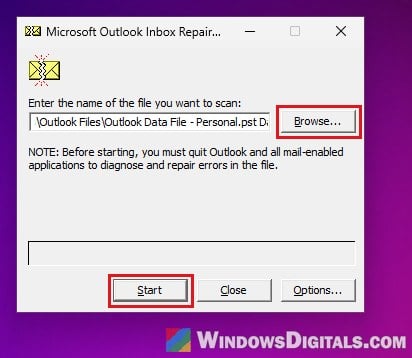
- If it finds errors, click “Repair“. It makes a backup of the file before repairing.
Run it again until it finds no more errors, then open Outlook.
.ost file (Microsoft 365, Outlook.com, Exchange and IMAP)
An .ost is only an offline copy of your mailbox on the server, so if you rename it, Outlook downloads a fresh one. Since Outlook won’t open, find it through Control Panel:
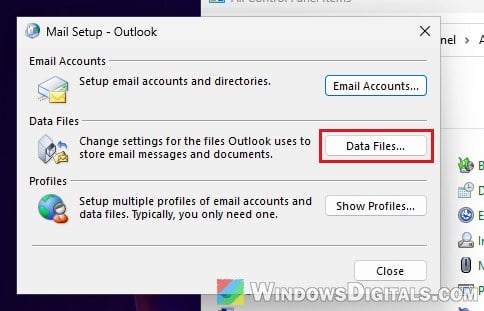
- Open Control Panel, set “View by” to “Small icons” and click “Mail (Microsoft Outlook)“.
- Click “Data Files…“.
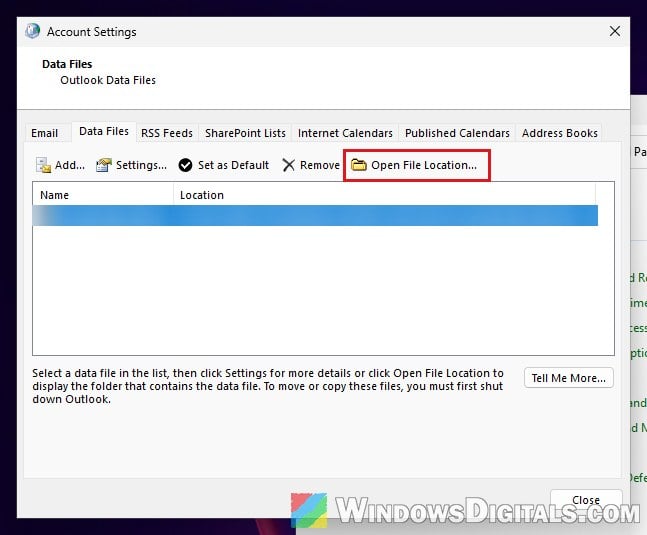
- On the “Data Files” tab, select the account’s .ost file and click “Open File Location…“.
- Close the Mail windows, then rename the .ost file (add “.old” to the end of its name).
Open Outlook and give it time to download your mail again.
Create a new Outlook profile
If none of the above helped, the profile itself may be corrupted. A new profile starts Outlook from scratch with your account, and it’s the fix that comes up most often for this error on Reddit. Your old profile isn’t changed. Here’s what you should do:
- Open Control Panel and click “Mail (Microsoft Outlook)” again.
- Click “Show Profiles…“.
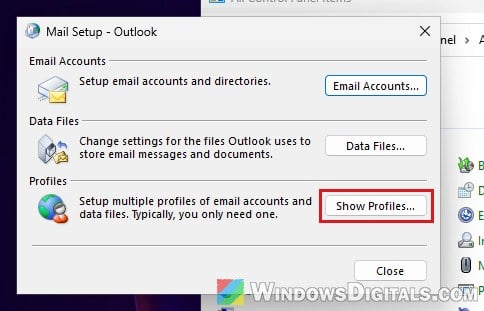
- Click “Add…“, type a name under “Profile Name” and click “OK“.
- Follow the steps to add your email account.
- Back in the Mail window, select “Prompt for a profile to be used” and click “OK“.
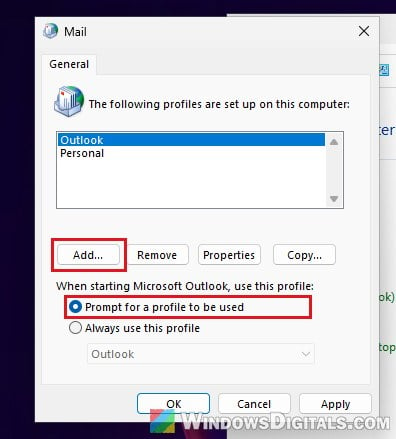
Start Outlook and pick the new profile. If it opens normally, the old profile was the problem. Don’t remove the old profile until you’ve backed up anything you need from it, because removing a profile deletes its offline cached content.
Repair Office
If Outlook won’t open even with a new profile, the Outlook program files themselves may be damaged. Repairing Office fixes them for the whole suite. Follow the steps below:
- Open “Settings” > “Apps” > “Installed apps“.
- Find your Microsoft 365 or Office entry, click the three dots next to it and choose “Modify“. Click “Yes” if Windows asks for permission.
- Choose “Quick Repair” and click “Repair“.
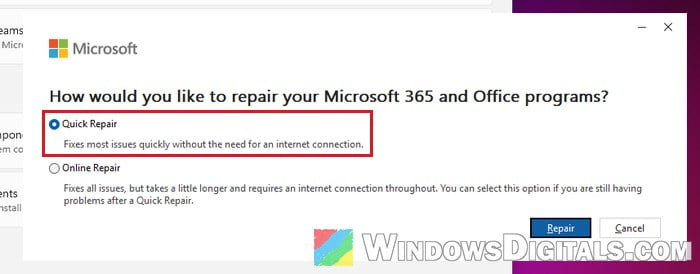
- If the error is still there afterwards, do the same with “Online Repair“, which takes longer and needs an internet connection.
Related guide: How to Install Microsoft 365 on a New or Second Computer
If you’re on Microsoft 365 for business, Microsoft’s classic Outlook startup troubleshooter in the Get Help app is also worth a try before you call your IT team.