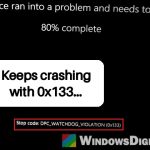
A lot of people with AMD Radeon cards like the RX 7800 XT and RX 9070 XT have run into a problem where the screen suddenly turns grey with thin vertical blue lines (or a line of blue dots) while they’re gaming or watching a video on Windows 11 or 10, and then the PC freezes, restarts or shuts down by itself. It’s been coming up on Reddit for months. Below are the fixes that have worked for them and how to tell if your card itself is the problem.
Also see: AMD Driver Timeout Freezes the Screen but Audio Keeps Playing
Why does the screen turn grey with blue lines?
The grey screen is what’s left on the monitor when the graphics card or its driver stops working completely. Unlike a normal driver timeout, the PC often doesn’t recover from it, so it hangs or restarts on its own. Sometimes the driver even has to be reinstalled after the reboot.
There’s no single cause. The usual suspects are:
- Multiplane Overlay (MPO), a Windows display feature, especially with an OLED monitor or two monitors
- Hardware acceleration in the browser or Discord, when it happens while watching videos
- Unstable undervolt, overclock or power limit settings on the card, or a RAM overclock
- A bad driver install, or Windows Update swapping the AMD driver
- Power delivery to the card (cables, connectors, the power supply)
- A faulty graphics card
The fixes below start with the most likely and easiest ones.
Turn off MPO (Multiplane Overlay)
This is the fix that has stopped the grey screens for the most people, especially those with an OLED monitor, a second monitor, or crashes with a browser or Discord open. MPO lets the graphics card combine several layers of the screen (a video, an app window, the desktop) on its own, but it doesn’t always get along with every card, driver and monitor.
Windows has no switch for it, so it’s done in the registry. Incorrectly changing the registry can cause serious problems with Windows, so please create a system restore point first. If you’re not sure what you’re doing, get someone who knows to help you instead.
- Press Win + R, type “regedit” and press Enter. Click Yes if User Account Control asks.
- Copy and paste the following path to the address bar and press Enter:
HKEY_LOCAL_MACHINE\SOFTWARE\Microsoft\Windows\Dwm
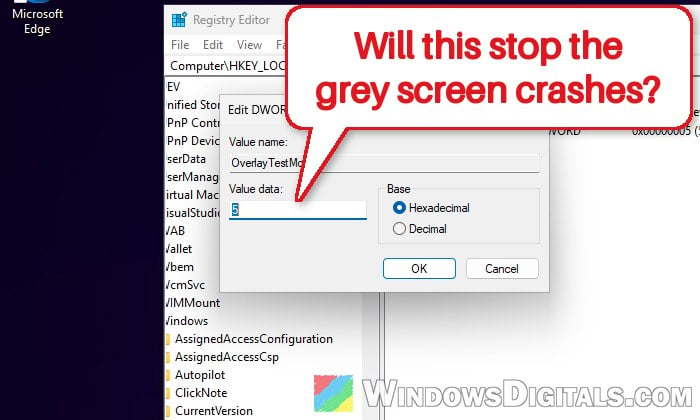
- Right-click an empty area on the right side, select New > DWORD (32-bit) Value, and name it “OverlayTestMode“.
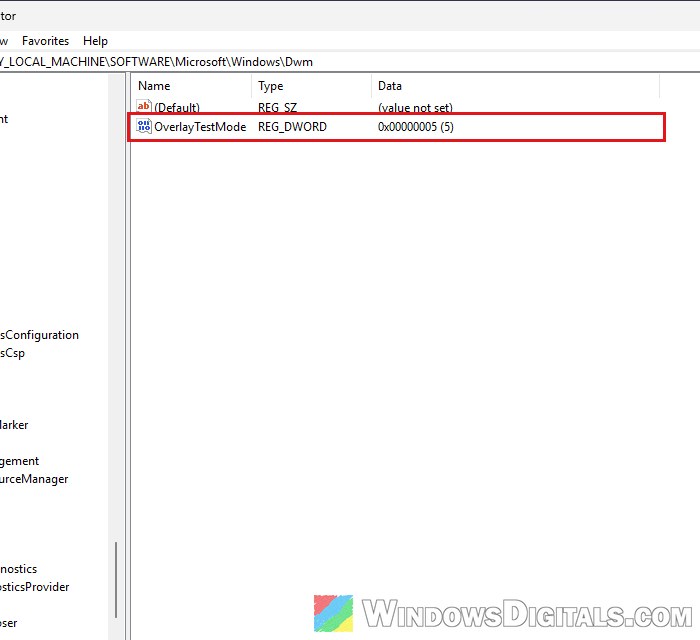
- Double-click OverlayTestMode, set its Value data to “5” and click OK.
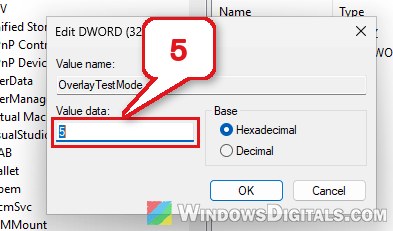
- Close Registry Editor and restart your PC.
After the restart, use the PC as before and see if the grey screen comes back. NVIDIA publishes this same change to turn MPO off, and it works on AMD cards too.
Some Windows 11 PCs ignore this value, so our MPO guide below shows how to check and a second way to turn it off. If nothing changes, or games start to flicker, delete OverlayTestMode and restart to turn MPO back on.
Pro tip: How to Disable MPO (Multiplane Overlay) on Windows 11
Turn off hardware acceleration in your browser and Discord
If the grey screen mostly happens while watching YouTube, browsing, or with Discord open, the app’s hardware acceleration might be what sets it off.
In Microsoft Edge, for example:
- Open Settings > System and performance > System.
- Turn off “Use graphics acceleration when available“.
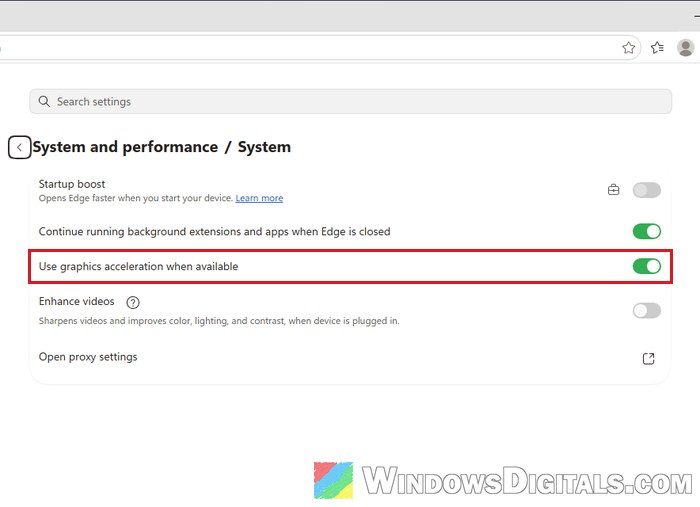
- Restart Edge.
Chrome has a similar graphics (or hardware) acceleration switch under Settings > System, and Discord has its own hardware acceleration switch in its settings. Turn it off one app at a time. Videos might stutter a little without it, so turn it back on if nothing changes.
Linked issue: Radeon Stutters and Freezes with DX11 Games and Chrome
Put the card back to its default settings
If you’ve undervolted, overclocked or changed the power limit of your graphics card, that’s the first thing to undo. Settings that seem stable can still crash in demanding games. A lowered power limit also caused it on some RX 9070 XT cards, and putting it back to default (or even raising it a little) stopped the crashes.
AMD Software has a reset that undoes all its tuning in one go:
- Open AMD Software.
- Type “Factory Reset” in its search box.
- Select “Factory Reset – System Settings“.
- Click Perform Reset, then Proceed.
If you’ve turned on EXPO or XMP for your RAM, or changed CPU settings like PBO in the BIOS, turning them off for a while is also a good test, since unstable RAM or CPU settings can cause all kinds of crashes.
Related concern: Does Faulty RAM Cause Freezes or Crashes on PC?
Reinstall the driver and keep Windows from replacing it
A messed-up driver install can cause crashes no setting fixes. Download the latest driver from AMD, then do a clean install with “Factory Reset (Optional)” in the AMD Software installer, or with AMD Cleanup Utility in Safe Mode as AMD recommends. For the full steps, see AMD Driver Timeout Freezes the Screen but Audio Keeps Playing.
Windows Update can also replace the AMD driver with another one after you install it, which several RX 9070 XT owners blamed for their crashes. Some got around it by installing the driver with the internet disconnected and then stopping Windows from installing drivers for the card.
Might be useful: AMD Software Warning: Graphics Driver Replaced?
Try a different driver version
There’s no “good” driver version for this problem. When the grey screens began just after a driver update, roll back to the one you were on before. Some users found older versions more stable on their RX 9070 XT, like 26.3.1, or 26.8 and 26.9 over 26.10. AMD’s optional 26.10.2 driver (October 30, 2026) fixes some crashes, timeouts and shutdowns on RX 9000 and RX 7000 cards, though its notes don’t mention a grey screen.
Check the power cables and power supply
A card without steady power can crash under load, especially in demanding games. With the PC switched off and unplugged:
- Make sure every power cable is fully pushed into the graphics card and the power supply, and reseat the card in its slot. Ask someone to do it for you if opening the case isn’t something you’re used to.
- Unplug the card’s power connectors and look at the pins. Any marks or discolored spots on the pins are a bad sign, so don’t keep using that cable until it’s been checked.
- Use a separate cable from the power supply for each power connector on the card, and avoid extension cables and adapters.
An old, low-wattage or cheap power supply might not handle the card’s sudden power spikes. If you can borrow a stronger one for a few days, try it to rule the power supply out.
Related guide: How to Check Power Supply Wattage on Windows 11/10 PC
Maybe the graphics card itself is faulty
If the grey screens keep coming at default settings, after a clean driver install and with the power checked, the bad news is that the graphics card itself might be faulty.
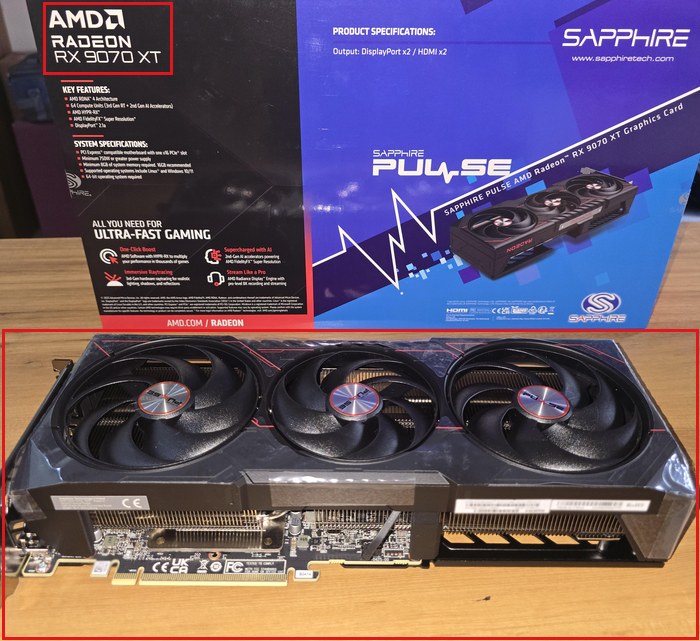
A quick way to find out is to swap it out for a while: put in an older graphics card, or use your CPU’s built-in graphics if it has one. If the PC is stable for days without the Radeon card, the card is the likely problem. Some people got the grey screen again on a replacement card, so do this test before you send yours back.
If it’s still under warranty, contact the card’s maker (XFX, Sapphire, ASUS and so on) and tell them what you’ve tried.