If you’re playing The Witcher 3: Wild Hunt – Remastered on an NVIDIA RTX 40 or 50 series card and the picture shimmers, ghosts or shows thin horizontal stripes on roads, grass and trees whenever the camera moves with DLSS Frame Generation on, you’re far from the only one. This guide will explain what’s going on and the settings that make it a lot less noticeable until there’s a real fix.
Also see: Games Stutter With G-SYNC and Frame Generation On, Why?
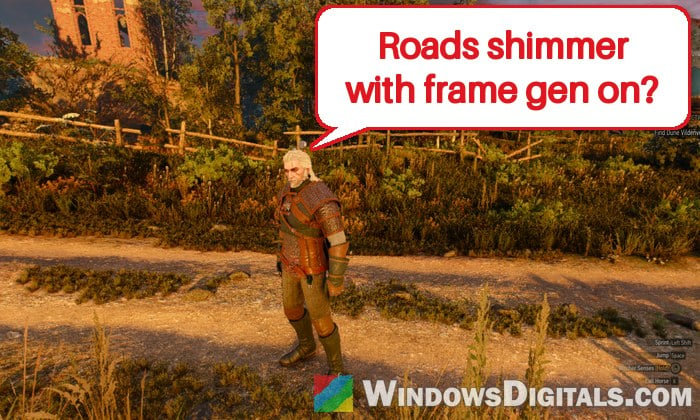
Why does frame generation look so bad in The Witcher 3 Remastered?
The Remastered update came out on September 29, 2026, as a free update for everyone who owns the game. On PC it added path tracing, DLSS 4.5, and on RTX 50 cards up to 6X multi frame generation. Frame generation makes extra frames between the ones your graphics card actually renders, and the stripes and ghosting most likely come from those made-up frames.
What you’ll typically see:
- Horizontal bands or stripes that shimmer on roads and ground textures while you move or turn the camera, often worst near the bottom and edges of the screen.
- Flickering and ghosting on grass, foliage, tree branches, roofs and sometimes even subtitles.
- It happens at every frame generation level, even plain 2X, on the RTX 4090 as well as the 5070, 5080 and 5090.
- It goes away the moment you turn frame generation off.
Neither NVIDIA nor CD Projekt Red has commented on it so far, and the game’s Patch 5.01 doesn’t mention it. Many people think it’s a weakness of DLSS frame generation itself, since similar artifacts show up in a few other new games. The Witcher 3 just makes it easy to spot, with all its detailed ground textures and grass. Not everyone notices it either, and some people only see a slight distortion.
A real fix has to come from NVIDIA or CD Projekt Red, so the steps below are workarounds that hide most of it. Start with the first one, since it’s the easiest to try.
Turn “Motion Blur” back on
This one has helped the most people. A lot of people turn off motion blur out of habit, but in this game the stripes and ghosting are much more visible with Motion Blur off. With it on, the blur smears over most of the artifacts while you move.
Here’s what you should do:
- Open the game’s settings and go to the graphics settings.
- Set “Motion Blur” to “On“.
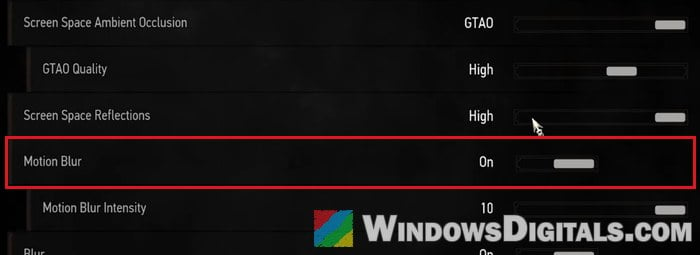
- Go back to a spot where the shimmering was bad (a road in Novigrad at midday works well) and turn the camera around.
If you can’t stand motion blur at all, which is fair, skip to the next fix.
Might be useful: How to Fix Game Stuttering on Windows 11
Use XeSS frame generation instead of DLSS
The Remastered update also comes with Intel XeSS 2 and AMD FSR 4 frame generation built in, and both work on NVIDIA cards too. Switching from DLSS frame generation to XeSS frame generation gets rid of the striping on the ground for most people who’ve tried it, and the picture looks a lot cleaner.
The downside is that with XeSS or FSR on an NVIDIA card, you only get one generated frame (2X), not the 3X to 6X that DLSS can do on an RTX 50 card, and XeSS gives a few frames less than DLSS. If the striping bothers you, that’s usually a fair trade.
Here’s how to do it:
- In the game’s graphics settings, find the frame generation settings, turn DLSS frame generation off first, then turn XeSS frame generation on.
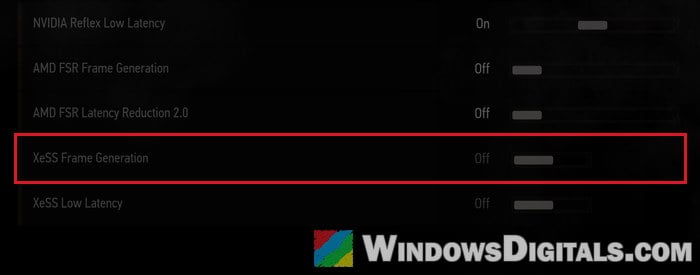
- Leave the rest as it is for now, so you can see the difference this one change makes.
- Play for a few minutes in the same area and compare.
Please note that FSR frame generation crashes the game for some players on RTX 30 and 40 cards, so if you pick FSR and the game crashes, use XeSS instead.
Turn sharpening off or down
If what bothers you is more of a flicker than ghosting, the game’s sharpening setting might be making it worse. With sharpening and frame generation on together, the flicker can get a lot stronger, and turning sharpening off can stop the flicker while frame generation stays on. The ghosting itself doesn’t go away with this, though.
If the image looks too soft without it, try the lowest sharpening level instead of turning it off completely. Then turn the camera in the same spot and see if the flicker on grass and roofs is gone.
Lower the DLSS quality or the frame generation multiplier
If you want to stay with DLSS frame generation, lowering the DLSS quality preset a step or two below Quality makes the shimmering less obvious. Even at Ultra Performance, which costs a lot of image quality, the flicker on trees and roofs only fades for most people, so don’t expect miracles here.
On an RTX 50 card, also try generating fewer frames (2X instead of 3X, 4X or 6X) if the game lets you set it. The artifacts tend to be worst with multi frame generation. They don’t go away at 2X, but there are fewer of them. On an RTX 40 card, 2X is already the only option (the game shows it as “1“, meaning one generated frame for each real one, which confuses a lot of people).
Related guide: How to Turn On G-Sync or FreeSync in Windows 11
Make sure the game is up to date
Patch 5.01 (October 8, 2026) fixed visual artifacts caused by Dynamic Resolution Scaling in some setups and turned that setting off by default. This isn’t the frame generation problem, but it can add its own artifacts on top. Steam, GOG and Epic update the game by themselves, so just check that the update has installed, and that Dynamic Resolution Scaling is off in the graphics settings.
As for drivers, no NVIDIA driver so far mentions this problem, and NVIDIA App overrides or swapping DLSS files haven’t changed anything for those who tried them. It’s still worth keeping your driver up to date, since a fix from NVIDIA is most likely to arrive through one.
Pro tip: How to Update Graphics Driver in Windows 11
Play without frame generation for now
If none of the above makes it good enough for you, turning frame generation off is the only sure way to get rid of it completely right now. Keep DLSS on for upscaling, and if your frame rate drops too much, turn off the heaviest settings first, like path tracing or path-traced hair.
Once NVIDIA releases a driver or CD Projekt Red a patch that mentions frame generation, turn frame generation back on in the same spots and see if it’s gone.