If Notepad, Paint, Photos or Snipping Tool suddenly show garbled text, missing labels or smeared toolbars, but only on your second monitor, and the same window looks perfectly fine as soon as you drag it to the other screen, your monitor and graphics card are most likely fine. It’s a bug in a part of Windows these apps share, and Microsoft has already released an update that should fix it. This guide will explain what’s going on and show you how to fix it.
Also see: Second Monitor Keeps Flashing or Going Black Randomly
Why do these apps only break on one monitor?
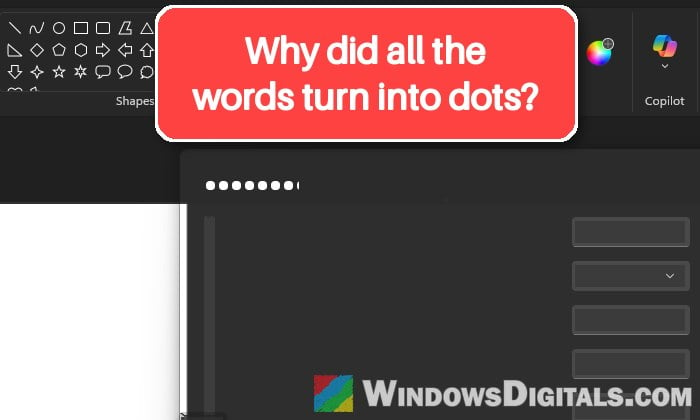
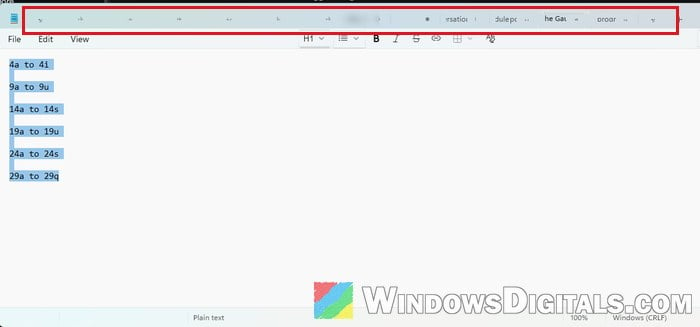
The problem started showing up at the end of October 2026, and it’s been reported a lot on Reddit and Microsoft’s forums since. It looks a bit different from app to app:
- In Notepad, the tab names and menus lose their text or show random characters, and tabs can turn into odd shapes when you hover over them.
- In Paint, letters turn into dots, labels become dashes, and the Save, Don’t save and Cancel buttons show up as solid bars.
- In Photos, buttons and toolbars get duplicated and smeared over each other.
- Snipping Tool and Phone Link can do the same, while File Explorer, Settings and Calculator look normal.
Notepad and the other newer built-in apps are built on Microsoft’s Windows App SDK, and its Windows App Runtime draws their windows. Version 2.6.4, released on October 27, has a bug where the text and parts of a window are drawn wrongly when the app is shown on a monitor that’s run by a different graphics chip than the one drawing the app. That’s why it usually hits:
- a second monitor plugged into the motherboard (the CPU’s integrated graphics) while the main one is on the graphics card
- a laptop with both integrated and dedicated graphics (most gaming laptops) and an external monitor
- a monitor on a DisplayLink dock, or a PC with two graphics cards
It also explains why the glitch follows your main display. If you make the broken monitor your main display, that monitor becomes fine and the other one starts glitching instead.
Microsoft released Windows App Runtime 2.6.5 on November 2, 2026, and according to its release notes, it fixes “rendering corruption that could occur on systems with multiple graphics adapters or monitors.” So getting that update should fix it for good.
You can skip the usual fixes for this one: repairing or resetting the app, reinstalling it, and updating or rolling back the graphics driver don’t help. It’s also not caused by the optional KB5127936 update (it happens on PCs without it, and even on Windows 11 23H2), so uninstalling that won’t fix it either.
Linked issue: Weird Static White Square Artifacts on PC Screen?
Update the apps and Windows App Runtime from Microsoft Store
Microsoft Store updates the Windows App Runtime the same way it updates your apps, and it shows up in the update list as WindowsAppRuntime.2 from “Microsoft Platform Extensions”. If your Store updates apps by itself, you might already have the fix, but it’s worth checking now instead of waiting.
Here’s what you should do:
- Open Microsoft Store.
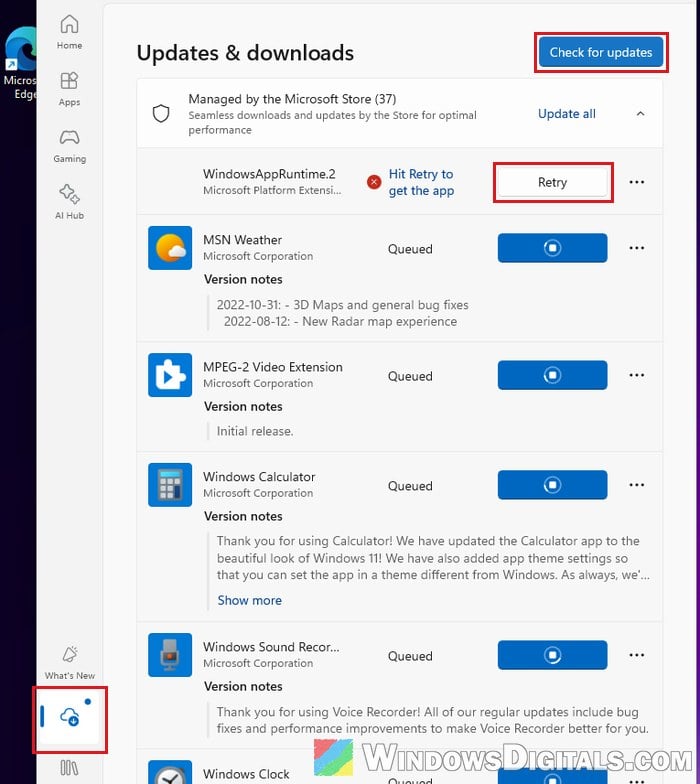
- Click Downloads (the cloud icon) at the bottom left. This opens the “Updates & downloads” page.
- Click Check for updates and let the Store download and install everything it finds. If WindowsAppRuntime.2 shows “Hit Retry to get the app“, click Retry next to it.
- When the list is done, close Notepad, Paint, Photos and any other app that was glitching, or just restart your PC.
Then open the app on your second monitor again. The text and menus should now look normal.
Related problem: Microsoft Store “Error encountered – One of the update services is not running properly”
How to check which Windows App Runtime version you have
If you’re not sure the update went through, you can check the version with one command:
- Right-click the Start button and select Terminal (Admin). Click Yes if a UAC prompt appears.
- Type the following command and press Enter:
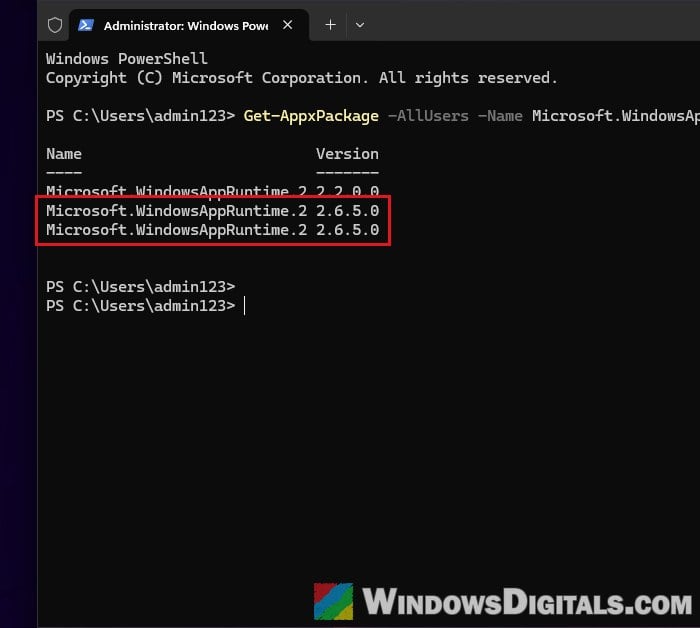
Get-AppxPackage -AllUsers -Name Microsoft.WindowsAppRuntime.2 | Select-Object Name, Version
- Look at the Version column. If you see 2.6.5.0 (or higher), you have the fixed version. If the highest one is 2.6.4.0, the update hasn’t reached you yet. An older version listed too is normal.
Set the app to use the same graphics chip as the glitchy monitor
If the update hasn’t reached you yet, or the glitch stays after it, you can work around it by telling Windows which graphics chip should draw the app. The glitch shows up when the app is drawn by one graphics chip and shown on a monitor run by the other, so making them match stops it. This has worked for a lot of people with Notepad, Paint and Photos.
Follow the steps below:
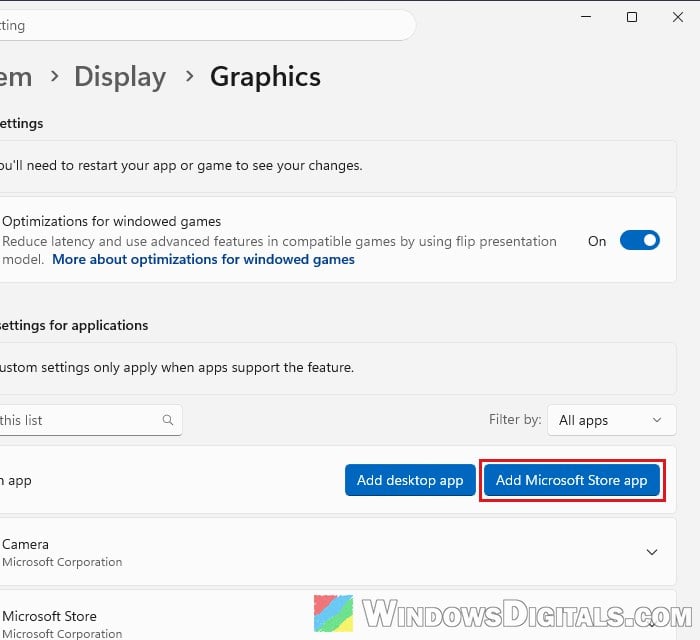
- Open Settings and go to System > Display > Graphics.
- Under “Custom settings for applications“, look for the app. If it’s not in the list, click Add Microsoft Store app.
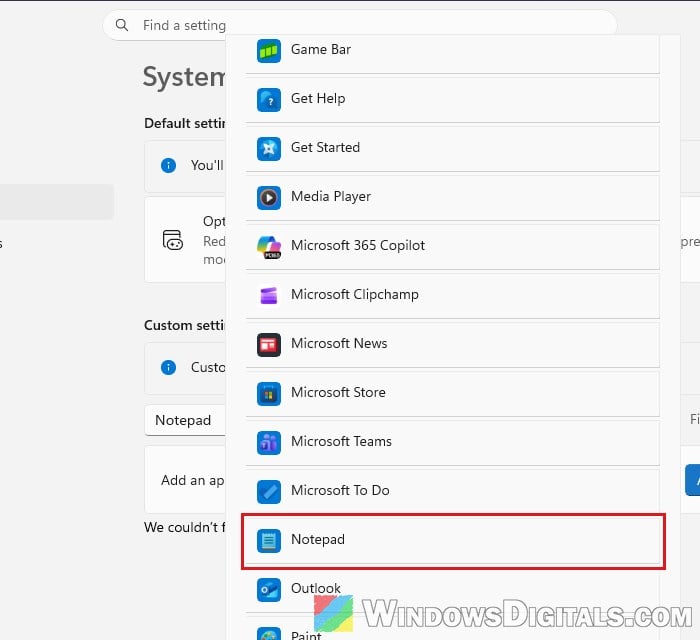
- Select the app that’s glitching (Notepad, Paint, Photos, Snipping Tool or Phone Link). It’s added to the list.
- Click the app in the list to expand it, and open the GPU preference drop-down menu. Your graphics chips are named in parentheses after each option.
- High Performance: choose this if the glitchy monitor is plugged into your graphics card (NVIDIA or AMD), or it’s an external monitor on a laptop whose video ports run on the dedicated graphics (if you’re not sure, try this one first).
- Power Saving: choose this if the glitchy monitor is plugged into the motherboard, or it’s the laptop’s own screen.
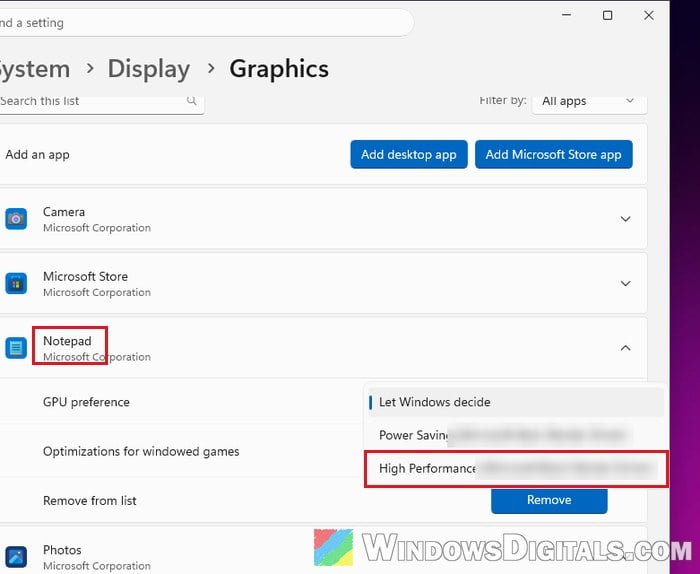
- Close the app completely, since the change only kicks in after the app restarts.
Then open the app on the glitchy monitor again and check if the text and menus look normal.
Do the same for every app that glitches. Keep in mind that this only fixes the app on that monitor, so if you drag it to the screen run by the other graphics chip, it may start glitching there instead. Paint may also run a little slower with High Performance. Once Windows App Runtime 2.6.5 is installed, you can set the apps back to Let Windows decide or click Remove to take them off the list.
Might be useful: Force App or Game to Use Nvidia GPU or Integrated Graphics
Plug the second monitor into the graphics card (desktop PCs)
If you have a desktop PC with a graphics card and your second monitor is plugged into the video port on the motherboard, move its cable to a free port on the graphics card instead. With both monitors on the same graphics card, there’s no second graphics chip involved, and the glitch goes away.
It doesn’t apply to most laptops, though, as their video ports are wired to one graphics chip and you can’t choose.
Keep the app on your main display for now
If none of the above is possible right now, the quickest workaround is to use these apps on your main display, where they look normal. You can also make the other monitor your main display for a while, but remember that the glitch then moves over to the first monitor.
Another option is to press Win + P and choose Second screen only (or Duplicate) while you work in the app, as the apps display fine when Windows isn’t extending the desktop across both screens. It’s not ideal, but it gets you through until the Windows App Runtime update arrives.