If you’ve started Call of Duty: Modern Warfare 4 on your PC and the game suddenly looks washed out, grainy, pixelated or full of strange colors, like someone put a weird filter over everything, it’s most likely a shader problem. It usually shows up out of nowhere, after a restart of the game or between two matches, and mostly on PCs with NVIDIA graphics cards. This guide will explain what’s going on and how to get the normal graphics back.
Also see: Call of Duty: Modern Warfare 4 Low FPS on PC
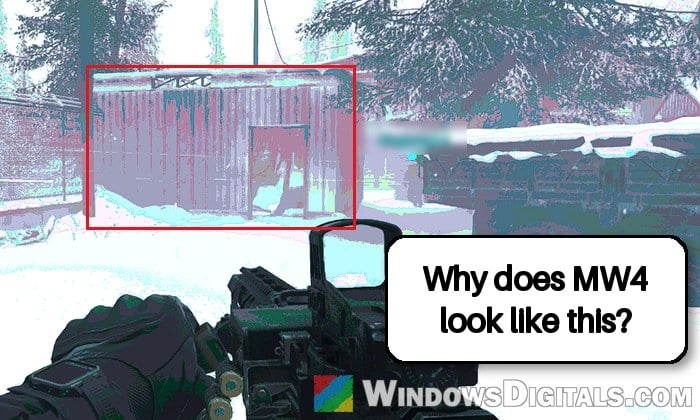
Why does MW4 suddenly look like this?
The problem started for most people after installing NVIDIA’s Game Ready driver 621.01 (October 21, 2026), the driver that added support for Modern Warfare 4 and for Microsoft’s new Advanced Shader Delivery. It shows up on all kinds of cards, from an RTX 3060 to an RTX 5080, and looks about the same everywhere:
- colors that look washed out or inverted, with cyan, purple, blue or white tints, especially in the sky
- a grainy, speckled or cartoon-like look on characters and surfaces
- a rainbow sheen on textures, like oil on water
- for some people, only multiplayer or DMZ looks broken while the campaign is fine
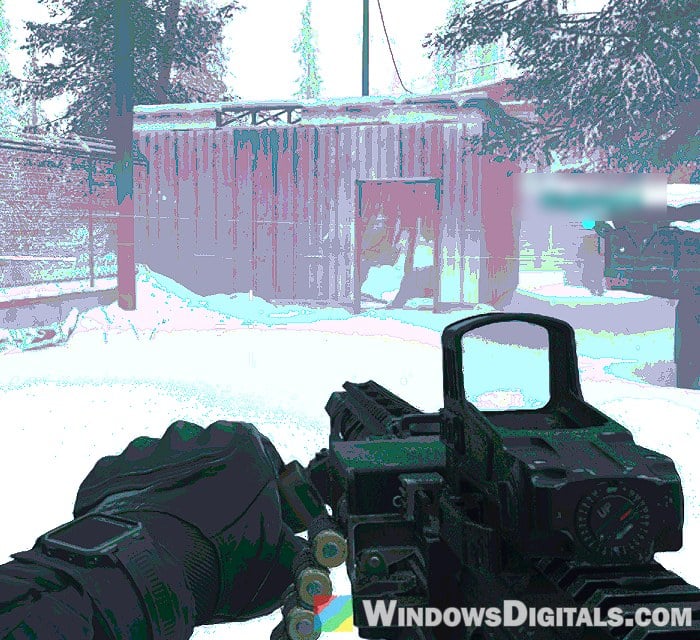
Neither NVIDIA nor Activision has said what causes it, and Activision’s list of known issues for MW4 doesn’t mention it. But the fix that has worked for most players on Reddit suggests the game’s saved shaders got corrupted. Shaders are small programs the game prepares for your graphics card and keeps in a cache, so it doesn’t have to build them again every time. When that cache goes bad, the game keeps using the broken shaders until it’s forced to build new ones.
So it’s very unlikely that your graphics card is failing. People who have this say their other games run fine, and deleting the game’s shaders clears it.
Related concern: GPU Artifacting Examples, How to Test, and Fixes
Restart shader preloading in the game’s settings
MW4 has its own button that deletes its shader cache and builds the shaders again. It’s the quickest thing to try, since you don’t have to dig through any folders. Here’s how to do it:
- In MW4, open Settings and go to Graphics.
- On the Display tab, select “Restart Shader Preloading“. You can also type “shader” in the settings search box to find it.
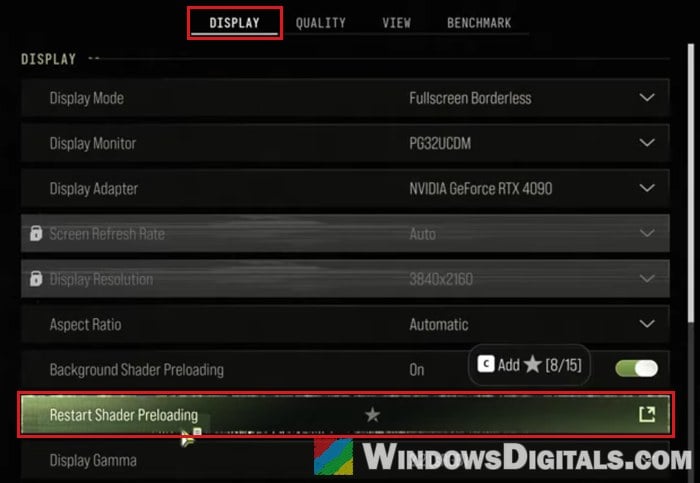
- Confirm with Restart. The game tells you it only takes effect after a restart.
- Quit the game completely and start it again.
- Let the shaders finish preloading.
- Start the campaign first, then quit it.
- Only then go into multiplayer or DMZ.
Starting the campaign before multiplayer sounds odd, but it’s the order that worked for most people. If the game still looks wrong, run the restart once or twice more, since it sometimes takes two or three goes. If that still doesn’t help, delete the shader folders by hand instead (next section).
Delete the “shadercache” folders in cod26 and sp26
This is the more reliable fix, and it often works when the button in the settings doesn’t. MW4 keeps two shader caches in its install folder: a shadercache folder inside cod26 and another inside sp26. Deleting both makes the game build every shader from scratch the next time it starts.
First, close MW4 completely. Then open the game’s install folder from the launcher you play it on:
- Steam: right-click the game in your Library, then select Manage > Browse local files.
- Battle.net: select the game, click the gear icon next to Play, then select Show in Explorer.
- Xbox app: right-click the game, select Manage, go to the Files tab and click Browse.
Note: Only delete the two shadercache folders, not cod26 or sp26 themselves, since those hold the game’s own files.
Now follow the steps below:
- In the game’s folder, open the cod26 folder.
- Delete the folder named shadercache inside it.
- Go back and open the sp26 folder.
- Delete the shadercache folder in there too.
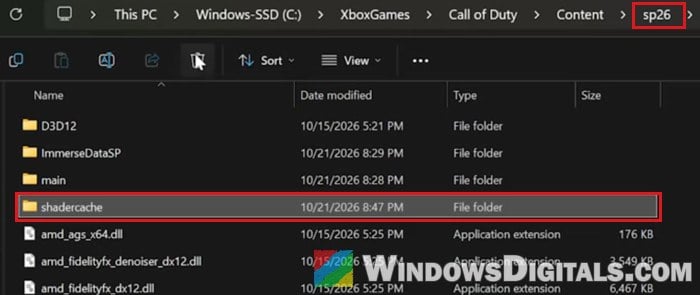
- Start MW4 and let it build the shaders again before you play. This can take a while.
The graphics should be back to normal once the shaders are done. If the problem comes back later, which happens to some players, delete the two folders again.
Pro tip: Game Keeps Compiling Shaders Every Time I Open It (Fix)
Go back to the previous NVIDIA driver (617.42)
If fresh shaders don’t fix it, or the graphics keep breaking again, go back to the Game Ready driver you had before 621.01, which is 617.42. On the older driver, MW4 usually looks normal again. Installing a driver also makes the game build its shaders again, which may be part of why it helps.
NVIDIA has released hotfix driver 621.12 since then, but its list of fixes doesn’t include this problem, and some who installed it still had the strange graphics in MW4. For now, 617.42 is the safer choice.
You can roll back with Roll Back Driver in Device Manager, or download 617.42 for your card from NVIDIA’s drivers page at https://www.nvidia.com/en-us/drivers/ and install it, choosing Custom (Advanced) and checking “Perform a clean installation“. Both ways are explained in this guide: nvlddmkm Event ID 153 After NVIDIA Driver 621.01, What to do?
Once you’re on 617.42, start MW4, let it finish preparing its shaders, and play a few matches to see if the graphics stay normal. You can move back to a newer NVIDIA driver later, once one comes out that lists a fix for Modern Warfare 4 in its release notes.