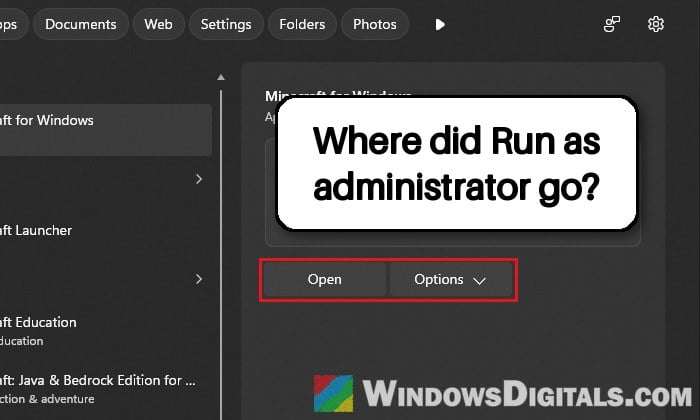
If you clicked the search box on your Windows 11 taskbar and found a completely different search panel, with the search box moved to the top, every result sitting in its own little box, and only Open and Options where the list of actions used to be, it’s not just your PC. Many people on 26H2 (and some on 25H2) got it after a simple restart and want the old one back. This guide explains what changed, whether you can switch back, and what you can do about it.
Also see: Windows 10/11 Start Menu Search Can’t Find Anything
What changed in Windows 11 search?
This is Microsoft’s redesigned Windows Search, not a glitch. Microsoft first tested it with Windows Insiders in July 2026 as a cleanup to make search less cluttered: each result now says whether it’s an app, a setting, a file, a web result or a Microsoft Store suggestion, and promotional content was removed. The search highlights graphic is gone too. It also brought a new setting that lets you decide whether web and Store suggestions show up at all.
Since the optional August 2026 update, Microsoft has been switching the new design on for regular PCs a little at a time. Installing a certain update doesn’t decide when you get it, which is why it can show up after an ordinary restart, and why one of your PCs can have it while the other doesn’t.
This is what the new panel looks like after you type something:
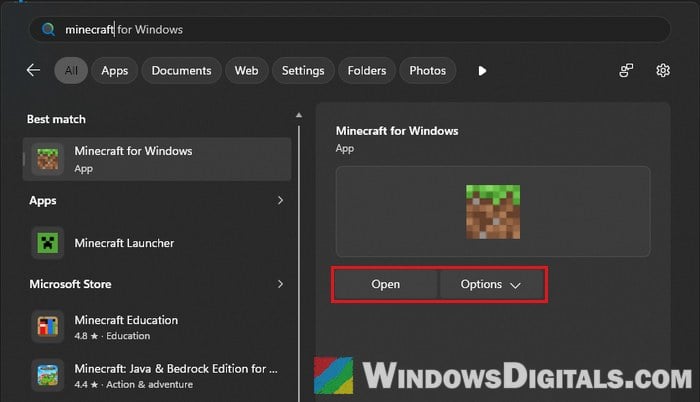
And this is the old one, which many PCs still have. Notice how the right side used to list Run as administrator and Open file location directly, while the new one hides them behind the Options button. That extra click is one of the main complaints about the redesign.
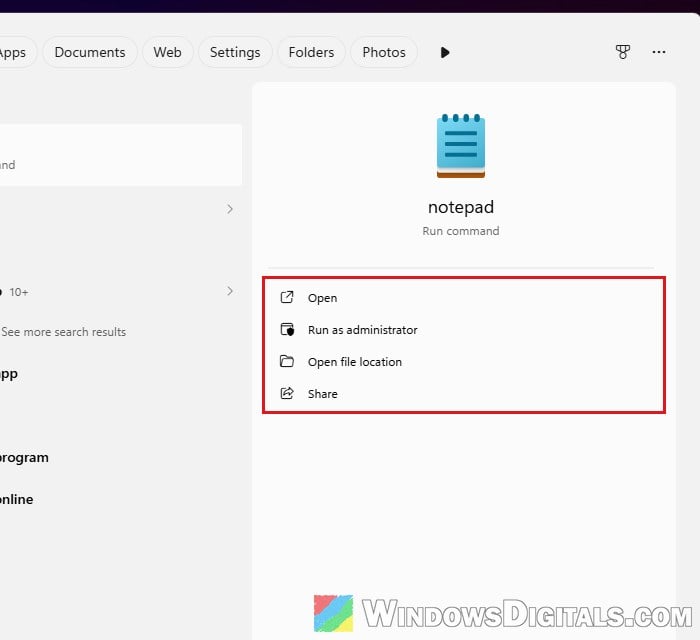
If you thought something broke, resetting Windows Search, restarting Explorer, running SFC and DISM, or even System Restore won’t change it, since nothing is actually wrong.
Can you switch back to the old search?
Unfortunately, no. There’s no setting in Windows 11 that brings the old search panel back, and Microsoft hasn’t given any way to turn the new design off. Plenty of people on Reddit and Windows forums have looked for one, and nobody has found it.
You might see suggestions to use ViVeTool (a tool that flips hidden Windows features on or off) or to uninstall the latest optional update. Neither one holds up. Nobody has shared a feature ID that brings the old search back, and the latest optional update (October 2026) doesn’t list any search change in the first place. I would not mess with these on a PC you rely on.
What you can do is make the new search less annoying, or use something else for searching.
Pro tip: Windows 11 Search Slow? Speed Up Search in File Explorer
Turn off web and Microsoft Store suggestions
The redesign came with a setting that keeps web results and Microsoft Store suggestions out of the search panel, so you only see your apps, files and settings. It won’t change the layout, but the panel gets a lot shorter and less cluttered when half of it isn’t Bing and Store results.
Here’s how to do it:
- Press Win + I to open Settings.
- Go to Privacy & security > Search.
- Under “Show suggested search results“, turn off Microsoft Store, and turn off web searches as well if you don’t want Bing results in the panel.
If you don’t see “Show suggested search results” on that page, your PC most likely hasn’t received the new search yet, which means it still has the old panel anyway.
Make the taskbar search smaller or hide it
If what bothers you is the wide search box taking up room on the taskbar, you can shrink it to an icon or hide it completely. Search still opens the same way with Win + S.
Here’s how to change it:
- Right-click an empty spot on the taskbar and select Taskbar settings.
- Under Taskbar items, click the drop-down menu next to Search.
- Choose Search icon only, Search icon and label, or Hide.
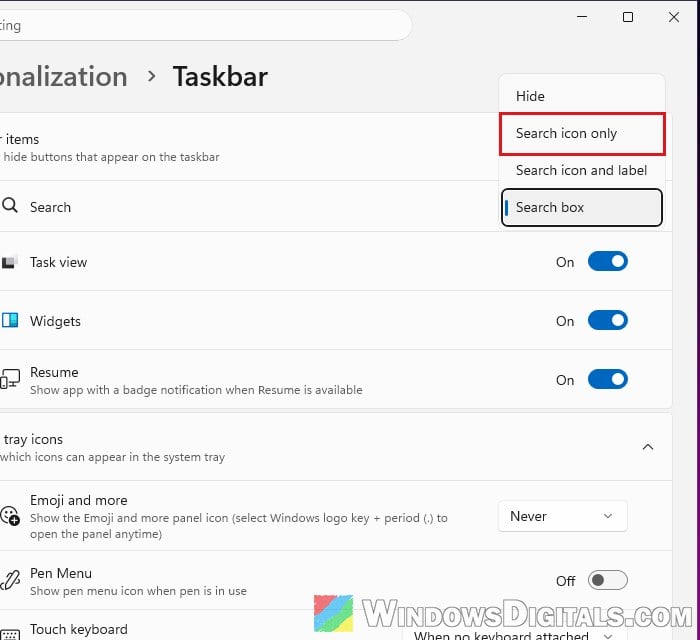
Choose Search box from the same menu if you want the full box back later.
Might be useful: How to Search for Files in Windows 11 Start Menu Search
Use PowerToys Command Palette instead
If you mostly use search to open apps and files quickly, PowerToys Command Palette is the closest thing to a fast, simple search box right now. It’s Microsoft’s own launcher, and it works no matter what the taskbar search looks like.
To install and use it:
- Press Win + R, type
cmdand press Enter to open Command Prompt. - Type the following command and press Enter to install PowerToys:
winget install Microsoft.PowerToys
- Once it’s installed, press Win + Alt + Space anywhere and start typing the name of an app, file or setting.
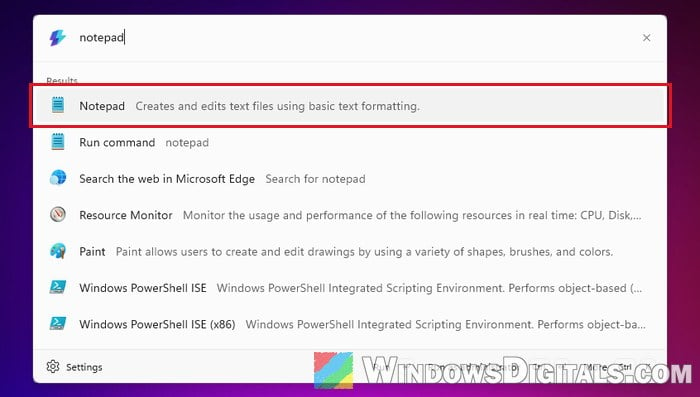
- Press Enter to open the top result, or press Ctrl + Enter to run it as administrator without any extra menu.
A few handy tricks: type file followed by a space to search your files, $ followed by a settings page name (for example, $ display) to jump into Settings, and ?? before a phrase to search the web in your browser.
If you prefer something smaller, you can make it open as a single search bar that only expands when results show up:
- Open Command Palette and press Ctrl +
,(or click the gear icon at the bottom left) to open its settings. - Go to Personalization.
- Next to “How Command Palette opens“, select Compact search box.
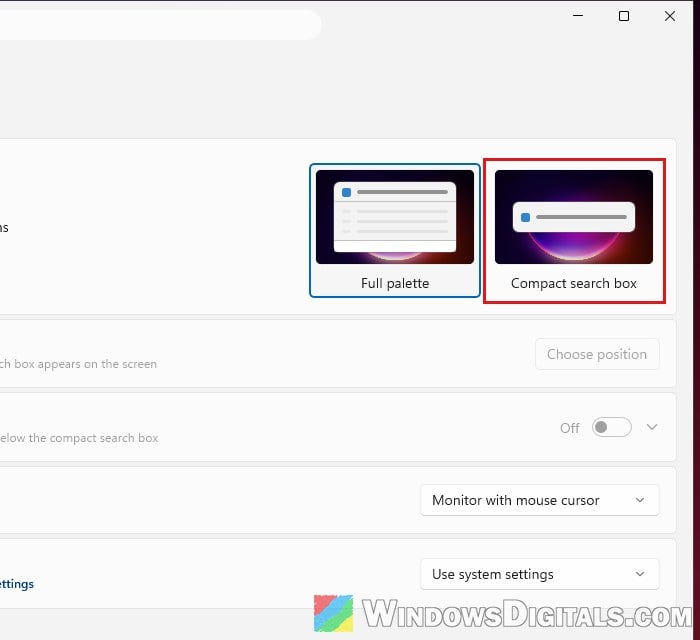
Command Palette needs to stay running in the background for the shortcut to work. You can turn it on or off from the PowerToys settings Home page, and change the shortcut in Command Palette’s settings.
A newer search is already on the way
Microsoft is testing yet another version of Windows Search with Windows Insiders (since October 7, 2026). It shows one simple list of results instead of two panes (Microsoft says nearly all clicks happened in the list on the left anyway), it’s built to be faster and lighter, and it can do quick things right from the search box, like switching to dark mode or muting the sound.
Microsoft hasn’t said when it will reach regular PCs. Until then, if you want Microsoft to hear what you think of the current search, open Feedback Hub with Win + F and send your feedback under Desktop Environment > Search.