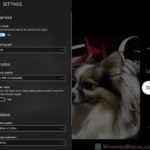
If you used to zoom your webcam in from Settings > Bluetooth & devices > Cameras and the Zoom slider (and maybe Pan and Tilt too) has suddenly disappeared, there’s a good chance a recent driver update is behind it. The camera still works, but it’s stuck at its widest view and you can’t zoom in for calls anymore. This guide will explain why the zoom control went away and what you can do to get it back, or zoom in some other way.
Also see: How to Test Camera on Windows 11
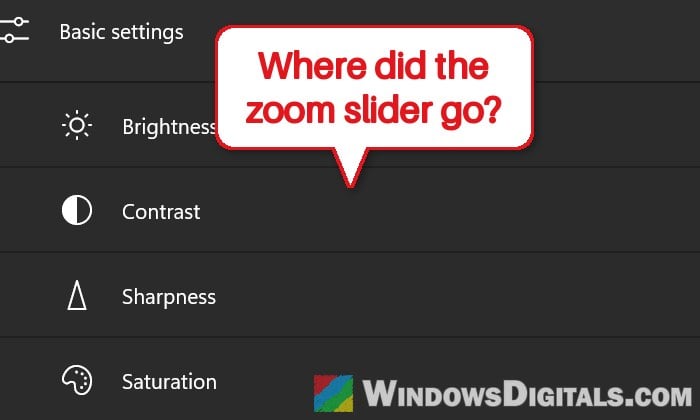
Why did the zoom slider disappear?
The zoom slider isn’t a fixed part of the Settings page. According to Microsoft, Zoom, Pan, Tilt, Brightness, Contrast and the other “Basic settings” are optional controls. Windows only shows each one if the camera, through its driver, tells Windows it supports it. So when the slider vanishes, it almost always means the camera driver stopped reporting zoom to Windows, not that a setting was switched off.
The usual trigger is a camera driver update, pushed through Windows Update or the PC maker’s own update tool. Most of the reports come from Lenovo laptops (IdeaPad, Legion and ThinkPad models), but it’s not limited to them. In several cases, the newer camera driver for that model simply doesn’t include the zoom, pan and tilt controls anymore, and they disappear from the Windows Camera app and apps like Zoom too, not only from Settings.
This also explains why the usual tricks don’t help here. Turning camera privacy settings on and off, repairing or resetting the Camera app, or trying another user account don’t bring the slider back, because none of them change the driver.
Related guide: How to See What Drivers Are Installed in Windows 11
Check whether your camera driver was recently updated
First, check whether a driver update is what happened. If a camera driver was installed around the day the zoom slider went missing, you’ve likely found your cause.
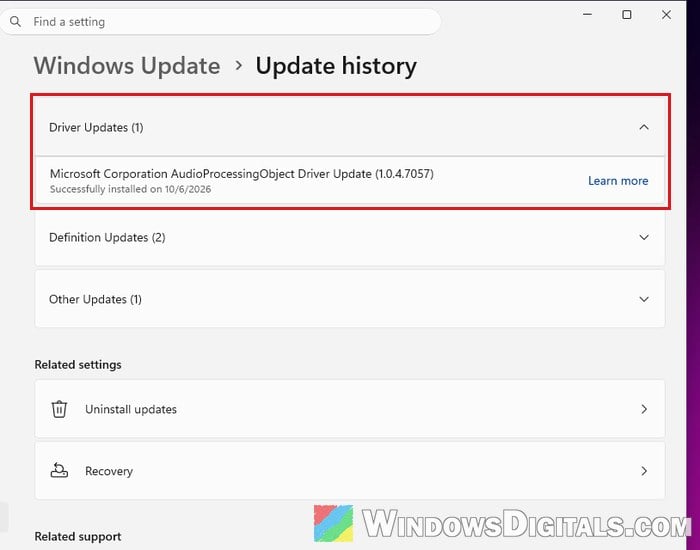
- Open Settings > Windows Update > Update history.
- Look under Driver Updates for anything with “camera” or your camera’s maker in its name (often Realtek, Sunplus, Sonix or similar), and note the date it was installed.
- Right-click the Start button and select Device Manager.
- Expand Cameras, right-click your camera (usually called Integrated Camera on laptops) and select Properties.
- Open the Driver tab and note the Driver Provider, Driver Date and Driver Version.
If the driver date is recent and lines up with when the zoom disappeared, go on to the next section.
Roll back the camera driver
If Windows still keeps the previous camera driver, rolling back is the quickest thing to try. It reinstalls the version you had before the update.
- In Device Manager, go to Cameras, right-click your camera and select Properties.
- On the Driver tab, click Roll Back Driver.
- Pick any reason and click Yes.
- Restart your PC.
After the restart, open Settings > Bluetooth & devices > Cameras, select your camera and see if the Zoom slider is back under Basic settings.
For many people, though, the Roll Back Driver button is grayed out, which means Windows didn’t keep the old driver. If that’s the case for you, try the next method instead.
Pick an older camera driver that’s already on your PC
Even when rollback isn’t available, Windows sometimes still has an older version of the camera driver stored on the PC. You can choose it by hand:
- In Device Manager, right-click your camera under Cameras and select Update driver.
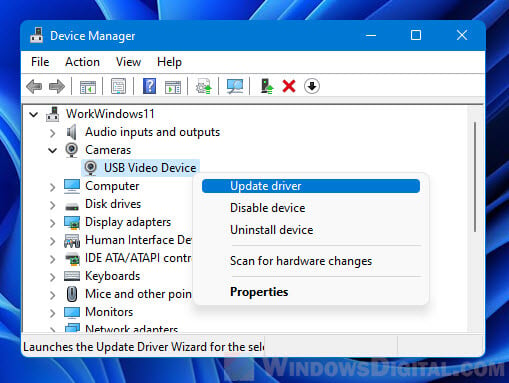
- Click Browse my computer for drivers.
- Click Let me pick from a list of available drivers on my computer.
- If more than one version of your camera’s driver is listed, select an older one (from before the zoom went missing) and click Next.
- Restart your PC and check the camera’s page in Settings again.
If the list only shows the current version, move on to the next section.
Pro tip: How to Uninstall Drivers in Windows 11
Install an older camera driver from your PC maker
Since the newest driver is what removed the zoom control, installing an older version of your laptop’s camera driver can bring it back, and it can work even when rollback isn’t available. You might need to try a few versions, going further back each time, before you find one that still has the zoom slider.
- Press Win + R, type
msinfo32and press Enter. Note your System Model and System SKU. - Go to your PC maker’s support website and find the drivers page for your exact model.
- Look under the camera section for the camera driver (on Lenovo’s site, it’s under Camera and Card Reader). Compare its date and version with what Device Manager showed. If the site lists older versions, download one that’s older than the driver you have now.
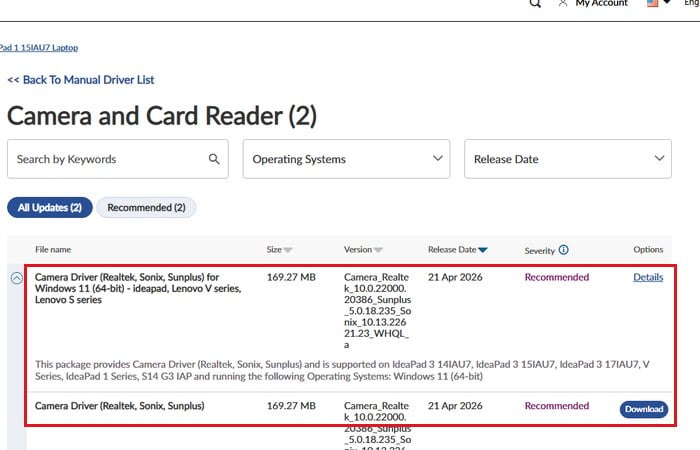
- Install it, then restart your PC.
After the restart, check the camera’s page in Settings > Bluetooth & devices > Cameras to see if Zoom is back under Basic settings.
Reinstalling the same driver you already have won’t help, since that’s the version without zoom. And keep in mind that Windows Update may later offer the newer camera driver again, so if the slider disappears a second time, check the update history first.
Might be useful: How to Install or Update Driver in Windows 11
Check your camera maker’s own app
Some cameras come with a companion app from their maker that has more controls than the Windows Settings page. When a camera has one, Microsoft says a link to it shows up under Related settings on that camera’s page in Settings > Bluetooth & devices > Cameras.
On Lenovo laptops, that’s Lenovo Vantage, and Lenovo’s support page puts its camera settings under My Device Settings > Display & Camera. Whether it offers a zoom control depends on the model and its driver, so open it and check. For external webcams, look for the maker’s own camera software.
Linked issue: Camera Error 0xA00F4244 “NoCamerasAreAttached” in Windows 11
Zoom in with OBS Studio’s virtual camera instead
If you can’t get an older driver or the zoom just won’t come back, you can still crop and zoom your webcam picture yourself with OBS Studio, a free app. Its virtual camera sends the zoomed-in picture to apps like Teams, Zoom and other video call apps as if it were a normal webcam.
- Download and install OBS Studio from its official website,
https://obsproject.com/. - Open OBS Studio and add your webcam as a source in the Sources box (click +, choose Video Capture Device, then pick your webcam).
- In the preview, resize or crop the webcam picture until it’s zoomed in the way you want.
- In the Controls dock on the right, click Start Virtual Camera.
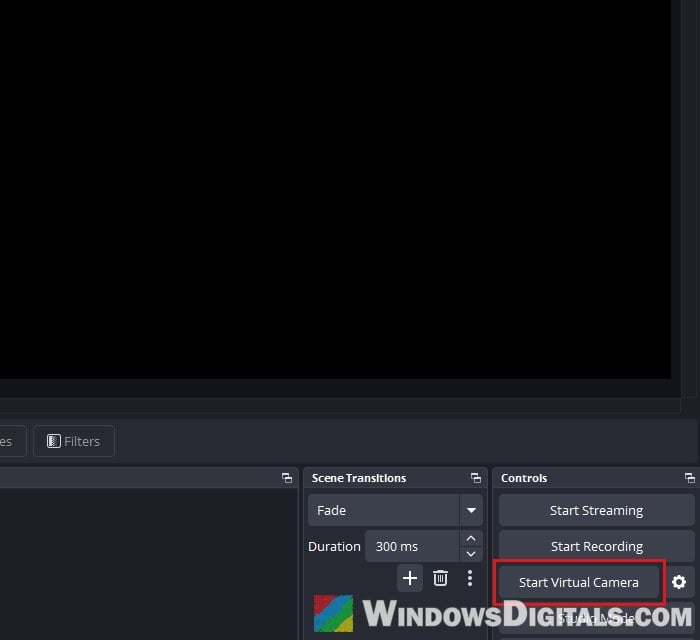
- In your video call app, open its camera settings and choose OBS Virtual Camera as the camera.
Please note that OBS has to stay open with the virtual camera running for this to work. Also, OBS Virtual Camera doesn’t show up in Windows Settings or the Windows Camera app, only in apps that list it as a camera.
Is the Windows Camera app getting its own zoom?
Microsoft is working on a software zoom for the Windows Camera app, for cameras that don’t have a zoom of their own. As of October 2026, it’s rolling out to Windows Insiders with Camera app version 2026.2608.1.0. It only works inside the Camera app itself, though, so it won’t help in Teams or Zoom.