If you’ve just reset or reinstalled Windows 11 and noticed an account or a folder called defaultuser0 (sometimes defaultuser1 or defaultuser100000) that you never created, it’s almost always a leftover from Windows setup, not someone else using your PC. This guide explains what this account actually is, whether it’s safe to delete, and what to do if it’s the only account you can see on the sign-in screen.
Also see: How to Change User Account Name in Windows 11
Page Contents
What is the defaultuser0 account?
defaultuser0 is a temporary account that Windows creates during setup, on the first-time setup screens (also called the “out-of-box experience”, or OOBE). At that point your own account doesn’t exist yet, so Windows uses a temporary account to run those screens until yours is created.
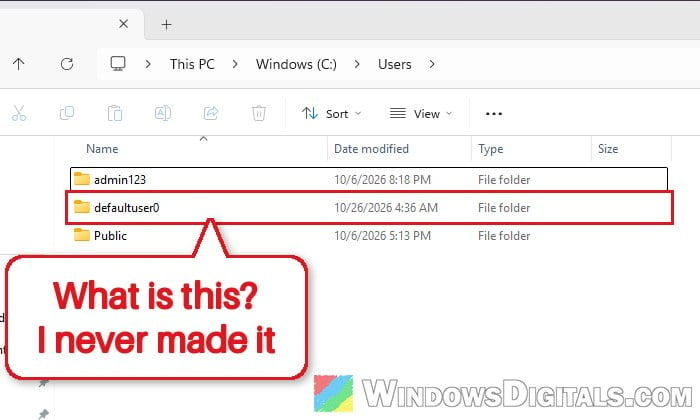
Once setup finishes and your real account is created, Windows is supposed to delete defaultuser0 by itself, usually by the first restart. When that cleanup doesn’t happen, you’ll see the account or its folder hanging around in C:\Users.
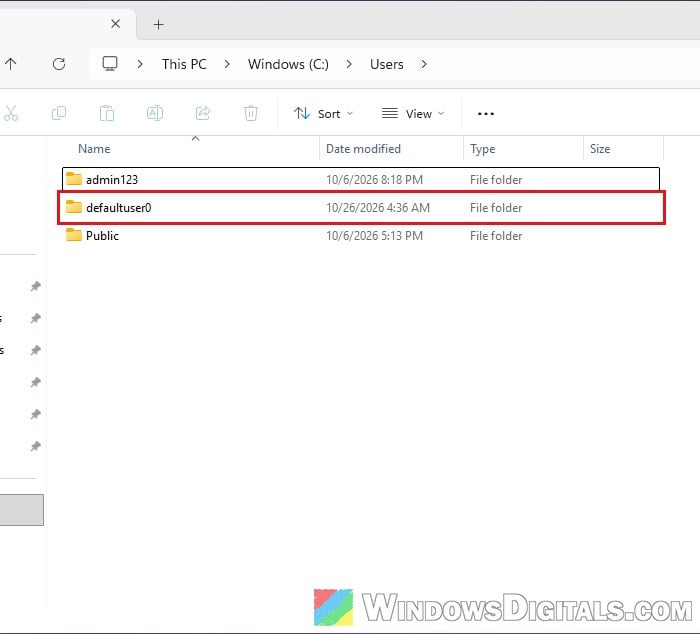
defaultuser1 is the same thing with a different number. defaultuser100000 folders (and variations like defaultuser100000.PCNAME) are also leftovers from the Windows installer. In most cases there’s no actual account behind those folders, just the folder.
Why is defaultuser0 still on your PC?
It’s a pretty common question on Reddit and Microsoft’s forums. The account usually shows up right after a factory reset, “Reset this PC” or a clean install. Some common reasons why the temporary account wasn’t removed are:
- Setup or the reset didn’t finish properly: if setup or a reset stops partway, the temporary account can be left behind.
- A customized Windows install: an install made with a broken unattended answer file, or a “debloated” Windows image with a package setup needs removed, can break the final cleanup.
- The sign-in screen remembers it: the sign-in screen can sometimes show defaultuser0 as the last account that signed in.
Either way, it’s not malware, and it doesn’t mean someone else can get into your PC.
Is it safe to delete defaultuser0?
Yes. If you can sign in to your own account and everything works normally, the defaultuser0 account and its folder are no longer needed and can be safely deleted.
There’s one thing worth checking first, though. Open C:\Users\defaultuser0 and see whether any of your own files ended up in there. If the account was used for a while, downloads or documents might have been saved under it. In one case the folder took up over 100 GB. Move anything you want to keep to your own user folder before deleting it.
Check whether it’s a real account or just a folder
To find out whether defaultuser0 is still an actual account, follow the steps below:
- Search for “Command Prompt” in the Start menu, right-click it and select Run as administrator.
- Type the following command and press Enter:
net user
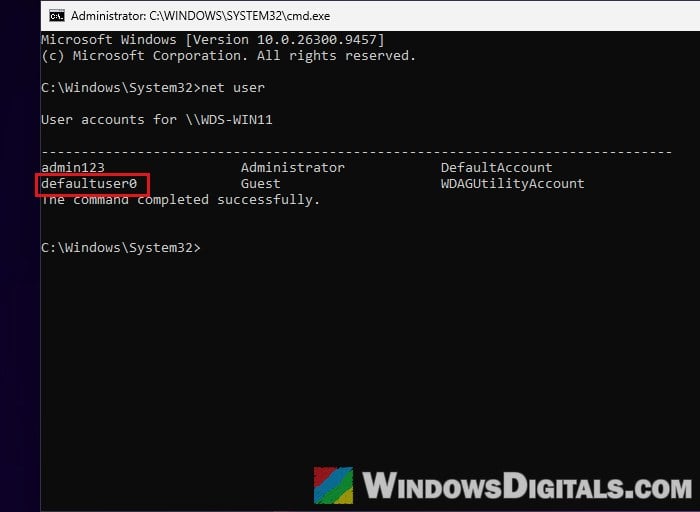
- If defaultuser0 (or defaultuser1) is in the list, it’s still a real account. If it’s not there, only the leftover folder is left (see the last part of the next section).
How to remove the defaultuser0 account and its folder
The easiest way is through the Settings app, which removes the account and its folder in one go. Here’s how to do it:
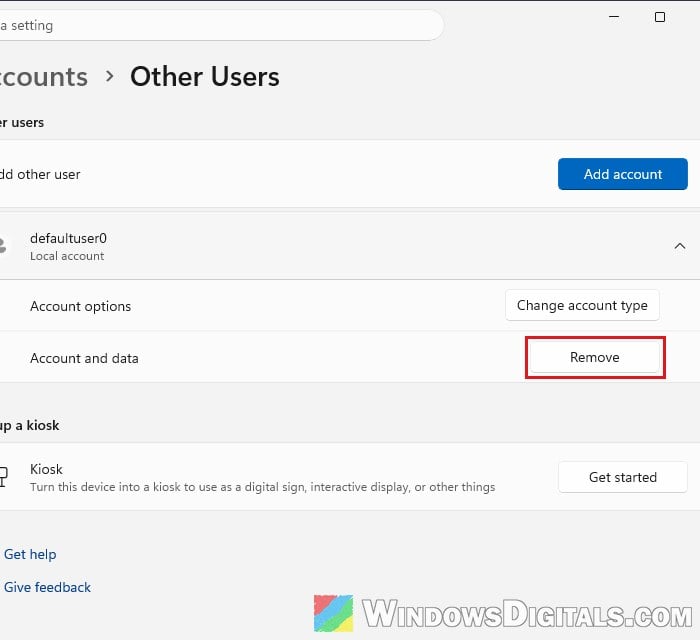
- Press Win + I to open Settings, then go to Accounts > Other Users.
- Click on defaultuser0 to expand it, then click Remove next to Account and data.
- Click “Delete account and data” to confirm.
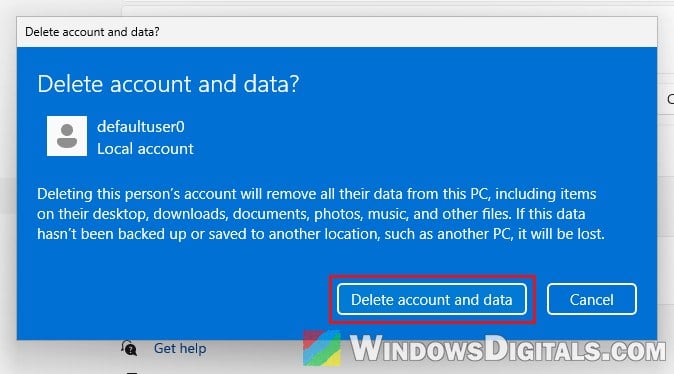
As the confirmation says, this also deletes everything stored in that account’s folder, which is why it’s worth checking the folder for your own files first. Afterwards, defaultuser0 should no longer be listed under Other Users, and its folder should be gone from C:\Users.
If defaultuser0 isn’t listed in Settings
If the account doesn’t show up under Other Users, you can remove its profile and the account manually. You need to remove both, because net user alone deletes the account but leaves the C:\Users\defaultuser0 folder behind (the profile then shows up as Account Unknown). Here’s what you should do:
- Press Win + R, type
sysdm.cpland press Enter to open System Properties. - Go to the Advanced tab and click Settings… under User Profiles.
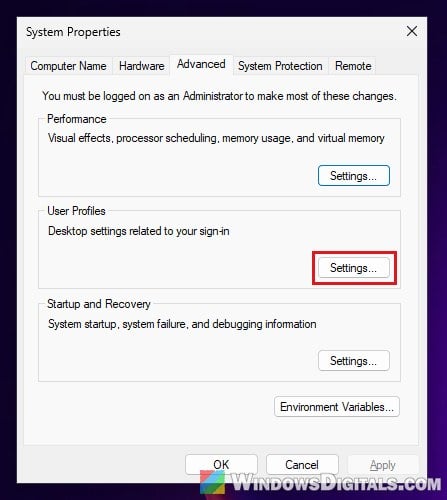
- Select the defaultuser0 profile (it may show as Account Unknown instead), click Delete, then click Yes to confirm.
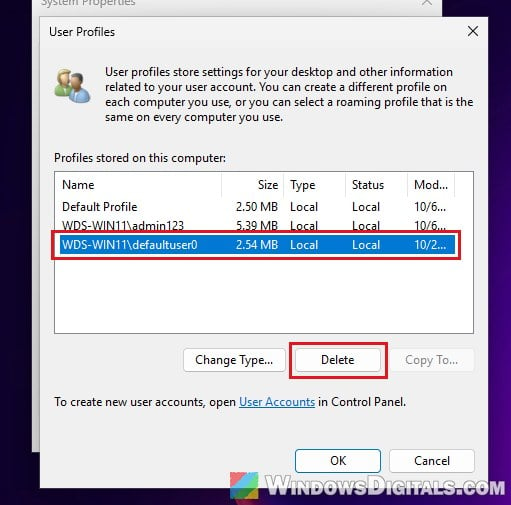
- Open Command Prompt as administrator again, and run the following command to delete the account itself (replace defaultuser0 with defaultuser1 if that’s the one you have):
net user defaultuser0 /delete
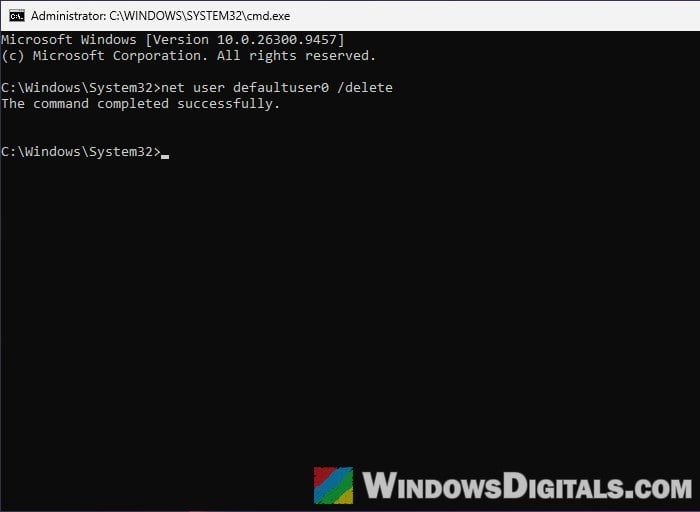
Open C:\Users again to make sure the defaultuser0 folder is gone.
Linked issue: Windows 11 Account Unknown S-1-15-3 or S-1-5-21?
If there’s only a leftover folder
For defaultuser100000 folders and other leftovers that net user doesn’t list, there’s no account to remove. First open User Profiles as shown above, and if the folder is listed there (it may show as Account Unknown), delete it from there. If it isn’t listed, just delete the folder from C:\Users in File Explorer. If File Explorer refuses, open Command Prompt as administrator and run:
rmdir /s /q "C:\Users\defaultuser100000"
Change the folder name in the command to match the one on your PC, and repeat it for each leftover folder.
Related concern: “User Profile Service Failed The Logon” Windows 10/11
What if defaultuser0 is the only account on the sign-in screen?
This is the more serious case. If Windows only shows defaultuser0 or defaultuser1 on the sign-in screen and asks for a password, there’s no password you’d know for it, since you never created it. Your own password won’t work either. It usually means the reset or setup didn’t finish, so Windows is only half set up.
The fix is to reset the PC and let setup run properly this time.
Be warned: Remove everything wipes all personal files, apps and settings on the drive. If there’s anything important on it, take the drive out and copy the files off using another computer first, or get someone who knows how to help you with it.
To reset the PC from the sign-in screen, follow the steps below:
- On the sign-in screen, click the power icon, then hold down Shift while you click Restart.
- When the blue recovery screen appears, select Troubleshoot > Reset this PC.
- Choose Remove everything, then pick Cloud download or Local reinstall.
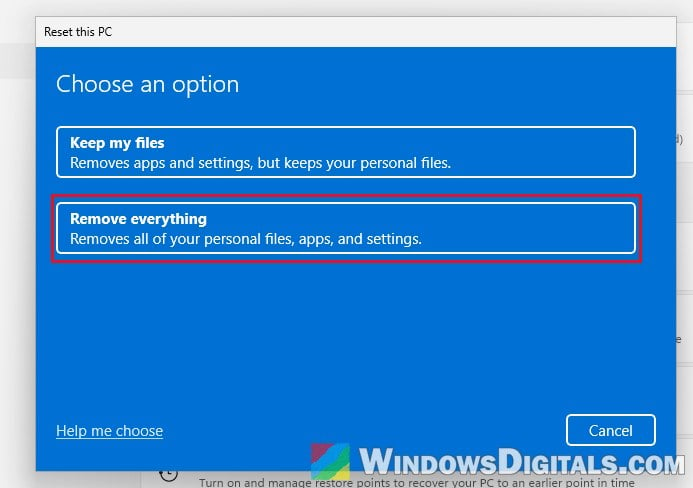
- Let the reset finish without restarting the PC yourself. The screen might stay black for a long time (sometimes up to 15 minutes), and that’s normal.
Related problem: Windows 10/11 Reset Stuck at 1%, 99% or Other %
If the reset fails again or brings defaultuser0 right back, your best option is to do a clean install of Windows from a USB drive instead. For a guide on making one, see: How to Burn Windows 11 ISO to USB.