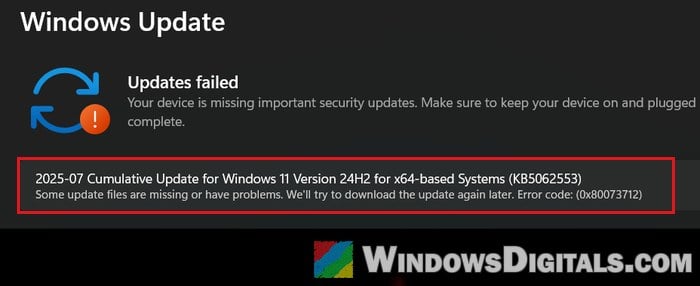
If Windows Update keeps telling you “Some update files are missing or have problems. We’ll try to download the update again later. Error code: (0x80073712)” when installing the October 2026 security update KB5127648 or another cumulative update, downloading it again usually doesn’t help, because the problem is on your PC and not in the download. This guide will show you what the error means and how to fix it.
Also see: Windows 11 “Updates failed” with a “Retry” button
Page Contents
What does error 0x80073712 mean?
Error 0x80073712 means that the Windows component store is damaged or out of sync. The component store (the C:\Windows\WinSxS folder) holds the files Windows uses to install updates, so when something in it is broken or missing, the update can’t finish and Windows Update just keeps trying again.
It’s not only a KB5127648 thing. The same error hit earlier monthly updates too, and in March 2026 Microsoft had to pause the optional update KB5079391 over it and release a fix. For KB5127648, Microsoft doesn’t list 0x80073712 as a known issue, so you’ll have to fix it on your PC.
Linked issue: Windows 11 Update Fails With Error 0x80070306 (KB5127648)
Turn off Windows Sandbox if you have it
This one only applies if you’ve turned on Windows Sandbox, but it’s the quickest thing to check. In early October 2026, Microsoft confirmed that some Windows Insider test builds failed to update with error 0x80073712 on PCs with Windows Sandbox installed, and suggested turning Sandbox off (a later test build fixed it). Sandbox could be behind the KB5127648 error too, though Microsoft hasn’t confirmed that for the regular monthly update.
Here’s how to do it:
- Press Win + R, type “optionalfeatures” and press Enter to open Windows Features.
- Find Windows Sandbox in the list. If it’s not checked (or not in the list at all), skip this fix and move on to the next one.
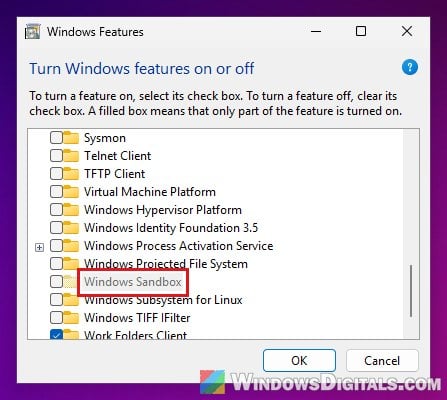
- If it’s checked, clear its check box and click OK.
- Restart your PC.
- Go to Settings > Windows Update and try installing the update again.
If the update goes through, you can turn Windows Sandbox back on the same way if you use it.
Repair the component store with DISM and SFC
DISM is Windows’ own tool for repairing the component store, so it’s the first real fix to try. SFC then checks the system files using the repaired store.
To be honest, they don’t fix 0x80073712 every time, and the scans often come back clean while the update still fails. But they’re safe, so they’re worth running before the bigger fixes below.
Here’s what you should do:
- Click Start, type “cmd“, and select Run as administrator for Command Prompt, then click Yes.
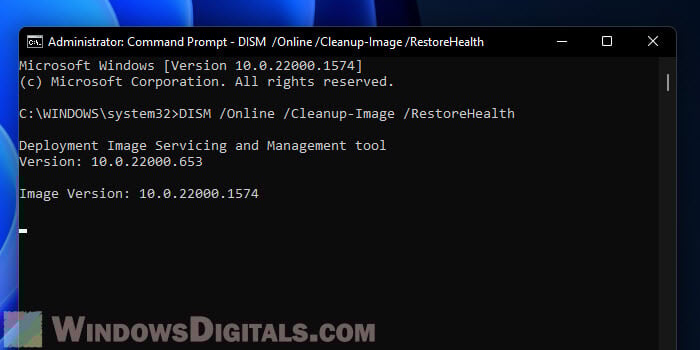
- Type the following command and press Enter:
DISM.exe /Online /Cleanup-Image /RestoreHealth
Let it run until it reaches 100%.
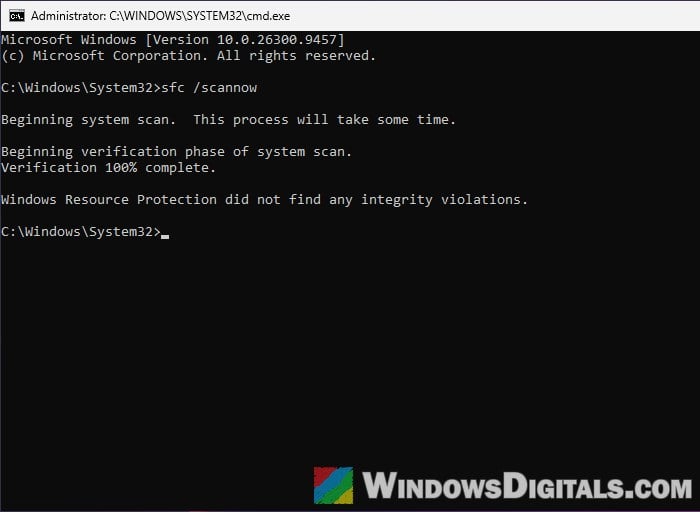
- When it’s done, type the following command and press Enter:
sfc /scannow
- Restart your PC, then go to Settings > Windows Update and try the update again.
If DISM itself fails with an error, see the guide below before moving on.
Related problem: DISM Error 0x800f0915 “The repair content could not be found anywhere”
Install the update manually from the Microsoft Update Catalog
Instead of going through Windows Update, you can download the full update package from Microsoft and run it yourself. This gets past 0x80073712 in many cases, sometimes only on the second try, so if the first run looks like it failed, run the update again before giving up.
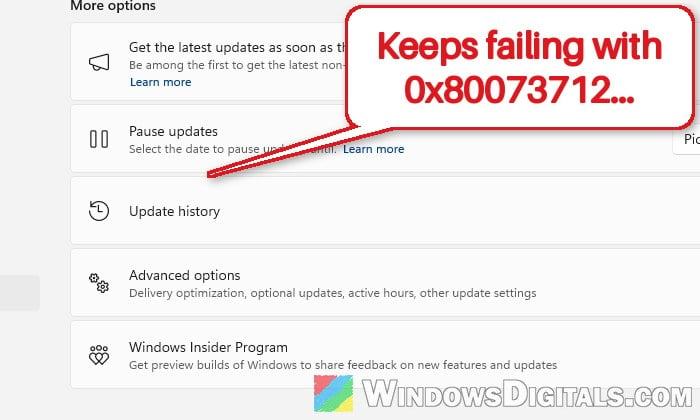
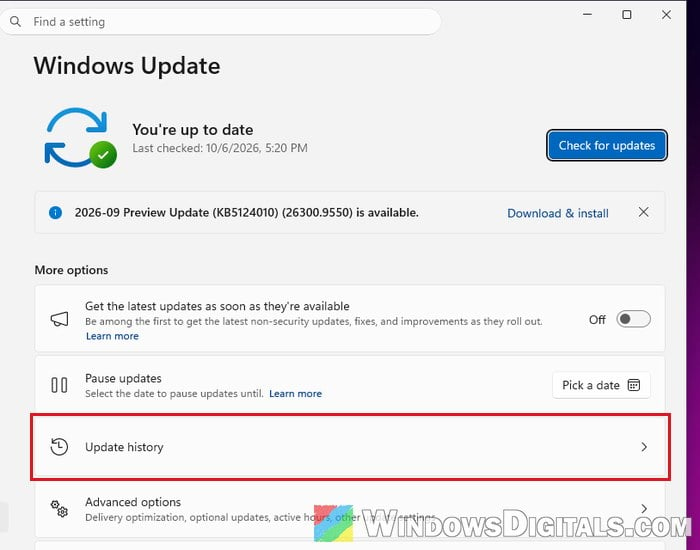
First, find out which update is failing. Go to Settings > Windows Update > Update history and look for the failed update and its KB number (for example, KB5127648).
Then follow these steps:
- Go to
https://www.catalog.update.microsoft.com/and search for the KB number. If the page stays blank, refresh it. - Find the line for your version of Windows 11. Every version has a line with the same KB number, and the version is in its name, such as “2026-10 Cumulative Update for Windows 11, version 26H2 for x64-based Systems (KB5127648) (26300.9711)“. Pick x64 for most PCs, and arm64 only for ARM-based laptops.
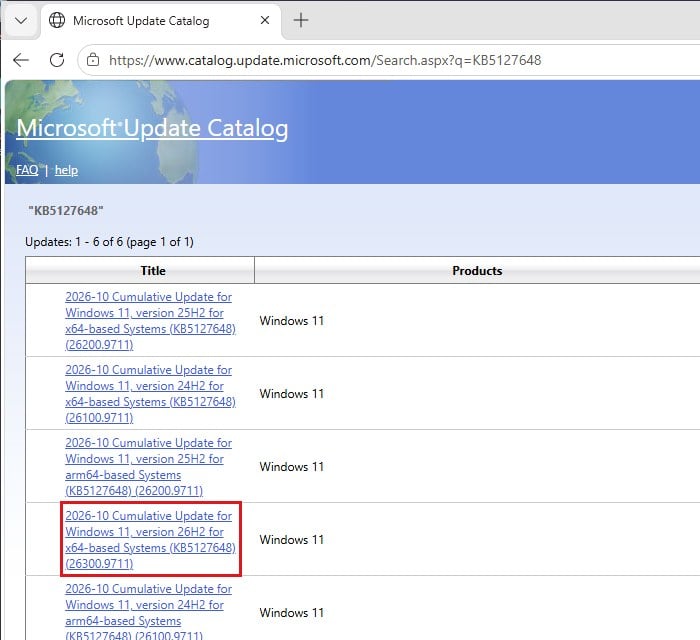
- Click Download on that line.
- The window that opens lists the .msu files for the update. Click each one to download it, and save them all into the same folder.
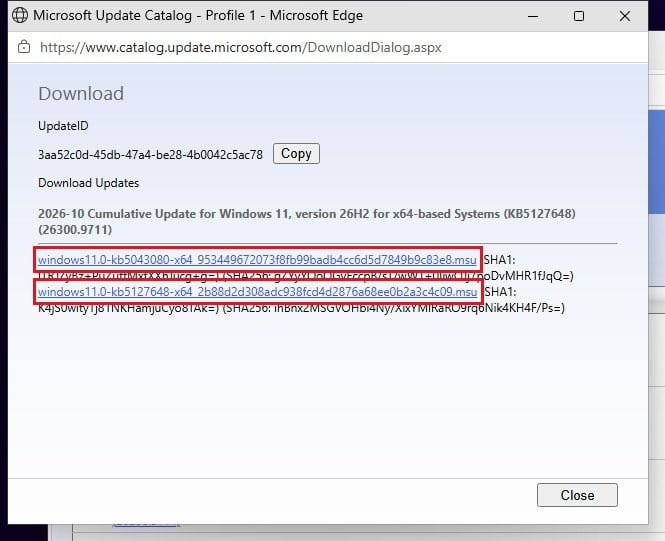
- Double-click the downloaded file to install it. For KB5127648 there are two: according to Microsoft, windows11.0-kb5043080 goes first, so install that one, then do the same with the windows11.0-kb5127648 file.
- Restart your PC when it’s finished.
If you’d rather use one command, move both files into a folder like C:\packages, open Command Prompt as administrator, and run the command below. Replace <file name> with the full name of the kb5127648 file. According to Microsoft, DISM picks up the kb5043080 file from the same folder on its own:
DISM /Online /Add-Package /PackagePath:c:\packages\<file name>.msu
After the restart, go to Settings > Windows Update and check for updates to see if the update is still offered.
Use “Fix problems using Windows Update”
If the update still won’t install, the component store is probably too damaged for DISM to repair. Several users on Reddit said what finally got rid of 0x80073712 was a repair install, and Windows 11 has one built in. It reinstalls your current version of Windows through Windows Update, which replaces the broken files, and according to Microsoft it keeps your apps, files and settings.
It can take quite a while, so keep your PC plugged in and connected to the internet until it’s done. Here’s how to do it:
- Press Win + I and go to System > Recovery.
- Under “Fix problems using Windows Update“, click Reinstall now.
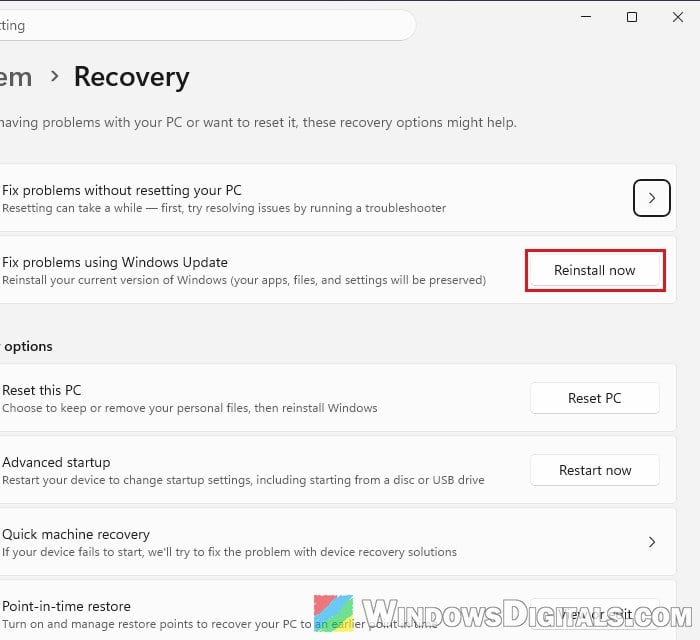
- Check “Automatically restart my PC 15 minutes after installation” if you want Windows to restart by itself, then click OK.
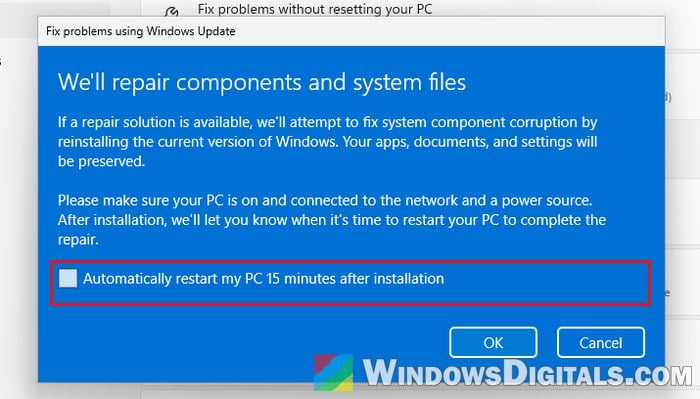
- Let Windows download and install the files. If you didn’t let it restart by itself, restart your PC when it’s ready.
- Go to Settings > Windows Update, click Check for updates and install the update again.
Learn more: “Reinstall your current version of Windows” Message
What if the option isn’t there or the repair fails?
Microsoft says this option isn’t shown on PCs managed by a work or school organization or with certain Windows Update policies, and it needs the February 2024 optional update or later. If you can’t use it, or the repair itself fails, use the in-place upgrade below.
Might be useful: “Windows 11, version 25H2 (repair version)” Failed to Install
Do an in-place upgrade with the Windows 11 ISO
An in-place upgrade reinstalls Windows over itself from Microsoft’s own setup files, while keeping your files and apps, so it works even when Windows Update can’t. The Windows 11 Installation Assistant on the same Microsoft page does the same kind of repair, if you’d rather not deal with an ISO file. Back up anything important first, just in case.
Follow the steps below:
- Go to
https://www.microsoft.com/software-download/windows11. - Under “Download Windows 11 Disk Image (ISO) for x64 devices“, open the Select Download list and pick the Windows 11 ISO.
- Click Confirm.
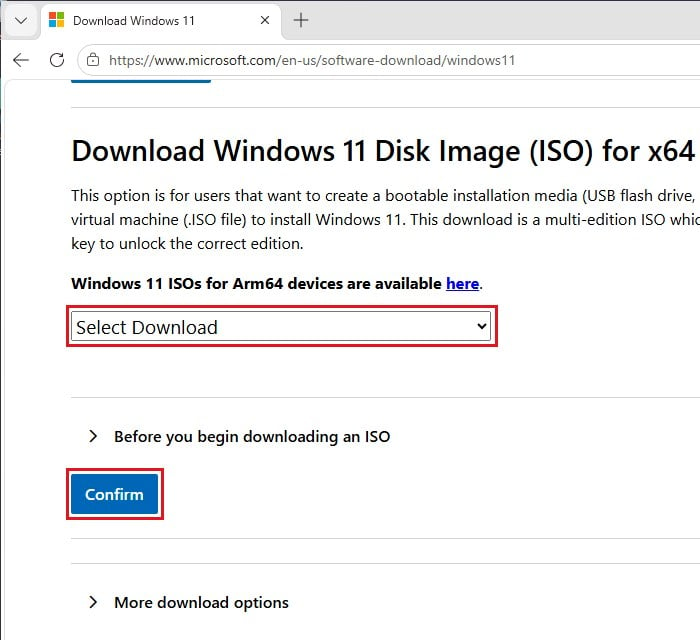
- Pick the same language your Windows is in, and follow the prompts to download the ISO.
- Double-click the downloaded ISO file to open it.
- Run setup.exe and follow the prompts.
- Make sure “Keep personal files and apps” is selected before you start the installation.
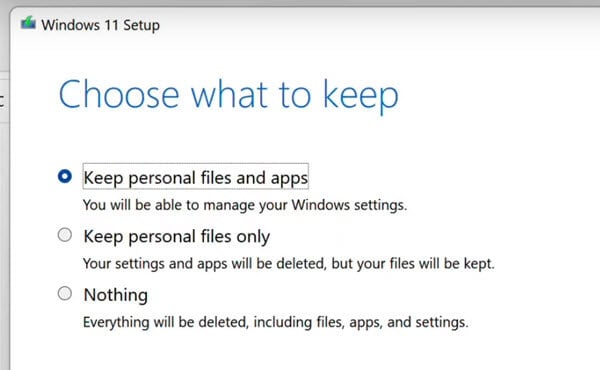
When it’s done, go to Settings > Windows Update and check for updates. The update that kept failing should now install normally. If even this doesn’t work, a clean install or Reset this PC is what’s left, so back up your files first.