If you’re seeing “Error 0x8007045D: The request could not be performed because of an I/O device error” when copying files to or from an external hard drive, a USB flash drive or an SD card, it means Windows tried to read from or write to the drive and the drive didn’t answer the way it should. This guide will show you how to find out which part is failing and what you can do about it.
Also see: Event: “The IO operation at logical block address…”
Page Contents
What does error 0x8007045D mean?
0x8007045D is the Windows error called ERROR_IO_DEVICE. It usually isn’t the file itself. It’s the drive, its cable, the USB port, or the connection dropping halfway through the copy.
You’ll usually run into it in situations like these:
- Copying files to or from an external drive, where the copy runs for a while (sometimes up to 90%) and then fails.
- Big files fail while small ones copy without any problem.
- A hard drive that starts clicking and stops responding when you try to create a folder on it.
- Less often, during Windows Update or while installing an app, when Windows can’t read the files it needs.
Microsoft’s own advice for this message is to check the cables to your devices, try again, and run hardware diagnostics if it keeps happening. Most reports on Reddit and Microsoft’s forums also point to the drive itself, its cable or the port. So the fixes below start with the connection and work toward the drive.
Reconnect the drive to another port and cable
A loose plug, a bad cable or a USB port that doesn’t give the drive enough power can make the drive drop off for a split second in the middle of a copy. Windows then reports it as an I/O device error.
Here’s what you should try:
- Eject the drive properly, unplug it and plug it back in, then retry the copy.
- Use a different USB port on the PC itself, not a USB hub or a front-panel port. On a desktop, the ports at the back usually give more power, which matters for large external hard drives.
- Try another cable.
- For an SD card, try a different card reader, or connect the camera itself to the PC with its USB cable.
If the copy goes through after this, the old port, cable or reader was the problem.
Related guide: How to Eject USB or External Hard Drive in Windows 11
Find out which drive is causing it
A copy usually involves two drives, the one you read from and the one you write to, and either can be the faulty one. A few quick tests will tell you which:
- Copy the files in smaller batches. If one particular file always fails, that file (or the spot where it’s stored on the drive) is the problem.
- Copy the same files to another folder on the same internal drive. If that fails too, the source drive is the one to look at.
- Plug the external drive into another PC and copy something to it. If you get the same error on another PC, the drive is the problem.
Related problem: File Too Large for USB Drive But Plenty of Space (Windows 11)
Check the drive for errors
Once you know which drive it is, let Windows check it for file system errors and bad sectors. If the drive is clicking or keeps disconnecting, back up whatever you still can first, because a long scan puts more strain on a drive that’s already failing.
To check it from File Explorer:
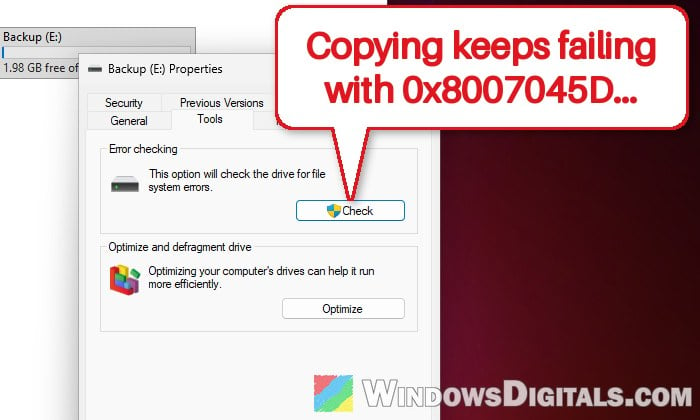
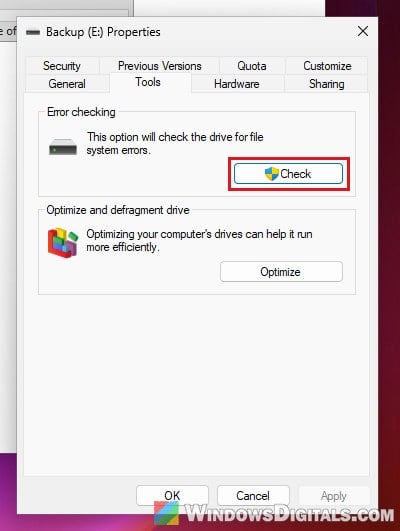
- Open This PC, right-click the drive and select Properties.
- Go to the Tools tab and click Check under Error checking.
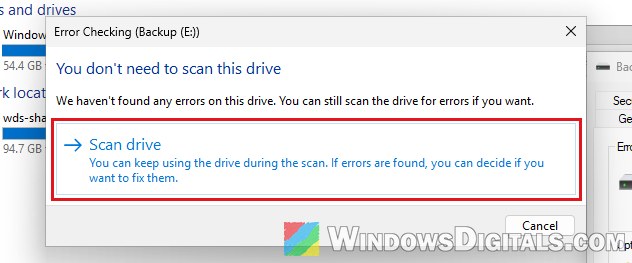
- Select Scan drive and wait for it to finish.
For a more thorough scan, use the chkdsk command instead:
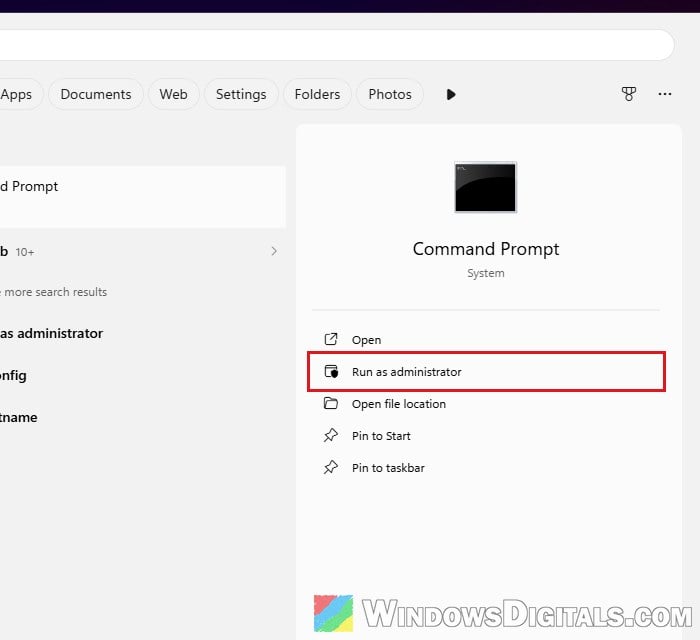
- Search for “cmd” in the Start menu and select Run as administrator on the right.
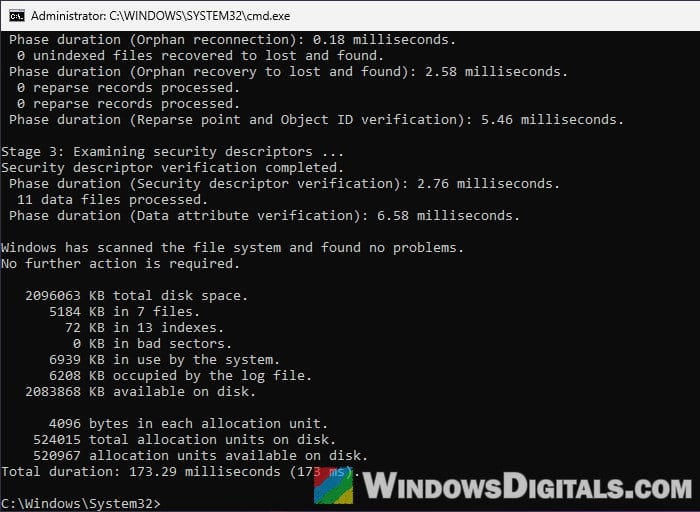
- Type the following command and press Enter, replacing E: with your drive’s letter. It finds and fixes file system errors:
chkdsk E: /f
- If the error keeps coming back, run it with /r instead. This also looks for bad sectors and recovers what it can read from them, so it can take hours on a large hard drive:
chkdsk E: /r
If you run it on the drive Windows is installed on, chkdsk will ask whether to check the drive the next time the system restarts. Type “Y“, press Enter and restart your PC.
Once the check is done, try copying the files again.
Pro tip: How to Run CHKDSK in Windows 10/11 from CMD or Before Boot
Check the drive’s health
The chkdsk command can repair the file system, but it won’t tell you if the drive itself is wearing out. The drive’s health status will.
Windows has a quick built-in check:
- Search for “PowerShell” in the Start menu, right-click Windows PowerShell and select Run as administrator.
- Type the following command and press Enter. It lists every drive connected to your PC with its health:
Get-PhysicalDisk | Select-Object FriendlyName, MediaType, HealthStatus, OperationalStatus
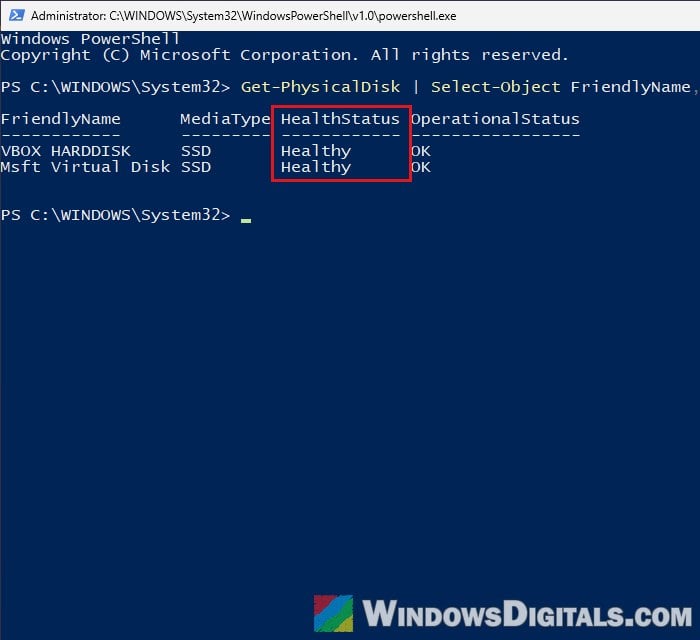
- Look at the HealthStatus column. Healthy is what you want to see. Warning or Unhealthy means the drive is failing.
For more detail, the free CrystalDiskInfo app reads the drive’s SMART data and shows an overall Health Status. Download it from its official site, https://crystalmark.info/en/software/crystaldiskinfo/, open it and pick your drive.
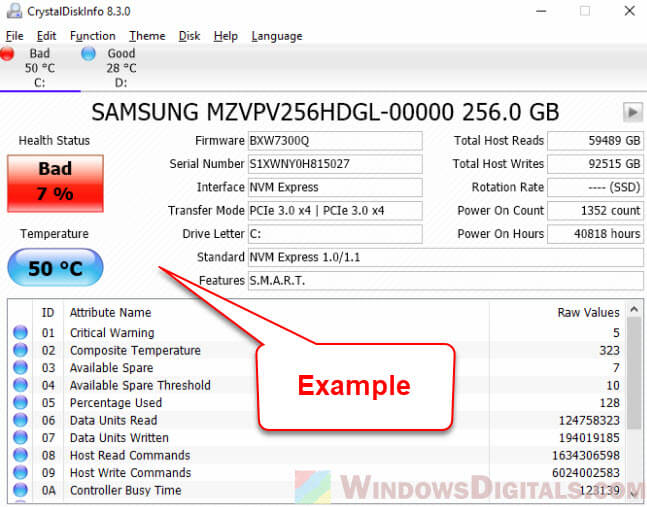
If the drive shows as failing, or a hard drive makes clicking noises, the bad news is that no software fix will make it reliable again. Copy off what you can and replace it. If it’s new or still under warranty, contact the manufacturer or the store for a replacement.
Update the drive’s firmware
Some SanDisk Extreme and Extreme Pro portable SSDs (2 TB and 4 TB models from 2023) had a known data-loss problem, and Western Digital released a firmware update for it. If you have one of these drives, check SanDisk’s support page or drive app for a firmware update.
Back up and format the drive as a last resort
If the drive passes the health check but copies still fail, formatting it gives it a fresh file system.
Be warned: formatting erases everything on the drive, so only do this after your files are safely copied somewhere else.
- Right-click the Start button and select Disk Management.
- Right-click the drive’s partition and select Format.
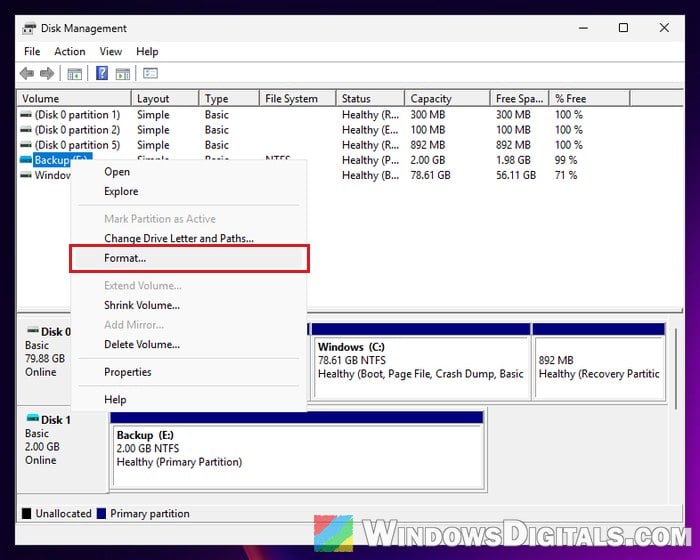
- Confirm the format in the window that opens.
Then copy a few large files to it as a test. If the drive can’t be formatted, or the error comes back even after formatting, the drive is on its way out and it’s time to replace it.
If it happens during Windows Update or an app install
When 0x8007045D shows up while updating Windows or installing something, the files Windows reads during the process may be damaged. First download the installer again if it’s an app. For Windows itself, repair the system files:
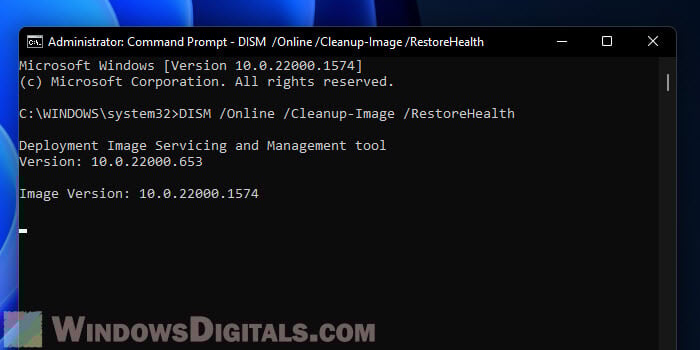
- Open Command Prompt as administrator, like in the chkdsk steps above.
- Run the following command and wait for it to finish:
DISM /Online /Cleanup-Image /RestoreHealth
- Then run a system file check:
sfc /scannow
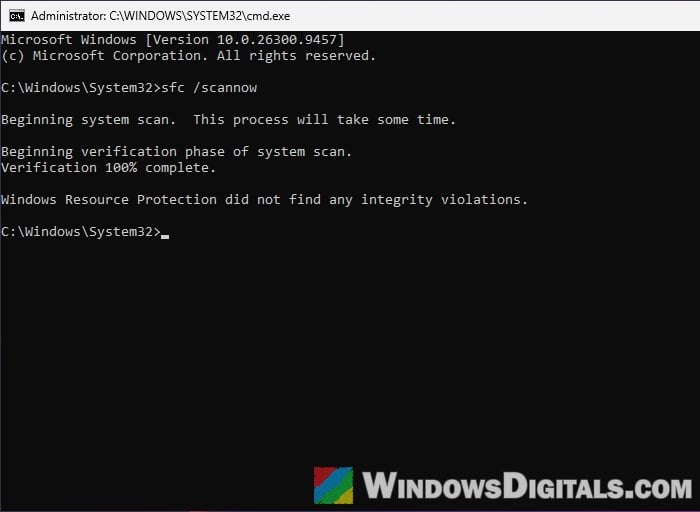
- Restart your PC and try the update or install again.
If it still fails, faulty memory (RAM) is another possible cause when Windows can’t read its own files, so it’s worth running Windows Memory Diagnostic as well.