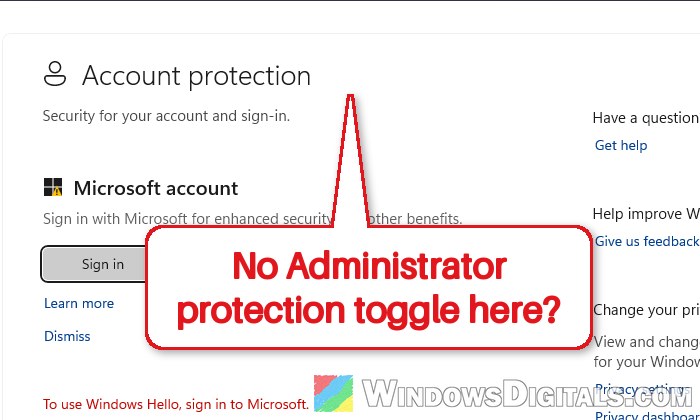
If you’ve heard about Administrator protection in Windows 11 and opened Windows Security > Account protection to turn it on, only to find that there’s no toggle for it at all, it’s because the switch is still rolling out slowly. This guide will show you how to turn it on anyway, and what changes once it’s on.
Also see: Remote Desktop Error 0xC000000D “The token that was passed to the function is invalid”
Page Contents
Why is the Administrator protection toggle missing?
The toggle in the Windows Security app is still a preview that Microsoft says will be rolled out to everyone gradually, so on many PCs, Account protection has no Administrator protection section at all yet. The feature itself is already there, though. According to Microsoft, it came with the August 2026 update (KB5120998) for Windows 11 24H2 and 25H2, it works on Home, Pro, Enterprise and Education, and it’s turned off by default.
So what does it actually do? Normally, when you’re signed in as an administrator, the UAC prompt only asks you to click Yes, and some Windows tools get admin rights without asking at all. With Administrator protection on, every admin action needs your approval. Windows asks you to prove it’s you (Windows Hello or your password), then gives just that one app a short-lived admin token and throws it away when the app closes, so it’s much harder for malware to quietly get admin rights.
The good news is that you don’t need the toggle. The same setting is a security policy, which you can change with Local Security Policy or the registry. On my Windows 11 26H2 test PC, the Account protection page still had no toggle even after Administrator protection was on and working, so don’t use that page to check whether it worked.
Learn more: How to Check if a KB Update is Installed in Windows 11
Before you turn it on
There are a few things you should know first, because Administrator protection doesn’t suit every PC:
- You need to be signed in with an administrator account to change it. It also only affects administrator accounts. If you use a standard account, you’ll still be asked for an admin’s credentials like before.
- It’s best to set up a Windows Hello PIN, face or fingerprint first. Without Windows Hello, you’ll have to type your account password every time an app needs admin rights.
- Microsoft says not to turn it on for PCs that need Hyper-V, PCs managed with LAPS, or if you use apps that share files across user profiles.
- Apps opened as admin run in a separate hidden profile, so their settings don’t carry over from the normal one. If you run WSL or Visual Studio as admin, you’ll have to set them up again there.
- Network drives can’t be reached from apps running as admin.
- A restart is needed after turning it on or off.
Related problem: Windows 11 Security Shows “Page not available”
How to turn on Administrator protection
Using Windows Security (if you have the toggle)
If your PC has already received the toggle, this is the easiest way. Here’s how to do it:
- Click the Start button, search for “Windows Security” and open it.
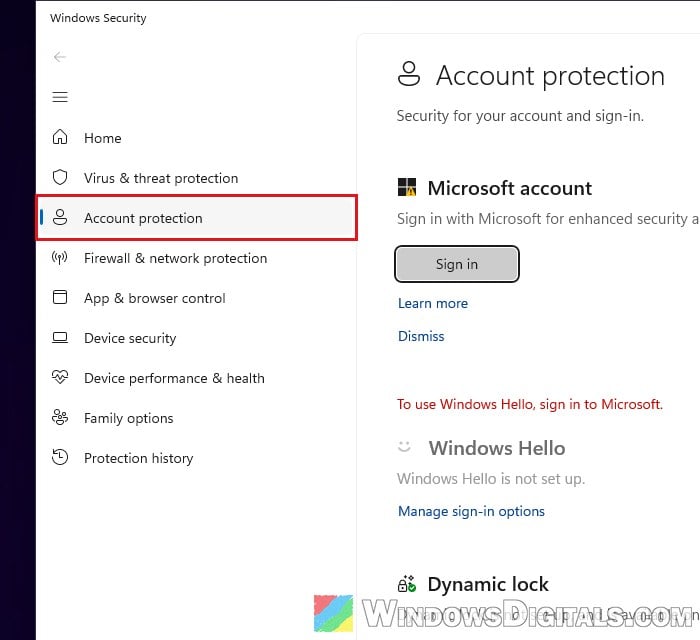
- Select Account protection.
- Under Administrator protection, click Administrator protection settings, and turn the toggle on.
- Restart your PC when Windows asks you to.
If you don’t see the Administrator protection section, use one of the methods below instead.
Using Local Security Policy (Pro, Enterprise and Education)
Local Security Policy is only available in Windows 11 Pro, Enterprise and Education. If you’re using Home edition, please see the next section instead. Otherwise, follow the steps below:
- Press Win + R, type “secpol.msc” and press Enter to open Local Security Policy.
- In the left pane, expand Local Policies and click on Security Options.
- In the right pane, scroll down and double-click the policy called “User Account Control: Configure type of Admin Approval Mode“. By default, it’s set to “Legacy Admin Approval Mode (Default)“.
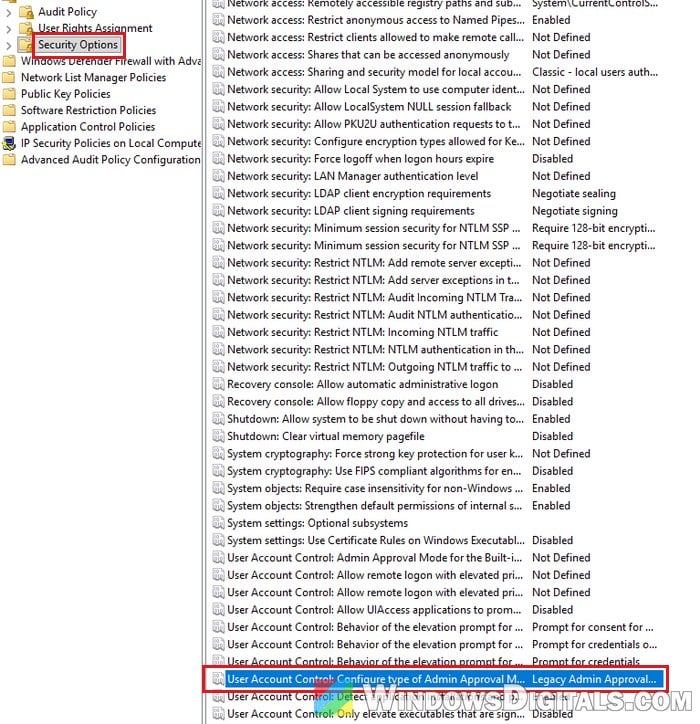
- In the dropdown menu, select “Admin Approval Mode with Administrator protection” and click OK.
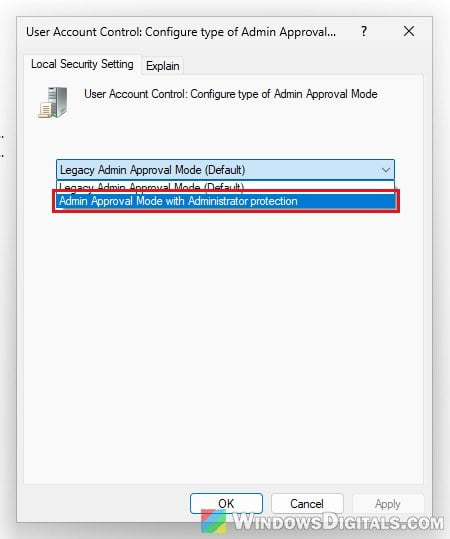
- Restart your computer. Local Security Policy doesn’t ask you to, but the change only applies after a restart.
Pro tip: Upgrade Windows 10/11 Home to Pro without losing data
Using Registry Editor (works on Home too)
The policy above is saved in the registry as a value called TypeOfAdminApprovalMode, so you can change it directly on any edition of Windows 11. When I switched the policy on my test PC, this value changed from 1 to 2, so setting it to 2 by hand does the same thing.
Incorrectly changing the registry could cause serious problems with Windows. Please at least create a system restore point first. If you’re not sure what you’re doing, it’s better to just get someone to help you instead. Here’s how to do it:
- Press Win + R, type
regeditand press Enter. Click Yes if UAC asks. - Copy and paste the following path to the address bar of Registry Editor and press Enter:
HKEY_LOCAL_MACHINE\SOFTWARE\Microsoft\Windows\CurrentVersion\Policies\System
- In the right pane, find the value named TypeOfAdminApprovalMode and double-click it. If it isn’t there, right-click an empty space in the right pane, select New > DWORD (32-bit) Value and name it TypeOfAdminApprovalMode.
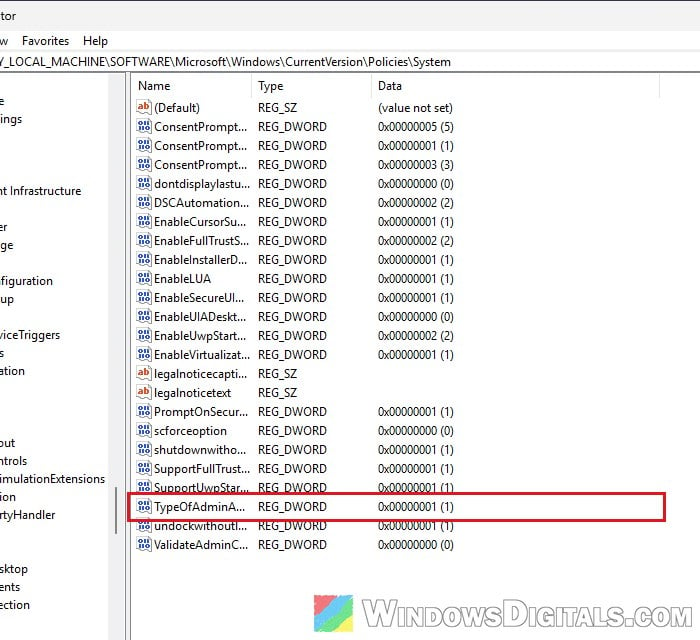
- Change the Value data to 2 and click OK.
- 1: Legacy Admin Approval Mode (Administrator protection off)
- 2: Admin Approval Mode with Administrator protection (on)
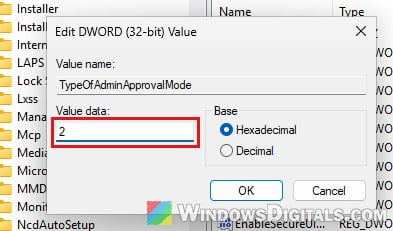
- Close Registry Editor and restart your computer.
Might be useful: Windows 11 Hello Fingerprint This option is currently unavailable
How to tell if Administrator protection is on
After the restart, open anything that needs admin rights, such as Registry Editor or Command Prompt as administrator. Instead of the usual UAC prompt where you just click Yes, you’ll see a prompt titled Windows Security asking “Do you want to allow this app to make changes to your device?“. It wants your PIN, fingerprint, face, or (without Windows Hello) your password, and the buttons are Allow changes and Don’t allow.
You’ll get this prompt every time an app needs admin rights, since nothing gets admin rights silently anymore. Windows also creates a hidden folder named ADMIN_ followed by your user folder’s name in C:\Users for those admin sessions. That’s where apps you run as admin keep their own settings.
How to turn it off again
If an app stops working properly, an update won’t install, or you need Hyper-V, you can switch back to the old UAC behavior the same way you turned it on:
- Windows Security: turn the Administrator protection toggle off (if you have it).
- Local Security Policy: set “User Account Control: Configure type of Admin Approval Mode” back to “Legacy Admin Approval Mode (Default)“.
- Registry Editor: set TypeOfAdminApprovalMode back to 1.
Restart your PC after the change. If it’s only an app update that’s blocked, Microsoft suggests first trying to download the update as administrator and then install it, before turning the feature off.
If people who connect to this PC with Remote Desktop using a standard account suddenly get error 0xC000000D, that’s a known issue with Administrator protection, and turning it off on this PC is Microsoft’s workaround for now.