If you’re seeing “Windows 11, version 25H2 (repair version)” in Windows Update with “Failed to install” and an error code like 0x80240022, 0x80070005 or 0x80070002, and retrying ends the same way every time, this guide will explain why the repair keeps failing and how to get it done another way.
Also see: “Reinstall your current version of Windows” Message
Page Contents
What is the “repair version” and why does it fail?
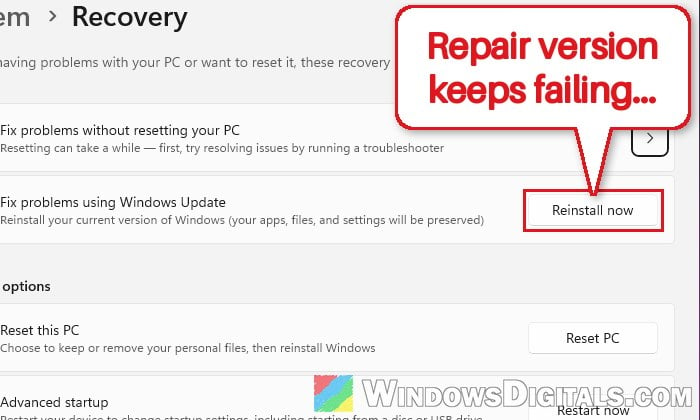
The “repair version” is what Windows downloads when you use “Fix problems using Windows Update” (the Reinstall now button under Settings > System > Recovery), or when Windows itself suggests reinstalling your current version. According to Microsoft, it downloads a repair version of the last operating system update and reinstalls it over your current Windows, keeping your apps, files and settings.
The catch is that this repair comes through Windows Update. If Windows Update itself is what’s broken on your PC, the repair can’t get through either, so it fails over and over. The error code gives a hint about what’s in the way:
- 0x80240022: Microsoft says the most common cause is antivirus software blocking access to Windows Update’s folders, such as SoftwareDistribution.
- 0x80070005: “access denied”, so something blocked the update from a file or folder it needed.
- 0x80070002: files the update needs are missing.
- 0x8007001f: Microsoft links it to problems with user profiles, or a device that isn’t working.
- 0xc1900200: your PC doesn’t meet Windows 11’s minimum requirements (see the last section).
You can also run the same repair yourself, without Windows Update. But try the next three fixes first, since they don’t need a large download. If you’ve already retried the repair many times, you can skip straight to the ISO section.
Might be useful: Windows 11 “Updates failed” with a “Retry” button
Turn off third-party antivirus for the repair
If you use a third-party antivirus (anything other than the built-in Microsoft Defender), it may be blocking the files the repair needs. This is especially likely with 0x80240022, since that’s the cause Microsoft points to first.
Turn off its protection for now (usually from its icon in the system tray), and unplug USB drives, printers and other devices you don’t need while the repair runs. Then try Reinstall now again, as shown in the next section. Don’t forget to turn your antivirus back on once it’s done.
Reset Windows Update components, then try again
When the repair keeps failing at the same point, leftovers from the earlier attempts can be part of the problem. Resetting Windows Update’s folders makes it start fresh:
- Click Start, type “cmd“, then select Run as administrator on the right.
- Type the following commands one by one, and press Enter after each:
net stop usosvc
net stop wuauserv
net stop bits
ren C:\Windows\SoftwareDistribution SoftwareDistribution.old
net stop cryptsvc /y
ren C:\Windows\System32\catroot2 Catroot2.old
net start cryptsvc
net start bits
net start wuauserv
net start usosvc
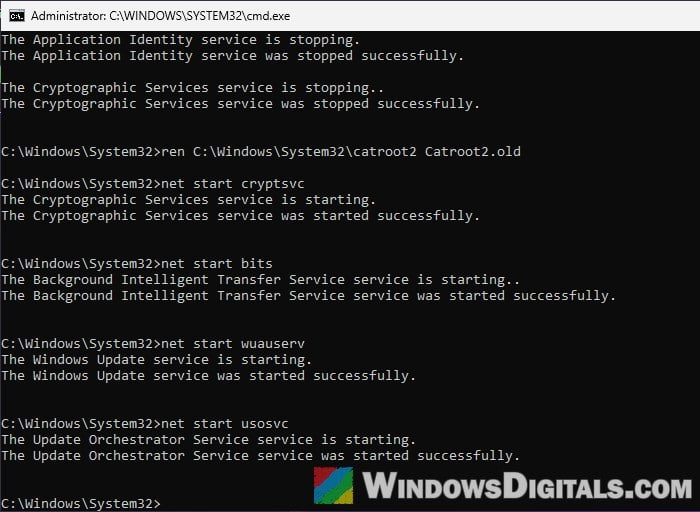 Messages like “is not started” or “has already been started” are fine. If a
 rencommand says “Access is denied”, a service started again too early: run thenet stopcommands above it once more, then therencommand right after. - Restart your PC.
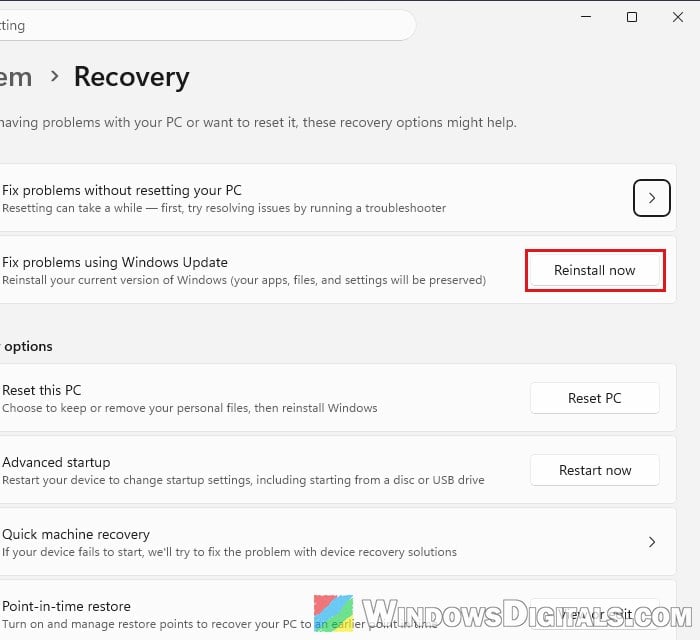
- Press Win + I and go to System > Recovery.
- Under “Fix problems using Windows Update“, select Reinstall now and follow the prompts.
Keep your PC plugged in and connected to the internet until it’s done, then check Windows Update to see if the repair version installed this time.
Repair system files with DISM and SFC
If Windows’ own system files are damaged, the repair can trip over them before it gets a chance to replace them. DISM repairs the Windows image from Microsoft’s servers, and SFC then checks and fixes your system files.
- Open Command Prompt as administrator, as in the section above.
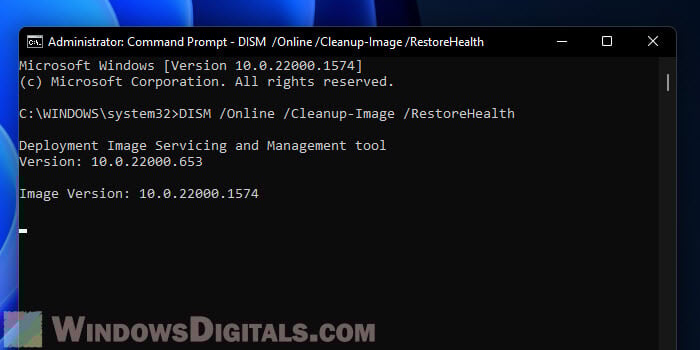
- Type the following command and press Enter. It can sit at the same percentage for a while, so let it finish:
DISM.exe /Online /Cleanup-image /Restorehealth
- When it’s done, run this command:
sfc /scannow
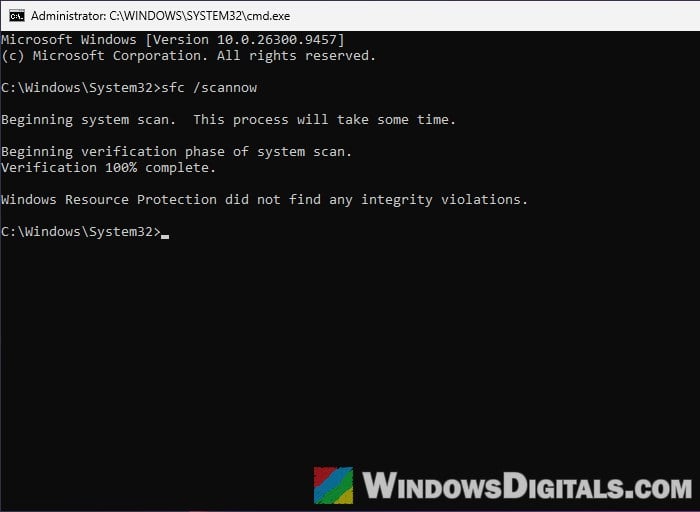
Restart your PC and try Reinstall now once more.
Do the repair yourself with the Windows 11 ISO
If the repair version still won’t install, this is the fix most often suggested for it: run Windows 11 setup yourself from Microsoft’s official disk image (ISO). It’s the same kind of in-place repair, only it doesn’t depend on Windows Update. It replaces Windows’ files and keeps your apps, files and settings.
Please note that the download page gives you the current version of Windows 11, which is 26H2. So if you’re on 25H2, this repair also moves you up to 26H2, with your apps and files kept. Make sure you have enough free space on your C: drive too, as Microsoft recommends.
Pro tip: What files can I delete from C: drive to free up space?
Back up your important files first, just in case. Then follow the steps below:
- Go to the official Windows 11 download page. Under “Download Windows 11 Disk Image (ISO) for x64 devices“, select “Windows 11 (multi-edition ISO for x64 devices)“, then Confirm.
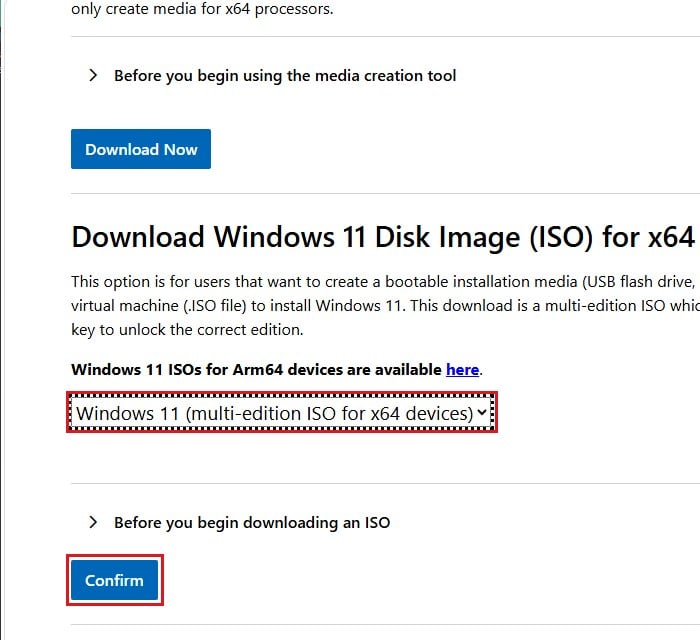
- Pick the same language your Windows is in, select Confirm, then click 64-bit Download.
- When the download finishes, right-click the ISO file and select Mount. If Windows asks “Do you want to open this file?“, select Open.
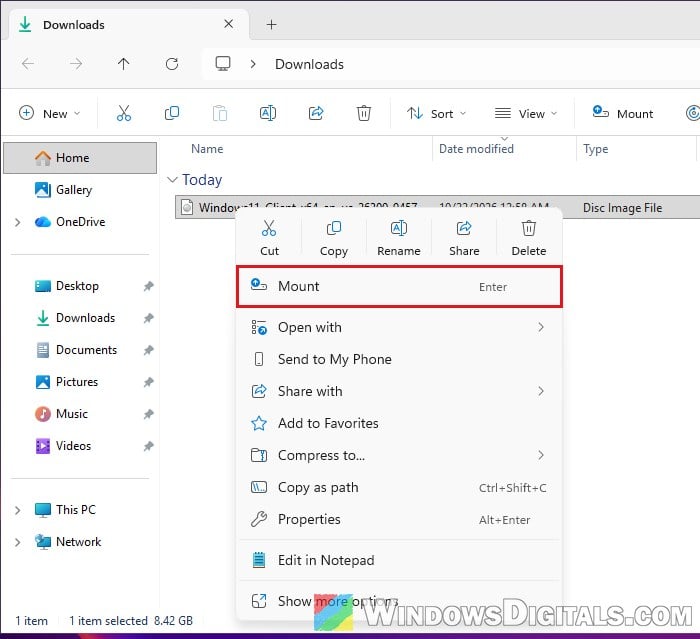
- Open the new drive that appears in This PC, double-click setup.exe, and select Yes when Windows asks for permission.
- On setup’s first screen, you can click “Change how Setup downloads updates“, select Not right now and click Next, which gets you to the repair faster. Then click Accept on the license terms.
- On the “Ready to install” screen, make sure it says “Keep personal files and apps“. If it doesn’t, click “Change what to keep“, select “Keep personal files and apps“, then Next.
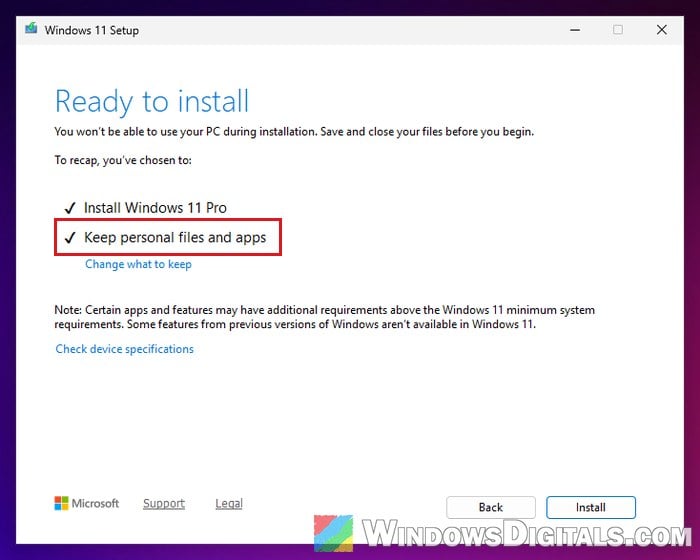
- Click Install and let your PC restart as many times as it needs.
Once it’s done, sign in as usual. Your apps and files should all be there. Press Win + R, type winver and press Enter to check which version you’re on now.
What if there’s no “Mount” option?
If right-clicking the ISO doesn’t show Mount, double-click the ISO file in File Explorer instead (select Open if Windows asks). Windows mounts it and opens it as a new DVD drive, where you’ll find setup.exe.
Related guide: How to Burn Windows 11 ISO to USB
Getting 0xc1900200 as well?
0xc1900200 means setup found that your PC doesn’t meet Windows 11’s minimum system requirements. It can show up on older PCs running in legacy BIOS mode, where Secure Boot isn’t available. In that case, neither Reinstall now nor the ISO will get past it until that’s sorted out.
Check if your motherboard maker has a newer BIOS for your PC. If you update it, follow the maker’s instructions exactly, since an interrupted BIOS update can leave the PC unable to start.
Secure Boot only works in UEFI mode, so on a PC set up in legacy BIOS mode, the Windows disk has to be converted first (with Microsoft’s MBR2GPT tool) before UEFI and Secure Boot can be turned on. That’s a bigger change, and if it goes wrong Windows may not boot, so don’t do it just to try. If you’re not sure, it’s better to get someone who knows to help you instead.
Learn more: Can’t find TPM 2.0 and Secure Boot options in BIOS