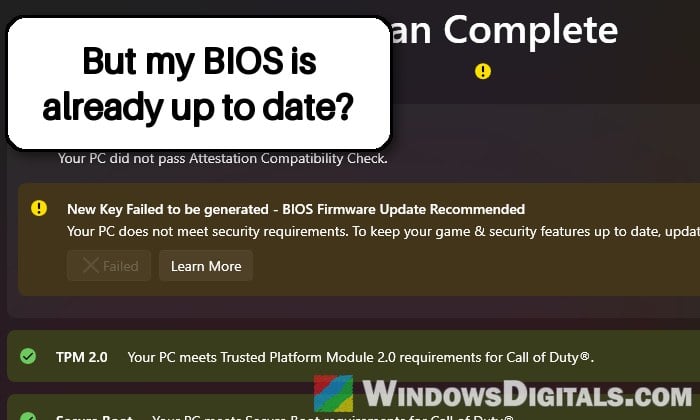
If Call of Duty’s Secure Attestation check shows TPM 2.0 and Secure Boot as passing but still fails with “Attestation Requisite not met” and “New Key Failed to be generated – BIOS Firmware Update Recommended“, even with the latest BIOS, it’s usually not the game. On Intel PCs that use the CPU’s built-in TPM (Intel PTT), Windows is failing to get a key certificate from Microsoft. This guide will show you how to find out which error you have and what you can do about it.
Also see: Can’t find TPM 2.0 and Secure Boot options in BIOS
Page Contents
Why does Call of Duty say “New Key Failed to be generated”?
Call of Duty’s RICOCHET Anti-Cheat asks Windows to prove that your PC is in a trusted state. For that, Windows needs an AIK (Attestation Identity Key) certificate from Microsoft’s AIK service, and it gets one by sending the certificate your TPM was made with, plus the chain of Intel certificates behind it. When Microsoft’s service refuses the request, there’s no key, so the Attestation Wizard just tells you to update your BIOS, even when that isn’t the problem.
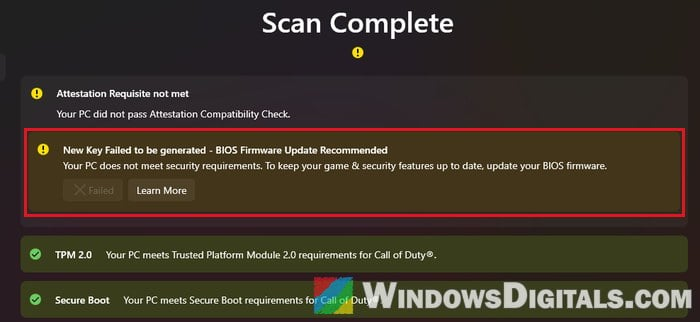
On Intel PTT, the refusal comes in two forms:
- HTTP 400 (0x80190190), with the message “No valid TPM EK/Platform certificate provided in the TPM identity request message”. Windows is sending the wrong Intel intermediate certificates, often after a motherboard swap without reinstalling Windows. This one can be fixed on your PC.
- HTTP 404 (0x80190194), saying “The authority … does not exist”. The Intel certificate authority behind your TPM isn’t registered with Microsoft’s AIK service. This looks like a server-side problem you can’t fix in Windows.
It mostly affects 12th to 14th gen Intel desktops on B760, H610 and Z790 boards, newer B860 boards and gaming laptops, on Windows 11 including 26H2, while tpmtool and Windows itself report the TPM as healthy and ready for attestation.
Please note that clearing the TPM, changing Secure Boot settings or reinstalling Windows usually doesn’t help with this, and clearing the TPM throws away keys that BitLocker and Windows Hello depend on. Find out which error you have first.
Linked issue: TPM 2.0 Enabled in BIOS but Not Showing in Device Manager
Find out which error you have
Windows tries to get the AIK certificate on its own in the background (a scheduled task called AikCertEnrollTask) and writes the result to the Application log. Here’s how to check it:
- Press Win + X and select “Event Viewer“.
- In the left pane, go to Windows Logs > Application.
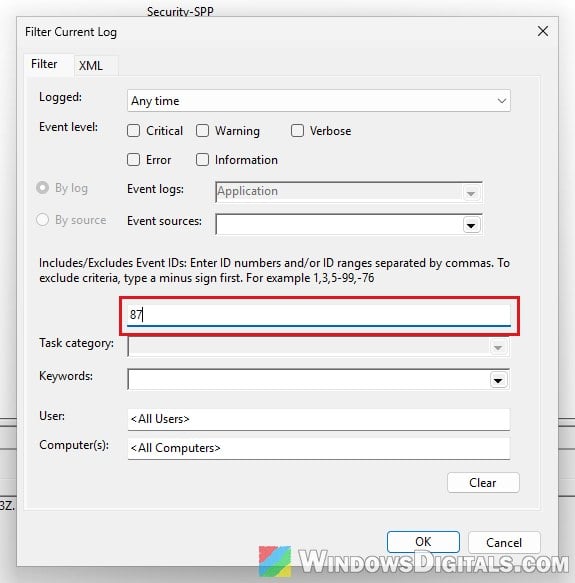
- Click “Filter Current Log…” on the right, type “87” in the box that says All Event IDs and click “OK“.
- Click an error whose source is CertificateServicesClient-CertEnroll and read the message under the General tab.
- “No valid TPM EK/Platform certificate provided” with HTTP 400 or 0x80190190: follow the next section.
- “The authority … does not exist” with HTTP 404: skip to the last section.
To run the enrollment again yourself and see the result right away, follow the steps below:
- Search for “cmd” in the Start menu.
- Right-click Command Prompt and select “Run as administrator“.
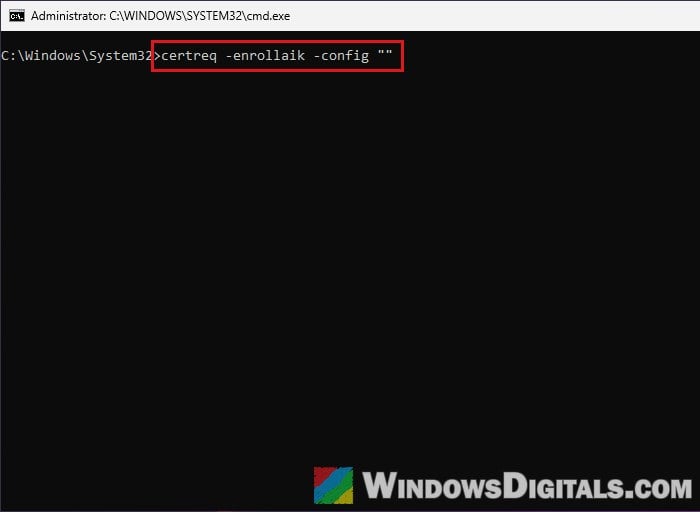
- Type the following command and press Enter. Use Command Prompt for this, not PowerShell, since PowerShell drops the empty quotes at the end. If it fails, the error code pops up in a small “Certificate Request Processor” box.
certreq -enrollaik -config ""
You can also run tpmtool getdeviceinformation in the same window. If it shows “Ready For Attestation: True“, your TPM itself is fine and the problem is only the certificate.
Suggested read: How to Enable TPM 2.0 and Secure Boot on ASRock
Install your TPM’s own Intel certificates (HTTP 400)
Your Intel PTT stores the correct intermediate certificates in its own memory. When Windows builds the chain with different ones, Microsoft’s service rejects it. Installing them from the TPM lets Windows send the right chain. This is the fix that has worked for several players on Reddit and Intel’s forums.
Important: Only use certificates read from your own TPM. Never import certificate files from another PC or a download.
Here’s how to do it:
- Search for “PowerShell” in the Start menu, right-click Windows PowerShell and select “Run as administrator“. The commands below won’t work in Command Prompt.
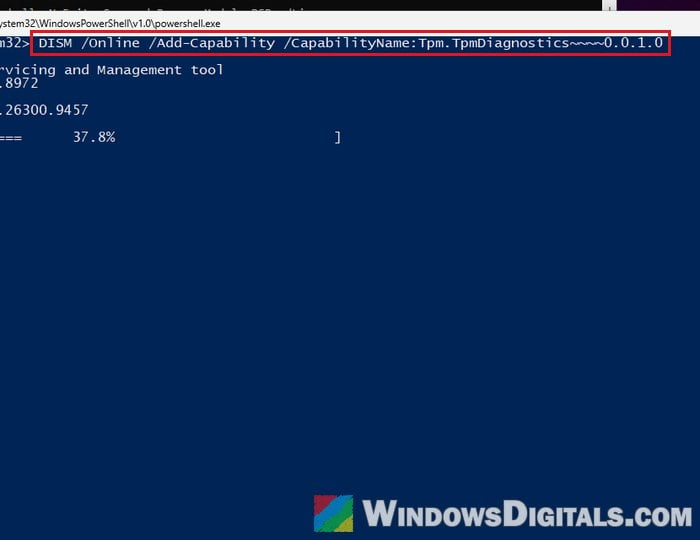
- Install Microsoft’s TPM Diagnostics tool with this command (it needs an internet connection and can take a few minutes):
DISM /Online /Add-Capability /CapabilityName:Tpm.TpmDiagnostics~~~~0.0.1.0
- Compare the chain Windows builds with the one stored in the TPM. If ekchainNV ends with 0x0 or 0x10000 but ekchain shows a different code (such as 0x8 or 0x10008), Windows is using the wrong intermediates and this fix applies. Type the following commands one by one, and press Enter after each:
TpmDiagnostics.exe ekchain
TpmDiagnostics.exe ekchainNV
- Save the two TPM storage areas that hold Intel’s certificates to files. Type the following commands one by one, and press Enter after each:
TpmDiagnostics.exe ReadNVIndex 0x1C00100 -file "$env:TEMP\NV-1C00100.bin"
TpmDiagnostics.exe ReadNVIndex 0x1C00101 -file "$env:TEMP\NV-1C00101.bin"
- Pull the certificates out of those files. The script below lists each certificate it finds and saves it as a .cer file. They should all be Intel’s intermediate certificates (its ROM, Kernel and PTT certificates). If nothing is listed, your PC doesn’t keep its chain in those areas, and this fix isn’t for you. Copy and paste the following into the same window and press Enter:
$nv = [IO.File]::ReadAllBytes("$env:TEMP\NV-1C00100.bin") + [IO.File]::ReadAllBytes("$env:TEMP\NV-1C00101.bin") $out = New-Item -ItemType Directory -Force "$env:TEMP\TPM-Intel-Certs" $n = 0 for ($i = 0; $i -lt $nv.Count - 4; $i++) { if ($nv[$i] -eq 0x30 -and $nv[$i+1] -eq 0x82) { $len = $nv[$i+2] * 256 + $nv[$i+3] + 4 if ($i + $len -le $nv.Count) { try { $cert = New-Object Security.Cryptography.X509Certificates.X509Certificate2 (,[byte[]]$nv[$i..($i+$len-1)]) $n++ [IO.File]::WriteAllBytes("$($out.FullName)\intel-cert-$n.cer", $cert.RawData) "$n. $($cert.Subject)" $i += $len - 1 } catch { } } } } - Install them into the computer’s Intermediate Certification Authorities store:
Get-ChildItem "$env:TEMP\TPM-Intel-Certs\*.cer" | ForEach-Object { Import-Certificate -FilePath $_.FullName -CertStoreLocation Cert:\LocalMachine\CA } - Check the chain again. It should now end with the same code as ekchainNV:
TpmDiagnostics.exe ekchain
- Open Command Prompt as administrator again and run:
certreq -enrollaik -config ""
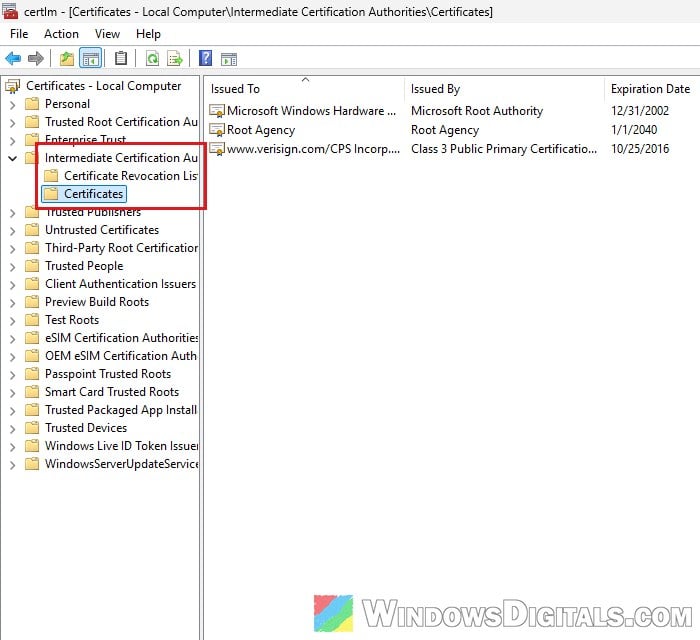
If the enrollment goes through this time, run the Call of Duty Secure Attestation Wizard again or just launch the game, and the key should be generated. You can see the installed certificates by pressing Win + R, typing “certlm.msc” and opening Intermediate Certification Authorities > Certificates.
Related concern: BitLocker Keeps Asking for the Recovery Key at Every Startup
Update the BIOS and Intel ME firmware
Activision and Intel both ask for the latest BIOS, so check your motherboard or laptop maker’s support page for a newer BIOS and Intel Management Engine (ME) firmware. Most people with this problem already had the latest BIOS, though, so don’t count on it.
Be warned: A BIOS update can brick your motherboard if the power cuts out or you flash the wrong file. Only use the file for your exact model, keep the PC plugged in, and if you’re not sure what you’re doing, get someone to help you instead.
If it says the authority doesn’t exist (HTTP 404)
The bad news is that nothing you change in Windows fixes the HTTP 404 case. Microsoft’s AIK service doesn’t know your TPM’s Intel certificate authority, and that’s for Microsoft and Intel to sort out. Some modes may still work in the meantime, with only certain playlists like Ranked locked, but that’s not guaranteed.
What you can do while you wait:
- Report it in Feedback Hub (search the Start menu for “Feedback Hub“), or add your vote to an existing report about AIK enrollment on Intel PTT if you find one. It has already been reported there, so adding yours helps.
- Submit Activision’s TPM report at
https://support.activision.com/articles/tpm-reportonce you’ve updated the BIOS and run the latest Secure Attestation Wizard. It won’t open a support ticket, but it tells Activision which TPM you have. - Ask your motherboard or laptop maker whether a newer Intel ME firmware is coming for your model.
If your motherboard has a TPM header, a few players got past the 404 by installing a discrete TPM 2.0 module and selecting it in the BIOS instead of Intel PTT. Treat this as a last resort: switching TPMs makes BitLocker ask for its recovery key and you’ll have to set up your Windows Hello PIN again, so have your recovery key ready before you change anything.