If a game in the Xbox app on your Windows 11 PC downloads all the way to 100% and then fails with error 0x80073CF6, and retrying, restarting or reinstalling the game doesn’t change anything, the problem usually isn’t the game download itself. Sometimes the same error even stops the Xbox app or Gaming Services from working at all. This guide will explain what the error means and show you how to get your games installing again.
Also see: Xbox PC Game Pass Stuck on Syncing Data in Windows 11
Page Contents
What does error 0x80073CF6 mean?
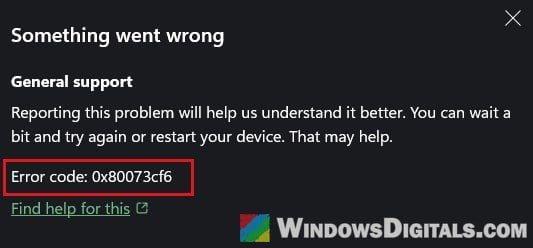
Games from the Xbox app are installed as app packages, just like apps from the Microsoft Store. According to Microsoft, 0x80073CF6 means the package can’t be registered. In other words, the game finished downloading, but Windows couldn’t complete the last step of the install. In the Xbox app, it can show up as “Something went wrong” with the error code underneath.
There are usually three reasons behind it:
- Gaming Services is broken. It’s the background service the Xbox app uses to install games.
- Damaged leftovers in the game folders (XboxGames and WpSystem) on the drive your games install to.
- Another game’s broken install. One game’s damaged install can keep the Xbox app from installing anything else until it’s removed.
The error can hit one game while others still update normally.
Learn more: What is GamingServices.exe in Windows 11 or 10?
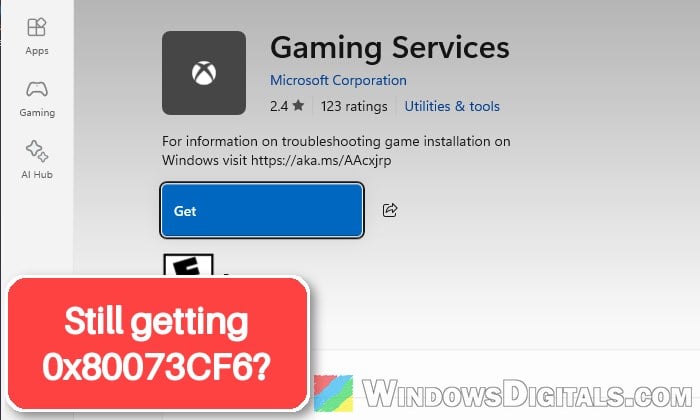
Reinstall Gaming Services
Reinstalling Gaming Services is the first fix Microsoft suggests for this error. It removes the current copy completely and installs a fresh one from the Microsoft Store.
Here’s how to do it:
- Close the Xbox app.
- Right-click the Start button and select Terminal (Admin), then click Yes.
- Type the following command and press Enter to remove Gaming Services:
get-appxpackage Microsoft.GamingServices | remove-AppxPackage -allusers
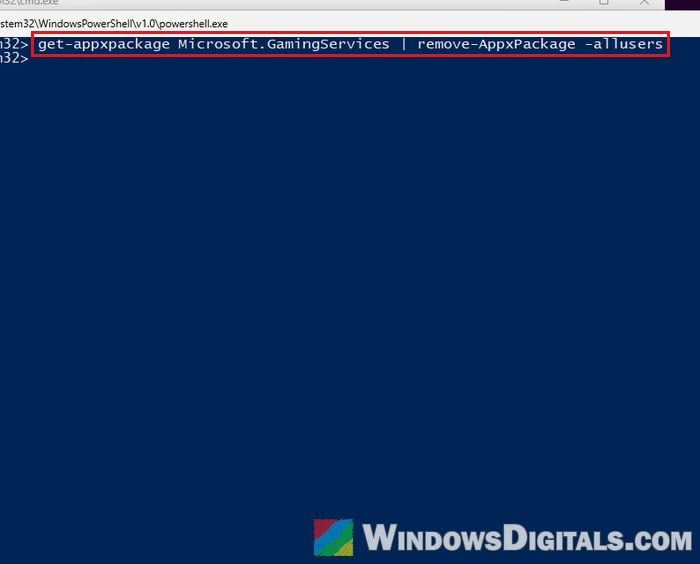
- Then run this command to open Gaming Services in the Microsoft Store:
start ms-windows-store://pdp/?productid=9MWPM2CQNLHN
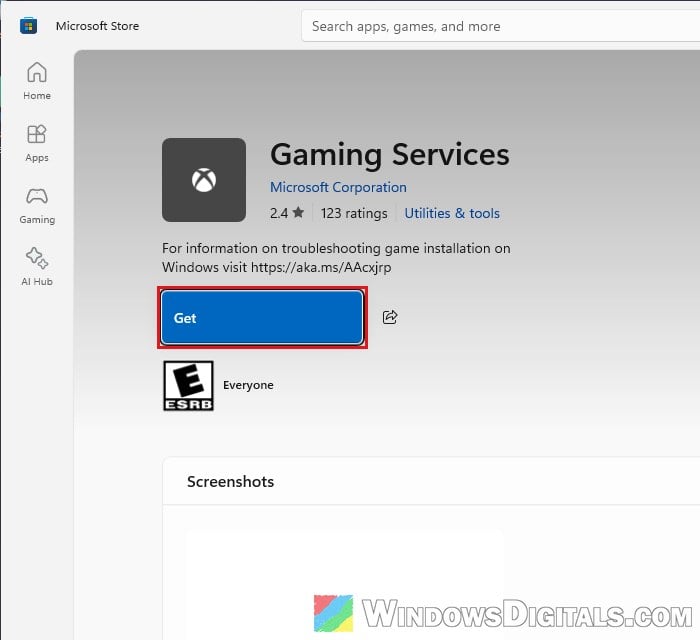
- Click Get on the Gaming Services page and wait for it to finish.
- Restart your PC.
Open the Xbox app and try installing or updating the game again.
Rename the XboxGames and WpSystem folders
If the error still shows up, this is the fix that has worked for people on Reddit and Microsoft’s forums. The Xbox app keeps games in an XboxGames folder, and on drives other than C: also uses a WpSystem folder. When something in them is damaged, every new install can fail at the last step. Renaming them makes the Xbox app create fresh ones, while the old folders, and the games inside them, stay where they are.
Follow the steps below:
- Close the Xbox app.
- Open File Explorer and go to the drive your Xbox games install to (for example D:).
- Right-click the XboxGames folder, select Rename and name it XboxGames.old.
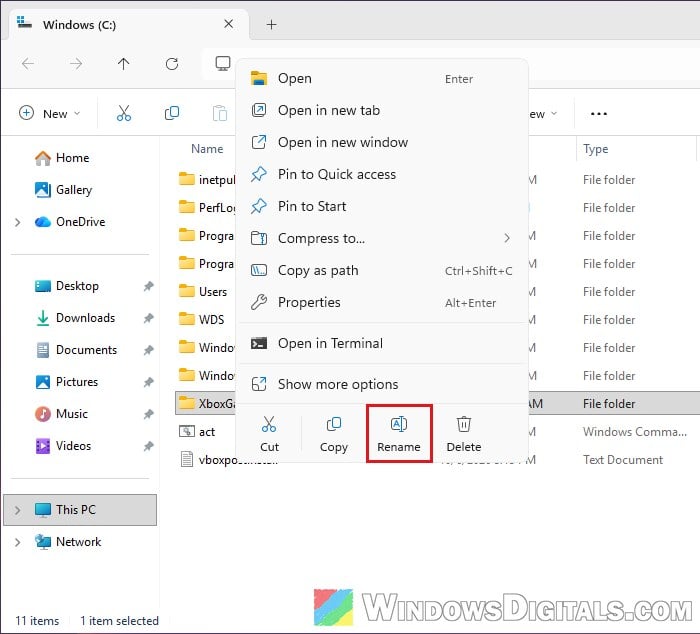
- If there’s a WpSystem folder on the same drive, rename it to WpSystem.old the same way.
- Restart your PC, open the Xbox app and install a small game first. The Xbox app creates new folders for it.
If games now install, the problem was in the old folders. Games that were in XboxGames.old may not show as installed anymore, but they aren’t lost.
Tip: If Windows says “Access Denied” when you rename a folder, make sure the Xbox app is closed, or restart your PC and try again.
Find the game that caused it
If one game’s broken install is behind it, you can find that game: move the games back into the new XboxGames folder one at a time, and the one that brings the error back is the culprit. Uninstall it. After that, the original folders should work normally again, so if you’d rather go back to them, move the new folders out of the way and rename the .old ones back.
Related problem: Microsoft Store Error 0x80248014 After “Verifying Dependencies”
Clear the Store cache and repair the Xbox app
Xbox app games are installed the same way as Microsoft Store apps, so a damaged Store cache or Xbox app can cause the same error. Neither of these is a sure fix, but both are quick and safe.
To clear the Microsoft Store cache:
- Press Win + R, type
wsreset.exeand click OK.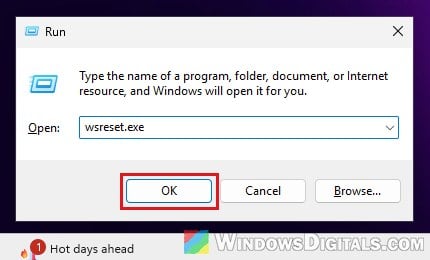
- A blank window opens for a few seconds, and then the Microsoft Store opens by itself.
To repair or reset the Xbox app:
- Press Win + I and go to Apps > Installed apps.
- Find Xbox, click the … next to it and select Advanced options.
- Click Repair first. If that doesn’t help, click Reset, which also deletes the app’s data.
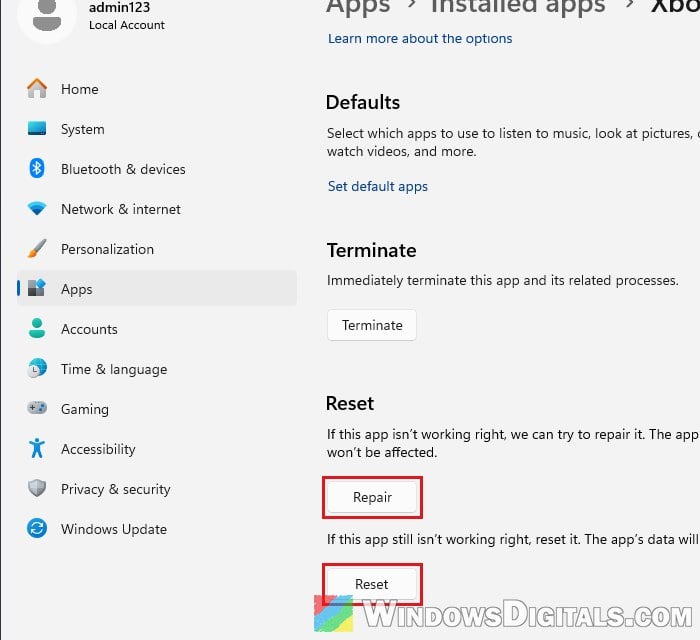
Then try installing the game again.
Repair Windows if nothing else works
When the Microsoft Store shows 0x80073CF6 for every app, or Gaming Services refuses to install at all, Windows’ own app install system may be damaged.
- Right-click the Start button and select Terminal (Admin), then click Yes.
- Type the following commands one by one, and press Enter after each:
DISM /Online /Cleanup-Image /RestoreHealth
sfc /scannow
- Restart your PC and try installing the game again.
If that doesn’t help, reinstall Windows over itself with Settings > System > Recovery > Reinstall now, which keeps your files and apps.
Might be useful: “Reinstall your current version of Windows” Message