If you bought the Windows 11 Pro upgrade from the Microsoft Store, the payment went through and the Store now shows Install instead of Buy, but every attempt fails with error 0xC004F050 and your PC stays on Windows 11 Home, this guide will explain what the error means and what you can still try to get Pro installed.
Also see: Upgrade Windows 10/11 Home to Pro without losing data
Page Contents
What does error 0xC004F050 mean?
According to Microsoft, 0xC004F050 means that the product key you entered can’t be used to activate Windows. That’s confusing when you bought the upgrade in the Store, because you never typed a key at all. A Store purchase doesn’t come with a key you can see. Instead, it’s a digital license tied to your Microsoft account, and the Store hands it to Windows to switch the edition.
When that hand-over fails, Windows rejects the license and the upgrade stops (sometimes at about 10% into the install). Microsoft hasn’t explained why this happens with Store upgrades. It’s been reported over and over throughout 2026, and the usual tricks (restarting, resetting the Store, making sure you’re signed in with the right account, waiting a few days after the purchase) rarely help.
That said, there are still a few things worth trying before you go to Microsoft Support.
Related problem: “Setup has failed to validate the product key” Windows 10/11
Check that Windows 11 Home is activated and you’re using the right account
These checks rarely fix it on their own, but they rule out the two simple causes before you try anything bigger. Microsoft says your PC must be running an activated copy of Windows 11 Home, and you need to be signed in with your Microsoft account when you buy the upgrade, so make sure the Store uses that same account.
Here’s how to check:
- Press Win + I to open Settings, then go to System > Activation.
- Make sure Windows 11 Home shows as activated.
- Open the Microsoft Store and check that you’re signed in with the account that bought the upgrade.
- Back on the Activation page, expand “Upgrade your edition of Windows” and click Open Store next to “Upgrade in the Microsoft app“.
- Click Install and restart when it asks you to.
If Home itself isn’t activated, sort that out first, since the upgrade needs an activated copy of Home to start from.
Linked issue: Windows 11 Not Activated After BIOS Update
Switch to Pro with the generic key
This is the workaround you’ll see suggested most for this error on Microsoft’s forums. Instead of letting the Store do the edition switch, you do it yourself with Windows 11 Pro’s generic key. That key only changes the edition and doesn’t activate Windows by itself. The idea is that once you’re on Pro and back online, Windows picks up the Pro digital license you bought.
Be warned: There’s no guarantee this works, and it may not fix the Store upgrade at all. If Windows doesn’t pick up your license afterwards, you’ll be left on Windows 11 Pro that isn’t activated. If that happens, try the troubleshooter below, then Microsoft Support, so keep your order details at hand.
To switch to Pro with the generic key, follow the steps below:
- Disconnect your PC from the internet (unplug the cable or turn off Wi-Fi).
- Temporarily turn off any third-party antivirus.
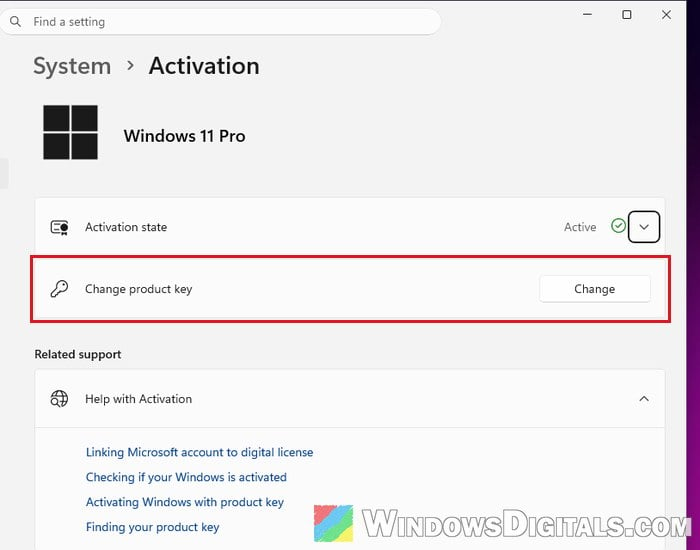
- Go to Settings > System > Activation.
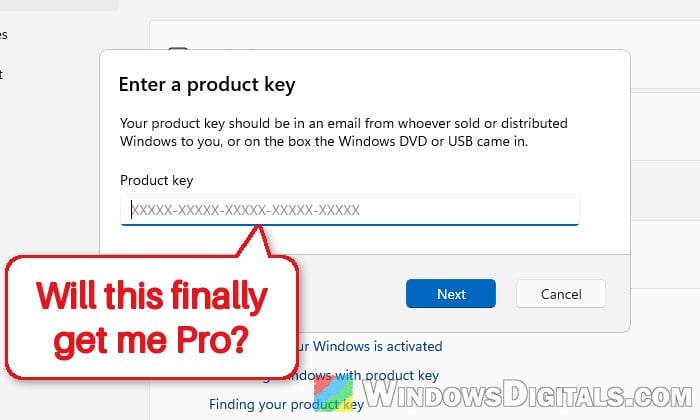
- Click Change next to “Change product key“.
- Enter the following key and click Next:
VK7JG-NPHTM-C97JM-9MPGT-3V66T
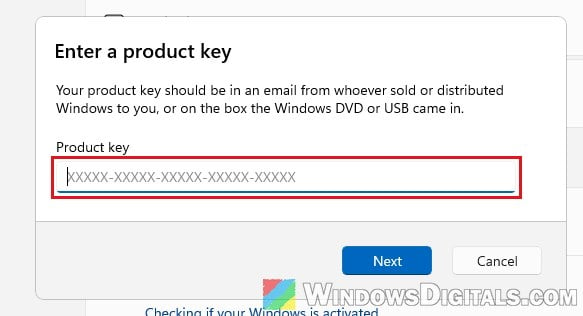
- Let Windows switch to Pro and restart your PC.
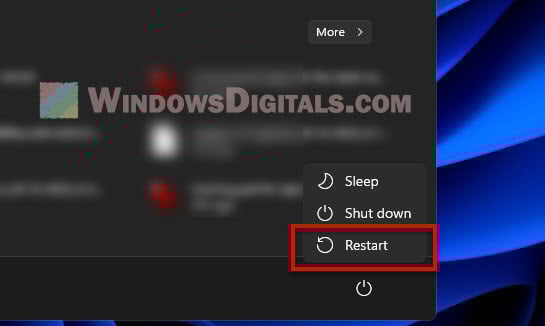
- Reconnect to the internet and turn your antivirus back on.
- Make sure you’re signed in with the Microsoft account that bought the upgrade.
After that, go back to Settings > System > Activation and see if it now says Windows 11 Pro is activated.
What if Pro shows as not activated?
If Windows didn’t pick up your license, try the activation troubleshooter next. It’s Microsoft’s own tool for activation errors. Click Troubleshoot on the same Activation page (it shows up when Windows isn’t activated) and follow what it suggests. The error code shown next to it may be different from 0xC004F050.
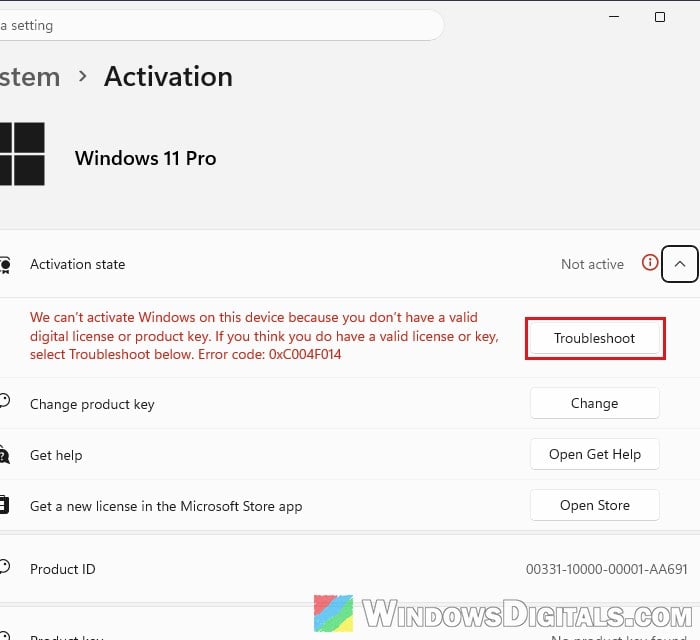
If it still isn’t activated after that, move on to Microsoft Support below.
Contact Microsoft Support with your order
If none of the above works, only Microsoft can check whether the license was set up correctly on your account. Contact Microsoft Support with your order details and the error code. They can check the license and, if needed, link it to your device.
Support may also ask you to reset Windows (with the cloud download option) and then install the upgrade from the Store again. A reset can remove your apps or files depending on the option you pick, so back up your files first if they ask you to do this.