If you’ve just found that Microsoft Publisher is gone from your PC and your old flyers, newsletters or cards saved as .pub files won’t open anymore, it’s because Microsoft retired Publisher in October 2026 and Microsoft 365 is now removing it from computers. This guide will show you how to still open your .pub files without Publisher, how to turn them into PDF or Word files, and what you can use instead.
Also see: How to Change Default App For File Extension in Windows 11
Page Contents
Why won’t .pub files open anymore?
A .pub file can only be opened properly by Microsoft Publisher, and Publisher reached its end of support in October 2026. What happens next depends on which version of Office you have:
- Microsoft 365 subscription: Microsoft says subscribers lose access to Publisher on or shortly after October 1, 2026, as an update removes it from PCs. After that you can’t download or reinstall it, and your .pub files no longer open.
- Office 2021 or older (one-time purchase): Support for Publisher ended with Office 2021 on October 13, 2026, but the app isn’t taken away. You can keep using Publisher from Office 2021, 2019 or 2016 and even reinstall it, just without any more updates.
- Office 2024: This version never came with Publisher, so if you moved to it from Microsoft 365, you won’t have Publisher at all.
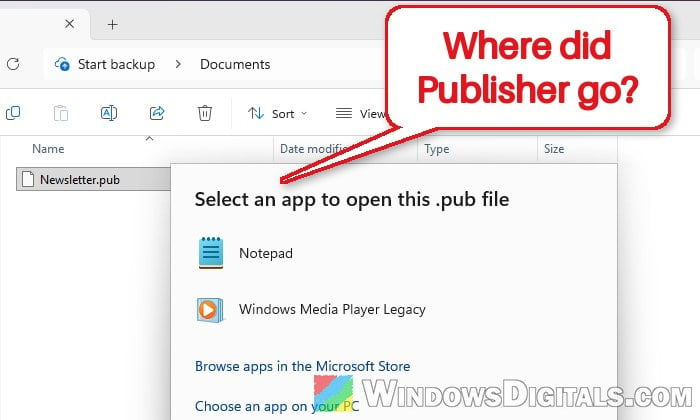
Without Publisher, Windows doesn’t know what to do with a .pub file and just asks you to pick an app.
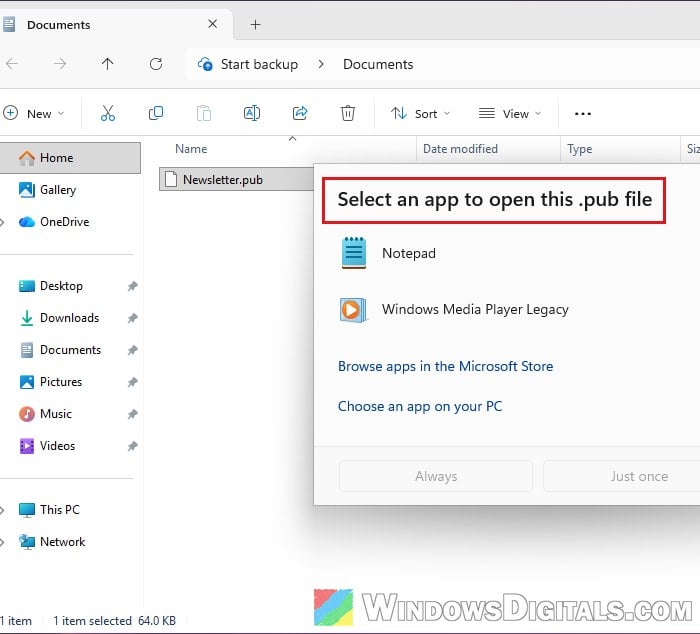
Your files aren’t lost, though. Free apps can still open them (simple layouts work best), and you can turn them into PDFs or Word files.
Still have Publisher? Save your files as PDF now
If Publisher still opens on your PC (an older one-time purchase of Office, or Microsoft 365 before the removal reaches you), the safest thing to do right now is to save every .pub file you care about as a PDF. A PDF keeps the layout as it looks in Publisher, and it opens on any PC. Microsoft recommends doing this too.
- Open the .pub file in Publisher.
- Click File > Save as.
- Choose where you want to save it.
- Select PDF as the file type.
- Click Save.
Open the PDF once to check that it looks right before you rely on it.
If you have lots of .pub files, Microsoft offers a small PowerShell script called Convert-PubFileToPDF.ps1 that converts them all to PDF in one go. You can get it from https://download.microsoft.com/download/3e67cd40-2334-4c46-a0c9-30bd43eebb3c/Convert-PubFileToPDF.ps1. It uses Publisher to do the conversion, so it only works on a PC where Publisher is still installed. Put the script in the folder with your .pub files, open PowerShell in that folder and run:
.\Convert-PubFileToPDF.ps1 -Filter "*.pub" -Recurse
The -Recurse part makes it go through the subfolders as well.
Several people on Reddit who rely on Publisher also say they’re keeping an old one-time-purchase copy of Office (2021 or earlier) around just for Publisher. That works, but installing an older Office next to Microsoft 365 can cause conflicts, so converting your files is still the better long-term plan.
Open .pub files in LibreOffice Draw (free)
If Publisher is already gone, LibreOffice is the easiest free way to open .pub files. It’s a free office suite, and its drawing app, LibreOffice Draw, can import Publisher files and let you view, edit, print or export them. Here’s how to do it:
- Go to
https://www.libreoffice.org/download/and click the Windows (X86-64) download button (most PCs), or Windows (ARM64) if your PC has an Arm processor.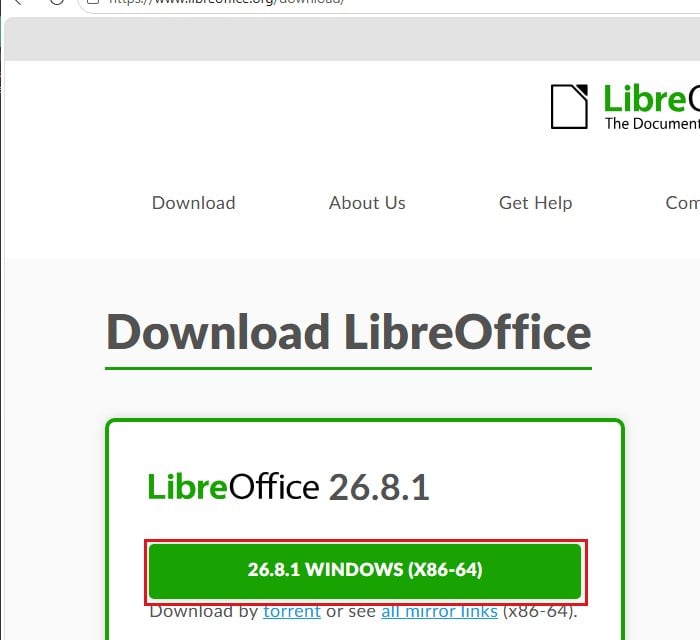
- Run the installer and follow the steps to install it.
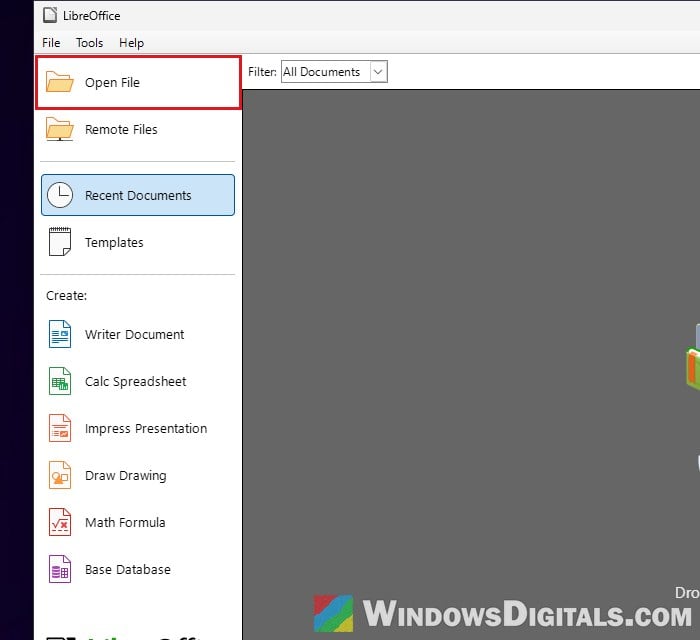
- Open LibreOffice and click Open File.
- Select your .pub file and click Open.
- LibreOffice opens it in Draw, with the text, shapes and pictures in place. If a welcome window pops up the first time, just close it.
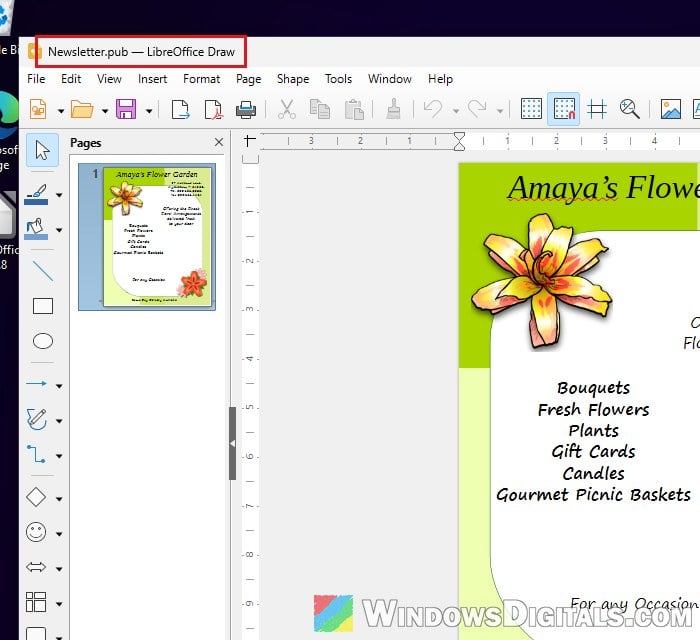
- To keep a copy that opens anywhere, click File > Export As > Export as PDF.
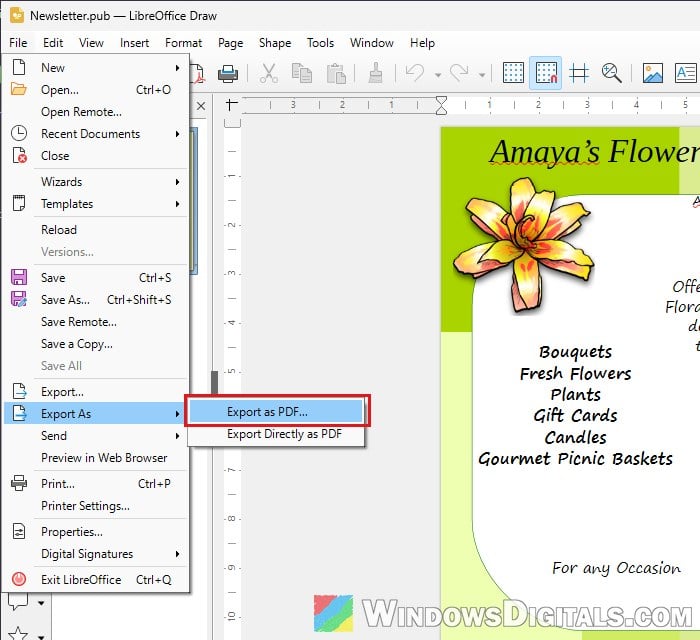
Please note that LibreOffice can only import .pub files. It can’t save back to the Publisher format. If you want to keep editing in LibreOffice, save the file in its own Draw format (.odg) instead. Simple layouts usually come through fine, but complex ones may look a bit off, and some images might not show up. If that happens, try the next app.
Related guide: How to Open XPS File in Windows 11
Import .pub files into Scribus
Scribus is a free desktop publishing app. It’s the closest free thing to Publisher, so it’s the better pick if you want to keep designing, not just view old files. Scribus 1.6 can import Publisher files directly, and the latest 1.6.6 release improved how images from Publisher files are scaled.
- Download Scribus from its official website,
https://www.scribus.net/downloads/, and install it. - Open Scribus and click Cancel on the New Document window that shows up.
- Press Ctrl + O to open a file. Scribus lists MS Publisher among the file types it can open.
- Select your .pub file and open it.
- If Scribus says a font used in the file is not installed, pick a replacement font (or keep the one it suggests) and click OK.
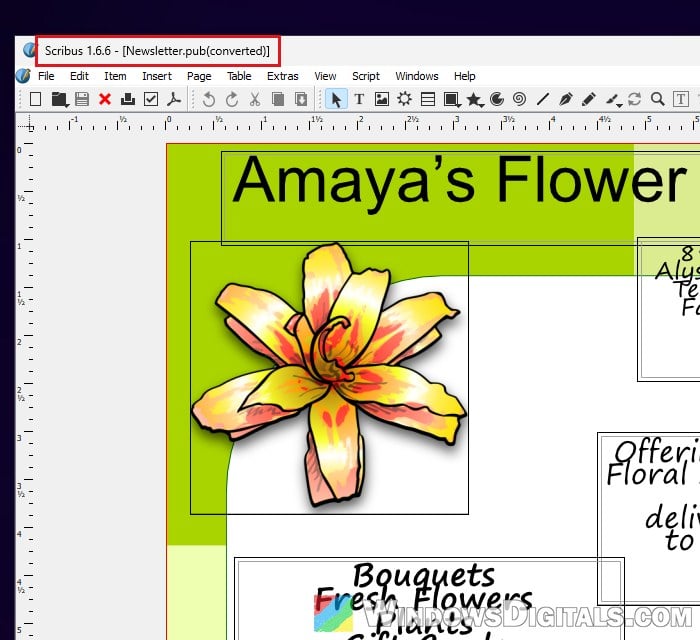
The file opens as a converted copy, with every text block and picture in its own frame that you can move and edit, and Scribus can export the result as a PDF too. Like LibreOffice, it can struggle with long or complex documents, so check every page after importing. There’s a bit of a learning curve, but you can rebuild a whole project in it. Some antivirus apps may also raise a warning about Scribus, so only download it from the official site.
Turn the PDF into an editable Word document
If you’d rather keep working in Word, you can turn the PDF (from Publisher, LibreOffice or Scribus) into a Word document. Word converts the PDF by itself:
- Open Word.
- Click File > Open and select the PDF.
- Click OK when Word says it will convert the PDF.
Microsoft points out that the layout of the converted document may not match the original exactly, especially if it has a lot of pictures.
Might be useful: How to Edit PDF File for Free on Windows 11
Find all your .pub files
If you have years of Publisher files, it helps to know where they all are before you convert them. Microsoft suggests simply searching for “.pub” on your PC, in OneDrive and in SharePoint.
- Open File Explorer and go to the folder or drive you want to search, for example Documents.
- Type
*.pubin the search box in the top-right corner and press Enter.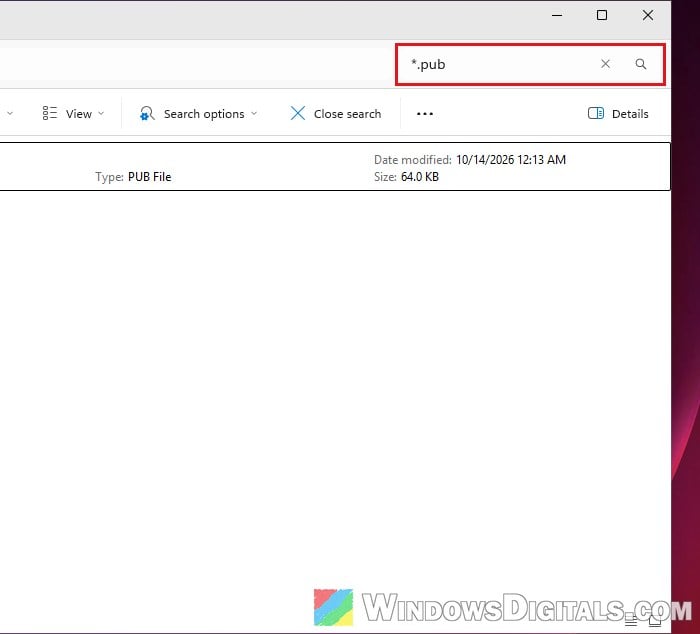
Every .pub file in that folder and its subfolders will show up in the results.
Learn more: Windows 11 Search Slow? Speed Up Search in File Explorer
What to use instead of Publisher
For new projects, Microsoft points Publisher users to Word for newsletters, letterheads and other text-heavy layouts, and to PowerPoint for flyers, posters and banners. Both have ready-made templates for things like calendars, business cards and labels on Microsoft Create (https://create.microsoft.com). If you don’t want to stay with Microsoft, Canva is a popular choice for quick designs, and if you want a real desktop publishing app without paying, Scribus is the one to try.