If you’ve just updated Firefox and suddenly see rounder tabs, rounder menus and a purple and warm-toned color scheme, that’s the new “Nova” design that Firefox 157 turned on for everyone. Not everyone likes it, and there’s no normal setting to simply switch back. This guide will show you how to get the old Firefox look back, or at least get as close to it as possible.
Also see: How to Restart Firefox Browser Without Losing Tabs
Page Contents
What changed in Firefox 157?
Firefox 157, released on September 29, 2026, made the Nova redesign the default look of the browser. The tabs, address bar, menus and even the window corners are now rounder, the active tab gets a gradient, the icons were redrawn, and there’s a new color palette with warm tones and purples. The Settings page also uses rounded “cards” now, and a refreshed sidebar is turned on by default.
It’s a big change, and quite a few people complained about it on social media and on Mozilla’s Connect forum. Some just find it too round, others don’t like the new colors.
There’s a hidden switch that turns most of Nova off, plus a few official settings that undo parts of it. We’ll start with the hidden switch, since it gets you closest to the old look.
Pro tip: How to Reopen Closed Window or Tab in Mozilla Firefox
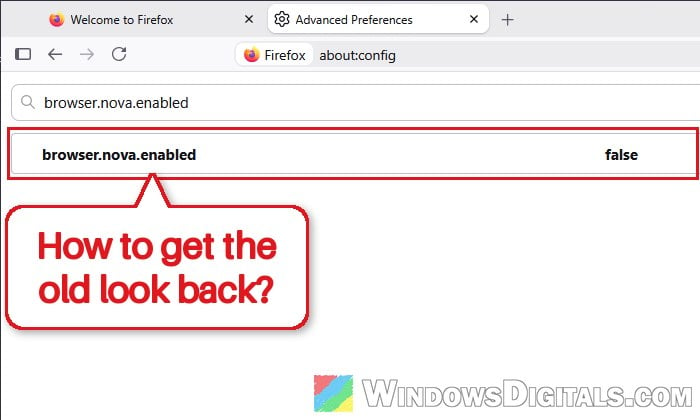
Turn off Nova with “browser.nova.enabled”
The new design is controlled by a hidden preference called browser.nova.enabled. It’s the same switch that was used to turn Nova on in earlier test versions of Firefox, and tech sites like It’s FOSS and Neowin reported that setting it to false brings back the previous interface. We tested it on Firefox 157, and the tabs and toolbar went back to the older, flatter look straight away.
Please note that this is not an official setting. Mozilla doesn’t list it anywhere in Settings, and it could stop working or be removed in a future version of Firefox. If that happens, the official options further below are still there.
Here’s how to do it:
- Type
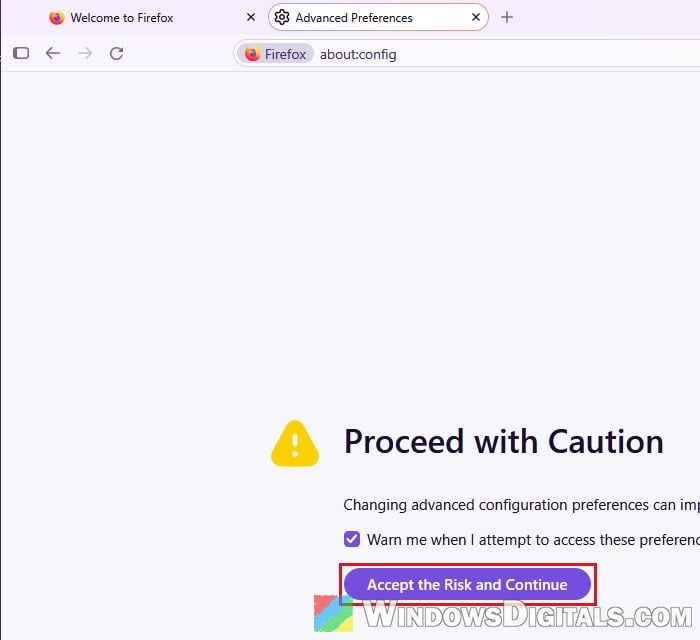
about:configin the Firefox address bar and press Enter. - Firefox will show a warning page. Click “Accept the Risk and Continue“.
- In the “Search preference name” box, type “browser.nova.enabled“.
- Click the Toggle button (the two arrows on the right) so that the value changes from true to false.
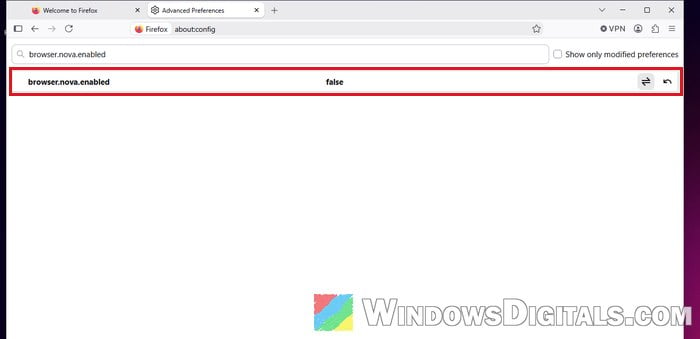
- If the old look doesn’t show up right away, close and reopen Firefox.
If you ever want Nova back, go to the same preference and click the Reset button (the curved arrow next to Toggle), or toggle it back to true. Be careful not to change other preferences on this page unless you know what they do, since some of them can break things in Firefox.
Might be useful: How to Cycle Through Tabs in Chrome, Firefox or Edge
Switch to compact window density
If you’d rather stick to official settings, or the hidden switch stops working one day, the next best thing is Compact density. It shrinks the spacing around the toolbar and tabs, so Firefox looks a lot less bulky and leaves more room for web pages. Compact mode had been hidden since Firefox 89 (back in 2021), so it’s nice to see it back as a normal option in Firefox 157.
Follow the steps below:
- Click the menu button (the three lines at the top right of Firefox) and select Settings.
- Click Appearance in the left pane.
- Scroll down to the Window density section and select Compact.
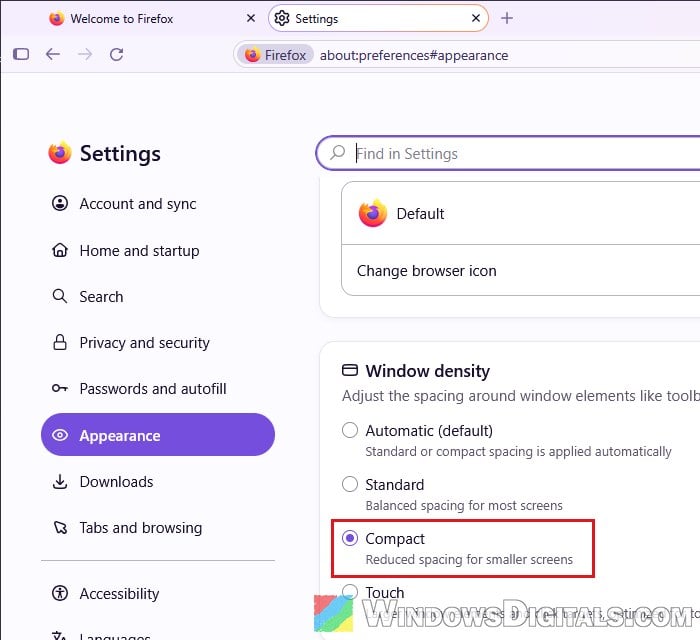
The change applies immediately, and you’ll notice the tabs and the address bar get slimmer. The other choices are “Automatic (default)“, Standard and Touch, if you want to compare them.
Install the “Proton” theme for the old colors
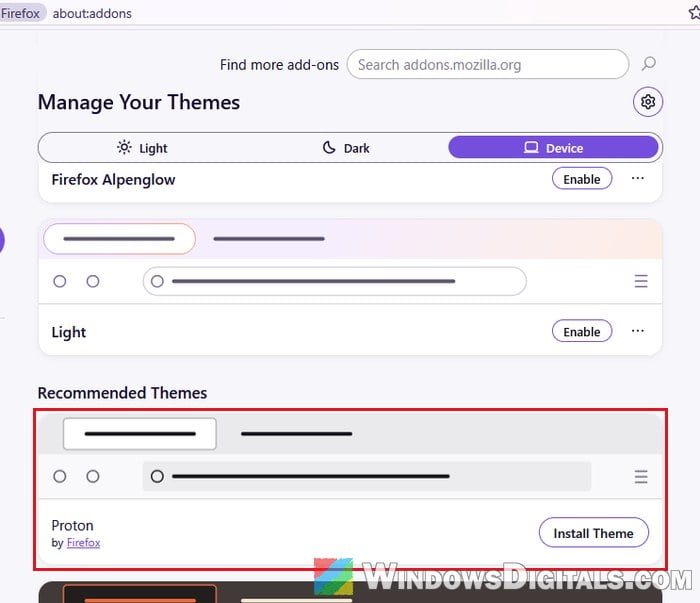
Compact density doesn’t change the colors, so if the purple and warm tones are what bothers you, a different theme can fix that part. At the time of writing, the Add-ons Manager recommends a theme called Proton, made by Firefox itself, which uses plain gray and white colors much like the older design.
To install it:
- Click the menu button (the three lines) and select “Extensions and Themes“.
- Click Themes in the left pane.
- Scroll down to Recommended Themes and click Install Theme on Proton.
- Click Add when Firefox asks to confirm, then OK.
The theme is applied as soon as it’s added. To go back, return to the same Themes page and click Enable on the Default theme. The built-in Light theme is also listed there, but it still keeps some of the new purple tint.
Bring back the old sidebar
The new sidebar is a separate setting, and Mozilla actually lets you turn this one off. According to the Firefox 157 release notes, setting sidebar.revamp to false restores the previous sidebar, and this option will be available until the end of 2027.
Please be warned that Mozilla notes this switch also controls vertical tabs, so if you use vertical tabs, you may want to leave the new sidebar on.
Here’s what you should do:
- Open
about:configagain (and click “Accept the Risk and Continue” if asked). - Search for “sidebar.revamp“.
- Click Toggle so that it shows false.
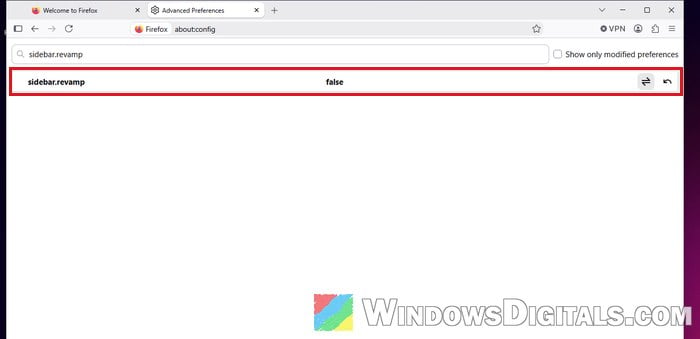
Open the sidebar afterwards and check whether it’s back to the old style. If it isn’t, restart Firefox.
What about userChrome.css themes?
You may also come across custom userChrome.css files on GitHub that try to recreate the old Firefox interface. They need an extra preference and a “chrome” folder in your Firefox profile. They’re also made by third parties and not supported by Mozilla, so any Firefox update can break them. If you do try one, expect to fix or remove it after updates.