If Microsoft Defender in Windows 11 tells you that a restart is needed to remove threats, for example “Threats found. Please restart your device to remove them.“, and after restarting your PC the detected files are still sitting in your Downloads folder and the warning keeps coming back, it usually means Defender’s removal never actually finished, or something keeps bringing the file back. This guide will show you what’s going on and how to get rid of the threats for good.
Also see: Virus and Threat Protection Missing in Windows 11
Page Contents
Why does Defender need a restart to remove threats?
Microsoft Defender only asks for a restart when the detected file is in use or a service it needs to stop can’t be stopped while Windows is running. In that case, the removal is left pending and Defender finishes it during the next restart, according to a Microsoft moderator on Microsoft Q&A.
So when the files are still there after you restart, it’s usually one of these:
- The restart button in Windows Security didn’t actually restart the PC, so the pending removal never ran.
- Defender has quarantined the file, but it’s still waiting for you to remove it in Protection history.
- Another copy of the file exists, or something like your browser, an archive or a synced folder keeps bringing it back.
- The alert is just a leftover entry for a file that’s already gone.
Here’s what you can do, starting with the simplest.
Restart from the Start menu
You’ve probably restarted already, but how you restart matters here. In one case on Microsoft Q&A, the restart button in Windows Security simply didn’t do anything. Restarting the normal way from the Start menu finished the job: Defender then showed no threats, and the threat it had found was in the quarantined items.
Here’s how to do it:
- Click the Start button.
- Click the Power icon and select Restart.
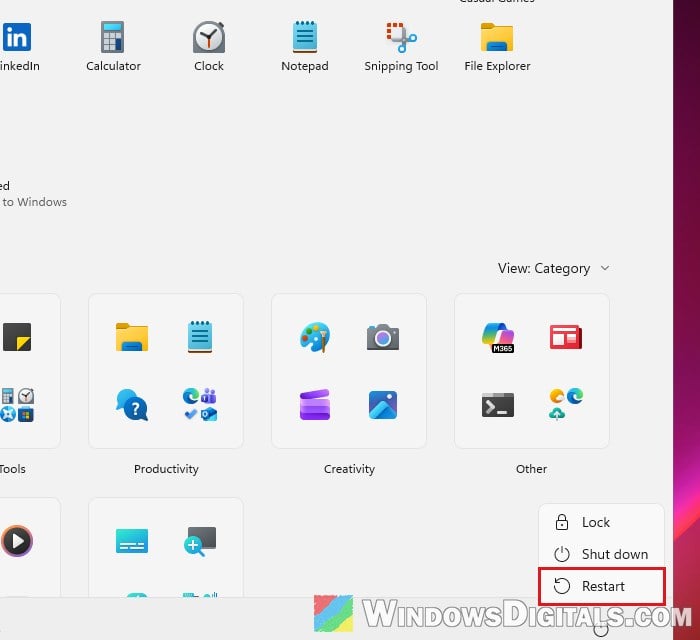
After Windows starts again, open Windows Security and see if the threats are gone.
Check “Protection history” and remove the threat
If the warning is still there, look at what Defender actually did with each threat. Protection history in Windows Security lists every detection with its current status, and some of them still need you to choose what to do. To check it:
- Open the Start menu, search for “Windows Security” and open it.
- Go to Virus & threat protection.
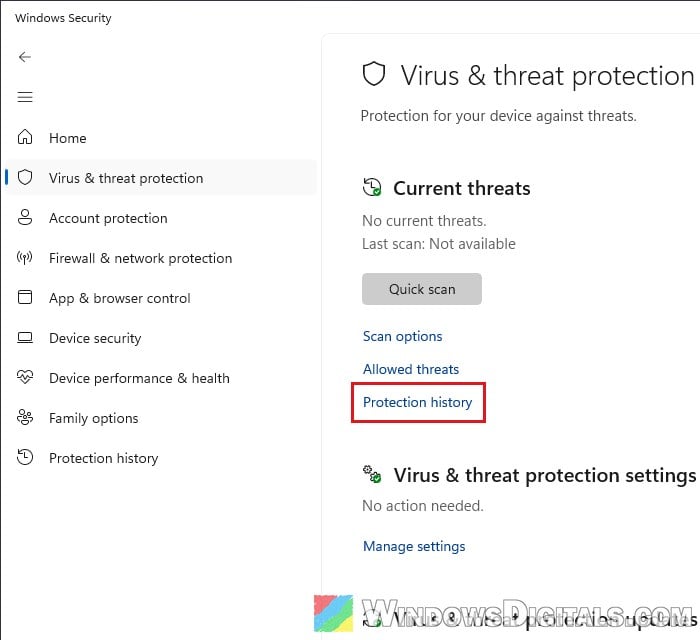
- Under Current threats, click Protection history.
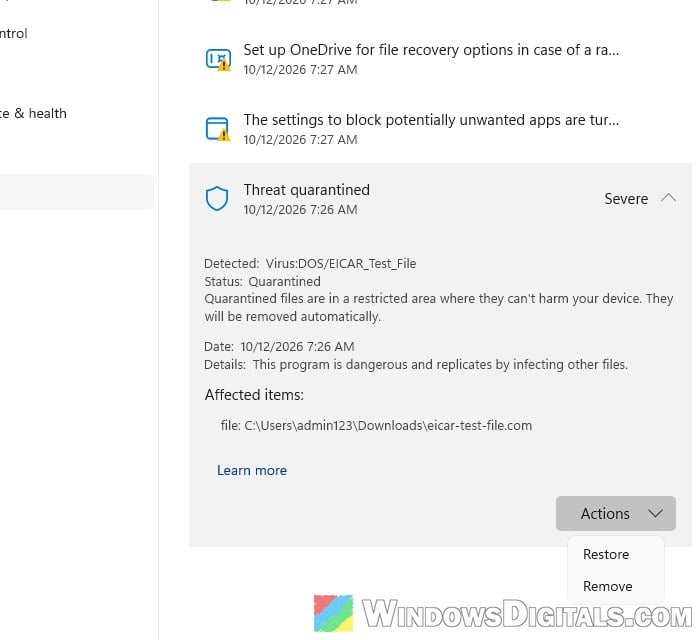
- Click the newest entry to expand it and check its status. If Windows asks for permission, click Yes.
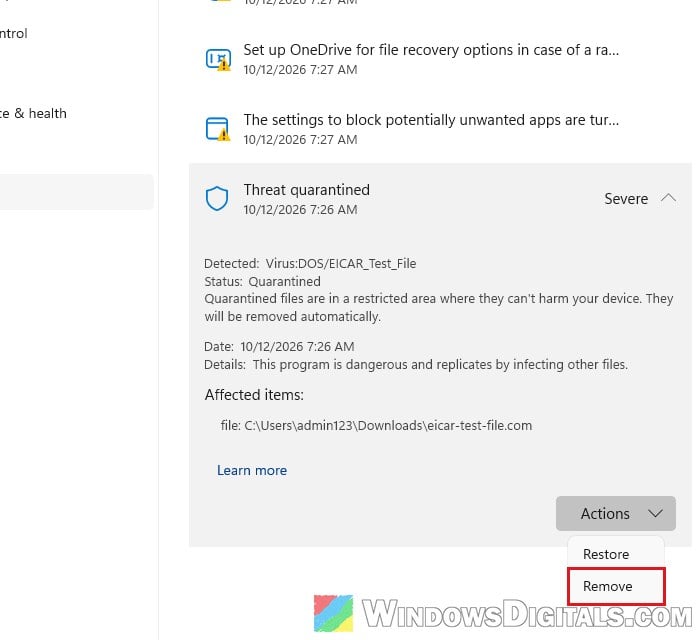
Here’s what the statuses mean, according to Microsoft:
- Threat found – action needed: Defender is waiting for your decision. Choose Remove or Quarantine from the actions (only pick Allow if you’re sure the file is safe).
- Threat quarantined: The file is isolated and can’t harm your PC, but you may still need to click Actions and select Remove to get rid of it.
- Threat blocked: Defender has already blocked and removed it. Nothing else to do.
- Remediation incomplete: Defender tried but couldn’t finish cleaning it. Expand the entry to see the extra steps it wants you to take.
Please note that you need admin rights to see the details of a threat, and Protection history only keeps entries for two weeks.
If you still see the same file in your Downloads folder, don’t open or run it. Check that its name and path match the “Affected items” of the entry, then follow the action shown there.
Pro tip: How to Scan an .exe File for Viruses to Check If It’s Safe
Find out where the file keeps coming from
If Defender removes the threat and it comes right back, the file is probably coming from somewhere else. Usually there’s another copy somewhere, or the source keeps recreating it.
Check these places and delete both the source and any copies:
- Your Downloads folder, your browser’s download list and its cache.
- Zip files and other archives, which can still have the detected file inside.
- Email attachments you saved or opened.
- Temp folders and folders synced with OneDrive or another cloud service, which can put a deleted file right back.
Don’t add an exclusion in Defender just to make the alerts stop. That only hides the problem.
Run a Microsoft Defender Offline scan
When a file is locked while Windows is running, your best bet is a Microsoft Defender Offline scan. It restarts your PC and scans outside Windows, so it can remove files that can’t be touched otherwise. Several answers on Microsoft’s forums suggest it too.
Save your work first, since the PC will restart. Then:
- In Windows Security, go to Virus & threat protection.
- Under Current threats, click Scan options.
- Select “Microsoft Defender Antivirus (offline scan)“.
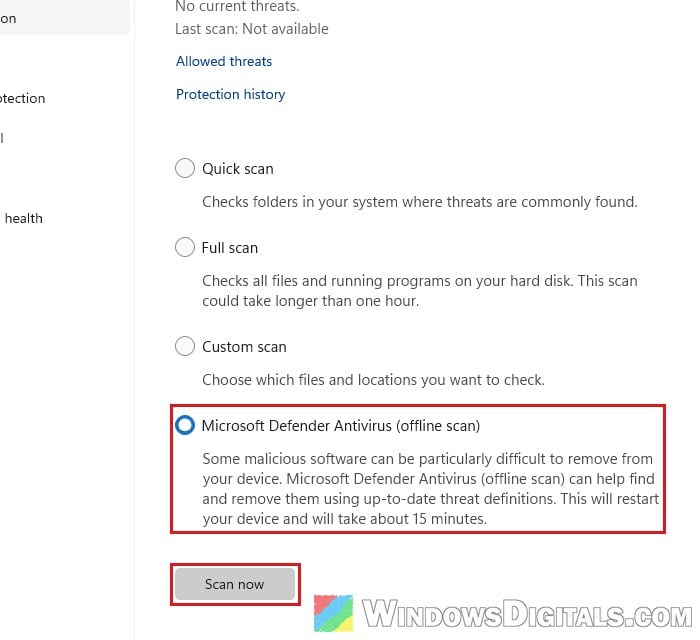
- Click Scan now.
The PC restarts and the scan takes about 15 minutes. Check Protection history afterward to see what it found.
Might be useful: Windows Defender Security Center Service Missing Windows 11/10
Scan with another tool, then clear the old alerts
If the warning still won’t go away, get a second opinion. These steps fixed it for one Microsoft Q&A user whose threats had been stuck for days:
- Run a full scan with the Microsoft Safety Scanner (download it from Microsoft, and note that it expires 10 days after you download it). The free version of Malwarebytes is another option.
- If the scan comes back clean, the alert is probably a leftover entry for a file that’s already gone. Clear it by deleting the DetectionHistory folder in this location, then restart: If Windows doesn’t let you in, do it from Safe Mode.
C:\ProgramData\Microsoft\Windows Defender\Scans\History\Service\
- Run a Quick scan in Windows Security.
Important: Clearing the history only removes old alerts, it doesn’t remove a real threat. For someone else on Microsoft Q&A, the pop-ups came back after clearing these files, so only do this after the scan comes back clean. For the detailed steps, see our guide on why you can’t clear Protection history in Windows Defender.
If the threat still keeps coming back
If the threat still comes back after an offline scan, it’s time to get proper help. Disconnect the PC from the internet and get help from someone who knows malware removal. If you think your accounts might be at risk, change your passwords from a different device, not the infected one.