If Bluetooth suddenly stopped working on your Windows 11 or 10 PC and Device Manager shows your Bluetooth adapter with a yellow warning icon and the message “This device cannot start. (Code 10)” followed by “STATUS_DEVICE_POWER_FAILURE“, it means the adapter failed to power up properly. It happens mostly with Intel Bluetooth adapters, and quite often right after a Windows update. This guide will show you what you can do to get it working again.
Also see: Bluetooth Not Working in Windows 11/10 After Update
Page Contents
Do a cold reboot first
A normal restart doesn’t always cut the power to the wireless card, so the adapter can stay stuck in the same bad state. A cold reboot (also called a power drain) removes all power for a moment and lets the card start fresh. It’s the first step in Intel’s own guide for this error, and in one Microsoft Q&A thread the person who asked confirmed that a cold reboot together with a BIOS update fixed it.
Here’s how to do it:
- Laptop with a removable battery: Shut it down, unplug the charger, take the battery out, then press and hold the power button for about 15 seconds. Put the battery back, plug the charger in and turn it on.
- Laptop with a built-in battery: Shut it down, unplug the charger, then press and hold the power button for about 15 seconds. Plug the charger back in and turn it on.
- Desktop PC: Shut it down, unplug all the cables, then press and hold the power button for 20 seconds. Plug everything back in and turn it on.
Once Windows is back, open Device Manager and see if the Bluetooth adapter still has the yellow warning icon.
Pro tip: How to Clear Bluetooth Cache in Windows 11 or 10
Turn off Fast Startup
Fast Startup makes the PC boot faster, but it also means a shutdown isn’t a full shutdown, so devices like your Bluetooth adapter don’t get a completely fresh start. One answer on Microsoft Q&A for this exact error suggests turning it off, and Beelink’s support team gave the same advice to mini PC owners whose Bluetooth failed this way after the first boot of the day.
Here’s how to turn it off:
- Open Control Panel and go to Power Options.
- Click “Choose what the power buttons do” on the left.
- Click “Change settings that are currently unavailable“.
- Uncheck “Turn on fast startup (recommended)” and click “Save changes“.
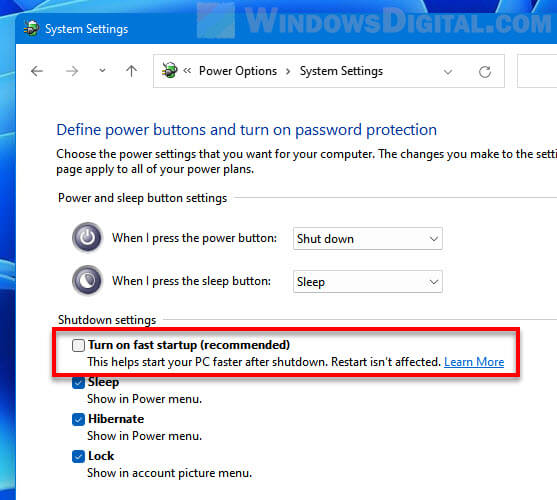
- Shut down the PC, wait a few seconds, and turn it back on.
Then open Device Manager and check if the yellow warning icon on the Bluetooth adapter is gone. The same answer also suggests uninstalling the Bluetooth driver right before that shutdown, so Windows installs it again on the next start. The steps for that are in the clean reinstall section below.
Stop Windows from turning off the Bluetooth adapter
Once Bluetooth works again, you can also stop Windows from switching the adapter off to save power. A Beelink user did this once their Bluetooth was back, and Beelink’s support team also suggested turning off Bluetooth sleep in Device Manager.
- In Device Manager, right-click your Bluetooth adapter and select “Properties“.
- Go to the “Power Management” tab.
- Uncheck “Allow the computer to turn off this device to save power” and click “OK“.
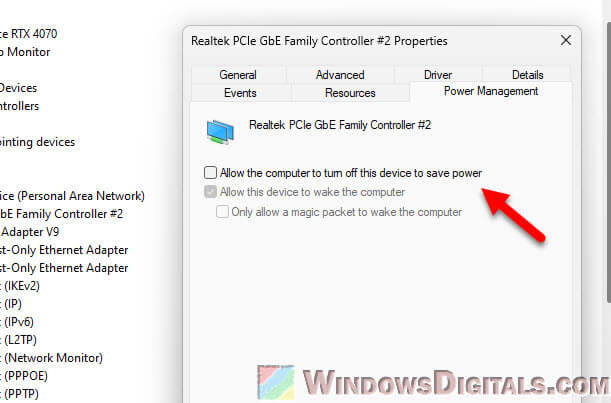
Linked issue: Bluetooth Disappeared after Windows 11/10 Update (Fix)
Roll back the Bluetooth driver
These Code 10 errors most commonly show up after a Windows update that includes a Wi-Fi or Bluetooth driver. If yours started right after an update, going back to the previous driver is worth a try. A user on Reddit recently reported that rolling back the driver is what fixed this exact error for them.
Here’s what you should do:
- Right-click the Start button and select “Device Manager“.
- Expand “Bluetooth“, right-click your Bluetooth adapter (for example, “Intel(R) Wireless Bluetooth(R)“) and select “Properties“.
- Go to the “Driver” tab and click “Roll Back Driver“. If the button is grayed out, there’s no older driver to go back to, so skip to the next section.
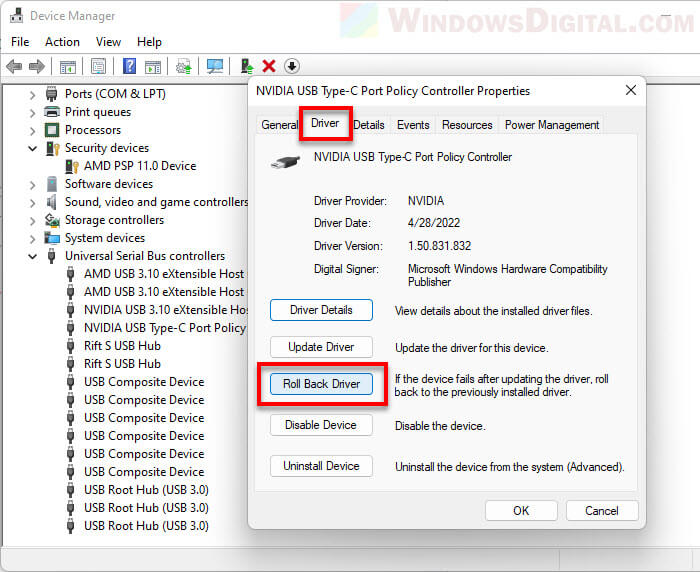
- Confirm the rollback, then restart the PC.
After the restart, check Device Manager again to see if the warning icon is gone.
Do a clean reinstall of the Bluetooth driver
If rolling back isn’t possible or didn’t help, a clean reinstall wipes the current driver completely so you can install a fresh copy. Intel and Microsoft both suggest this for Bluetooth adapters that won’t start. Download the latest Bluetooth driver for your PC first (from your laptop or motherboard maker’s support page, or from Intel’s website), since you may have no Bluetooth until it’s installed again.
Here’s how to do it:
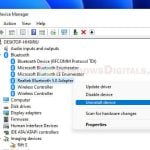
- In Device Manager, expand “Bluetooth“, right-click your Bluetooth adapter and select “Uninstall device“.
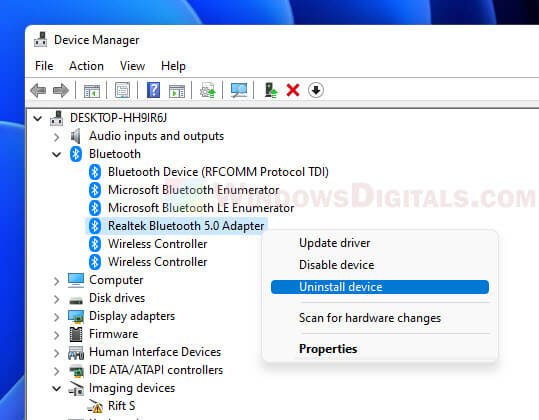
- Tick “Attempt to remove the driver for this device” and click “Uninstall“.
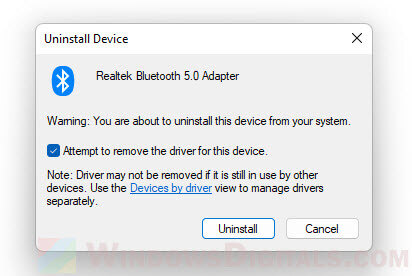
- If the adapter shows up again, repeat the uninstall until the remove-driver option is grayed out.
- Restart the PC. If the adapter doesn’t come back on its own, open Device Manager and click the “Scan for hardware changes” button in the toolbar (it’s also in the “Action” menu).
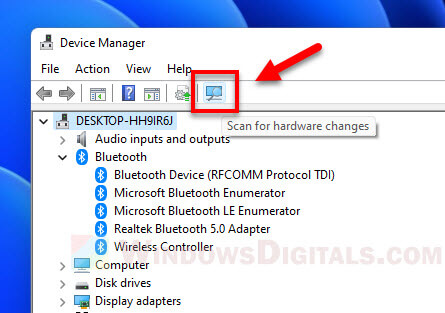
- Right-click the driver installer you downloaded and select “Run as administrator” to install it.
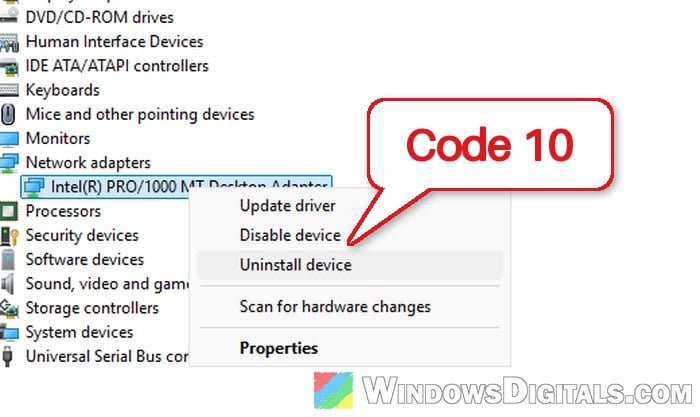
Please note that on many laptops the Bluetooth and Wi-Fi run on the same wireless card, so if your Wi-Fi is also showing an error (such as Code 43 or Code 10), do the same clean reinstall for the Wi-Fi driver under “Network adapters“.
For more detailed instructions: How to Reinstall Bluetooth Driver in Windows 11
Update or reset the BIOS
If none of the above works, the problem could be in the firmware that controls the wireless card. A BIOS update followed by a cold reboot is what fixed it for the person in the Microsoft Q&A thread mentioned earlier. Two Beelink mini PC owners tried clearing the CMOS: it fixed Bluetooth for one of them, while for the other the error came back after a few days.
Here’s what you can try:
- Check that Bluetooth is enabled in the BIOS: Some BIOS setups have their own switch for the wireless card or Bluetooth.
- Reset the BIOS to defaults: Enter the BIOS and load its default settings (your PC or motherboard maker’s manual shows where the option is).
- Update the BIOS: Check your PC maker’s support page for a newer BIOS version for your model and install it, then do the cold reboot from the first section again.
Be warned: A BIOS update can brick your PC if the power is cut or the wrong file is used. Only use the BIOS from your laptop or motherboard maker’s support page, keep a laptop plugged in, and if you’re not sure what you’re doing, it’s better to get someone to help you instead.
Related concern: Windows 11 Not Activated After BIOS Update
Maybe a hardware problem
If the error keeps coming back even after a clean Windows install, the wireless card itself might be failing. One Lenovo Legion owner on Reddit had both the Wi-Fi and Bluetooth fail this way, and it stayed even after reinstalling Windows. Before blaming the hardware, it’s worth restoring your PC with System Restore to a point from before the problem started (if you have one), or resetting your PC after backing up your files. If nothing helps and your PC is still under warranty, contact the manufacturer.