There is a fairly common issue with the new Outlook for Windows where clicking a PDF attachment opens the preview, but it stays completely blank, or shows “Something went wrong while the document preview was being created. Please try again later.” instead, while the same PDF often opens fine in classic Outlook or in Outlook on the web. The Open button in the preview may do nothing either. This guide will explain why it happens and how to get your PDF previews back.
Also see: New Outlook Won’t Open Attachments in Windows 11
Why is the PDF preview blank in the new Outlook?
The new Outlook shows your mail and attachment previews through Microsoft Edge WebView2, a part of Windows that works like a small Edge browser inside the app. WebView2 updates itself every couple of weeks, so the new Outlook can break even when Outlook itself didn’t update.
The two usual reasons for a blank PDF preview are:
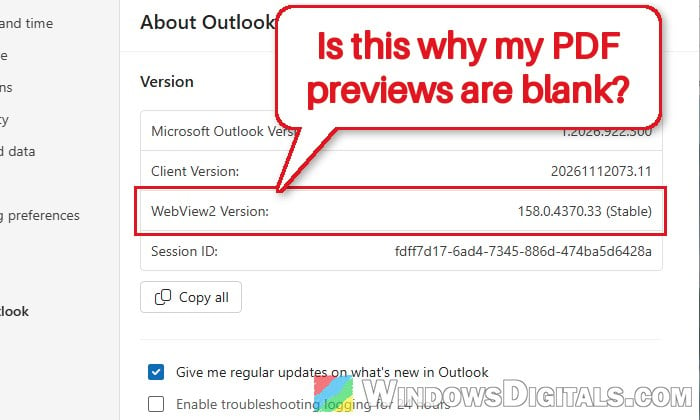
- A WebView2 update that broke it. In November 2026, the blank preview and the dead Open button showed up on PCs with WebView2 158.0.4370.33, while a PC on the version before it worked fine until it was updated too. Not every PC on that version is affected, though.
- A problem on Microsoft’s side. Microsoft has had several incidents in 2026 where attachments wouldn’t preview or open for some accounts, in Outlook on the web too. Nothing on your PC helps while one is going on.
So first, find out which of the two you’re dealing with.
Try the same PDF in Outlook on the web
This quick test tells you where the problem is:
- Go to
https://outlook.live.comfor a personal Microsoft account (Outlook.com, Hotmail), orhttps://outlook.office.comfor a work or school account, and sign in if asked.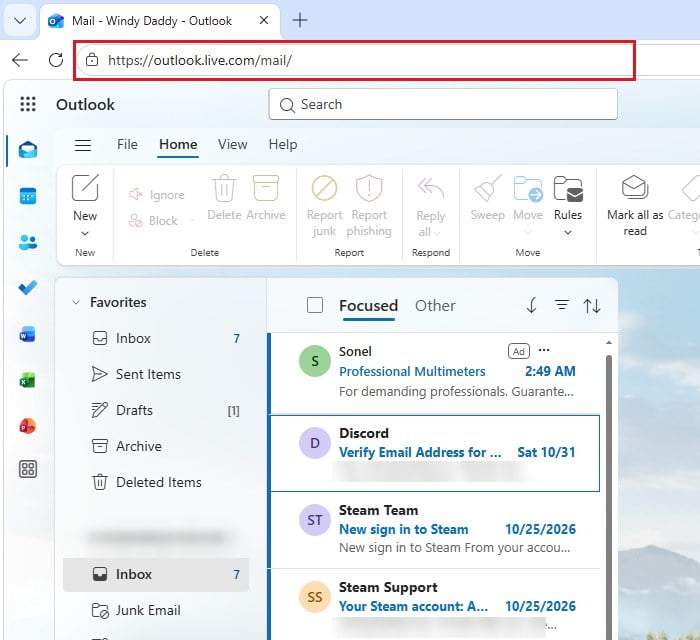
- Open the email and click the PDF attachment.
If the PDF previews fine in the browser, the problem is with the new Outlook app or its WebView2 on your PC, so keep going with the fixes below.
If the PDF is blank or shows the same error in the browser too, it’s likely a problem with Microsoft’s servers or your account. All you can do is wait, as these problems have usually cleared up within a few days. For a work account, your IT admin can check for an active incident in the Microsoft 365 admin center under Health > Service health.
Close the new Outlook completely and open it again
Yes, this sounds a little too simple. But when Microsoft fixed one of the attachment problems on its side in October 2026, users still had to close and reopen the new Outlook before the fix reached them. Here’s how to make sure it’s fully closed:
- Close the new Outlook window.
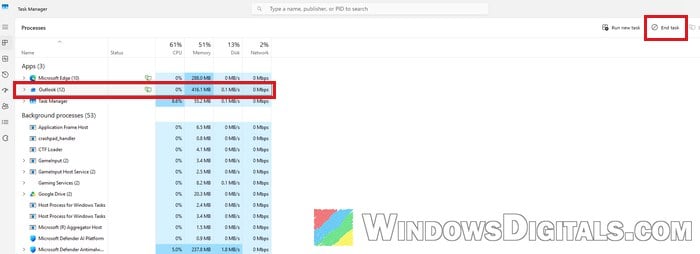
- Press Ctrl + Shift + Esc to open Task Manager.
- Look for Outlook in the list. If it’s still listed after you closed the window, select it and click End task.
- Open the new Outlook again and click the PDF attachment.
Check which WebView2 version the new Outlook uses
The new Outlook tells you which WebView2 version it’s using, so you can check if you’re on the one people reported with this problem:
- In the new Outlook, click the Settings (gear) icon at the top right.
- In the Settings window, go to General > About Outlook.
- Look at the line that says WebView2 Version.
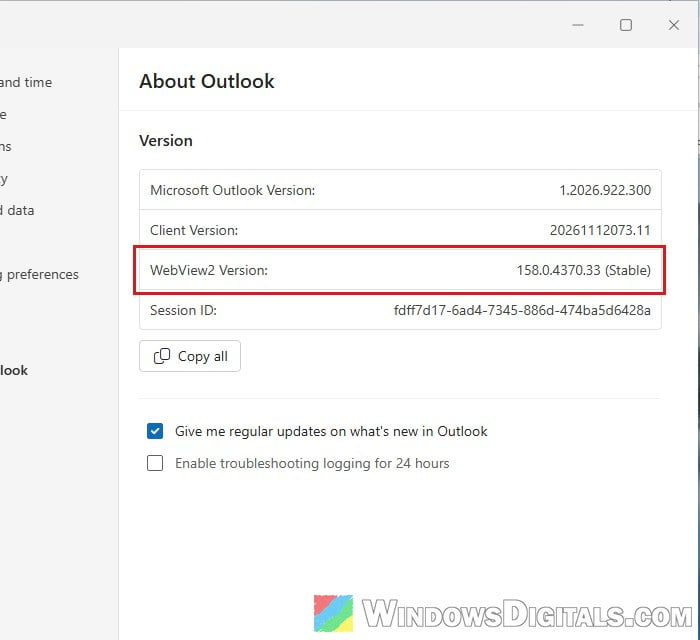
If it says 158.0.4370.33, that’s the version reported with the blank previews. A newer WebView2 update may fix it by itself, so check again over the next days, or use the WebView2 fix further down.
Repair or reset the new Outlook
Resetting the app is worth a try, though for many people it didn’t help. Try Repair first, since Reset deletes the app’s data. Here’s how to do it:
- Open Settings and go to Apps > Installed apps.
- Type “Outlook” in the search box. The new Outlook is listed as Outlook (new) or just Outlook.
- Click the three-dot button next to it and select Advanced options.
- Scroll down and click Repair.
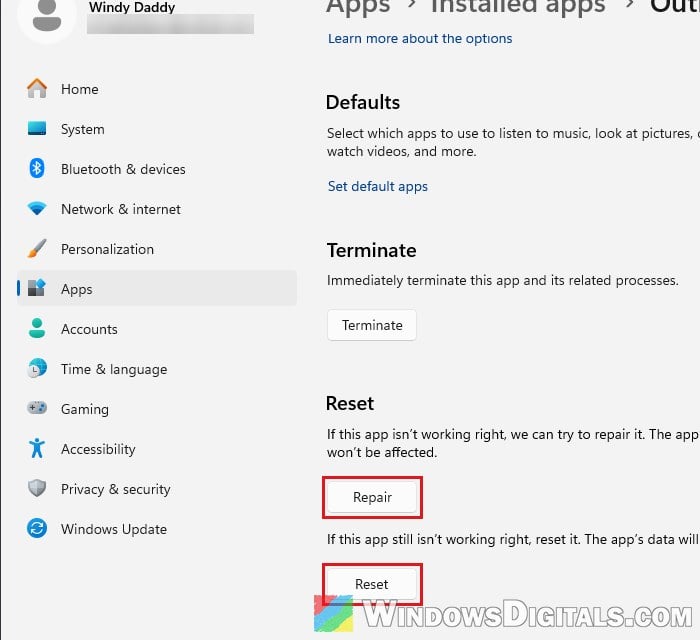
- If that doesn’t help, come back to the same page and click Reset.
Then open the new Outlook and try the PDF again.
Related problem: PDF Thumbnail and Preview Not Working in Windows 11 File Explorer
Make the new Outlook use an earlier WebView2 version
This is what brought the PDF previews back on PCs with WebView2 158.0.4370.33. Microsoft offers a “fixed version” of WebView2 that doesn’t update itself, and a policy that tells one app to use that copy. The new Outlook’s program file is olk.exe, so the policy only changes the new Outlook. If you see the “Something went wrong” message and you’re not on 158, it’s less likely to help.
Please be warned that this is for IT admins and confident users. A wrong registry change can cause real problems, so at least create a system restore point first. The fixed copy doesn’t update itself, so it misses security fixes too, and you should undo this once a newer WebView2 fixes the previews. If you’re unsure, just use Outlook on the web for a few days instead.
Here’s what you should do:
- Go to
https://developer.microsoft.com/microsoft-edge/webview2and scroll down to the download section. - In the Fixed Version box, open Select Version and pick the version before 158 (157.0.4341.60 at the time of writing). Leave Select Architecture on x64 for most PCs.
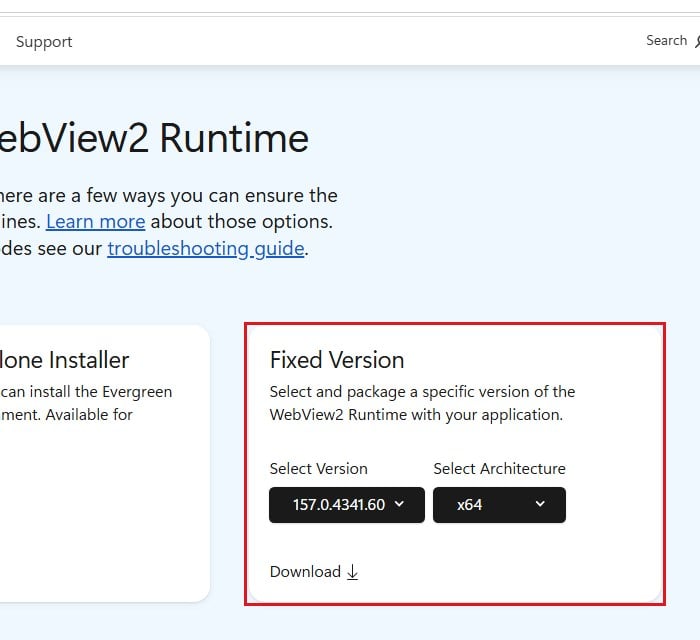
- Click Download, then Accept and Download on the license box. You’ll get a .cab file of about 300 MB.
- Create a folder for it, for example
C:\WebView2Fixed. - Open Command Prompt.
- Extract the downloaded file into that folder with this command (change the user name and file name to match yours). Microsoft says not to extract it with File Explorer, since that can mess up the folder structure.
expand "C:\Users\YourName\Downloads\Microsoft.WebView2.FixedVersionRuntime.157.0.4341.60.x64.cab" -F:* "C:\WebView2Fixed"
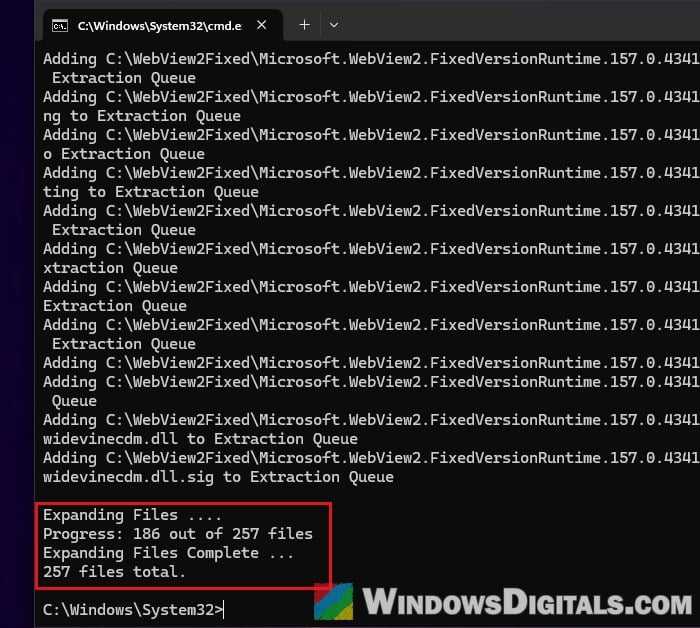
- The files end up in a subfolder, such as
C:\WebView2Fixed\Microsoft.WebView2.FixedVersionRuntime.157.0.4341.60.x64. Copy the full path of that subfolder (it’s the one with msedgewebview2.exe in it). - Press Win + R, type “regedit” and press Enter to open Registry Editor.
- Copy and paste the following path to the address bar and press Enter:
HKEY_LOCAL_MACHINE\SOFTWARE\Policies\Microsoft
- If Microsoft has no Edge key, or Edge has no WebView2 key, right-click the key above it, select New > Key, and create the missing one.
- Right-click WebView2, select New > Key, and name it “BrowserExecutableFolder“.
- Right-click BrowserExecutableFolder, select New > String Value, and name it “olk.exe“.
- Double-click olk.exe and paste the folder path from step 7 as its value data, then click OK.
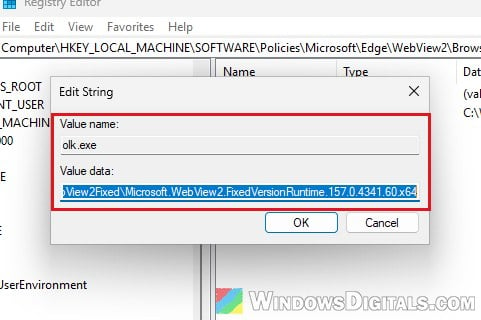
- Close the new Outlook completely (see the Task Manager steps above) and open it again.
In Settings > General > About Outlook, the WebView2 Version should now show the version you downloaded.
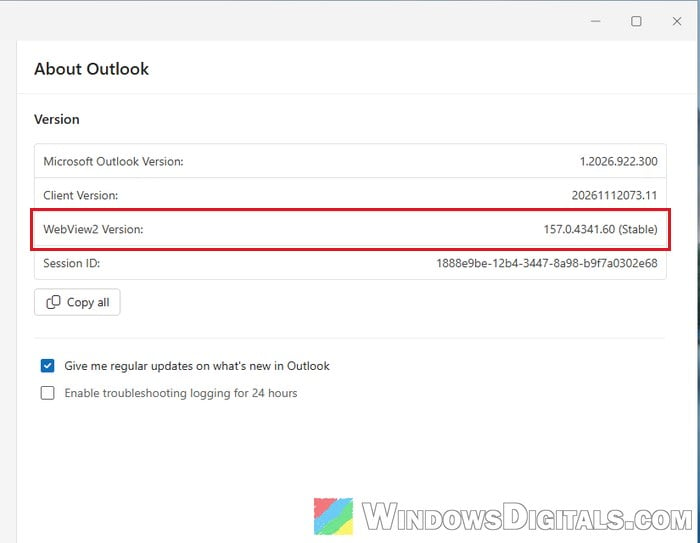
Click the PDF attachment again to see if the preview loads. To undo this later, delete the olk.exe value in the same key and restart the new Outlook, which then goes back to the normal, self-updating WebView2.
Pro tip: How to Change Default PDF Viewer in Windows 11
Open the PDF another way in the meantime
If you just need the file right now, click the drop-down arrow next to the attachment, select Save As, and open the saved PDF from File Explorer. This doesn’t always work, as saving failed too during one of Microsoft’s incidents.
If you have classic Outlook installed, it previews PDFs with its own previewer and isn’t affected by any of this. Switching back to it for a while is the easiest way around the problem: in the new Outlook, go to the Help tab and select Go to classic Outlook.