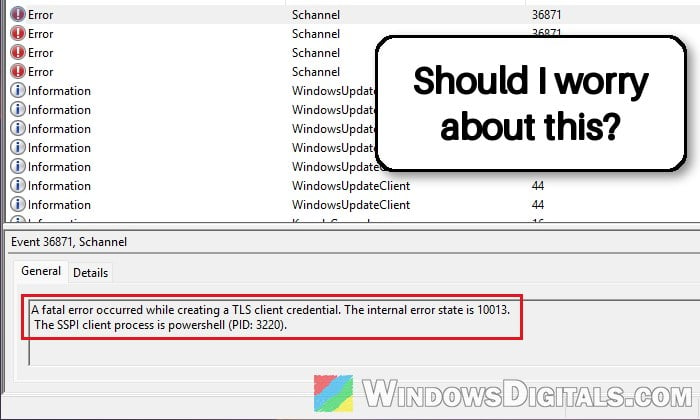
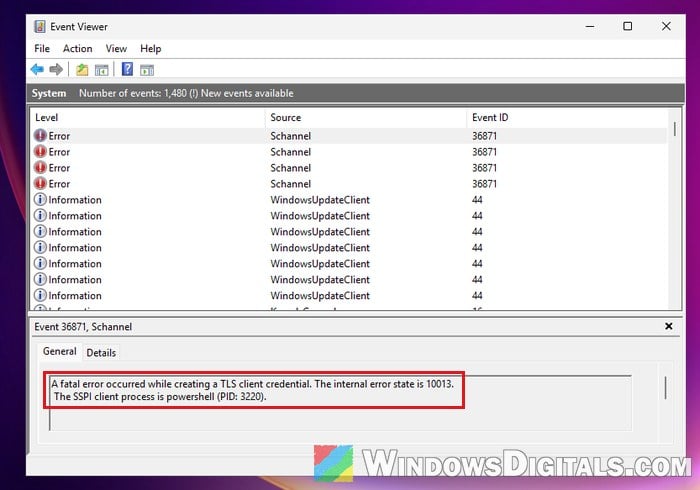
A common thing Windows 11 and 10 users run into when they look through Event Viewer is a red Schannel error that keeps coming back, saying “A fatal error occurred while creating a TLS client credential. The internal error state is 10013.” It’s logged under Event ID 36871, sometimes several times an hour, and it’s easy to think something is badly broken. This guide will look into what the error actually means, whether it’s worth worrying about, and how to find and fix the app behind it.
Also see: ERR_SSL_VERSION_OR_CIPHER_MISMATCH in Edge or Chrome
What does “The internal error state is 10013” mean?
In short, one app on your PC asked Windows for a secure connection using an old version of TLS, and Windows refused because that version is turned off.
TLS is what apps use to encrypt their connections, and Schannel is the part of Windows that handles it for many apps. According to Microsoft, error state 10013 means the TLS versions the app asked for don’t match the versions enabled on the system. The usual case is an app that only allows TLS 1.0 or TLS 1.1, while those two old versions are disabled.
The event is logged under Windows Logs > System, with Schannel as its source. It’s about an app on your PC connecting out, not another computer connecting to yours (that’s a different event, 36874).
Pro tip: How to Know Which App is Using The Internet in Windows 11
Is the 36871 error harmful?
If all your apps connect and work normally, you don’t need to change anything. The error only affects the app that triggered it.
People often blame this error for slowness, game crashes or driver problems, but nothing links the event itself to any of that. Event Viewer shows plenty of errors on a perfectly healthy PC, and this one is only worth acting on when an app fails to sign in, sync, update or connect.
Why does Windows block TLS 1.0 and 1.1?
TLS 1.0 and 1.1 are old and no longer considered safe, so Microsoft has been switching them off. According to Microsoft, they’re disabled by default starting with Windows 11 Insider Preview builds, and Microsoft 365 apps and Windows’ own internet components (WinHTTP and WinINet) have already stopped using them. Microsoft has held off doing the same on regular Windows releases because too many third-party apps still rely on them.
So on regular releases, the old versions are off for that app for another reason: the part of Windows it connects through no longer allows them, or a security app, a “TLS hardening” tweak, a cipher suite tool or a company Group Policy turned them off.
Microsoft lists some apps known to break once TLS 1.0 and 1.1 are off, such as older versions of BlueStacks, ESET NOD32 Antivirus, Adguard, UltraViewer and Uplay. The list isn’t complete, so the app on your PC may not be on it.
How to find which app is causing it
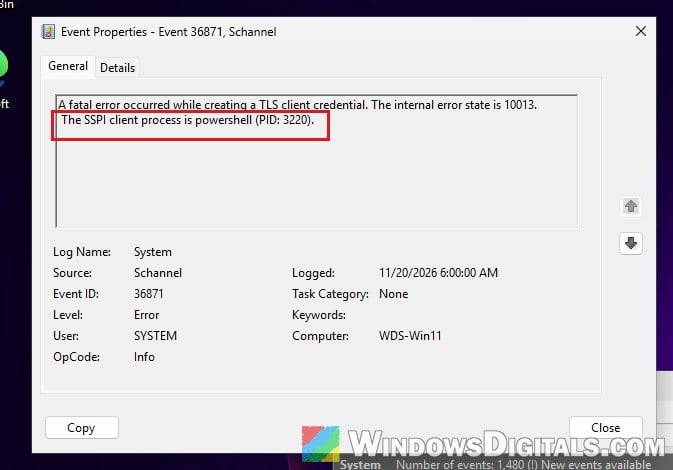
The event itself usually tells you. In newer versions of Windows, the message ends with a line like “The SSPI client process is <app name> (PID: <number>)“, which is the app that tried to connect.
Here’s how to find it:
- Press Win + X and select Event Viewer.
- Go to Windows Logs > System.
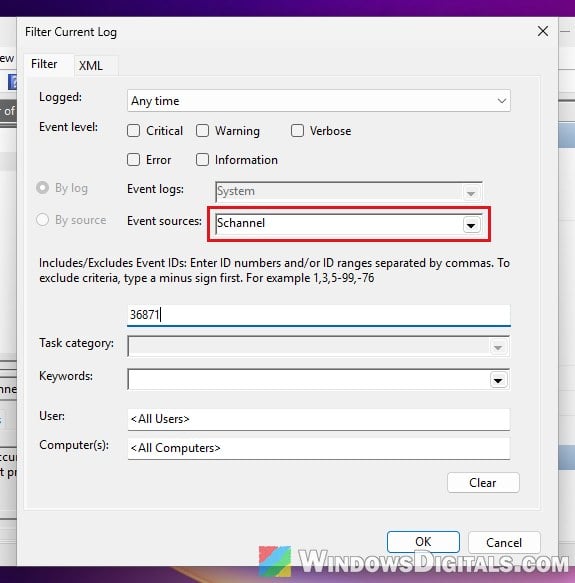
- Click Filter Current Log on the right. Tick Schannel in the Event sources drop-down, replace <All Event IDs> with 36871, and click OK.
- Click one of the events and read the General tab under the list (or double-click it to open it in its own window). Look for the “SSPI client process” line and the app name in it.
- If it only shows a process ID (PID), open Task Manager with Ctrl + Shift + Esc, go to the Details tab, and find that number in the PID column.
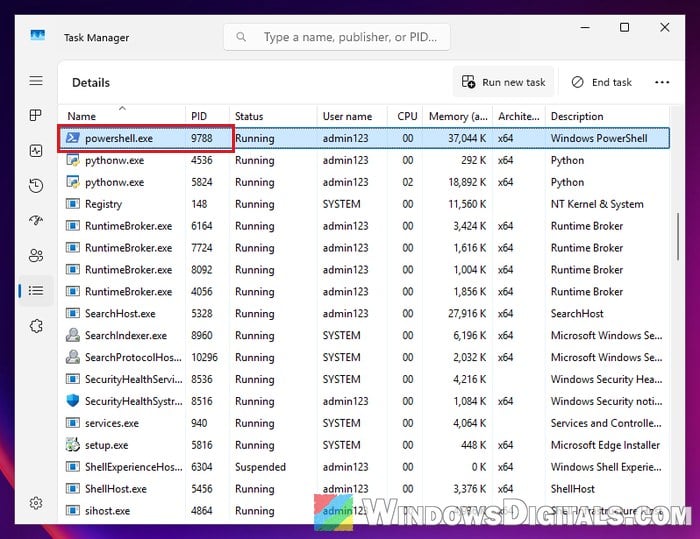
Please note that the PID changes every time an app restarts, so check it soon after a new event shows up. Also, the process ID in the event’s own details (the Details tab of the event) often points to lsass.exe. That’s Windows’ security service doing the work on the app’s behalf, not the cause, so don’t try to stop or remove it.
If the events only show up right after startup, the cause is most likely an app that starts with Windows.
Might be useful: How to Open Task Manager From Taskbar in Windows 11
Update or replace the app
Once you know the app, updating it is the real fix. Microsoft’s own advice is to look for a newer version that supports TLS 1.2 or TLS 1.3, or ask its maker, who often has an update or a workaround ready.
- Update the app from inside it, or download the latest version from its official website.
- If the app is no longer updated, look for a replacement that is.
- If you used a tool or a Group Policy to restrict cipher suites or TLS versions, set them back to Windows’ defaults. Microsoft says to make sure the TLS 1.3 and TLS 1.2 cipher suites are still enabled.
After updating, restart your PC and check later whether new 36871 errors still show up for that app.
Turn TLS 1.0 and 1.1 back on (last resort)
If an old app you really need stops working and there’s no update for it, you can turn TLS 1.0 and 1.1 back on. Please be warned that this lets every app on your PC use these weaker versions, not just the one you need. Microsoft calls it a temporary last resort until the app is updated or replaced, and support for these old versions may be removed completely in the future.
Incorrectly changing the registry could cause serious problems in Windows. Please at least create a system restore point first. If you’re not sure what you’re doing, it’s better to get someone who knows to help you instead.
Here’s how to do it:
- Press Win + R, type “regedit” and press Enter. Click Yes if asked.
- Copy and paste the following path to the address bar and press Enter:
HKEY_LOCAL_MACHINE\SYSTEM\CurrentControlSet\Control\SecurityProviders\SCHANNEL\Protocols
- If there’s no TLS 1.0 key under Protocols, right-click Protocols, select New > Key and name it “TLS 1.0“. If TLS 1.0 has no Client key, right-click TLS 1.0, select New > Key and name it “Client“.
- Select the Client key. If there’s already an Enabled value (set to 0), double-click it and change its value data to 1. Otherwise, right-click an empty area on the right, select New > DWORD (32-bit) Value, name it “Enabled“, then double-click it and set its value data to 1.
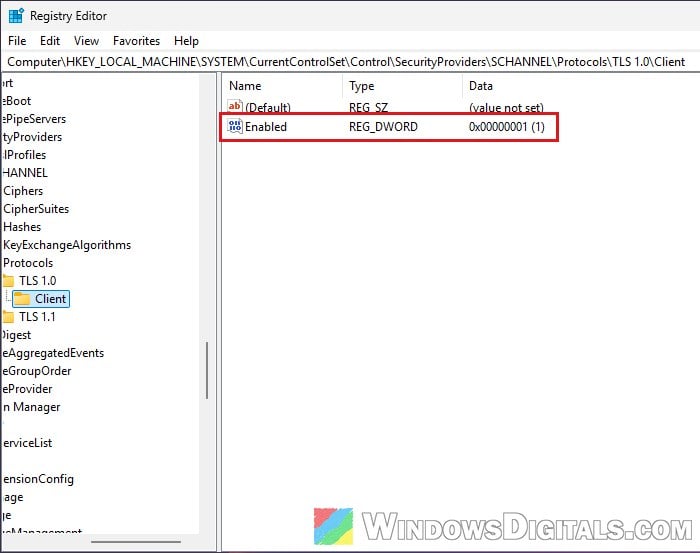
- Repeat steps 3 and 4 for a “TLS 1.1” key.
- Restart your PC.
To undo it later, delete the Enabled values you created, or set them back to 0 if they were there before, then restart.
What about the TLS options in Internet Properties?
You can also tick “Use TLS 1.0” and “Use TLS 1.1” in Internet Properties (search for “Internet Options” in the Start menu) under the Advanced tab, then click OK and restart your PC. This is a temporary workaround as well, since leaving TLS 1.0 and 1.1 on for a long time isn’t safe.
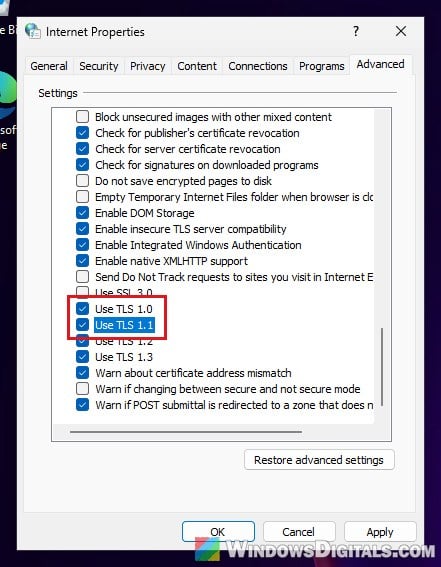
However, for several people, changing these boxes didn’t stop the 36871 errors at all. If the errors keep coming after this, untick the boxes again and go back to updating or replacing the app.