Copilot is supposed to show up in Word, Excel and PowerPoint once your Microsoft 365 plan includes it, so it’s confusing when Word has Copilot but Excel shows no Copilot button at all on your Windows 11 or 10 PC. Often it isn’t really gone: it has moved to a new spot, it’s switched off in Excel alone, or Excel is signed in with an account that doesn’t get it. This guide explains where the button went and what to check when it’s truly missing.
Also see: How to Turn Off or Remove Copilot in Microsoft Word
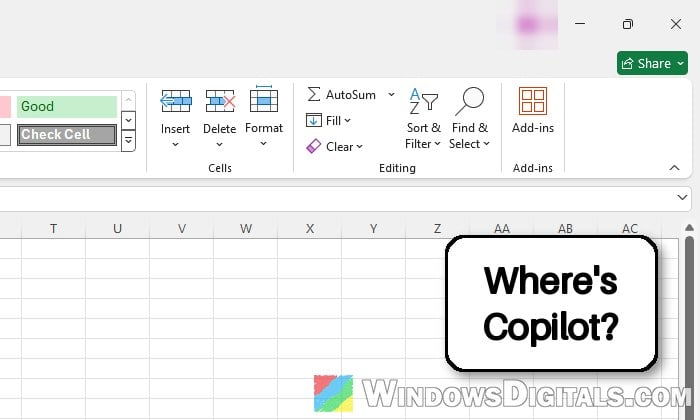
Copilot may have moved, not disappeared
In 2026 Microsoft took Copilot’s main button off the ribbon in Word, Excel and PowerPoint and turned it into a floating Copilot button in the lower-right corner of the document. According to Microsoft’s own troubleshooting page, a missing button might just have moved. In newer Excel builds (from around late October 2026), the icon has moved again and now sits to the right of the ribbon instead of over the sheet, as Excel users on Reddit have noticed.
Here’s what to check:
- Look at the bottom-right corner of the sheet, and at the far right end of the ribbon. Click the Copilot icon in either spot to open Copilot in a pane on the right.
- Press Alt + C while Excel is open. This jumps straight to the Copilot button, which is handy when you can’t spot it.
- If you only see a small Copilot icon at the side of the window, the button is docked. Click it, or drag it back into the sheet.
- If your ribbon is collapsed to just the tab names, expand it and look again.
- To switch between the two spots, right-click the Copilot icon and select Move to ribbon, or Move out of ribbon to put it back over the sheet.
The Move to ribbon choice is remembered separately for each app, so if you moved Copilot to the ribbon in Word, Excel can still have it in the corner. That alone can make it look like Word has Copilot and Excel doesn’t.
Copilot might be turned off in Excel only
Each Microsoft 365 app has its own Enable Copilot setting, and it’s saved per app and per device. Turning it off in Excel doesn’t touch Word, so it’s entirely possible that Copilot was switched off in Excel at some point (maybe while trying to get rid of it) while Word still has it on.
To check it in Excel, follow the steps below:
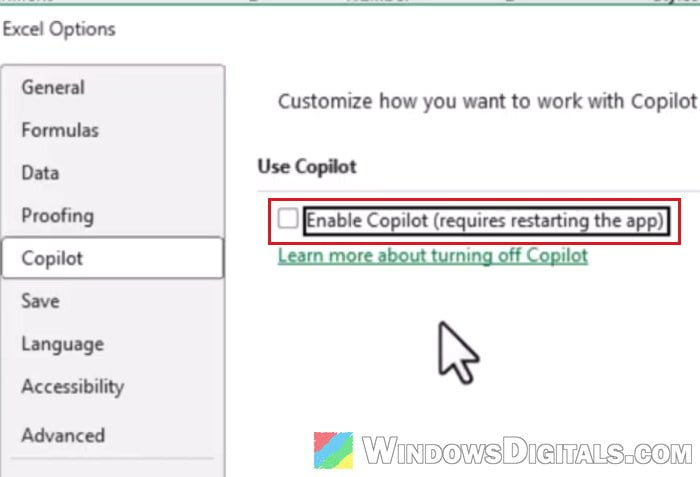
- Open Excel and click File > Options.
- Select Copilot in the left pane.
- Make sure “Enable Copilot (requires restarting the app)” is ticked, then click OK.
- Close Excel completely and open it again.
Open a workbook and look for the Copilot icon in the bottom-right corner and at the right end of the ribbon again.
Please note that this setting only shows up when Excel is signed in with a personal Microsoft account. With a work or school account, the Enable Copilot setting isn’t available, and whether you get Copilot is up to your organization.
Excel is signed in with a different account
Copilot in the desktop apps comes with the account Office is signed in with. If Excel shows a different account than Word (an old personal account, or a work or school account), or you have several accounts signed in to Office, Copilot can show up in one app and not the other.
For Microsoft 365 Family and Premium users, there’s an extra catch. Copilot in Word, Excel and PowerPoint is only for the person who owns the subscription. Microsoft says the AI benefits can’t be shared, so family members you’ve added get the apps but not the Copilot button.
To see which account Excel is using:
- In Excel, click File > Account.
- Check the account shown under User Information, and compare it with the one in Word (File > Account there too).
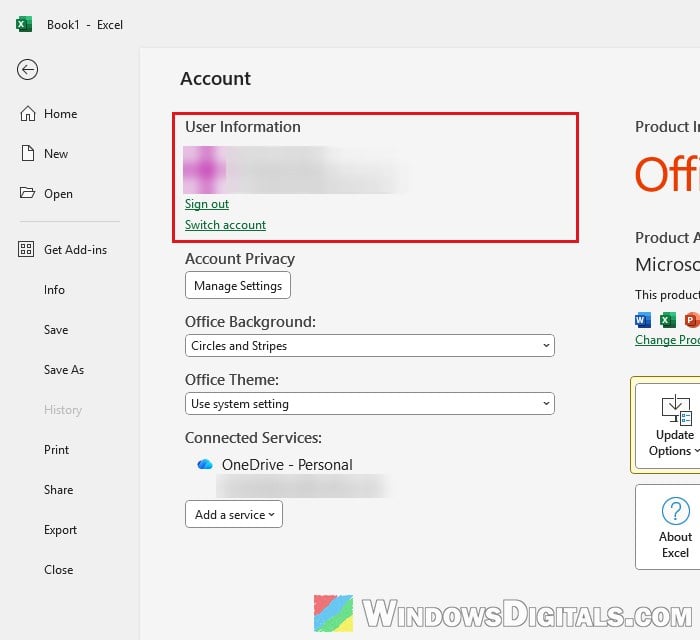
- If it’s the wrong one, click Sign out, sign in with the account that owns the subscription, then close and reopen all your Office apps.
Once Excel shows the same account as Word, the Copilot icon should appear in Excel too.
Linked issue: “Microsoft 365 Basic doesn’t include Word on your desktop” Message
Update Excel and refresh your license
Copilot features arrive through Office updates, and the app checks your license to decide whether to show them. If Office is behind on updates, or the license it holds is out of date, Excel may not show the Copilot button or may not have the newest Copilot changes.
Here’s how to do it:
- In Excel, go to File > Account.
- Under Product Information, click Update Options > Update Now. If you don’t see Update Now, select Enable Updates first.
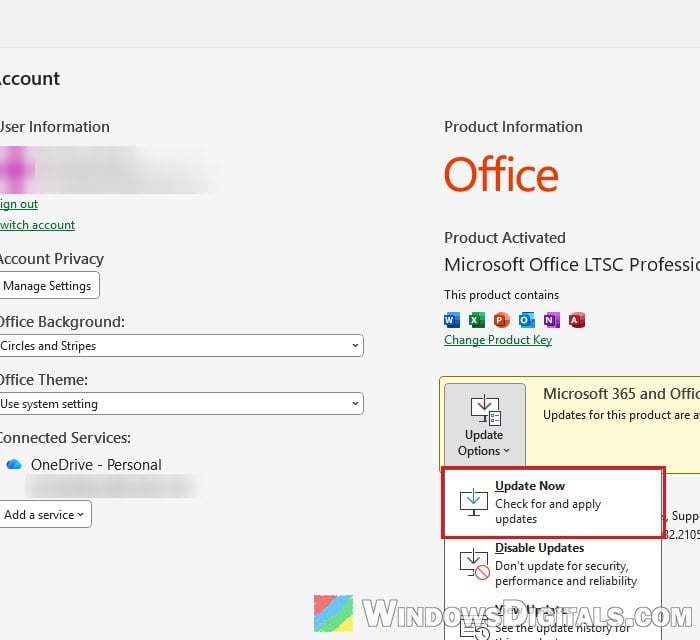
- Once the update finishes, go back to File > Account and click Update License.
- Close all Microsoft 365 apps (Word, Outlook and the rest too), then open Excel again.
Once Excel is open, check the bottom-right corner and the right end of the ribbon for the Copilot icon again.
Turn on connected experiences
Copilot needs Office’s connected experiences to work. If those were turned off for privacy reasons, Copilot can disappear along with them.
Here’s how to check them:
- In Excel, click File > Account.
- Under Account Privacy, click Manage Settings.
- Make sure “Turn on experiences that analyze your content” is ticked.
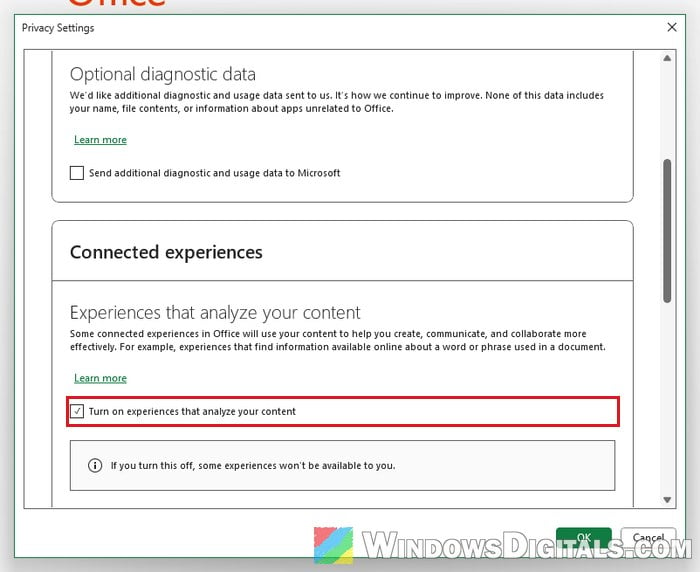
- Scroll down and make sure “Turn on all connected experiences” is ticked too, then click OK and restart Excel.
After the restart, check both spots for the Copilot icon again. With a work or school account, these settings are controlled by your admin and you may not be able to change them yourself.
Check the update channel and license (work or school accounts)
If you use Excel through work or school, check the update channel first. Microsoft says computers on the Semi-Annual Enterprise Channel don’t get Copilot features in the desktop apps; you need Current Channel or Monthly Enterprise Channel. You can see yours in Excel under File > Account > Product Information. Only your IT team can change it, and in the meantime Excel for the web is an option.
Might be useful: “This Product Cannot Be Installed on the Selected Update Channel” When Installing Microsoft 365
Your license matters too. Sign in at https://www.microsoft365.com with your work account and check the Copilot label shown under your name. If it says “Copilot Chat (Basic)“, your plan only includes Copilot Chat, which doesn’t include Copilot inside Word, Excel, PowerPoint or OneNote, and you’ll have to ask your admin for a Copilot license.