When you download a game on Steam or a big file in your browser, you might see it crawl at a fraction of your internet speed or stall every now and then, even though a speed test on the same PC shows close to the full speed you pay for. A speed test and a real download don’t measure the same thing, so the cause can be anything from the units each one shows to a slow drive or a busy server. This guide will show you how to find out what’s holding your downloads back and what you can do about each case.
Also see: Why is My Internet So Slow on My PC but Not My Phone?
Check if you’re comparing Mbps with MB/s
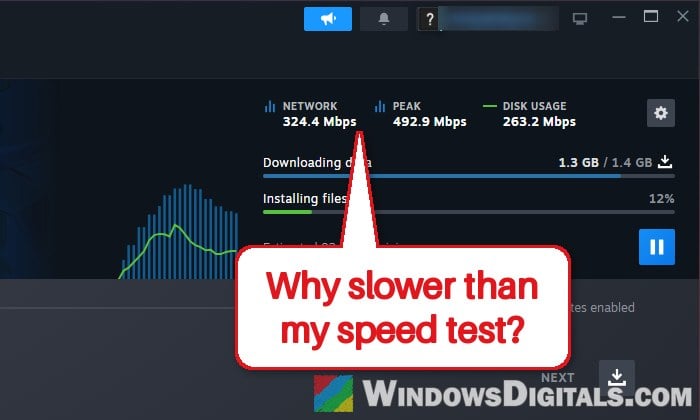
Before anything else, look at the units. Speed tests show your speed in megabits per second (Mbps), while web browsers and many game launchers usually show downloads in megabytes per second (MB/s), and Steam can show either one. One byte is eight bits, so a download running at 10 MB/s is actually going at about 80 Mbps.
In other words, multiply the number in MB/s by 8 to compare it with your speed test. A 100 Mbps plan tops out at around 12 MB/s, and 60 MB/s on an 800 Mbps plan works out to about 480 Mbps, which is pretty normal for one big download. Real downloads rarely reach 100% of your plan anyway, since some of it goes to overhead and the server may not send any faster.
If you use Steam, you can have it show the speed the same way a speed test does:
- Open Steam, click Steam in the top-left corner and select Settings.
- Go to Downloads.
- Make sure “Display download rates in bits per second” is turned on. When it’s off, Steam shows MB/s.
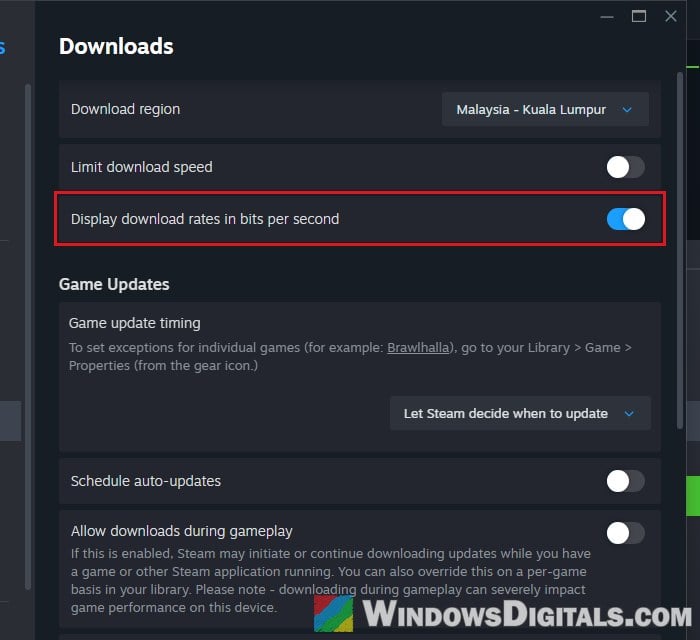
If the two numbers are now close, nothing is actually wrong with your connection.
Related problem: Ethernet Internet Speed Capped at 100 Mbps (Fix)
Your drive might not be keeping up
A speed test only downloads some test data into memory and throws it away, so nothing is written to your drive. A game download is different. Everything has to be written to the drive, and Steam also unpacks the files as they come in. If the drive (or sometimes the CPU) can’t keep up, the download slows down to whatever the drive can handle.
Users on Reddit often point to a slow drive for this, especially an old hard drive, a cheap SSD without its own DRAM cache, or a drive that’s almost full. Here’s how to check:
- Start the download that’s slow and let it run for a minute.
- Press Ctrl + Shift + Esc to open Task Manager.
- Go to the Performance tab and click the Disk you’re downloading to.
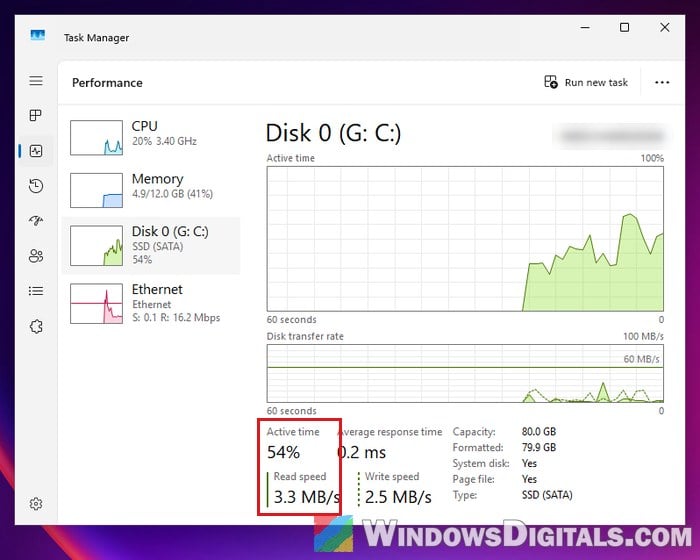
- If Active time sits at or near 100% while the download runs (or the CPU is maxed out), your PC is the bottleneck, not your internet.
Steam’s own Downloads page (click Manage Downloads or the download progress at the bottom of the Steam window) also shows the Network, Peak and Disk usage of the current download with a graph, which makes it easy to see when the disk is the one holding it back.
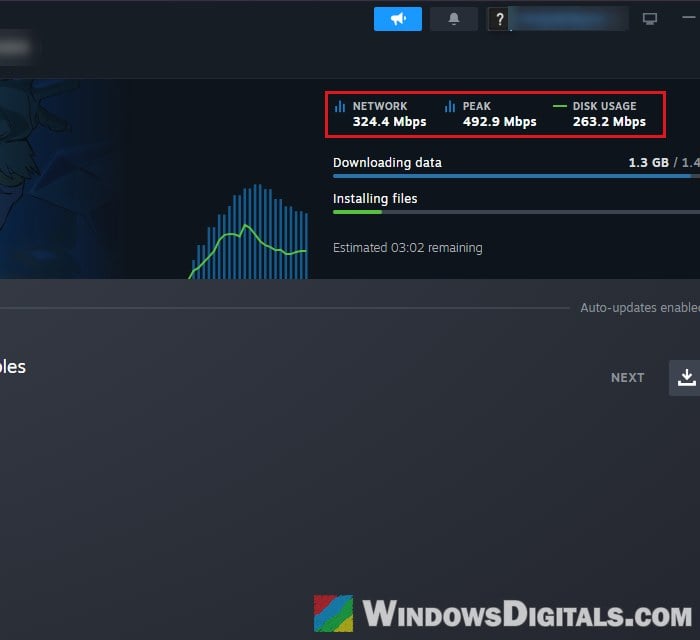
If the drive is the problem, install the game to a faster drive (an SSD instead of a hard drive), or free up space on the one you’re using. A nearly full drive can slow down a lot when writing big files.
Related concern: Why is my A400 SSD So Slow in Read/Write Speed?
Change the Steam download region and clear the download cache
Speed tests usually pick a fast test server close to you. A real download comes from whatever server the app or website uses, and that server can be busy, far away, or simply not give you your full speed. For Steam, the server it downloads from depends on your download region, and Steam itself recommends picking the region you’re in or the one closest to you, then trying other nearby regions if it’s still slow.
- Open Steam > Settings > Downloads.
- Next to Download region, select the region you’re in or the closest one to you.
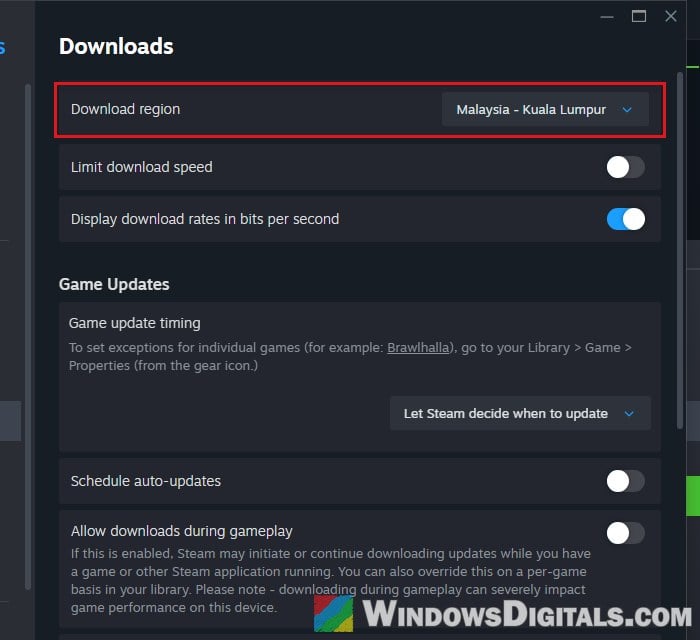
- Restart the download and see if the speed changes. If not, try a couple of other nearby regions.
Changing the region doesn’t fix it for everyone. If the download is still slow or keeps stopping, scroll down the same page and click Clear Cache next to Clear Download Cache. Steam may ask you to sign in again afterwards, so have your password ready.
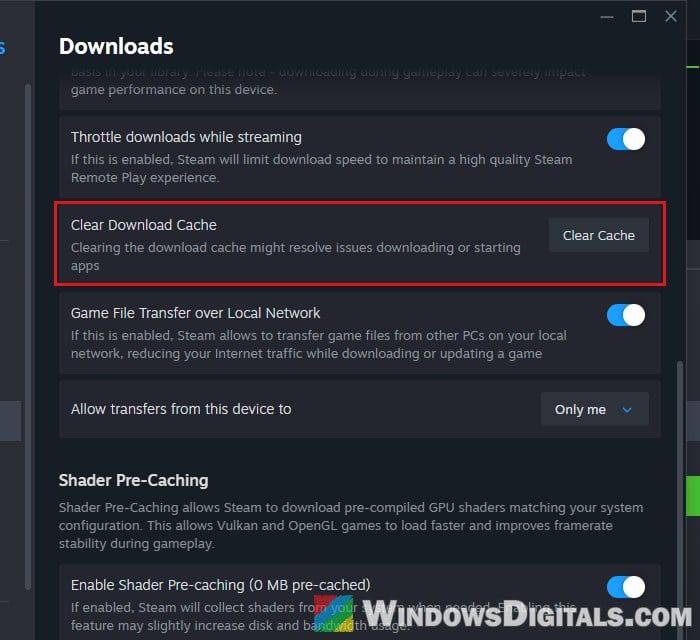
Check for download limits and other downloads
Sometimes a speed limit is still on, or another download is using your connection at the same time.
In Steam, check that “Limit download speed” is off on the same Downloads page (you can see it in the first Steam screenshot above). If you stream games from your PC to another device with Remote Play, “Throttle downloads while streaming” also slows downloads while a stream is running, so turn it off if you want full speed while streaming.
In Windows, Windows Update and Microsoft Store downloads use Delivery Optimization, which can download updates in the background. So a big update downloading in the background can take part of your connection away from the file you’re downloading. To limit it:
- On Windows 11, open Settings > Windows Update > Advanced options > Delivery Optimization.
- Expand Download options on the same page (on some versions of Windows, it’s under Advanced options at the bottom of the page instead). Pick “Absolute bandwidth limit” or “Percentage of measured bandwidth” from its drop-down, then tick the background limit and set a value.
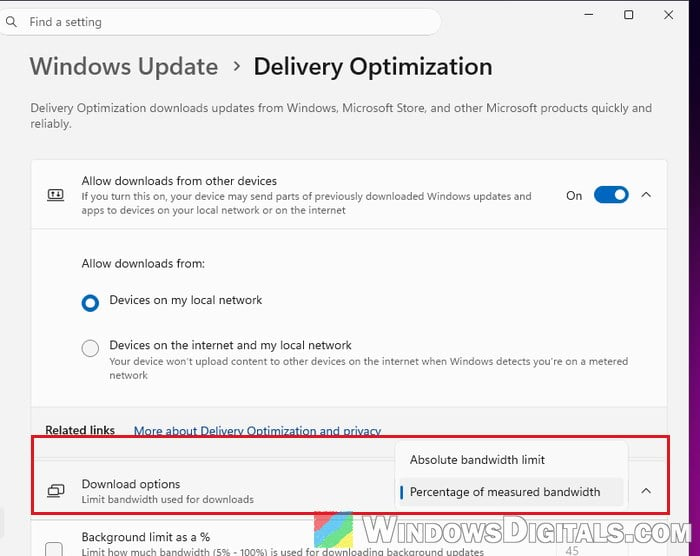
According to Microsoft, these limits only apply to automatic update downloads, not to downloads you start yourself, so all they do is keep Windows from eating into your connection in the background.
Also pause anything else that moves big files while you test: OneDrive syncing, other game launchers, torrent clients, or other people at home streaming or downloading.
Linked issue: Windows 11 Delivery Optimization High Network Usage
Check if only one app or one website is slow
Try downloading something big from a different place: another game launcher, another website, or the same file in another browser. If only one app or site is slow while everything else runs at full speed, that server or app is most likely the limit, not your connection.
If you use a VPN, keep in mind that it sends your downloads through its own servers, which can slow them down, so turn it off and try the download again.
Check that TCP auto-tuning is set to normal
If every download is slow while speed tests stay fast, and you’ve ruled out the causes above, check one more Windows setting. If an old tweak turned down Receive Window Auto-Tuning, a single big download can be held back. Microsoft’s own troubleshooting guide uses these two commands to check it and set it back.
- Search for “cmd” in the Start menu, right-click Command Prompt and select Run as administrator.
- Type the following command and press Enter:
netsh int tcp show global
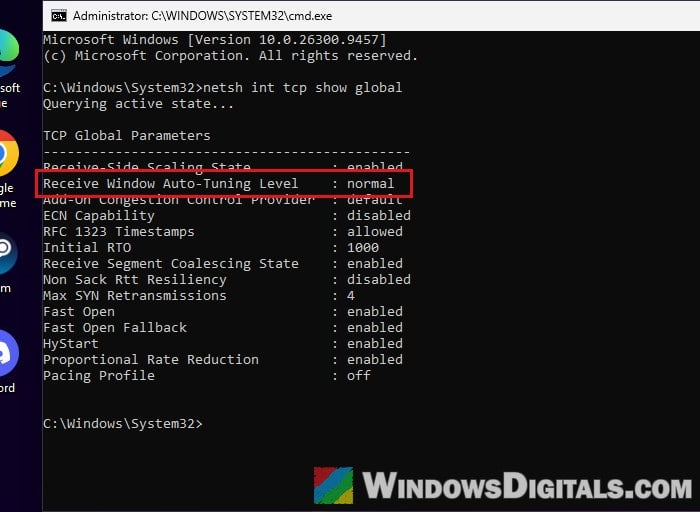
- Look at the “Receive Window Auto-Tuning Level” line. If it says anything other than normal, set it back with:
netsh int tcp set global autotuninglevel=normal
Then run a big download again and compare it with your speed test, this time in the same units.