Firefox’s search settings used to have a Remove button that took any search engine you didn’t want off the list, including built-in ones like Google, Bing and Perplexity. Since the redesigned Settings rolled out in mid-2026, the built-in engines under “Additional search engines” only get an on/off toggle, and there’s no remove or trash can button for them anymore. This guide will show you what that toggle actually does, how to delete the engines you added yourself, and how to hide the built-in ones from the list completely.
Also see: How to Get the Old Firefox Look Back After the Nova Redesign
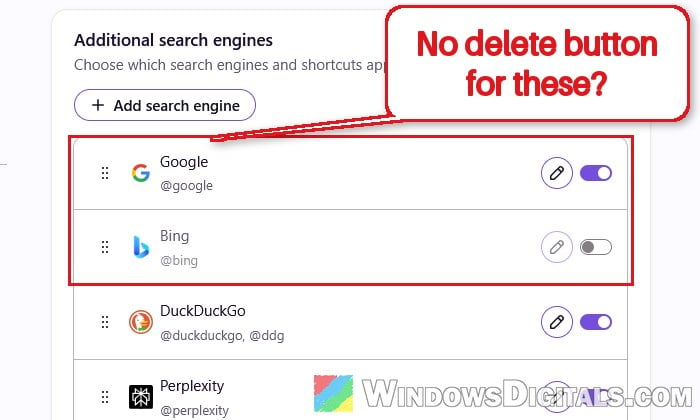
Why can’t you remove built-in search engines anymore?
The built-in search engines are part of Firefox itself, so they were never really deleted, not even with the old Remove button. According to Mozilla, that button only hid the engine from the list. If you later wanted one of them back, you had to restore all the default engines and then remove the ones you still didn’t want again.
The new design is more upfront about it. Every built-in engine stays in the list with a toggle, so you can switch it off and on whenever you want. Mozilla says this was done to make the settings simpler, not for commercial reasons. A turned-off engine also doesn’t slow Firefox down or take up any real space. It’s basically just a name and a web address.
That doesn’t help much if you simply want a clean list, which is why this change has been a pretty common complaint on Reddit since it rolled out. Below are your options, starting with the simple toggle.
Pro tip: How to Turn Off Mini Window in Firefox
Turn off the search engines you don’t want
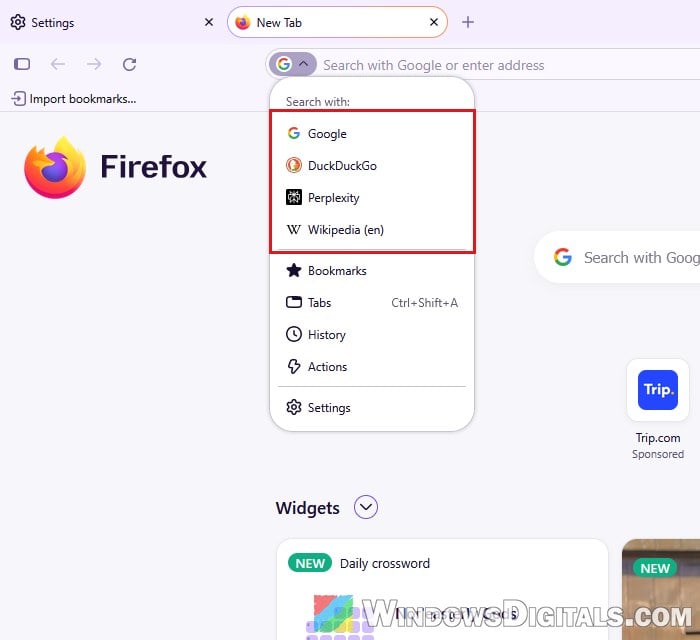
For most people, switching an engine off is all that’s needed. Once it’s off, Firefox no longer offers it anywhere you search. It disappears from the search engine button in the address bar, and it only stays listed in Settings so you can turn it back on later.
Here’s how to do it:
- Open Firefox’s Settings and click Search in the left pane. You can also type
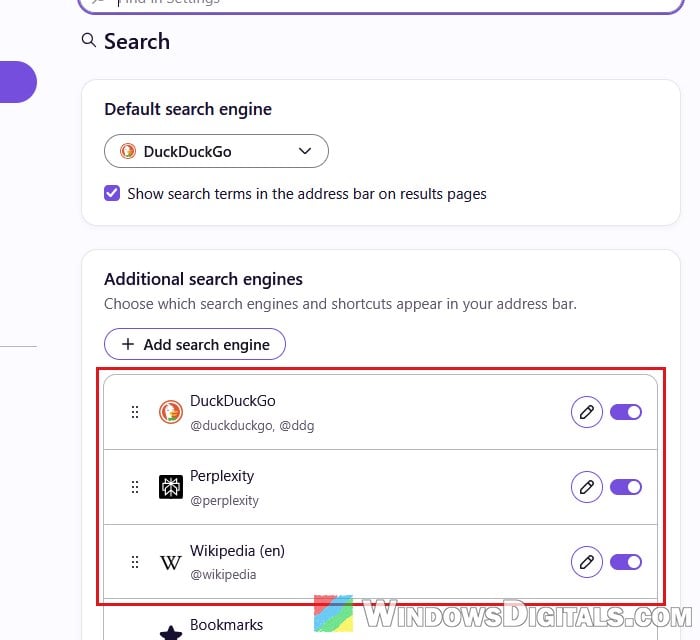
about:preferences#searchin the address bar and press Enter. - Scroll down to “Additional search engines“. Each built-in engine has a pencil button (Edit search engine) and a toggle next to it.
- Click the toggle next to every engine you don’t want, so it turns gray.
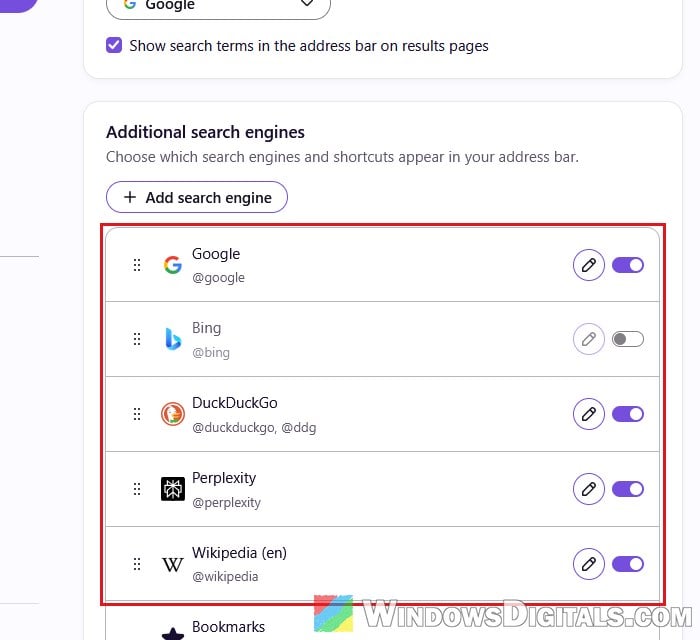
Please note that if you switch off the engine that’s currently your default, Firefox moves the default to another engine that’s still on. If you want a specific one as your default, choose it under “Default search engine” at the top of the page first.
To check that it worked, click the search engine button on the left side of the address bar. Only the engines you left on should be listed there.
To bring an engine back at any time, just click its toggle again.
Related guide: How to Change Edge Default Search Engine to Google
Delete the search engines you added yourself
Only the engines that come with Firefox are stuck with the toggle. Any search engine you added yourself (with the “Add search engine” button, for example) still has a trash can button and can be removed for real.
To remove one, follow the steps below:
- Go to Settings > Search and scroll down to “Additional search engines“.
- Find the engine you added and click the trash can button next to it.
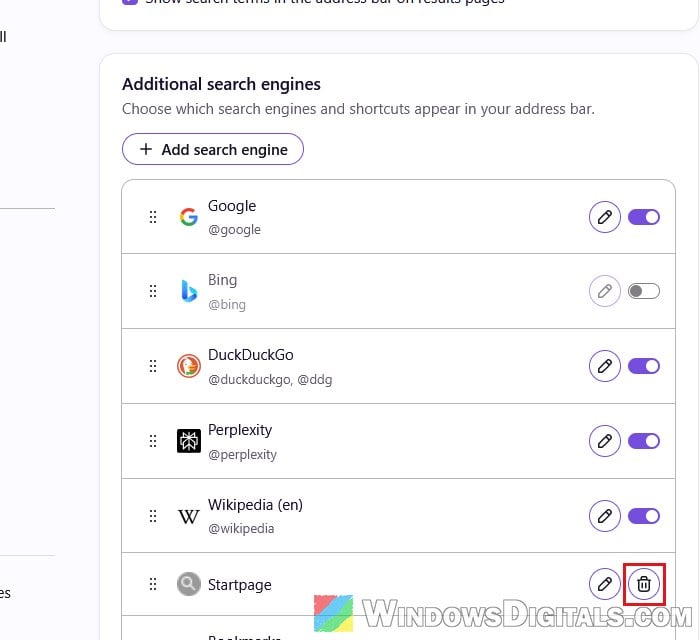
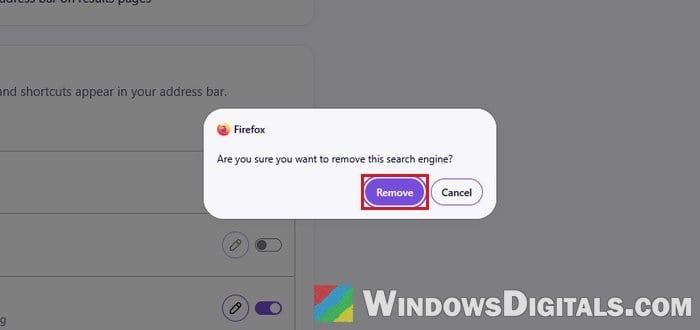
- When Firefox asks “Are you sure you want to remove this search engine?“, click Remove.
Search engines that were added by an extension are a different case. Those have to be removed through Extensions and themes (the link at the bottom left of the Settings page) by removing the extension itself.
Hide built-in search engines completely with a policy file
If you really want the built-in engines gone from the list, Firefox does have a way to do it, though it’s not in the normal settings. Firefox supports policies, a set of rules meant for companies and schools that manage many PCs, and one of them, SearchEngines, can hide built-in search engines by name. Mozilla’s own documentation says it works in every version of Firefox since Firefox 139, not just the business (ESR) version.
You apply it by putting a small text file called policies.json in a folder named distribution inside Firefox’s install folder. It’s not hard, but there are two things to know first:
- Firefox will show “Your browser is being managed by your organization.” at the top of its Settings page. That’s normal with a policy file, and it goes away when you remove the file.
- You’ll need administrator rights on the PC, since the file goes into the Program Files folder.
To create the policy file, follow the steps below:
- Close Firefox completely.
- Open File Explorer and go to the folder where Firefox is installed. Usually it’s:
C:\Program Files\Mozilla Firefox
- Right-click an empty area, select New > Folder, and name it “distribution“. If Windows asks for administrator permission, click Continue.
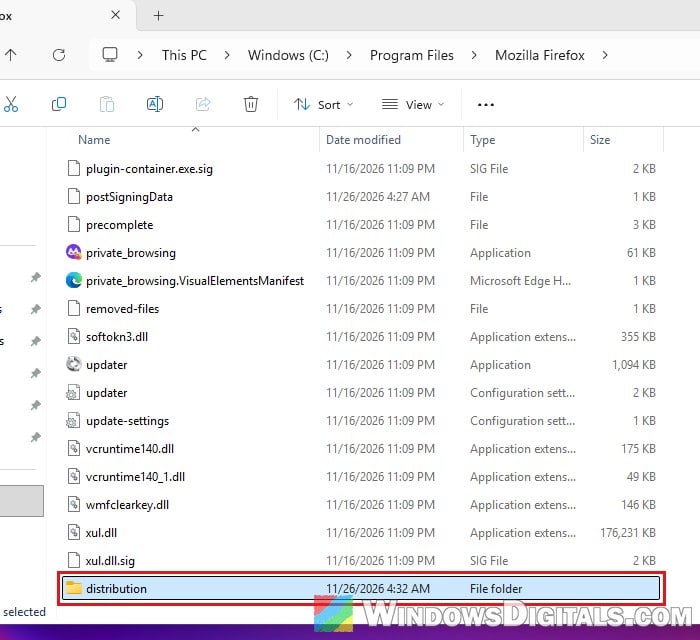
- Open Notepad and paste the following into it:
{
  "policies": {
    "SearchEngines": {
      "Remove": ["Google", "Bing"]
    }
  }
}
Replace “Google” and “Bing” with the engines you want to hide, each in quotes and separated by a comma. Write their names exactly as Firefox shows them in Settings, for example “Perplexity” or “Wikipedia (en)“.
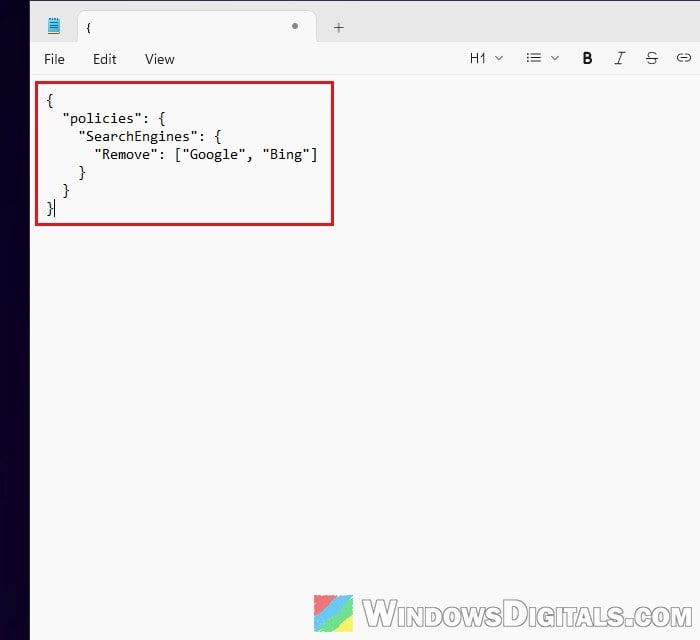
- Press Ctrl + S and save the file on your Desktop with the name “policies.json“. Notepad won’t let you save it straight into the Program Files folder (it says “You don’t have permission to save in this location“), so it has to be moved there in the next step.
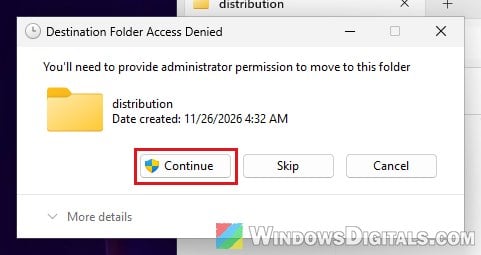
- Move policies.json from the Desktop into the distribution folder (cut and paste it, or drag it there). When Windows says “You’ll need to provide administrator permission to move to this folder“, click Continue.
- Open Firefox again.
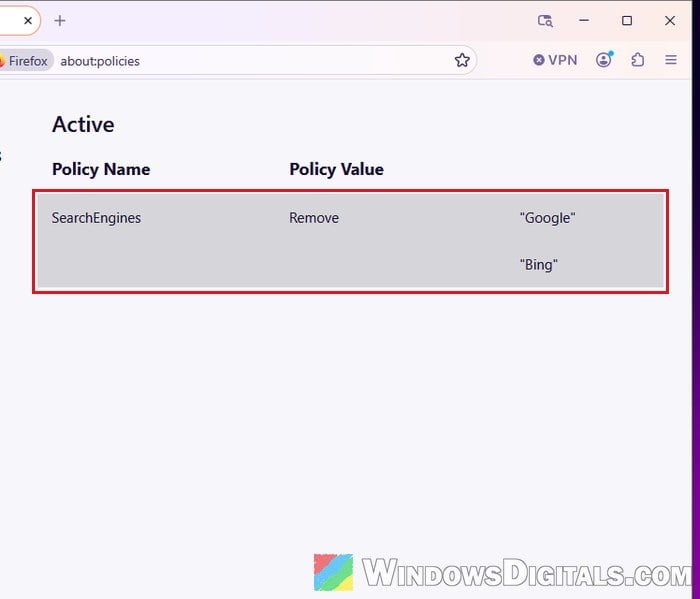
To make sure Firefox picked up the file, type about:policies in the address bar and press Enter. You should see SearchEngines listed with the names you entered. If SearchEngines isn’t listed, or the page says “The Enterprise Policies service is inactive.” instead, check the folder name, the file name and the brackets and quotes in the file, then restart Firefox.
Now go back to Settings > Search. The engines you listed are no longer in “Additional search engines” at all. If one of them was your default search engine, Firefox switches the default to another engine in the list.
Might be useful: How to Restart Firefox Browser Without Losing Tabs
What if the hidden engines come back?
A Firefox update can remove the distribution folder along with your file. If the engines you hid show up in the list again after an update, go back to C:\Program Files\Mozilla Firefox and check that the distribution folder and policies.json are still there. If not, create the folder again and put the file back. It helps to keep a copy of policies.json somewhere like your Documents folder, so you only have to copy it over.
How to undo it
To get the engines back in the list, delete policies.json (or the whole distribution folder if you didn’t put anything else in it) and restart Firefox. The “managed by your organization” line in Settings goes away as well once no policy is left.