Firefox can normally stay open for days on a Windows 11 or 10 PC. When it starts closing by itself a few minutes or even seconds after you open it, or every tab crashes with the “Gah. Your tab just crashed.” page, even restarting the PC or reinstalling Firefox doesn’t always help. This guide will walk through the usual causes, from a Family Safety setting to faulty RAM, and how to fix each one.
Also see: Firefox High Memory (RAM) Usage With Only a Few Tabs Open
Why does Firefox keep crashing on Windows 11?
These are the most common causes:
- A bug in your Firefox version. Firefox 159.0.1 (Nov 3, 2026) fixed a crash some antivirus tools caused on Windows, and 160.0.1 (Nov 17) fixed tabs crashing on ChatGPT and a few other sites.
- Microsoft Family Safety. This is the usual one when Firefox closes within seconds every single time.
- Extensions, themes or hardware acceleration. One of them may not work well with your Firefox version or graphics driver.
- Antivirus or security software. Some of it loads its own code into Firefox.
- A damaged Firefox profile. Reinstalling Firefox keeps it as it is.
- Faulty RAM or an unstable CPU. These can crash Firefox at random.
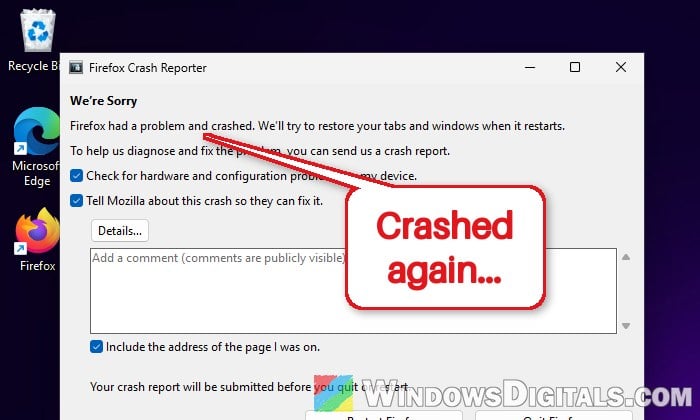
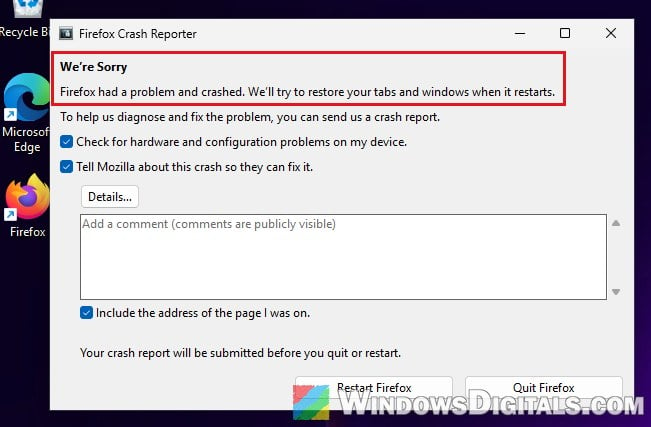
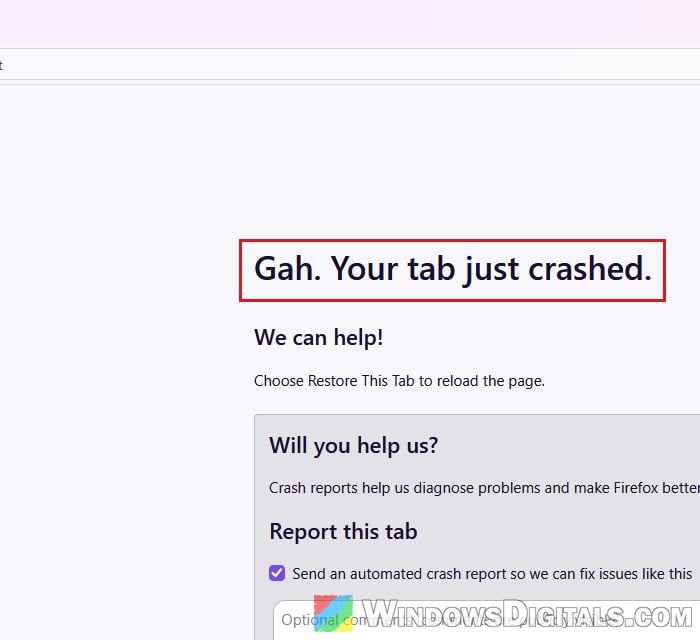
If the window disappears or the Firefox Crash Reporter shows up, the whole browser went down. If only one tab shows the “Gah. Your tab just crashed.” page, only that tab crashed. The fixes below cover both.
Update Firefox to the latest version
Mozilla fixes reported crashes in almost every release, so make sure you’re on the latest one first. Here’s how:
- Click the Firefox menu (the three lines) at the top-right.
- Go to “Help and Report” > “About Firefox“.
- Firefox checks for updates and downloads any it finds, then asks you to restart it. If it says “Firefox is up to date“, you already have the latest version.
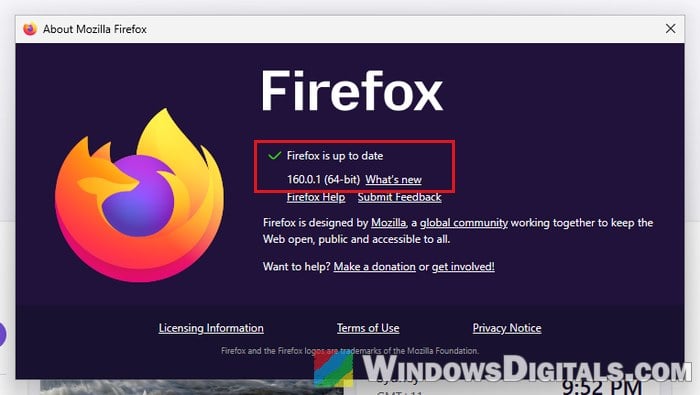
If Firefox doesn’t stay open long enough for this, download the latest version from https://www.firefox.com/ in another browser and install it. Then use Firefox as usual and see if it still crashes.
Might be useful: How to Restart Firefox Browser Without Losing Tabs
Check Microsoft Family Safety (if Firefox closes within seconds)
When “Filter inappropriate websites and searches” is turned on for someone in Microsoft Family Safety, Microsoft blocks every browser that isn’t Edge so the filter can’t be bypassed. Firefox then opens and closes again almost right away, and reinstalling it or deleting the profile doesn’t help. It even happens to adults whose account ended up in a family as a child, sometimes without them knowing.
To check on Windows 11, open “Settings” (Win + I), go to “Accounts” > “Family” and look at the “Your family” section.
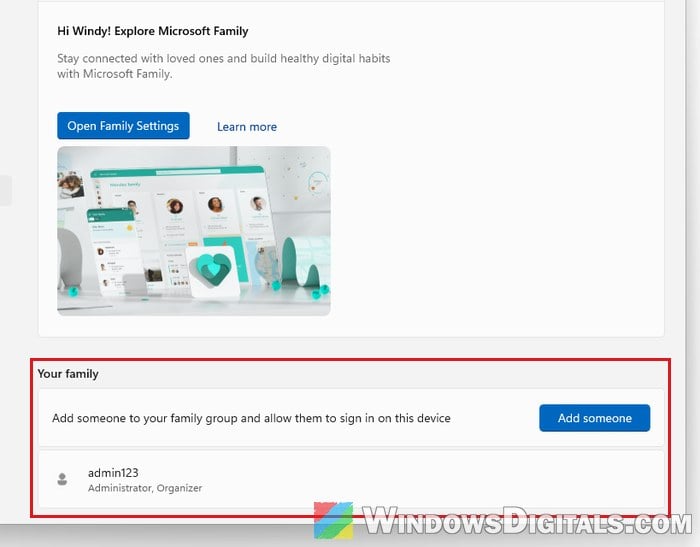
If your account is in a family, the family organizer can sign in at https://familysafety.microsoft.com/, select your account, and either unblock Firefox in the app and game filters or turn off “Filter inappropriate websites and searches” under “Edge“. If your account shouldn’t be in that family at all, leaving it (or having the organizer remove you) also fixes it.
Related guide: How to Block Adult Websites in Windows 11
Start Firefox in Troubleshoot Mode
Troubleshoot Mode starts Firefox with your extensions, themes and hardware acceleration turned off for one session, without deleting anything. If the crashes stop in this mode, one of those three is the cause. Here’s how:
- Close Firefox.
- Hold down the Shift key and open Firefox.
- When Firefox asks whether to open in Troubleshoot Mode, click “Open“.
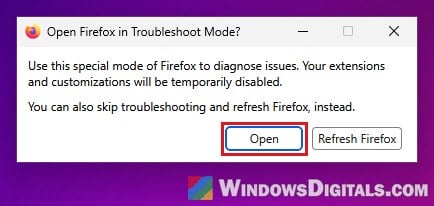
If it holds up on the sites where it usually crashes, restart it normally and find the culprit below.
Turn off your extensions one by one
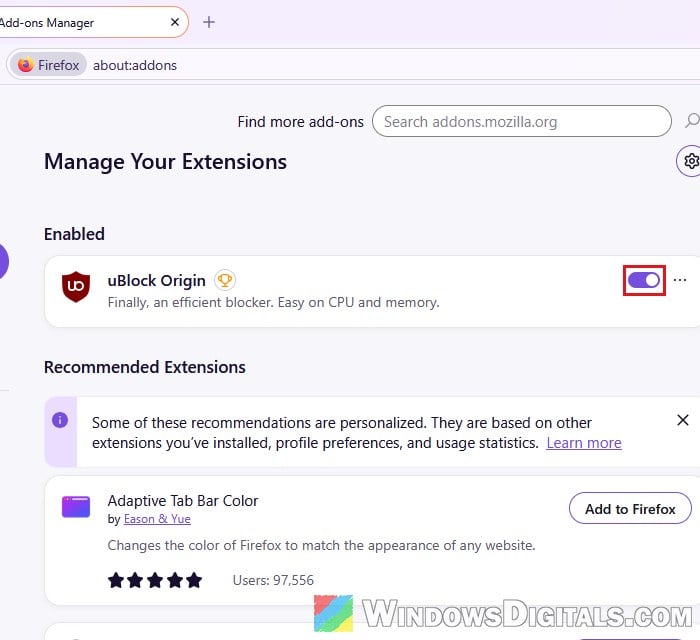
Open the Firefox menu, select “Extensions and Themes“, click “Extensions” on the left and turn off all your extensions. Turn them back on one at a time until the crashes return. Leave that last one off, update it or remove it. If you use a custom theme, switch back to the default one under “Themes” too.
Turn off hardware acceleration and update your graphics driver
Hardware acceleration lets Firefox use your graphics card to draw pages and play videos. When the graphics driver has a bug, this can crash Firefox or even the driver itself. Plenty of people with AMD Radeon cards found that their driver timeouts stopped once hardware acceleration was off in Firefox. Here’s how to turn it off:
- Open the Firefox menu > “Settings” and click “Tabs and browsing” on the left.
- Scroll down to “Performance” and uncheck “Use recommended performance settings“.
- Uncheck “Use hardware acceleration when available“.
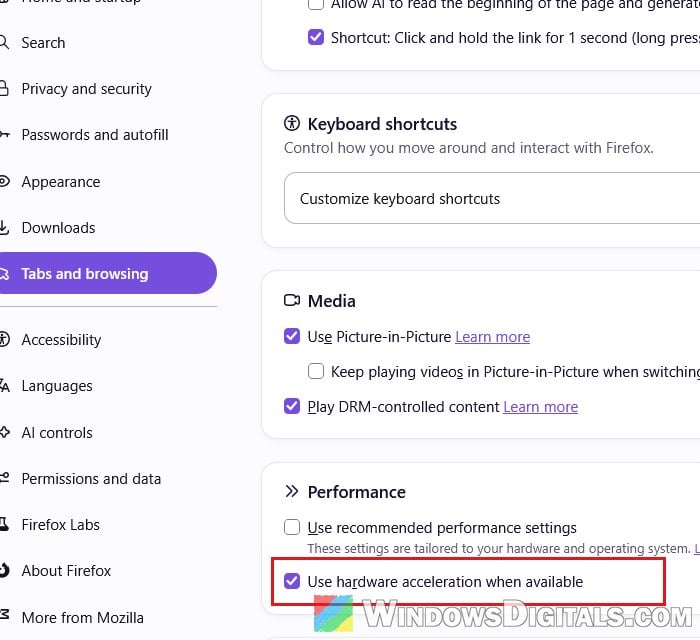
- Restart Firefox.
Then use Firefox for a while and see if the crashes stop. Either way, Mozilla also suggests keeping your graphics driver up to date.
Pro tip: How to Update Graphics Driver in Windows 11
Check your antivirus or security software
Some antivirus programs load their own code into Firefox to watch your browsing, and when that code clashes with a new Firefox version, Firefox can freeze or crash. According to Mozilla, security software is the most common thing that injects itself into Firefox.
Type “about:third-party” in the address bar and press Enter to see which other programs load into Firefox. Any module not signed by Microsoft or Mozilla shows up in the list.
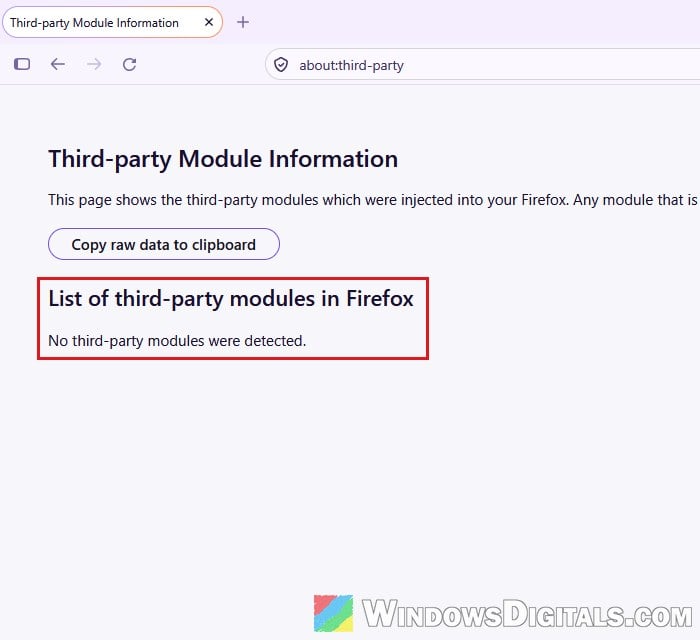
If your antivirus is there, update it first. If Firefox still crashes, turn off its browser protection feature for a test (for ESET, “Banking & Payment Protection“), and turn it back on right after testing. On a work or school PC, ask your IT department.
Clear the startup cache or refresh Firefox
A damaged Firefox profile can crash Firefox at startup or soon after, and since reinstalling Firefox keeps your profile, a reinstall won’t fix it. Start with the harmless step:
- Type “about:support” in the address bar and press Enter.
- Click “Clear startup cache…” and follow the prompt.
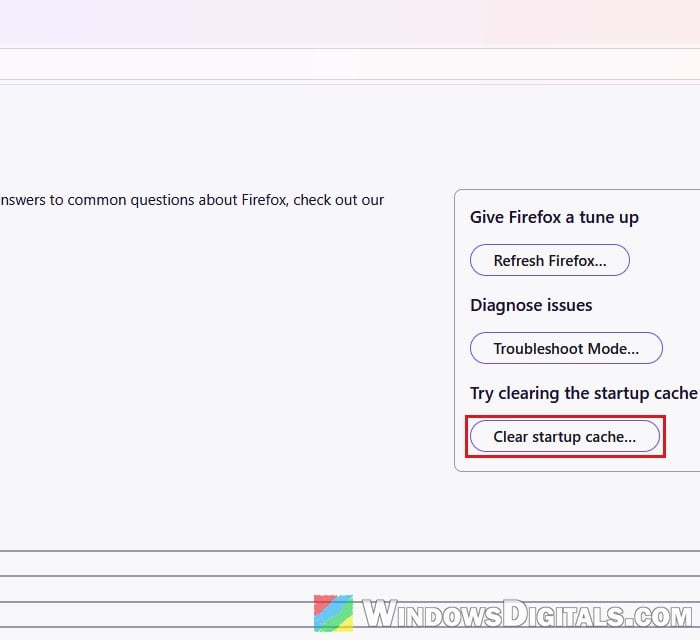
If the crashes don’t stop, refresh Firefox. Click “Refresh Firefox…” on the same page and confirm with “Refresh Firefox“. It removes your extensions and customizations, but you won’t lose essential things like your bookmarks and passwords.
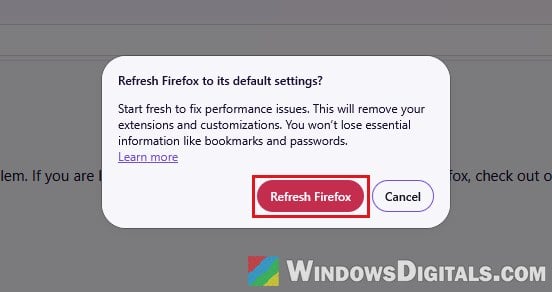
If Firefox closes too quickly to reach that page, hold Shift while opening it. The same box that offers Troubleshoot Mode has a “Refresh Firefox” button.
Related concern: Firefox Lost All Bookmarks and Passwords After Update
Send your crash reports to Mozilla
Firefox saves a report every time it crashes, and Mozilla uses them to track down bugs. Type “about:crashes” in the address bar and press Enter, then click “Submit All” next to “Unsubmitted Crash Reports” (or “Submit” next to a single report).
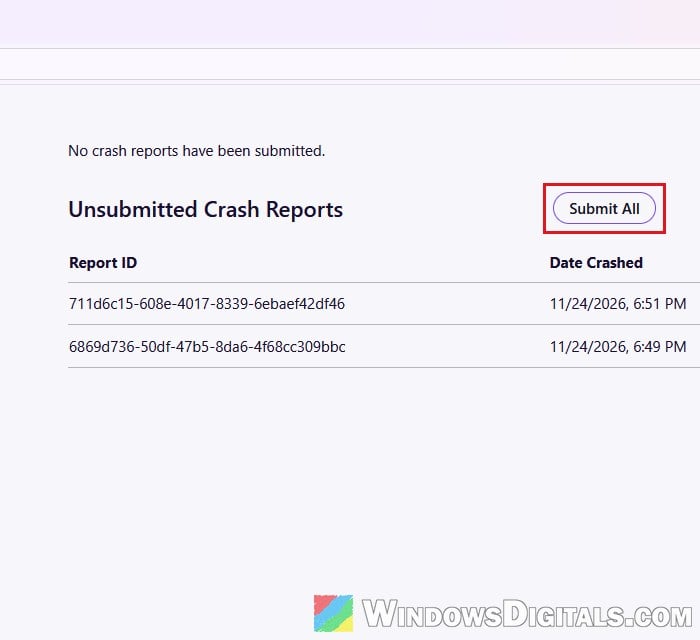
Each submitted report gets an ID starting with “bp-“. If the crashes keep coming back, post on Mozilla’s support forum (https://support.mozilla.org/) with a few of these IDs and what you’ve tried.
Test your RAM (it could be a hardware problem)
If Firefox crashes in Troubleshoot Mode too, even after a refresh, it might not be Firefox’s fault at all. Faulty RAM can crash it at random, and Mozilla suggests checking your memory when crashes don’t go away.
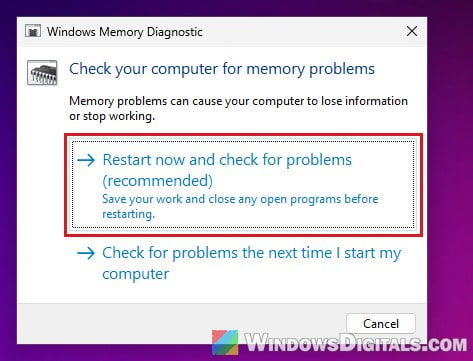
Press Win + R, type “mdsched.exe” and press Enter, then choose “Restart now and check for problems“. Windows restarts and tests your memory. If it finds errors, the RAM (or its BIOS settings, like an XMP profile) is the likely cause.
Learn more: How to See Windows Memory Diagnostic Results in Windows 11
Some Firefox versions also crashed a lot on Intel 13th and 14th gen Core PCs until quick follow-up updates worked around it. If it still looks like a hardware fault and the PC is under warranty, contact the maker.