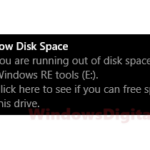
Valorant updates through the Riot Client on its own most of the time, as long as there’s room on the drive. But sometimes the client stops with “Not Enough Disk Space” and “There is not enough disk space to complete this action. Please make more space and try again.“, even though File Explorer shows plenty of free space. The likely reason is that the update needs more working room than its download size suggests, but it can also be a glitch in the launcher. This guide will explain why the Riot Client says this and how to get the install or update going again.
Also see: What files can I delete from C: drive to free up space?
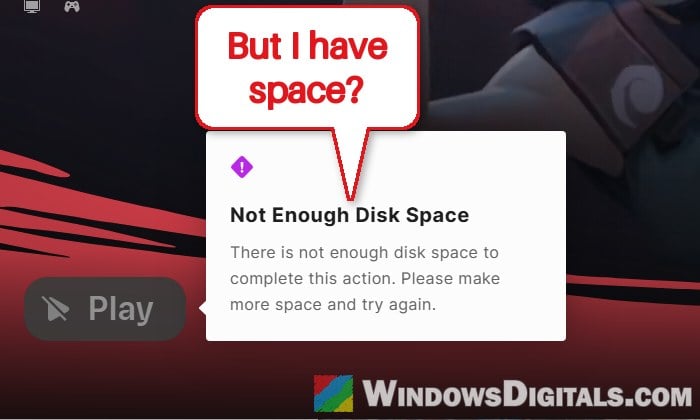
Why does Valorant say there’s not enough disk space?
When Valorant updates, the Riot Client likely needs extra room to unpack the game’s files, so it can ask for more free space than the update size you see.
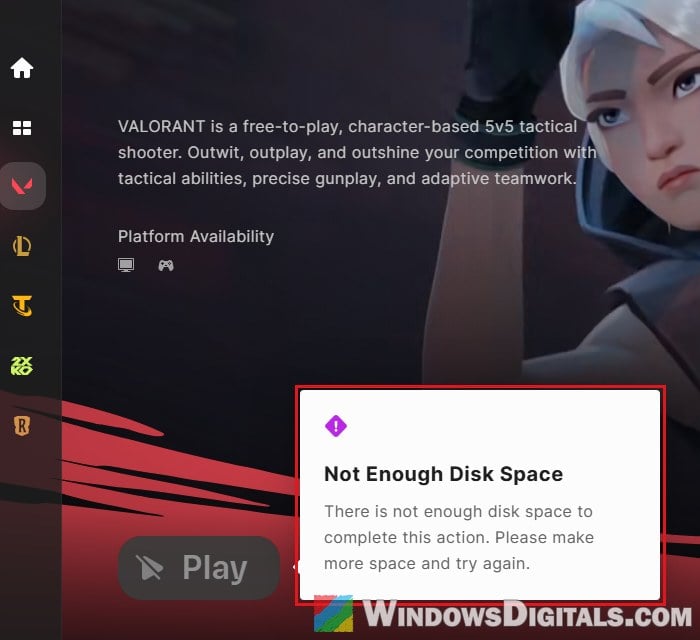
Riot doesn’t publish how much room a normal update needs. The closest we’ve got to a number is the Unreal Engine 5 update (patch 11.02) in July 2025, when Riot reportedly told players to keep more than 30 GB free on the drive holding the game’s client. That was one unusually large patch, but updates can ask for more than you’d expect.
Players have run into this message with 15 GB free for a 6.2 GB update, and with around 30 GB free. Since the Riot Client shows Valorant at 32.8 GB in its install window, that’s not as much room as it sounds. It can even happen while League of Legends updates fine on the same PC.
If you really do have a lot of free space, or the Play button keeps flipping between the message and a grey button after a new patch, it’s more likely a glitch in the client. If so, try the restart, Repair and reinstall sections below.
Check the drive Valorant is actually on
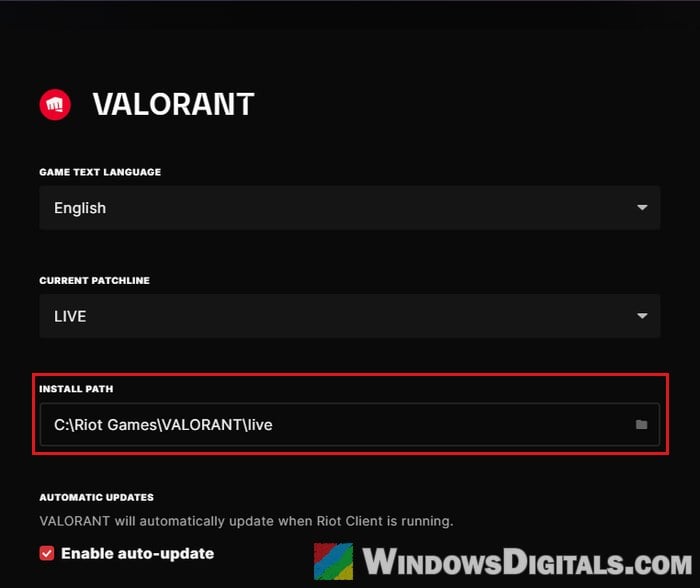
The free space that counts is on the drive where Valorant is installed. The default folder is C:\Riot Games, but you may have picked another drive. Here’s how to check:
- Open the Riot Client and click the profile icon in the top right corner.
- Select “Settings“.
- Click “VALORANT” on the left and look at the “INSTALL PATH“.
- Open File Explorer, go to “This PC“, and see how much space is free on that drive.
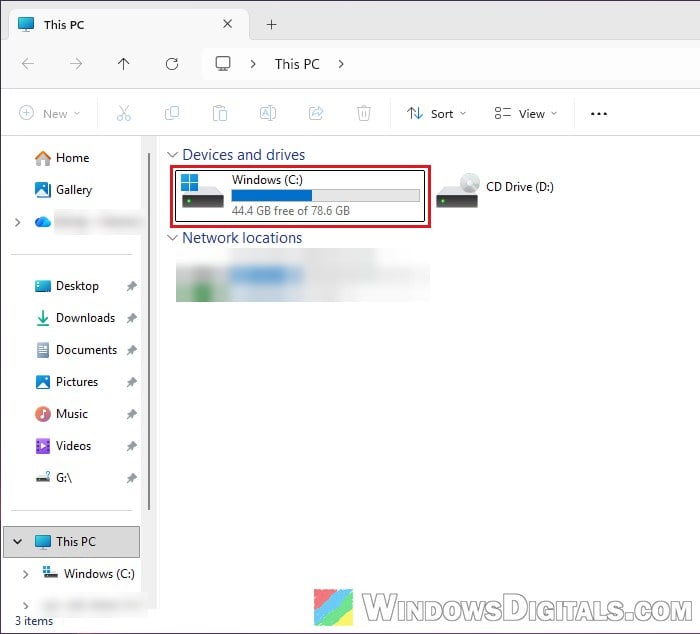
If the game is on another drive, check your C: drive too. This message has also shown up with C: nearly full and over 160 GB free on the game’s drive, so keep some room on both.
Pro tip: How to Clean C: Drive in Windows 11
Fully restart the Riot Client
The message can stay even after you free up space. In our own test on a first install, it stayed on screen with over 44 GB free until every Riot process was ended and the client was opened again. Closing the client’s window isn’t enough, because it keeps running in the background. Here’s how to close it properly:
- Press Ctrl + Shift + Esc to open Task Manager.
- Select any Riot Client or VALORANT entries and click “End task“.
- Open the Riot Client again and start the install or update.
If the button goes back to normal, the message was just stuck.
Free up more space
I’d aim for more free space than the game itself takes up. You may see about 50 GB suggested, but Riot hasn’t confirmed any number, so treat it as a rough target.
Uninstalling a game you no longer play is the quickest way to get there. Disk Cleanup can also clear out a few gigabytes:
- Open the Start menu, type “Disk Cleanup” and press Enter.
- If it asks for a drive, select the one Valorant is on and click “OK“.
- Under “Files to delete“, check the items you don’t need. If “Downloads” is on the list, leave it unchecked unless you’re sure nothing in that folder matters.
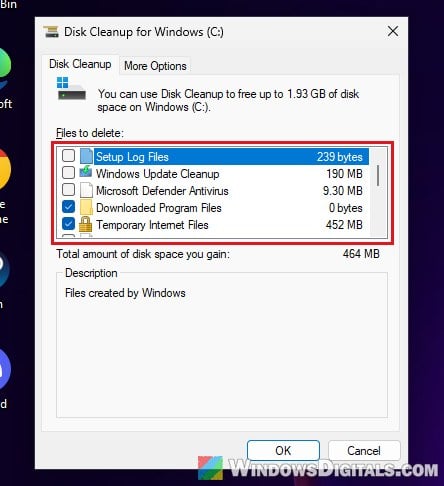
- Click “OK“, then “Delete Files“.
Once you have the space, restart the Riot Client the same way as above and try again.
Repair Valorant in the Riot Client
If you clearly have enough space, the client might just be confused about the game’s files. Riot’s repair tool checks the installation and fixes missing or corrupted files, and together with running the client as administrator, it has cleared this exact message. Here’s how to run it:
- In the Riot Client, click the profile icon in the top right corner and select “Settings“.
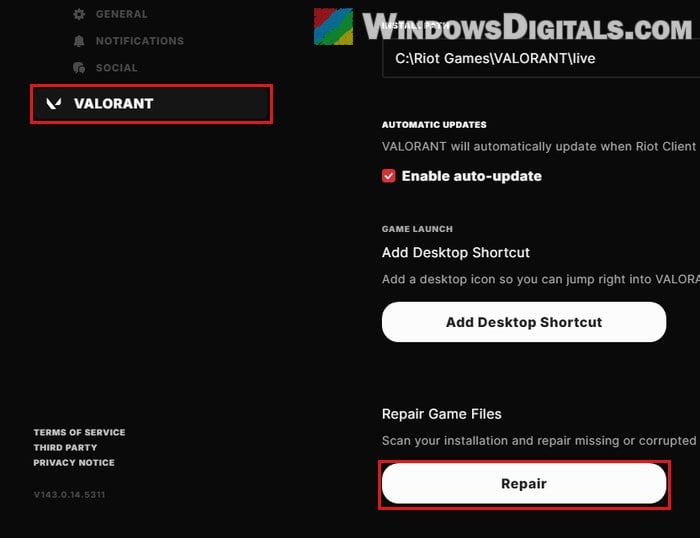
- Click “VALORANT” on the left.
- Scroll down to “Repair Game Files” and click “Repair“.
- Follow the prompts and let it finish.
If it says there’s nothing to repair, move on to the next section.
Linked issue: Valorant VAN -83 Error and Riot Vanguard Won’t Install
Run the Riot Client as administrator
The client may not have the permission it needs, so it’s worth trying it as administrator. End its tasks in Task Manager first, as shown above, then follow these steps:
- Open the Start menu and type “Riot Client“.
- Right-click it and select “Run as administrator“, then click “Yes“.
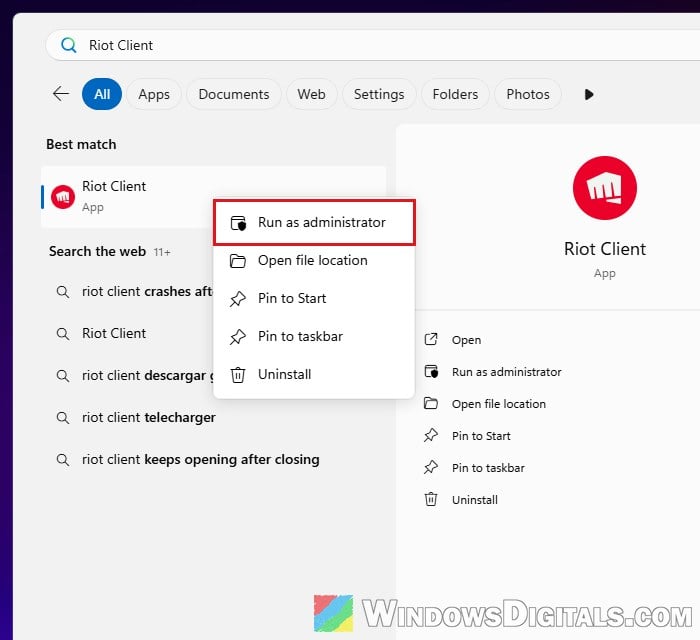
Try the install or update again and see if the message is gone.
Related problem: VAL 3 Error Code in Valorant: What it Means & How to Fix
Reinstall Valorant, on a bigger drive if you have one
A reinstall gives you a clean copy of the game and clears out old files that earlier updates can leave behind. It has also fixed this when the launcher kept showing the message for no clear reason, and it’s the safer way to put the game on a drive with more room. It’s a big download, so leave this for last.
The Riot Client’s “Already installed?” option looks like a shortcut for moving the game, but I wouldn’t rely on it. When we moved the game’s folder and pointed the client at it, it saved a doubled install path and the message came back, although our test PC was also low on space by then.
To reinstall it, follow the steps below:
- Fully close the Riot Client, as shown above.
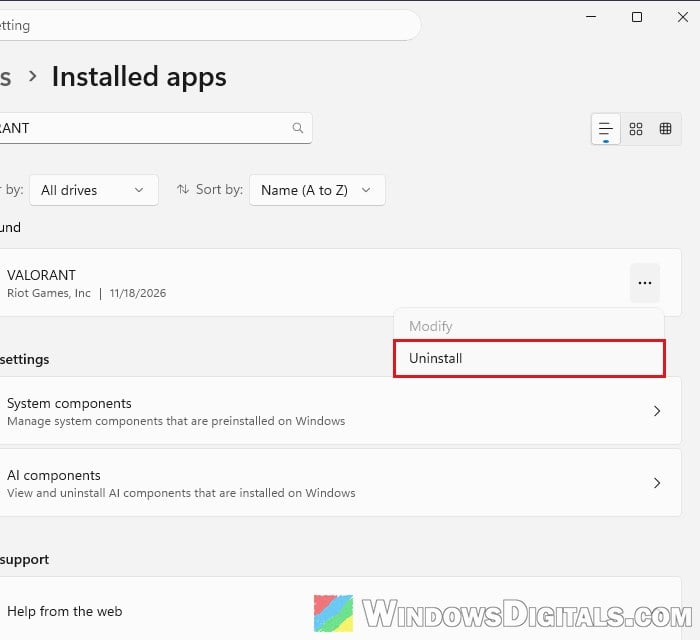
- Press the Win key, type “Installed apps” and open it.
- Find “VALORANT“, click the three-dots icon next to it and select “Uninstall“.
- Restart your PC if you’re asked to.
- Open the Riot Client, select “VALORANT” and click “Install“.
- Click the box under “INSTALL PATH“, choose a folder on the drive with the most free space and click “Ok“.
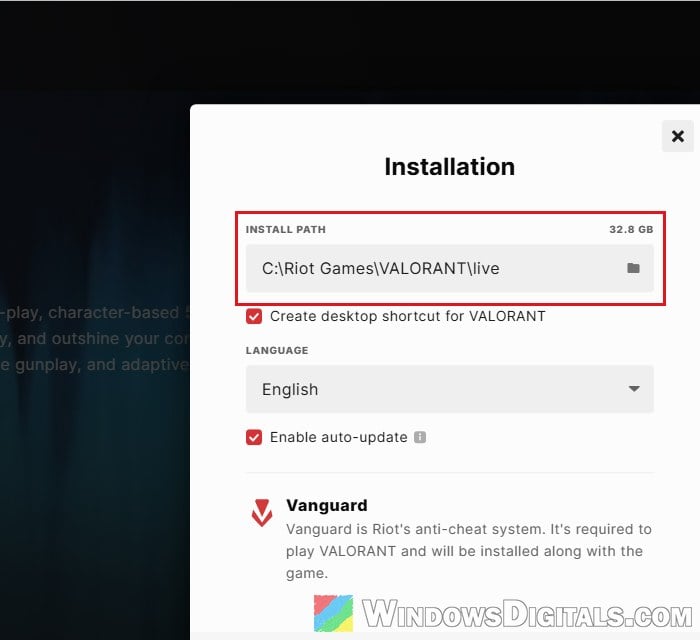
- Click “Install“.
Once it finishes, open the game and see if the message is gone.
Do a clean reinstall if the message comes back
Riot’s clean reinstall also removes the client’s leftover data. Before you do this, copy the folder below somewhere safe, because it holds your local game settings and the steps delete it:
%localappdata%\VALORANT\Saved\Config
- Uninstall Valorant as shown above, and uninstall “Riot Vanguard” from the same list.
- End any Riot Client tasks in Task Manager.
- In
C:\Riot Games(and the game’s folder, if it’s elsewhere), delete the “VALORANT” and “Riot Client” folders, then empty the Recycle Bin. - Press Win + R, type
%localappdata%and press Enter. - Delete the “Riot Games” folder, and the “VALORANT” folder if it’s there (it may not be if the game has never run).
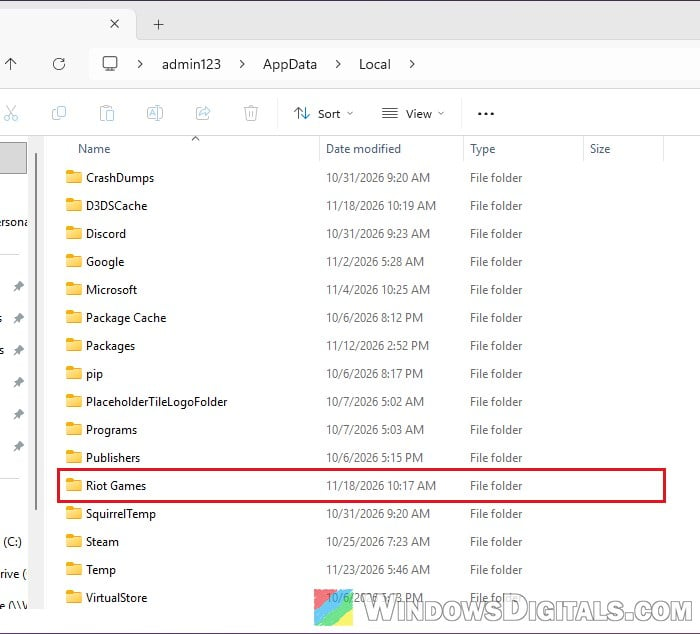
- Restart your PC, then go to RiotGames.com, select Valorant and download the client, which installs the game.
Riot Vanguard comes back with the game, and it needs one more restart before you can play.