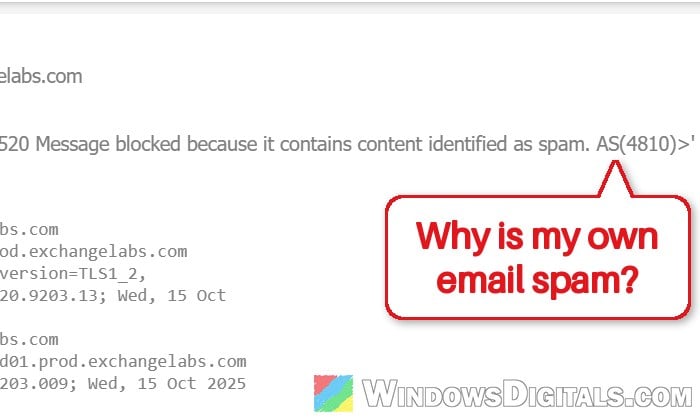
An Outlook.com, Hotmail, Live or MSN account normally sends email as easily as it receives it, but now and then the emails you send come back from the postmaster with “550 5.7.520 Message blocked because it contains content identified as spam. AS(4810)“, sometimes on nothing more than an ordinary reply. For some people only certain emails bounce, while for others every single email fails, including a one-word test. This guide will explain what the bounce means, how to tell which case you have, and how to get your emails going out again.
Also see: 550 5.7.23 or 5.7.1 Bounce When Emailing Outlook.com or Hotmail
What does 550 5.7.520 “Message blocked” mean?
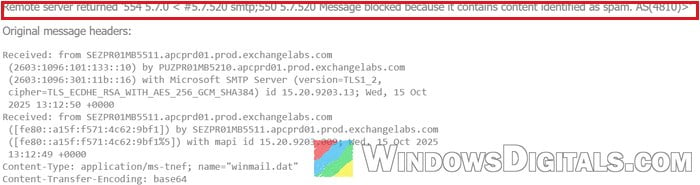
The bounce looks like the other side refused your email, but it didn’t. The bounce’s details name one of Microsoft’s own servers, which means Microsoft stopped the email on its way out. Outlook.com runs every email you send through a spam filter, and AS(4810) is the code it uses when that filter decides the email looks like spam.
There are two different versions of this problem:
- Only some emails bounce. Something in those emails sets off the filter, most often a PDF attachment, a particular link, the email signature or rich formatting. Replies and forwards seem to bounce more often than new emails.
- Every email bounces. This is a block on the account itself. Outlook.com limits how many people an account can email per day, new accounts start with a much lower limit, and an account that looks like it’s been sending spam (for example because someone else got into it) can be blocked from sending altogether.
This bounce has been showing up on Microsoft’s forums since 2023, with another wave of reports in November 2026. If it’s a work or school (Microsoft 365) account, the same code can show up too, but your IT admin is the one who has to sort it out.
First, send yourself a plain test email
Write a new email (not a reply) with one short line of text, no attachment, no link and no signature, and send it to one address, ideally another email account of your own.
- If the test goes through, something in your other emails is the trigger. Start with the next section.
- If the test bounces too, the block is on the account. Skip ahead to checking whether your account was misused.
Remove the signature and send in plain text
Microsoft’s own advice for emails that won’t send from Outlook.com includes removing the signature and sending again. A signature goes out with every email, so if the filter doesn’t like something in it, everything you send gets caught. Plain text also strips out the formatting, and that alone has gotten emails through for several people.
To do this in Outlook.com (Outlook on the web), follow the steps below:
- Select the Settings (gear) icon.
- Go to Account > Signatures.
- Change both “Default for new messages” and “Default for replies and forwards” to no signature.
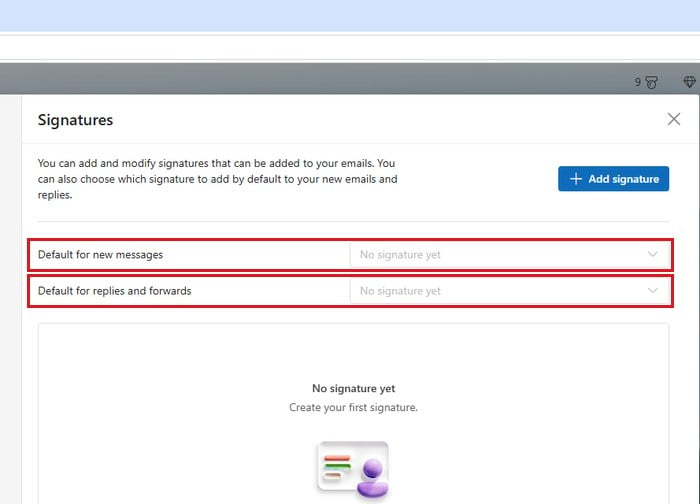
- Then go to Mail > Compose.
- Next to “Compose messages in“, change the format from HTML to Plain text.
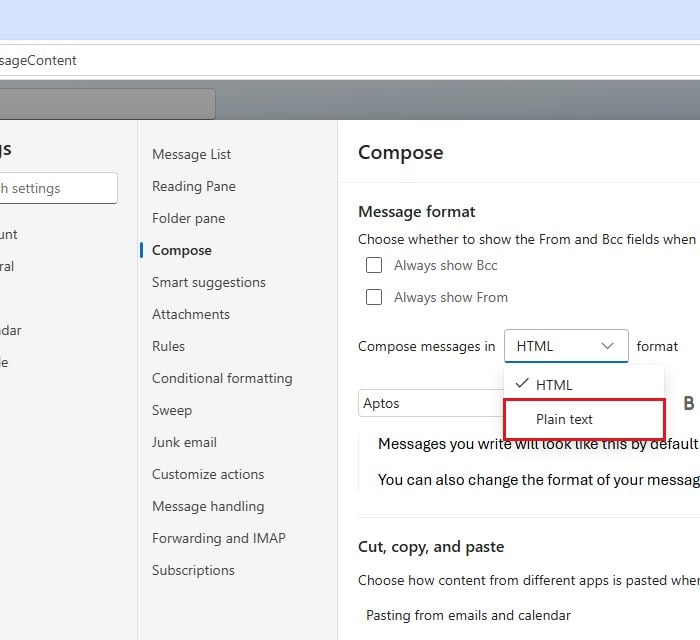
To change just one email, open the Options tab at the top of the new email and select Switch to plain text instead.
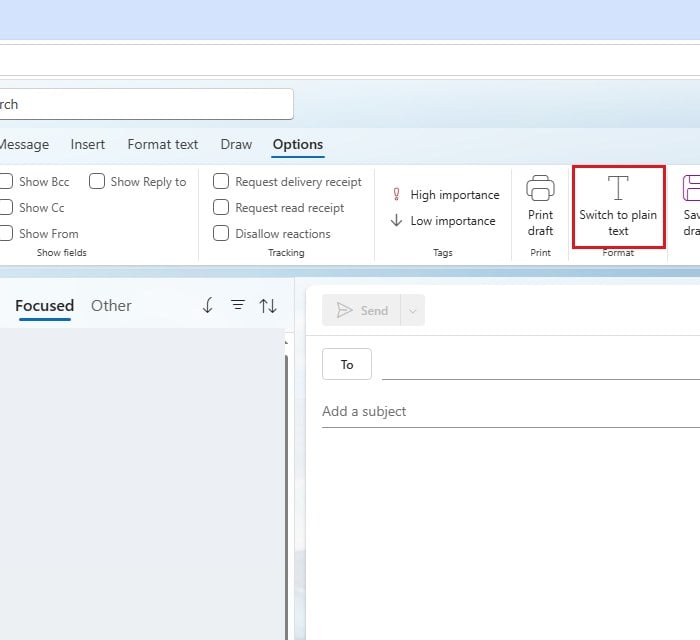
Then send the email that bounced again, as a new email rather than a reply.
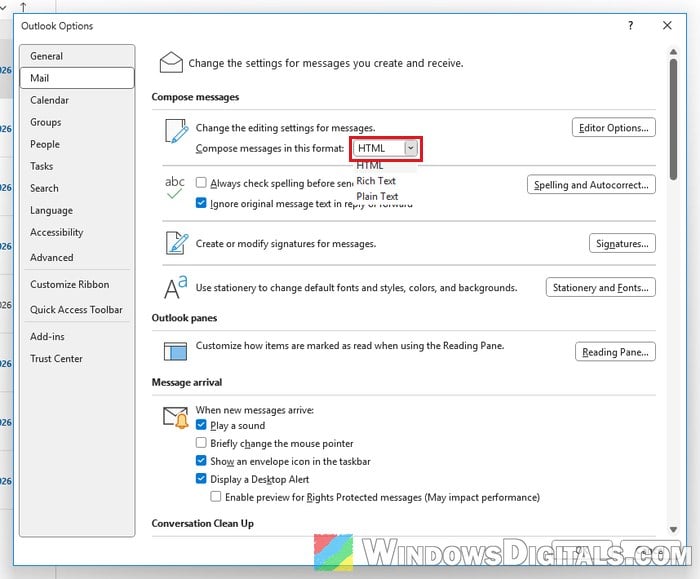
If you send from classic Outlook on Windows, make sure it isn’t sending in Rich Text, which adds a winmail.dat attachment. Go to File > Options > Mail and set “Compose messages in this format” to HTML or Plain Text.
Linked issue: Emails Stuck in the Outbox in Classic Outlook
Send the attachment as a OneDrive link (or zip it)
When only emails with an attachment bounce, it’s usually a PDF. Microsoft lists this “550 5.7.520 Message blocked” error on its page of known Outlook.com issues, and its workaround is to send the file as a OneDrive link instead. Here’s how to do it:
- Reply, forward or create a new email.
- Select Attach file (on the Insert tab of the new email).
- If the file is already in your OneDrive, choose OneDrive. If it isn’t, choose Upload and share.
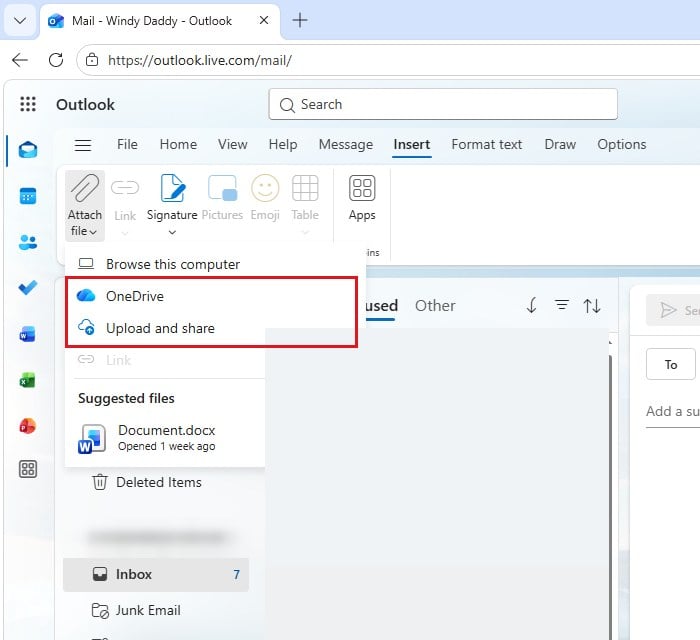
- Pick the file and select Share link.
If the email still bounces with the link in it, zip the PDF in File Explorer and attach the zip instead. Saving a short PDF as an image (JPG or PNG) has worked too.
Might be useful: OneDrive Says Storage Is Full but Your Files Don’t Add Up
Take out links and write a fresh email
A single link can be enough: a link to a SharePoint file has made every email that contained it bounce, while emails with other links went out fine. Remove any links and send the email again. If it goes through, add things back one at a time (a link, the attachment, the quoted text) to find what the filter reacts to.
If the bounce only happens when you reply or forward, copy just the part you need into a brand new email instead of sending the whole earlier conversation.
Try sending it from another Outlook app
Sending the same email from a different app has helped many people when only some emails bounced. Save the email as a draft in Outlook.com, open the Outlook app on your phone, and send the draft from there. When the block is on the account, though, every app gets the same bounce.
Check whether your account was misused, then secure it
When every email bounces, Microsoft most likely thinks the account has been sending spam, either because you emailed a lot of people in one day or because someone else has been using your account. Check these first:
- Look in your Sent Items folder for emails you didn’t send.
- Check your inbox rules and forwarding settings in Outlook.com for anything you didn’t set up.
Then secure the account: change your password, turn on two-step verification, and sign out on every device from your Microsoft account’s Security page. Microsoft also suggests keeping your phone number and alternate email up to date and using the Microsoft Authenticator app, which helps an account get its full sending limit. If Outlook.com warns that your account is temporarily blocked, go to Microsoft’s Unblock my Outlook.com account page (https://support.microsoft.com/accounts-billing/manage/unblock-my-outlook-com-account) and select Sign-in Helper.
For the account security steps, see: Microsoft Account Locked for Unusual Activity and Won’t Unlock.
Wait it out, then ask Outlook.com support to review the account
A block from the daily sending limit can lift by itself after a while. The limit counts recipients, not emails, so one email to 30 people counts as 30, and a new account’s limit goes up as it builds a normal sending history. Try not to keep resending the same email meanwhile.
If your plain test still bounces after you’ve waited a while, only Outlook.com support can review the account and lift the block. To reach them from Outlook.com:
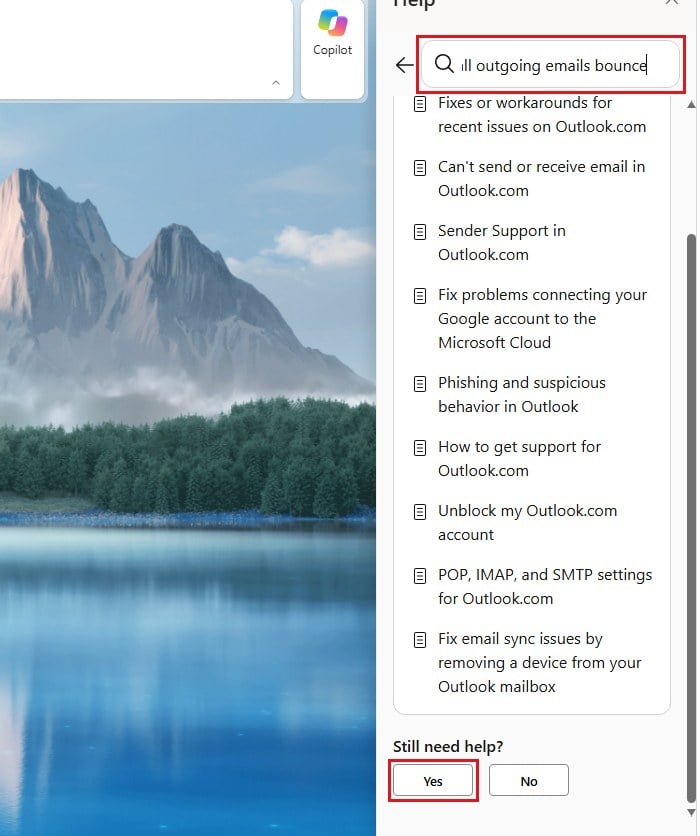
- Select the Help tab at the top, then Help.
- Type the problem into the Search help box, for example “550 5.7.520 all outgoing emails bounce“, and press Enter.
- If the answers don’t solve it, scroll to the bottom of the Help pane and, under Still need help?, select Yes to contact support by email.
Include the full bounce message and say that even a plain-text email with no attachment, link or signature is blocked. The Help pane sometimes goes in circles or says “The request is blocked”. If you opened an article in the pane, its back arrow brings “Still need help?” back. Support also can’t reply to a full mailbox, so free up some space first if yours is.