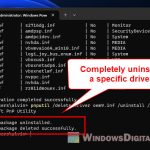
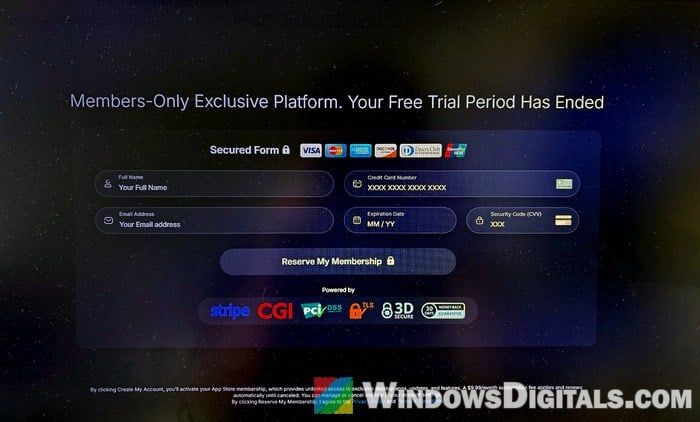
PC App Store looks like just another app store for Windows, but once it lands on your PC through a misleading download button or a fake installer, it opens full screen every time Windows starts, sits on top of Task Manager and Settings, and keeps asking you to create an account or enter your card details. This guide will show you how to close it, uninstall it completely, and undo what it changed in your browsers.
Also see: Removing Survey-smiles.com Malware from Chrome
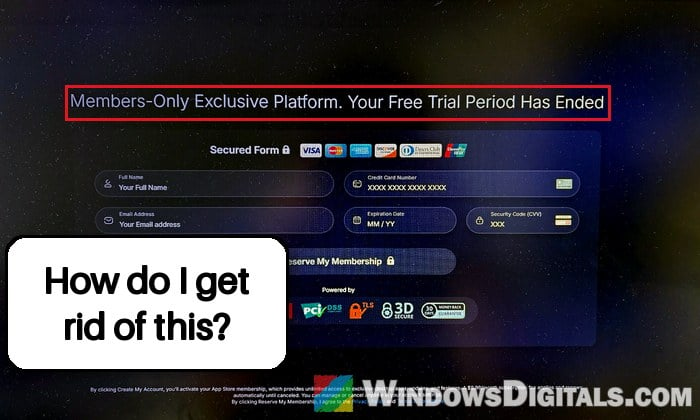
What is PC App Store, and is it a virus?
PC App Store is a third-party “app store” made by Fast Corporation, with nothing to do with the Microsoft Store. It usually gets installed by accident, from a fake “Download” button, a fake installer for a game mod or plugin, or an ad that looks like part of the site.
It isn’t a virus in the strict sense. Security companies class it as adware or a potentially unwanted program (Microsoft Defender calls it Adware:Win32/PCAppStore!MSR), but the way it takes over your screen and pushes you to sign up and pay makes it closer to a screen locker.
It comes with a working uninstaller. The hard part is getting the window out of the way to use it.
Close the PC App Store window first
While the window is open, you can’t reach Settings. Its icon in the system tray lets you quit it even while it fills the screen:
- Click the small up arrow (Show hidden icons) near the clock on the taskbar.
- Right-click the PC App Store icon.
- Select Exit.
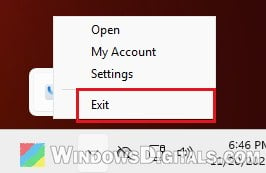
If you can’t reach the taskbar, try Alt + F4 while the window is in front, or end it from Task Manager:
- Press Ctrl + Shift + Esc to open Task Manager, and type “PC App” in its search box.
- Select PC App Store Runtime (the one that runs the window) and click End task.
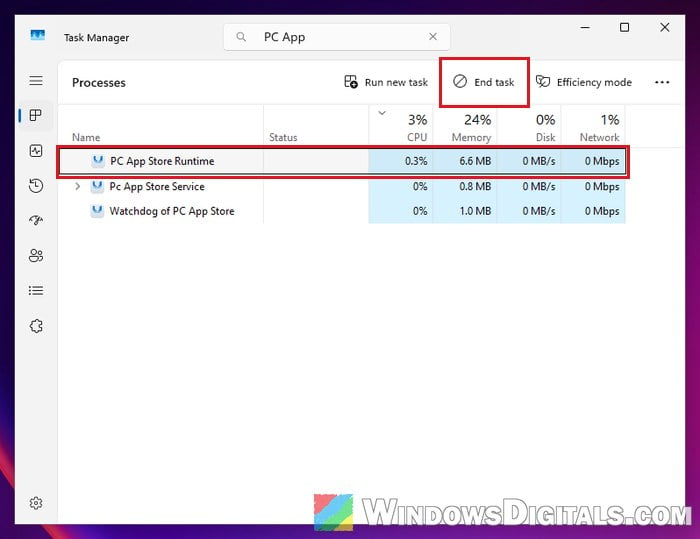
If Task Manager opens behind the window, go to the next section instead.
Still can’t close it? Disconnect from the internet and restart
PC App Store seems to need the internet to show its full-screen window, so with the PC offline it usually doesn’t open after a restart. Plenty of people on Reddit say this is what finally got it off their screen.
- Unplug the network cable or turn off Wi-Fi (switch off the router if the window hides the Wi-Fi icon), and stay offline until the uninstall is done.
- Restart the PC. If nothing responds, hold down the power button for about 10 seconds until it turns off, then turn it back on.
- If the window doesn’t show up after the restart, go straight to the next section.
Uninstall PC App Store from Settings
Dragging the desktop shortcut to the Recycle Bin only deletes the shortcut. The program sits in C:\Program Files (x86)\PCAppStore (or C:\Program Files\PCAppStore) with a service and a “watchdog” that starts it, so uninstall it properly:
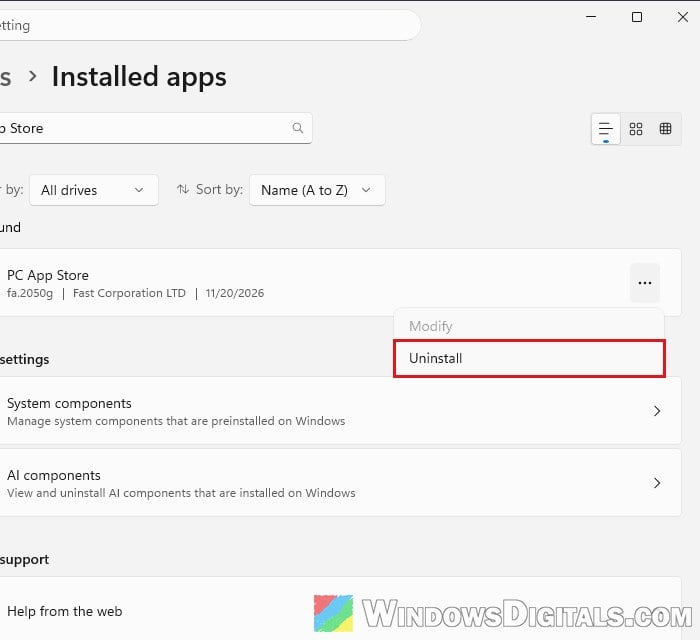
- Press Win + I to open Settings, then go to Apps > Installed apps (on Windows 10, Apps > Apps & features).
- Type “PC App Store” in the search box above the list.
- Click the three dots (…) next to PC App Store and select Uninstall, then click Uninstall again to confirm.
- When Windows asks “Do you want to allow this app to make changes to your device?” for PC App Store Setup, click Yes. It’s named like the installer, but it’s the uninstaller.
- When it asks “Uninstall PC App Store?“, click Yes, then OK once it says it has been uninstalled.
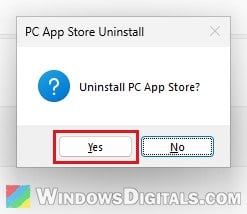
- Restart your PC.
After the restart, it shouldn’t open anymore, even with the internet back on. The old Programs and Features list works too: press Win + R, type “appwiz.cpl” and press Enter, then right-click PC App Store and select Uninstall.
Uninstall it in Safe Mode if it keeps opening
If the window still takes over the screen as soon as you sign in, uninstall it from Safe Mode, where Windows starts with only its basic drivers and services. Pick plain Safe Mode, without networking, since the window seems to need the internet. The window doesn’t cover the Ctrl + Alt + Delete screen, so start from there:
- Press Ctrl + Alt + Delete, click the Power icon at the bottom-right, and hold Shift while you click Restart.
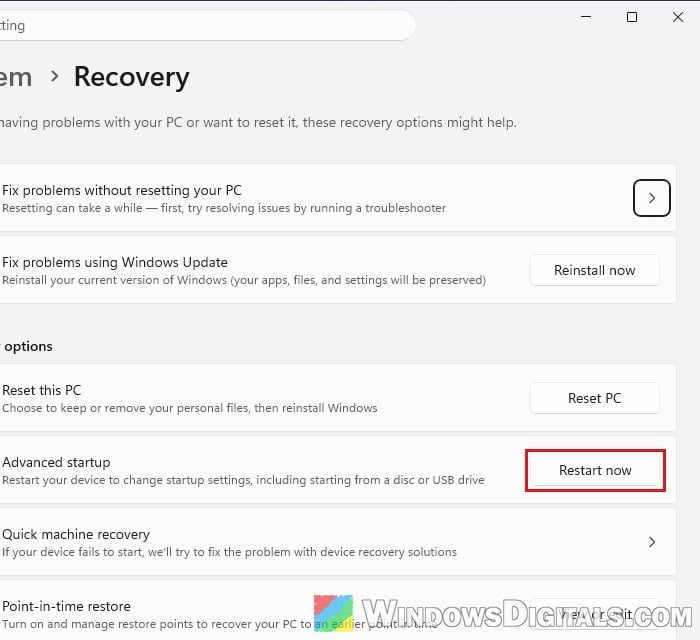
- If you can open Settings, go to System > Recovery and click Restart now next to Advanced startup instead.
- Select Troubleshoot > Advanced options > Startup Settings > Restart.
- Press 4 or F4 to start in Safe Mode.
- Sign in and uninstall PC App Store from Settings > Apps > Installed apps, as in the section above.
- Restart normally to leave Safe Mode. It shouldn’t open again.
Might be useful: Enter Safe Mode in Windows 11/10 when PC isn’t booting
What if it isn’t in the list, or the uninstall does nothing?
Sometimes it keeps popping up while missing from Installed apps, or the uninstaller does nothing. Several people got rid of it with Revo Uninstaller (only from https://www.revouninstaller.com/) instead. If Revo doesn’t list it either, try Malwarebytes AdwCleaner, a free tool made for adware like this.
Check for leftovers
PC App Store has no normal startup entry, and the uninstaller removes its service, watchdog and folder. It’s still worth a quick check:
- Press Win + R, type “shell:startup” and press Enter. Delete any PC App Store shortcut there.
- In File Explorer, check that the PCAppStore folder is gone from
C:\Program Files (x86)(orC:\Program Files). If it’s still there after the uninstall, delete it. Only do this after the uninstall, never instead of it, or its service stays behind. - Search Task Manager for “PC App“. Nothing should come up.
Fix your browsers’ start page, new tab and search engine
Your browsers may still show a different start page, new tab page or search engine. Fix each one:
- Open the extensions page and remove any extension you don’t recognize:
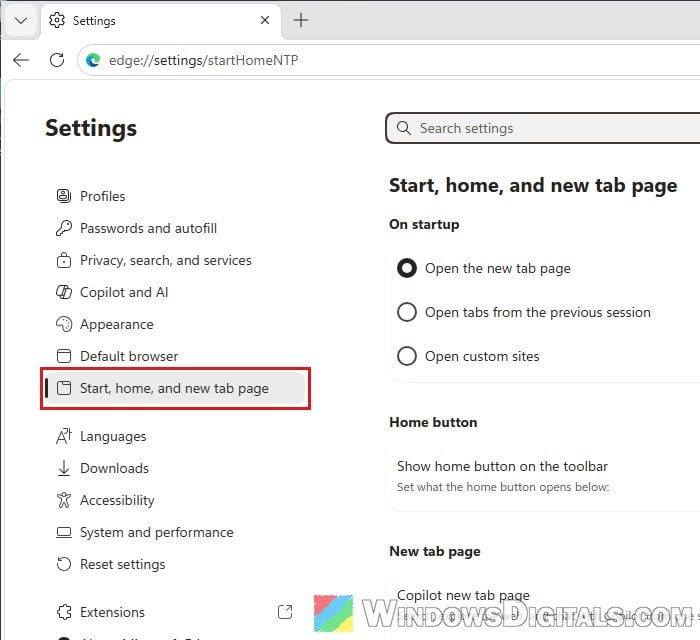
edge://extensionsin Microsoft Edge,chrome://extensionsin Google Chrome, or Add-ons and themes > Extensions from Firefox’s menu. - Set the start page back. In Edge, go to Settings > Start, home, and new tab page and pick Open the new tab page. In Chrome, go to Settings > On startup and choose Open the New Tab page. In Firefox, set it in Settings > Home.
- Set the default search engine back to the one you use.
- Right-click the browser’s desktop shortcut and select Properties. If a web address follows the
.exe"in Target, delete it and click OK.
Related guide: How to Change Edge Default Search Engine to Google
Run a full scan
The fake download may have brought something else, so finish with a scan.
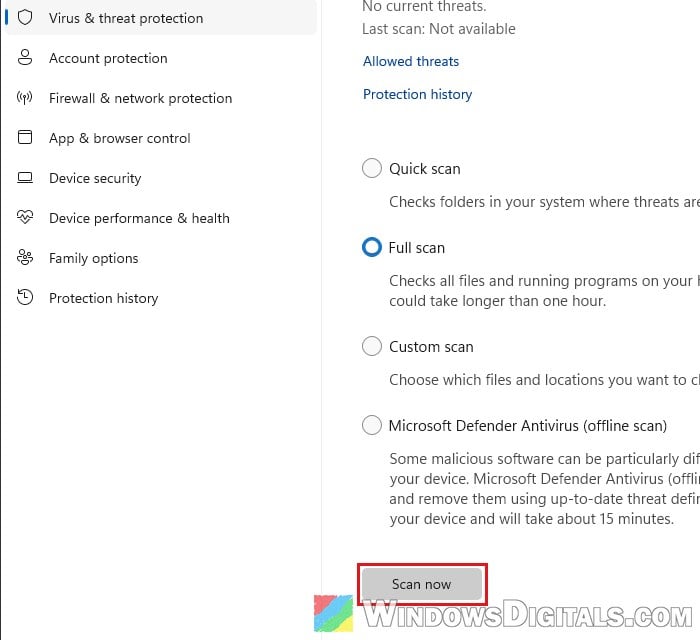
- Open Windows Security from the Start menu and go to Virus & threat protection.
- Click Scan options, select Full scan, and click Scan now.
A second opinion from the free Malwarebytes or its AdwCleaner doesn’t hurt. Once the scans are clean, there’s no need to reinstall Windows.
What if you entered your card details?
PC App Store’s own FAQ says removing the app doesn’t cancel its subscription or payments. If you typed in a card, log in to your PC App Store account or contact them to cancel, and ask your bank to block any charge you don’t recognize. Charges of $60 to $70 have been reported, so check your statement.