Many Firefox users have run into a problem where websites that used to open just fine suddenly show a “Secure Connection Failed” page with the error code “SSL_ERROR_RX_RECORD_TOO_LONG“, sometimes on one site and sometimes on a long list of them, while the same sites still load on a phone’s mobile data or through a VPN. In most cases, it means that something between Firefox and the website is getting in the way of the encrypted connection, and that something is often on your own PC or network. This guide will show you how to find what’s causing it and how to fix it.
Also see: YouTube Not Loading in Firefox While Other Sites Work
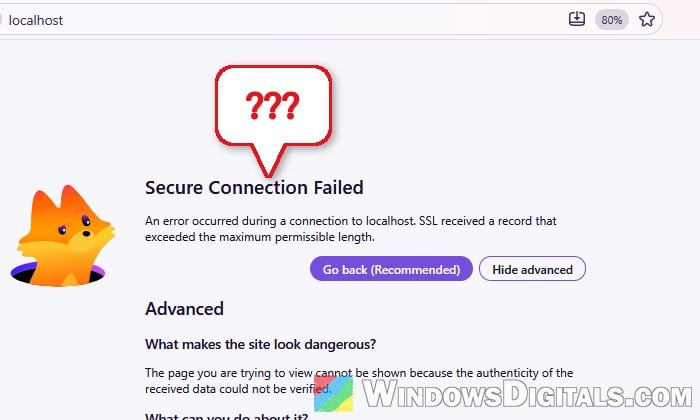
What does “SSL_ERROR_RX_RECORD_TOO_LONG” actually mean?
When you open an “https” address, Firefox expects the website to answer in encrypted form. This error shows up when the answer comes back as plain, unencrypted data instead. Firefox can’t verify data like that, so it stops the connection and says that “SSL received a record that exceeded the maximum permissible length”. The error code itself shows when you click Advanced.
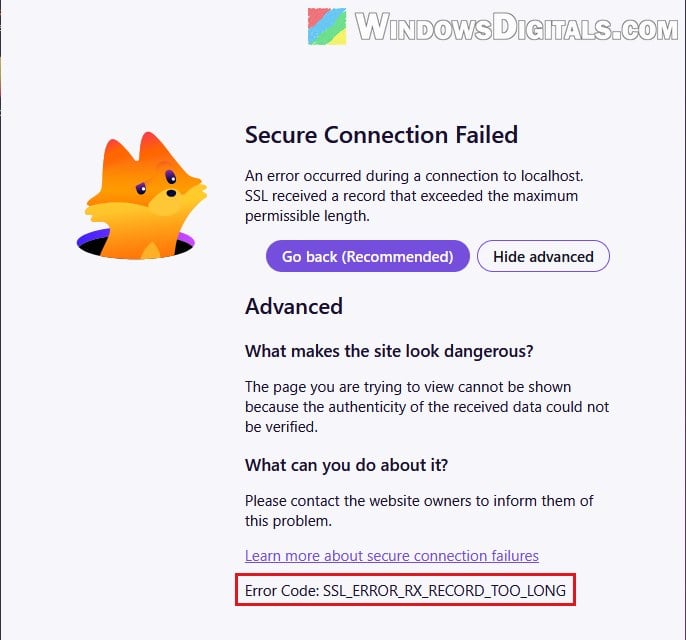
Unlike some certificate warnings, there’s no button to continue anyway (only “Go back (Recommended)“), and no setting lets you skip it.
Either the website’s server is set up wrongly (only its owner can fix that), or something sitting between Firefox and the site answers in its place. Mozilla lists these as possible causes:
- Antivirus or security software that scans encrypted (HTTPS) connections.
- A proxy set in Firefox’s connection settings.
- DNS over HTTPS in Firefox.
- A VPN.
On top of those, security filters on your router or from your internet provider can cause the exact same error.
First, check if it’s the website or your connection
Before changing anything, find out which side the problem is on.
- Turn on your phone’s mobile hotspot, connect your PC to it, and open the same website in Firefox.
- On your normal connection, open the same website in Edge or Chrome. Chrome may show “ERR_SSL_PROTOCOL_ERROR” instead, which points to the same problem.
If the site fails on every network and in every browser, the website’s own server is most likely misconfigured, and only its owner can fix it. If it works on mobile data, the problem is on your PC or your home network, so keep reading.
Turn off HTTPS scanning in your antivirus
Some antivirus programs check your encrypted connections by stepping in between your browser and the website. When that goes wrong, Firefox gets an answer it doesn’t expect. Mozilla names it as one of the main causes, and Malwarebytes’ Web Protection is a known example that can break many sites at once.
Web Protection is only available in Malwarebytes’ paid version or its trial. To turn it off, follow the steps below:
- Open Malwarebytes and click the Settings (gear) icon at the bottom-left.
- Select Protection.
- Under Real-Time Protection, click the switch next to Web protection.
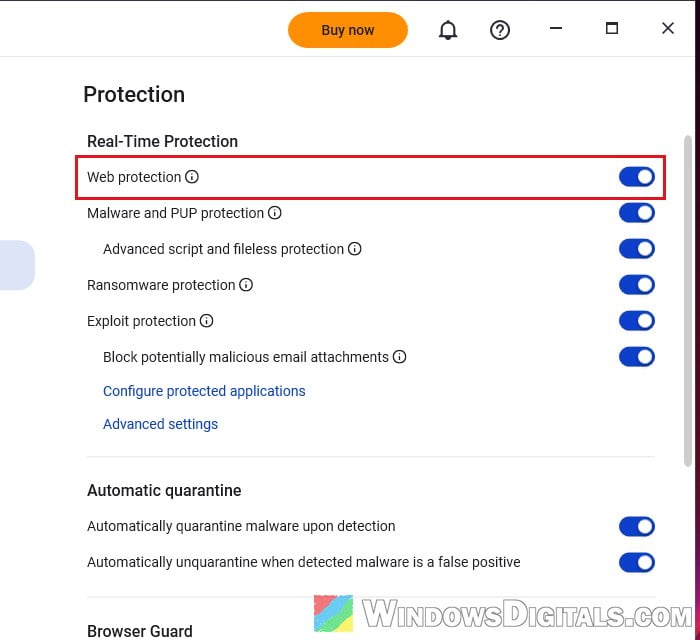
- Click Turn Off to confirm, then Yes when Windows asks for permission.
If you use Avast, go to Menu > Settings > Antivirus > Core Shields, select Web Guard under “Configure shield settings“, and untick “Enable HTTPS scanning“. In older versions, the path is Menu > Settings > Protection > Core Shields, and the tab is called Web Shield. For other security suites, look for a setting with a name like “HTTPS scanning”, “encrypted connection scanning” or “web protection”.
Reload the website afterwards. If it opens now, you’ve found the cause. If it still fails, turn the protection back on, since it wasn’t the cause and you’re less protected without it.
Check Firefox’s proxy settings
A proxy can also send back plain data where Firefox expects an encrypted reply. If you don’t knowingly use a proxy, Firefox shouldn’t be using one either.
Here’s how to check it:
- Type “about:preferences” in Firefox’s address bar and press Enter to open Settings.
- Select Privacy and security on the left, scroll all the way down, and click Advanced settings under “Connection and software security“.
- Under Proxy settings, click Configure proxy.
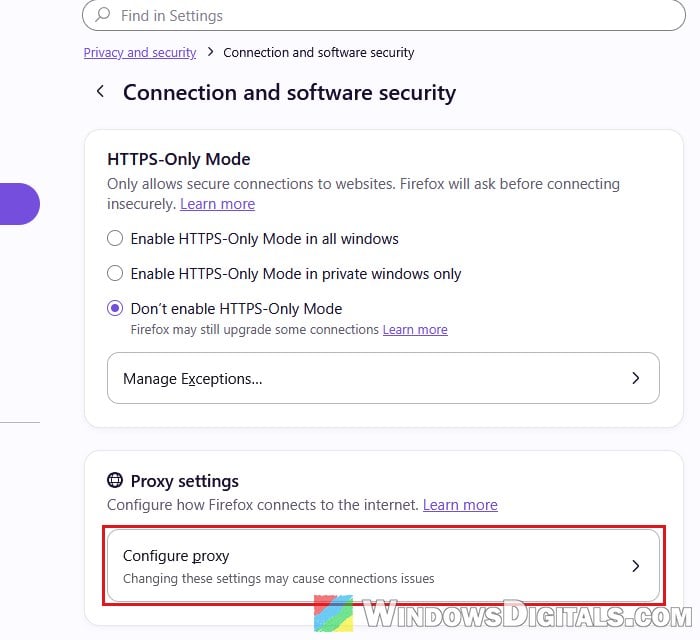
- In the Connection Settings window, select No proxy and click OK.
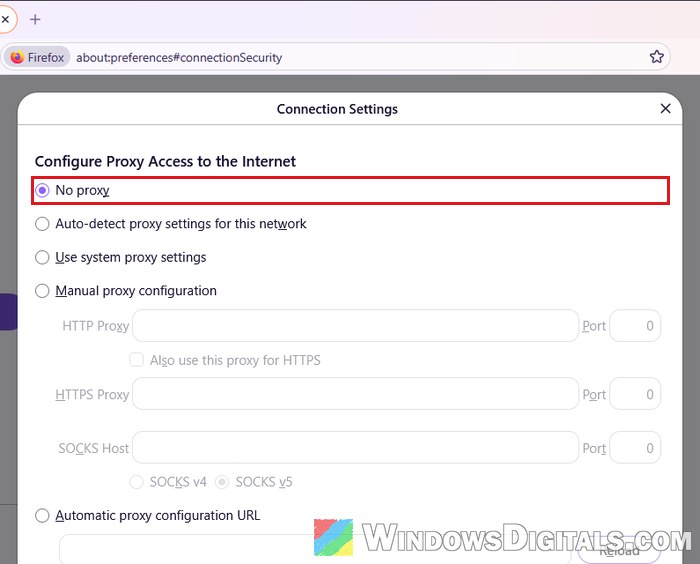
Then reload the website and see if the error is gone. “Use system proxy settings” is the default, which means Firefox follows the proxy set in Windows, so if you don’t know where a proxy came from, check Windows’ proxy settings as well.
Related guide: How to Disable Proxy Settings in Windows 11/10 Permanently
Turn off DNS over HTTPS in Firefox
DNS over HTTPS (DoH) is a Firefox feature that looks up website addresses through an encrypted DNS service instead of your internet provider’s. Mozilla mentions it as another possible cause of this error, so it’s worth switching it off for a quick test. Here’s how to do it:
- In Firefox’s Settings, select Privacy and security on the left.
- Scroll down to the DNS over HTTPS section and click Advanced settings.
- Select Off.
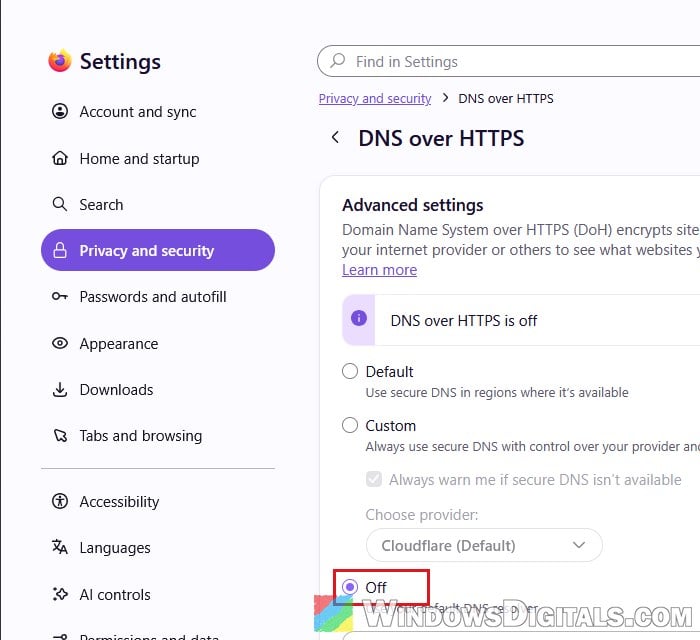
If the website loads after this, you can either leave DoH off, or set it back to Default and use Manage exceptions on the same page to add only the affected websites, so that they skip it.
Might be useful: Change DNS to Google or Cloudflare in Windows 11/10
Turn off your router’s or internet provider’s security filter
If the website works on mobile data but still not on your home network, the thing getting in the way might be your router or your internet provider. Some providers include a “security” filter that checks your traffic and can break certain websites.
One example is Xfinity’s Advanced Security. Turning it off in the Xfinity app has fixed this exact error for some Xfinity customers. Look through your provider’s app or your router’s settings for anything like “advanced security”, “web protection” or “content filtering”. Network-wide ad blockers such as Pi-hole can cause the same thing.
If you can’t find anything like that, contact your internet provider. Tell them which websites fail and that the same sites work on mobile data or a VPN, since only they can fix filtering or routing problems on their side.
Use a VPN as a workaround
The workaround most people on Reddit ended up using is a VPN, including the one now built into Firefox (the VPN button in its toolbar). With a VPN on, the error usually goes away on every website, because the VPN hides your traffic from whatever on your network or at your provider is interfering with it. If a VPN fixes it, the problem is almost certainly somewhere between your PC and the internet, not in Firefox.
Just keep in mind that a VPN only hides the problem. And if you were already connected to a VPN when the error started, try the opposite: turn the VPN off and reload the site, since Mozilla also lists VPNs as a possible cause.
Undo any TLS changes you made in about:config
Some older guides tell you to change Firefox’s TLS settings, such as “security.tls.version.max“, in about:config. This doesn’t fix the problem, and it can leave Firefox less secure. If you’ve changed these values before, put them back to their defaults:
- Type “about:config” in the address bar and press Enter, then click Accept the Risk and Continue.
- Search for “security.tls.version.max“.
- If the row is shown in bold (changed), click the Reset (arrow) button at the end of it. The default value is 4.
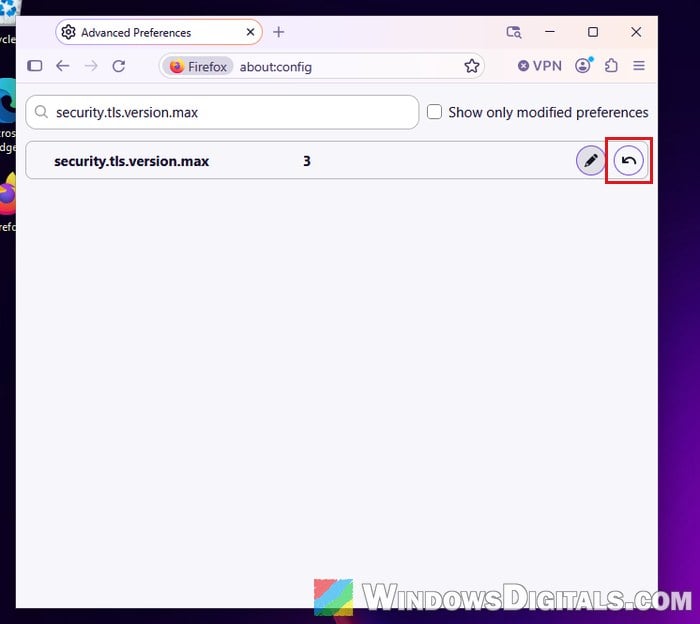
- Do the same for “security.tls.version.min“.
After resetting them, restart Firefox and reload the website.