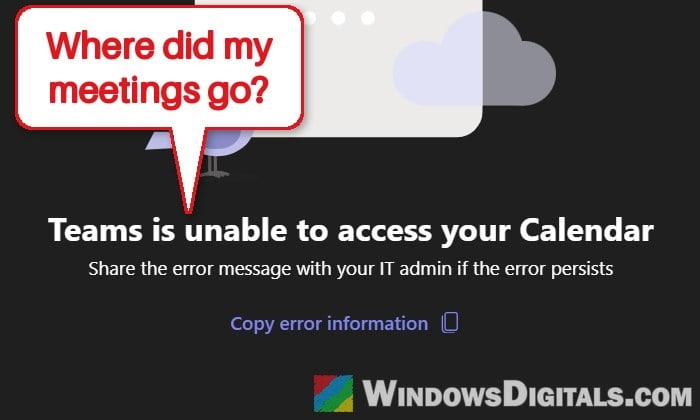
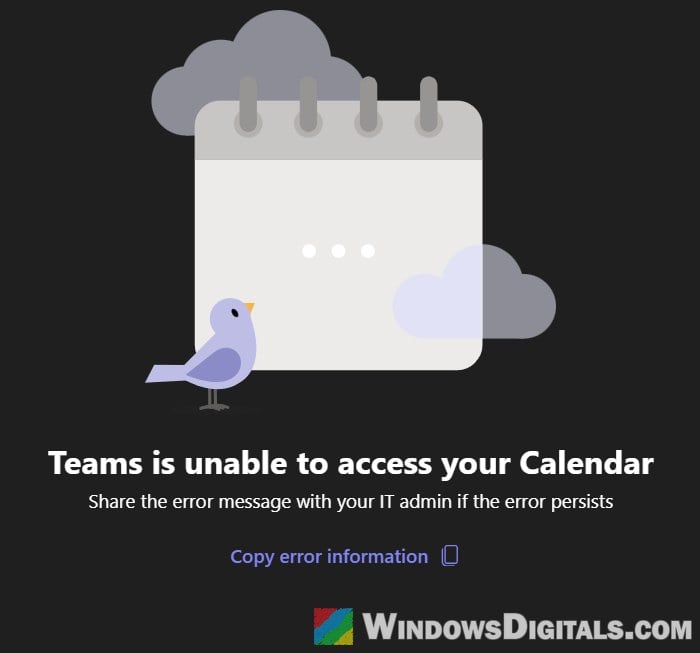
When you open the Calendar in Microsoft Teams with your work or school account, you might see “Teams is unable to access your Calendar. Share the error message with your IT admin if the error persists” instead of your meetings, in the desktop app or in Teams on the web. This guide will explain what’s usually behind it, what you can try on your own, and what your IT admin needs to check.
Also see: Stop “Teams” From Starting Automatically in Windows 11
Why can’t Teams access your calendar?
The calendar in Teams isn’t stored in Teams. According to Microsoft, the Teams Calendar app reads your Exchange mailbox (the same one Outlook uses) through a service called Exchange Web Services (EWS). The mailbox has to be in Exchange Online, or on a company Exchange server that’s set up in a hybrid deployment with Microsoft 365. When anything on that path breaks, Teams shows this error.
Some common reasons are:
- A Microsoft 365 outage affecting Teams or Exchange Online. In one past incident, Microsoft warned that users may be unable to load or change their calendar in Teams.
- No Exchange Online mailbox on your account, for example a license without Exchange Online.
- Teams blocked from EWS by an allow list or by EWS being turned off, for the whole organization or just your mailbox.
- The Calendar app removed from your app setup policy, or an old Skype for Business setting.
- Your mailbox is on an on-premises Exchange server without a working hybrid setup.
- Your organization uses Gmail (Google Workspace) for email, so there’s no Outlook calendar for Teams to show.
- A problem in the Teams app itself on your PC, such as a bad cache.
Most of these can only be fixed by your IT admin, but a few quick checks on your side can tell you where the problem is.
Check if Microsoft 365 is having an outage
If the calendar worked fine yesterday and several coworkers suddenly see the same error, it’s probably a service problem on Microsoft’s side, not your PC. Go to https://status.cloud.microsoft to see Microsoft’s public status page. Microsoft also posts on its @MSFT365Status account on X.
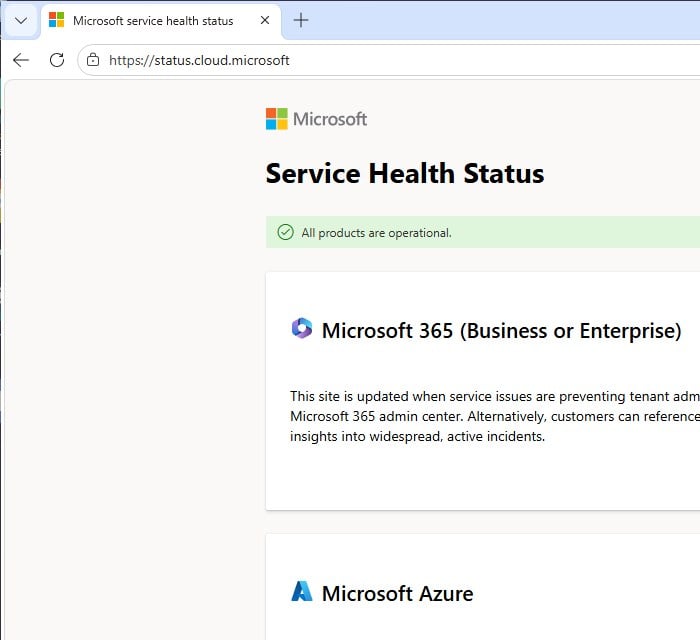
Admins get more detail in the Microsoft 365 admin center under Health > Service health. If there’s an incident, there’s nothing to do but wait for Microsoft to fix it.
Try Teams on the web and Outlook on the web
Next, find out whether the problem is in the app or your account. Open https://teams.microsoft.com in your browser, sign in with the same work account and open the Calendar, then check your calendar in Outlook on the web too.
- Only the Teams desktop app shows the error: the problem is likely local. Reset the app (next section).
- Teams on the web shows it too, but Outlook on the web works: your mailbox is fine, but Teams can’t reach it. That’s something your IT admin has to fix.
- Outlook on the web can’t open your calendar either: the problem is with your account or a wider outage, not Teams, so check the status page above and tell IT.
Might be useful: Work or school account problem keeps popping up Windows 11
Sign out of Teams and reset the app
When only the desktop app shows the error, signing out and back in, then resetting the app to clear its cache, is the next step. Clearing the cache only helps with problems in the app on your PC.
First, sign out of Teams, sign back in and check the Calendar. If the error is still there, reset the app. Please note that resetting permanently deletes the app’s data on this PC, including your preferences and sign-in details in Teams.
- Open Settings and go to Apps > Installed apps.
- Type “Microsoft Teams” in the search box.
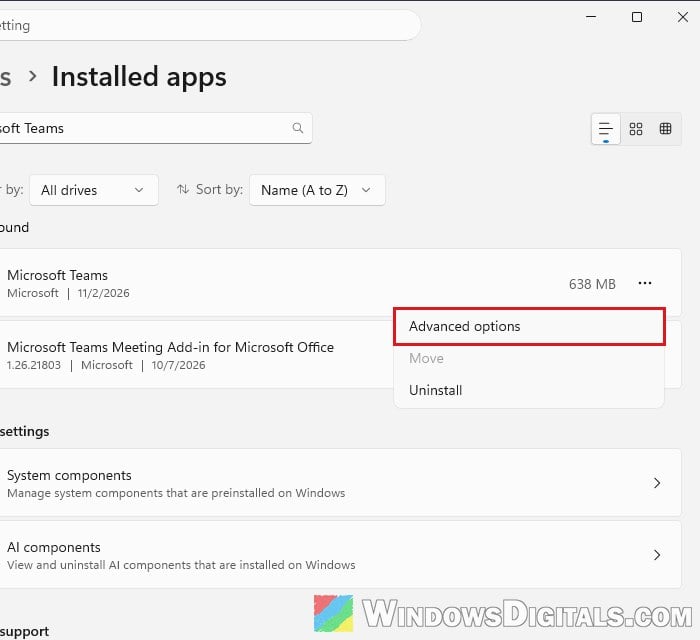
- Click the More options button (…) next to Microsoft Teams and select Advanced options.
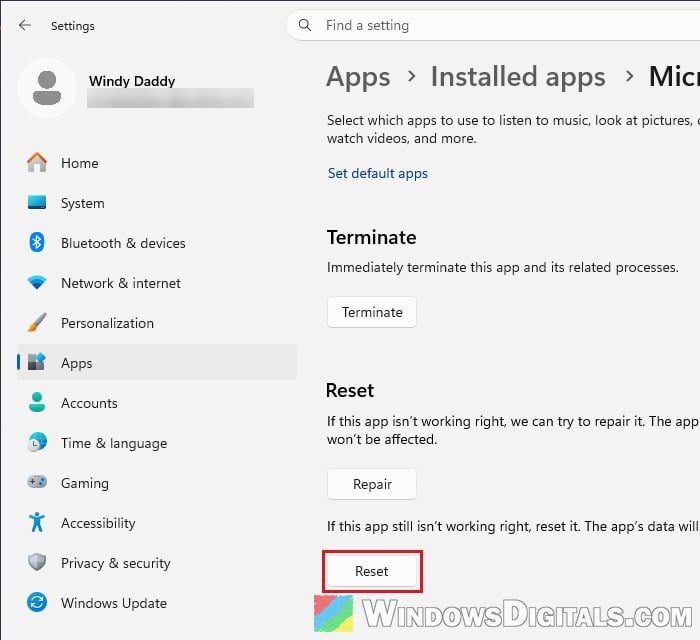
- In the Reset section, click Reset, then click Reset again in the box that pops up to confirm.
- Start Teams again and sign in.
If you’d rather do it by hand, quit Teams (right-click the Teams icon on the taskbar and select Quit), press Win + R, paste the following path and press Enter, then delete everything in that folder:
%userprofile%\appdata\local\Packages\MSTeams_8wekyb3d8bbwe\LocalCache\Microsoft\MSTeams
Then start Teams, open the Calendar and see if your meetings show up.
Run Microsoft’s “Teams Calendar App” connectivity test
Microsoft has an online test that checks whether Teams can reach your Exchange mailbox. You don’t need to be an admin to run it. Here’s how:
- Go to
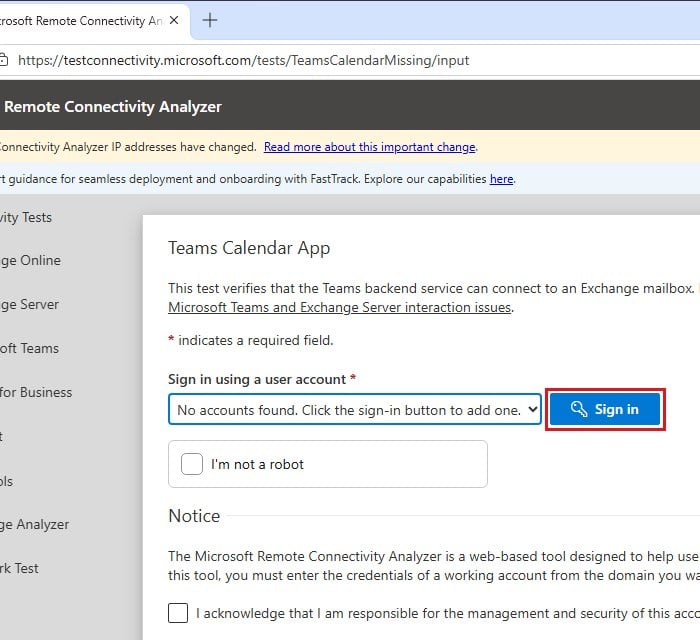
https://testconnectivity.microsoft.com/tests/TeamsCalendarMissing/input(the Teams Calendar App test in Microsoft’s Remote Connectivity Analyzer). - Click Sign in and sign in with the work account that has the problem.
- Tick “I’m not a robot” and the “I acknowledge…” checkbox under Notice.
- Click Perform Test.
The result shows which check failed, with links explaining how to resolve it. Send a screenshot of it to your IT admin along with the error. The tool isn’t available for government (GCC and GCC High) tenants.
Does your school or company use Gmail?
If your school or company runs its email and calendar on Google Workspace, Teams has no Outlook calendar to read, so the error is expected. Schedule Teams meetings from Google Calendar with the Microsoft Teams meeting add-on instead.
What your IT admin needs to check
If you’re not the admin, pass this part on to yours. Most of these checks come from Microsoft’s own troubleshooting guide for the Teams Calendar app.
A license with an Exchange Online mailbox
The account needs an Exchange Online mailbox. In the Microsoft 365 admin center, go to Users > Active users, select the user and open Licenses and apps. Both Microsoft Teams and Exchange Online should be on.
Pro tip: How to Check Office 365 User License Using PowerShell
The Calendar app and “Coexistence mode”
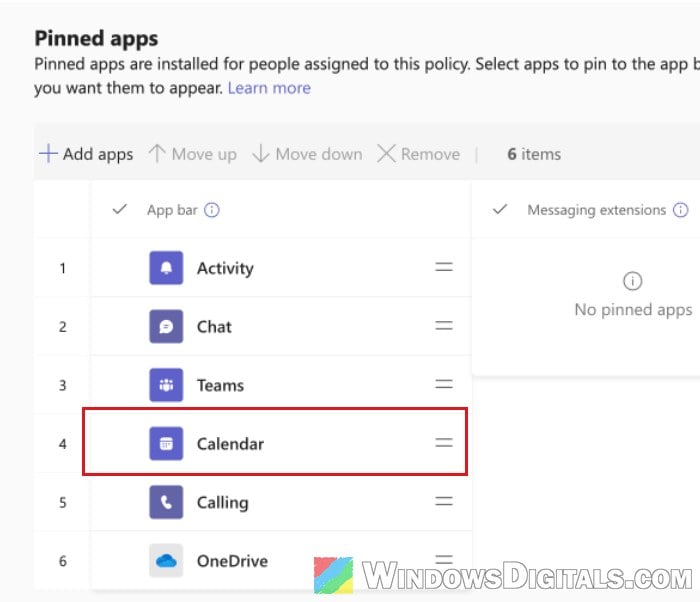
In the Teams admin center, go to Users > Manage users, select the user and click View policies. Open the assigned App setup policy and make sure the Calendar app (ID ef56c0de-36fc-4ef8-b417-3d82ba9d073c) is listed. If it’s missing, add it back.
On the same user’s page, Coexistence mode must not be Skype for Business only or Skype for Business with Teams collaboration. If it says Use Org-wide settings, check Org-wide settings > Teams Upgrade as well.
Teams blocked from Exchange Web Services
If the organization or the user’s mailbox only lets apps on an EWS allow list in, Teams has to be on that list. When only one user gets the error, the allow list on that user’s mailbox is a good place to look. In Exchange Online PowerShell, check the organization first:
Get-OrganizationConfig | Select-Object Ews*
If EwsApplicationAccessPolicy is EnforceAllowList, add the Teams entries:
Set-OrganizationConfig -EwsApplicationAccessPolicy EnforceAllowList -EwsAllowList @{Add="MicrosoftNinja/*","*Teams/*","SkypeSpaces/*"}
Then check the affected mailbox (with the user’s address in place of [email protected]):
Get-CASMailbox [email protected] | Select-Object Ews*
If EwsApplicationAccessPolicy is EnforceAllowList here too, add the Teams entries:
Set-CASMailbox [email protected] -EwsApplicationAccessPolicy EnforceAllowList -EwsAllowList @{Add="MicrosoftNinja/*","*Teams/*","SkypeSpaces/*"}
If EwsEnabled is False on either, set it to True.
Note: If the allow list is turned on but empty, it blocks EWS for everyone in the organization.
The change can take a couple of hours, and the user may need to sign out of Teams and back in.
Mailboxes on an on-premises Exchange server
Teams can only show the calendar of an on-premises mailbox in a full Exchange hybrid deployment, with OAuth set up between Exchange Online and the local servers and Exchange Server 2016 CU3 or later. Without hybrid, there’s no supported way to make it work, and adding a Microsoft 365 license alone doesn’t change that.
Still not fixed? Contact Microsoft Support
If none of this finds the problem, the admin can open a request with Microsoft Support with the user’s sign-in name, the time of the error (in UTC) and the Teams debug logs.