WlanExt.exe normally sits at a few megabytes in Task Manager, but on PCs with an Intel Wi-Fi 6E AX210 or AX211 card and Intel’s newer Wi-Fi drivers, it keeps growing by about 80 MB every hour until it’s using several gigabytes of RAM, and only a restart brings it back down for a while. This guide will walk you through what’s behind the leak, how to check if your PC has it, and how to stop it.
Also see: Intel AX211 or AX201 160 MHz Option Missing, Only 20 MHz?
What is WlanExt.exe and why does it keep using more memory?
WlanExt.exe is a real Windows file, not malware. Microsoft calls it the Native 802.11 IHV Extensibility Host. Its only job is to load an add-on file from your Wi-Fi adapter’s maker, which lets the maker add its own security and connection features on top of Windows’ built-in Wi-Fi. So it only runs when your Wi-Fi driver has such an add-on, and you shouldn’t try to delete it.
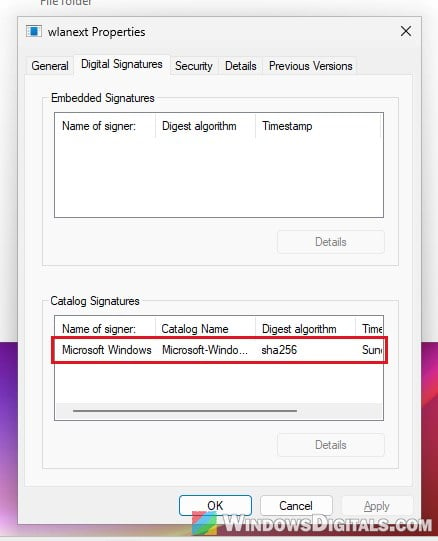
The file sits in C:\Windows\System32, and if you right-click it and open Properties > Digital Signatures, you’ll see it’s signed by Microsoft Windows.
The problem is the add-on that Intel’s own (generic) Wi-Fi driver package installs. Here’s what testing Intel’s driver versions has shown so far:
- Intel’s driver 24.10 (November 2025) is the first one that leaks. Every Intel package since then leaks too, up to the current driver, 24.80.0.2.
- 24.0.2 and older don’t leak.
- It shows up on the AX210 and AX211, in laptops and desktops alike, even on a desktop that mostly uses Ethernet and keeps the card for Bluetooth. An AX201 on the same network and the same Windows build didn’t leak.
- It happens on both WPA2 and WPA3 networks, so it has nothing to do with your network’s security type.
The memory grows in a steady line and never levels off, and the process uses a few percent of one CPU core the whole time. Left alone for a few days, it can pass 6 GB, and it has been seen as high as 17 GB. Intel hasn’t announced a fix so far.
Related concern: Why is My Memory Usage So High When Nothing is Running?
Check if your PC has the leak
Before changing any driver, make sure it’s really WlanExt.exe that’s growing, and see which driver you’re on.
- Press Ctrl + Shift + Esc to open Task Manager, then go to the Details tab.
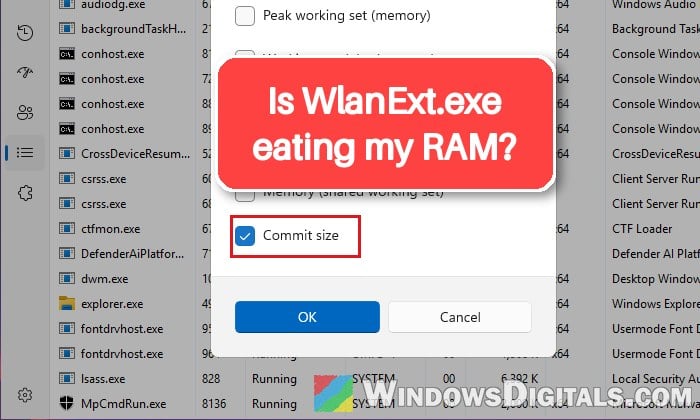
- Right-click any column header, choose Select columns, tick “Commit size“, and click OK. This column shows the process’s private memory, which is the number that grows. The default Memory column can look small even while the leak is going on.
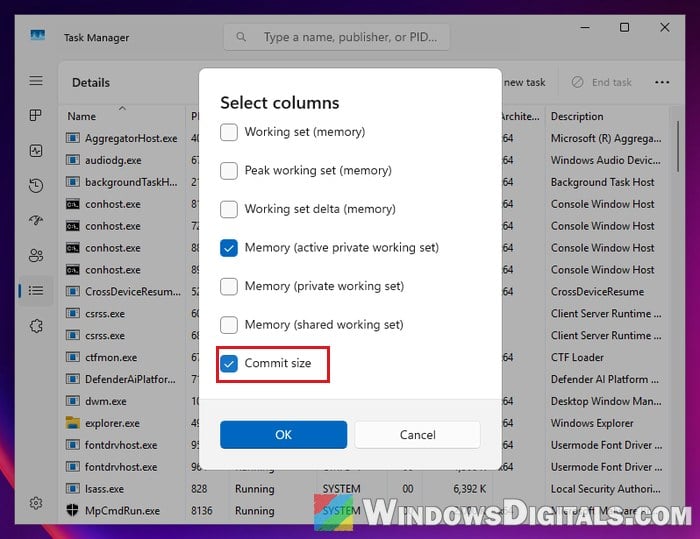
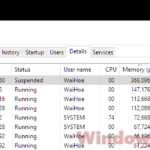
- Find WlanExt.exe in the list and note its commit size. Check it again after an hour. If it has gone up by roughly 80 MB, you have the leak. A healthy WlanExt.exe stays at a few MB, or doesn’t appear at all.
- Now press Win + X and open Device Manager. Expand Network adapters, double-click your Intel Wi-Fi adapter, and open the Driver tab.
- Look at Driver Version. If it’s 24.10 or higher and came from Intel’s website or Intel Driver & Support Assistant, it’s one of the versions with the leak.
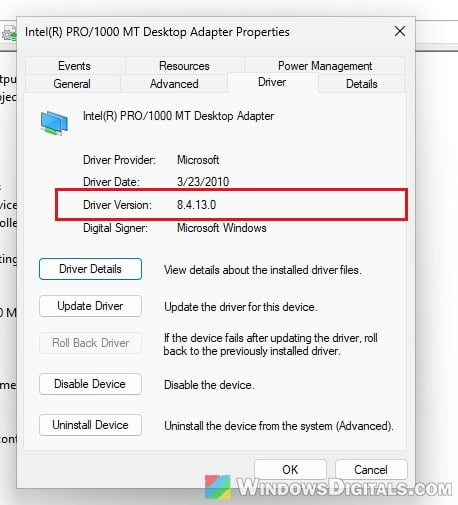
Don’t install a new driver in the middle of the hourly check. Installing a driver restarts WlanExt.exe, which resets its memory and makes a bad driver look fine for a while.
Install the Wi-Fi driver from your PC or motherboard maker
Intel itself recommends using the Wi-Fi driver from your device’s maker. This is also what stopped the leak on Dell and Lenovo laptops that had it. With the maker’s driver, the add-on runs under svchost.exe instead, so WlanExt.exe may not even show up in Task Manager.
For a laptop, go to your laptop brand’s support page and look up your exact model. For a desktop with Wi-Fi built into the motherboard, use the motherboard maker’s support page instead (an ASUS board with an AX210, for example, was fine with ASUS’s older driver). Then do a clean install:
- Download the Wi-Fi driver for your model from the maker’s support page.

- Open Device Manager, expand Network adapters, right-click your Intel Wi-Fi adapter, and select Uninstall device.
- Tick “Attempt to remove the driver for this device” and click Uninstall. Your Wi-Fi will disconnect, which is why you downloaded the driver in step 1.
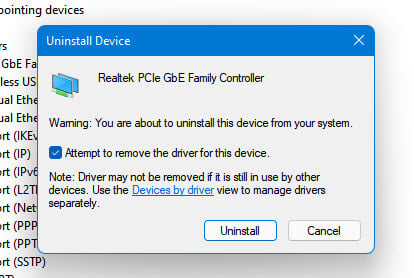
- Restart your PC. If the adapter comes back and the checkbox is still there, repeat steps 2 and 3 (and restart again) until it’s greyed out or gone, which means there’s no downloaded driver left for Windows to fall back on.
- Right-click the driver you downloaded and choose Run as administrator to install it.
- Shut down the PC fully, unplug the power cable or charger for a moment, then start it again.
Check WlanExt.exe in Task Manager again after an hour or two. If its memory stays flat, or WlanExt.exe is no longer in the list, the leak is gone. If it still grows, try the next section.
Linked issue: Accidentally Deleted the WiFi Driver, What to do?
Go back to an Intel driver older than 24.10
If your PC maker has no Wi-Fi driver for you (a separate AX210 card in a desktop, for example), the other way is to go back to an Intel driver from before the leak started. Going back to 24.0.2 makes the leak go away.
Windows may still have your older driver on the PC. Here’s how to check:
- In Device Manager, double-click your Intel Wi-Fi adapter and open the Driver tab.
- Click Roll Back Driver if it’s available and confirm. This button only works when an older driver was replaced on this PC.
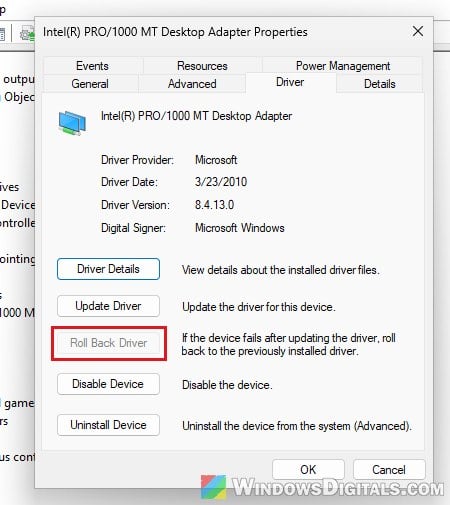
- If it’s greyed out, click Update Driver instead, then “Browse my computer for drivers” > “Let me pick from a list of available drivers on my computer“. If an older version is listed, select it and click Next.
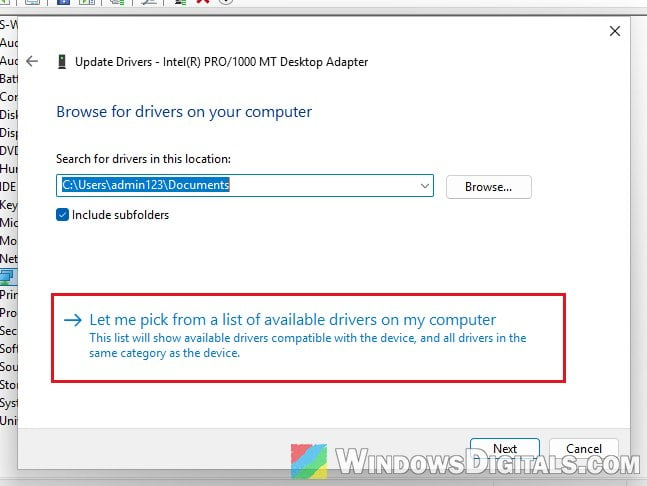
After going back, don’t accept the Wi-Fi driver update when Intel Driver & Support Assistant offers it, or it will put a leaking version right back. Leave the Wi-Fi driver alone until Intel releases one that fixes the leak.
Intel no longer offers 24.0.2 for download, since its own page only goes back to 24.50 now. If Windows doesn’t have an older driver either, use the restart below to keep the memory in check for now.
Learn more: How to Install or Update Driver in Windows 11
Free the memory for now without changing drivers
If you can’t change the driver right away, you can at least get the memory back. Restarting your PC brings WlanExt.exe back down to around 7–10 MB. It starts growing again from there, though, so this only buys you time.
Without a full restart, you can restart the service that runs it, WLAN AutoConfig, which restarts WlanExt.exe too. Your Wi-Fi will drop for a few seconds while it restarts.
- Press Win + R, type “services.msc” and press Enter.
- Scroll down to WLAN AutoConfig, right-click it and select Restart.
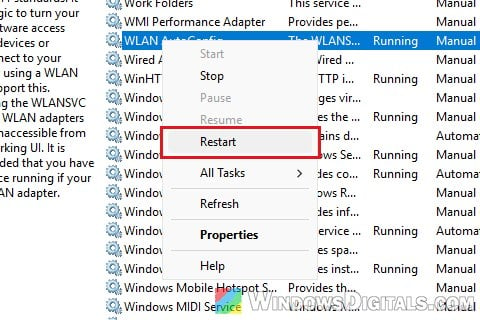
If you leave your PC on for days at a time, this is worth doing every day or two until the driver is sorted out, since the leak adds up to around 2 GB a day.