If you pick an emoji from the emoji picker in the Discord app on Windows 11 or 10 and press Enter to send your message, but the emoji picker opens again instead of sending it, it’s not your keyboard. Pressing Enter again only adds another emoji to the message box, so the message just sits there no matter how many times you hit it. This guide will explain why this happens and how to send your messages normally until Discord fixes it.
Also see: Windows 10/11 Emoji Panel Keyboard Shortcut Not Working
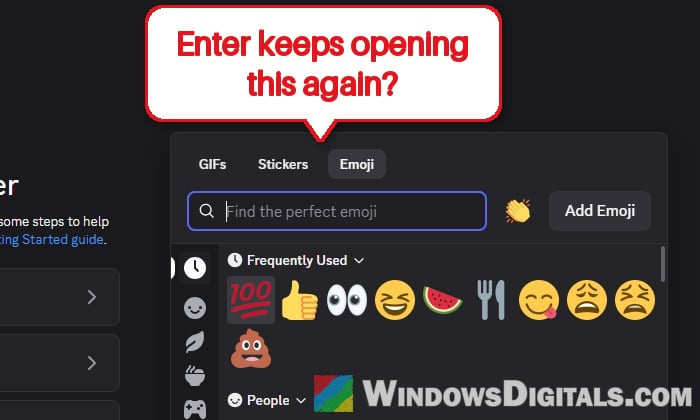
Why does Enter open the emoji picker in Discord?
This is a bug in Discord itself, not a setting you changed by accident. It started showing up in the Discord app around 2 November 2026, and plenty of users on Reddit have reported it since. Discord has confirmed it’s a bug and said its team is working on a fix.
It looks like after you pick an emoji, Discord leaves the keyboard focus on the emoji button instead of putting it back in the message box. So when you press Enter, you’re actually “pressing” the emoji button, which opens the picker again. For some people, just opening the emoji picker once is enough to trigger it. It may happen with the GIF picker too.
There’s no switch to turn this off, but there are a few easy ways around it while you wait for the update.
Click inside the message box before pressing Enter
This is the quickest way around it. Clicking the message box puts the cursor back where you type, so Enter sends the message again like it should. Here’s what to do:
- Pick your emoji from the emoji picker as usual.
- Click inside the message box (where you type your message). If it doesn’t work the first time, double-click it.
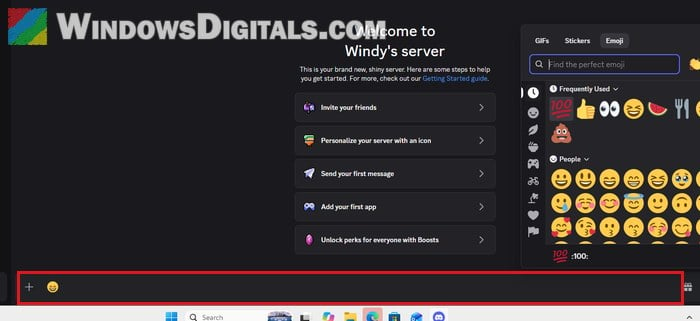
- Press Enter to send the message.
Your message, emoji included, should now be sent instead of the picker popping up again. You’ll have to do this every time you use the picker until Discord fixes the bug.
Related problem: Windows 11 Keyboard Shortcuts Not Working (Fix)
Type the emoji’s name instead of using the picker
The problem starts with the emoji picker, so it’s worth skipping it and typing the emoji instead. Discord lets you add an emoji by its name:
- In the message box, type a colon followed by the first letters of the emoji’s name, for example “:pens” for the pensive face. Discord shows a small list of emojis that match what you typed.
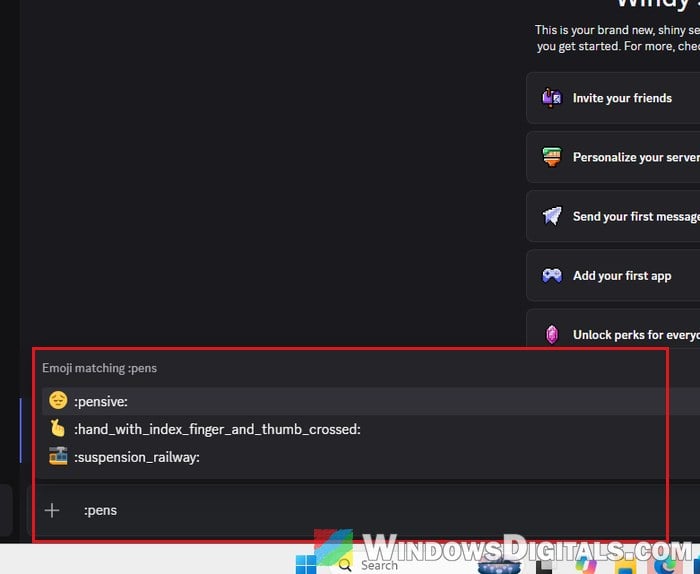
- Press Tab to put the top one in your message, or click the one you want (here, “:pensive:“).
Since you never open the picker this way, the cursor should stay in the message box, so Enter has a good chance of sending the message normally. If you already opened the picker earlier, click the message box once first.
Turn on the send message button
Discord has an optional send button for the message box, made for people who’d rather click to send than press Enter. It’s off by default. Once it’s on, clicking it should send the message wherever the keyboard focus is. Here’s how to turn it on:
- Click the gear icon (“User Settings“) at the bottom-left of Discord, next to your name.
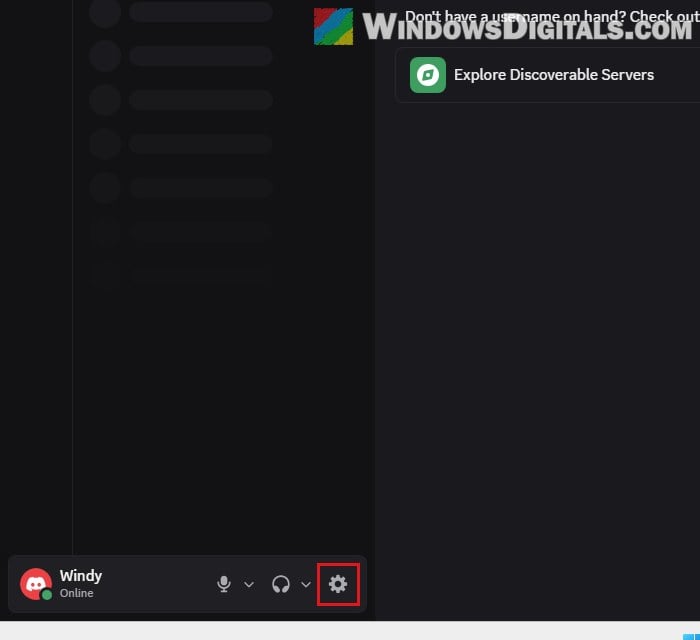
- Select “Appearance” on the left and scroll down to the “Chat Box” section.
- Turn on “Show send message button“.
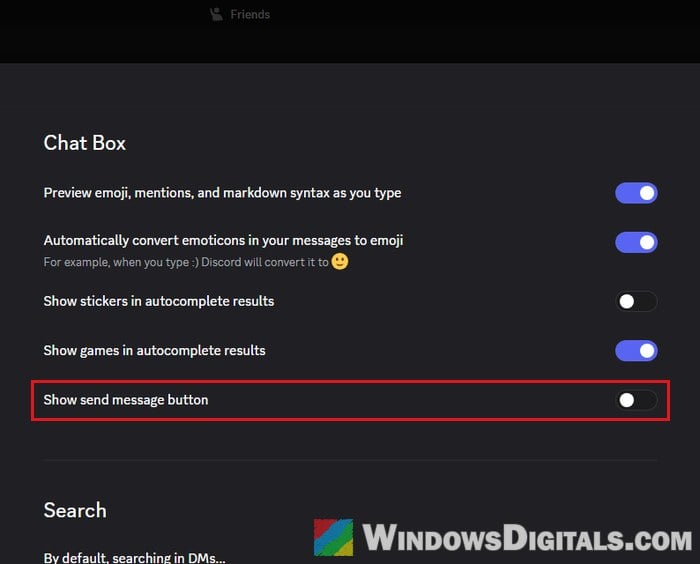
- Press Esc to close the settings.
A send button now appears in the message box. After picking an emoji, just click it to send. You can turn the setting back off once the bug is fixed.
Might be useful: Discord Won’t Connect to Voice Channel (Fix)
Update Discord once the fix is out
The real fix will come as a Discord update, so it’s worth getting it as soon as it’s out. The Discord app checks for updates every time it starts (that’s the “Discord Updater” window you see for a few seconds), and you can also ask it to check right away from its tray icon. Here’s how:
- Click the up arrow (“Show hidden icons“) on the right side of the taskbar.
- Right-click the Discord icon and select “Check For Updates…“.
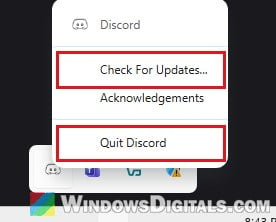
- When an update has been downloaded, a green download arrow shows at the top-right of Discord’s window. Click it to apply the update.
Closing Discord’s window with the X doesn’t actually quit it, because it keeps running in the system tray. If you’d rather restart it fully, select “Quit Discord” in the same menu instead, then open Discord again from the Start menu and let it finish updating.
If Enter still opens the emoji picker after updating, the fix probably hasn’t reached your app yet. Keep using one of the workarounds above and try again in a day or two.