The non-paged pool in Task Manager’s Memory page usually stays under about 1 GB, and it barely changes no matter how long the computer has been on. If yours sits at 1.5 GB, 4 GB or even more, and it keeps climbing until games stutter and only a restart brings it back down, a driver is most likely leaking memory. This guide will show you what’s normal, how to find the leaking driver with Microsoft’s PoolMon, and what to do about it.
Also see: Why is My Memory Usage So High When Nothing is Running?
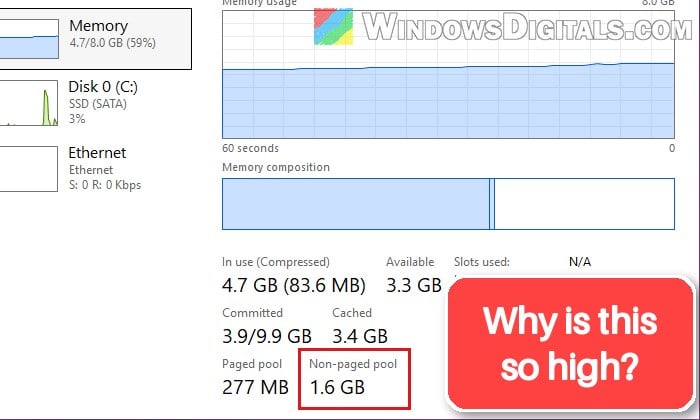
What is the non-paged pool, and how much is normal?
The non-paged pool is memory that drivers and the Windows kernel use, and it always has to stay in RAM (unlike the paged pool, it can’t be moved to the page file). No process in Task Manager shows it, so RAM can be nearly full while the processes add up to far less.
There’s no official number for what’s normal, but on most PCs it’s between a few hundred MB and about 1 GB. Some graphics drivers keep it higher: a number of AMD Radeon owners see about 1.2 to 1.5 GB right after startup, and it stays there all day without any problems.
The thing to look at is whether it keeps growing. A leaking driver takes memory and never gives it back, so the number climbs over hours or days until the PC stutters or freezes. A restart frees it, and then it starts climbing again.
Check whether it keeps growing
- Restart your PC.
- Press Ctrl + Shift + Esc to open Task Manager.
- Click Performance on the left, then select Memory.
- Note the value under Non-paged pool at the bottom.
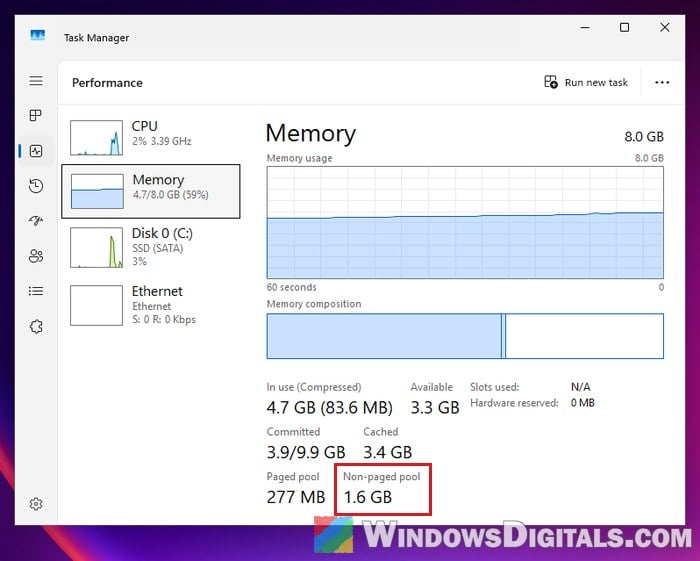
- Use your PC as you normally would for a few hours, then check the value again.
If it’s high but stays flat, that’s most likely just how your drivers work. If it keeps going up, the next section shows how to find the driver.
Linked issue: Page_Fault_In_Nonpaged_Area BSOD on Windows 11/10
Find the leaking pool tag with PoolMon
Every time a driver takes memory from the pool, it labels it with a short four-character tag, and Windows keeps a count for each tag. PoolMon (Memory Pool Monitor), Microsoft’s own tool, shows these counts live, so the tag whose memory keeps growing points to the leaking driver.
PoolMon comes with the Windows Driver Kit (WDK), and the kit alone is enough (no Visual Studio needed). Here’s how to get it and run it:
- Search for “cmd” in the Start menu and open Command Prompt.
- Type the following command and press Enter to install the WDK:
winget install Microsoft.WindowsWDK.10.0.28000
If it asks you to agree to the source terms, type “Y” and press Enter, and if Windows asks for permission, click Yes. The install can take a few minutes.
- Once it’s done, PoolMon is in
C:\Program Files (x86)\Windows Kits\10\Tools\10.0.28000.0\x64(the number is the kit’s version).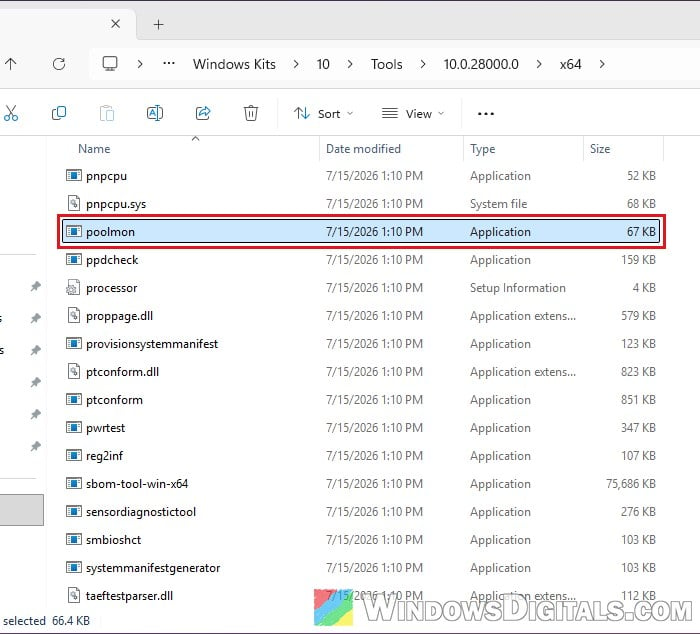
- In Command Prompt, run these two commands one by one, pressing Enter after each:
cd /d "C:\Program Files (x86)\Windows Kits\10\Tools\10.0.28000.0\x64"
poolmon /g "C:\Program Files (x86)\Windows Kits\10\Debuggers\x64\triage\pooltag.txt"
The
/gpart adds a Mapped_Driver column naming the Windows part or common driver behind each tag. - Press P once to show only the non-paged pool.
- Press B to sort the tags by how many bytes they use. The biggest ones are now at the top.
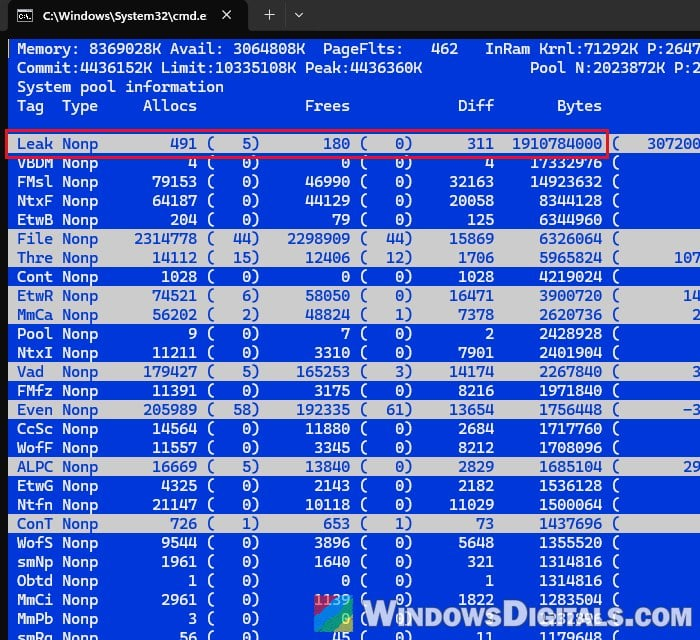
- Note the top few tags and their Bytes (or take a screenshot with Win + Shift + S).
- About 30 minutes later, compare again, and do this a few times. The tag whose bytes keep climbing is the leak, and it’s usually also the one using the most.
- Leave PoolMon open for now, since you’ll need its Mapped_Driver column next.
Match the pool tag to a driver file
Once you have the tag, look at the Mapped_Driver column on its row first (widen the window if it’s cut off). If it names a .sys file, that’s the driver (steps 3 and 4 below show whose it is, since some are Microsoft’s own). Entries starting with [nt! (such as [nt!etw or [nt!mm) are parts of Windows itself (see the last section). If it says Unknown Driver, like the leaking tag below, the tag isn’t in Microsoft’s list, and you’ll have to search the driver files for it.
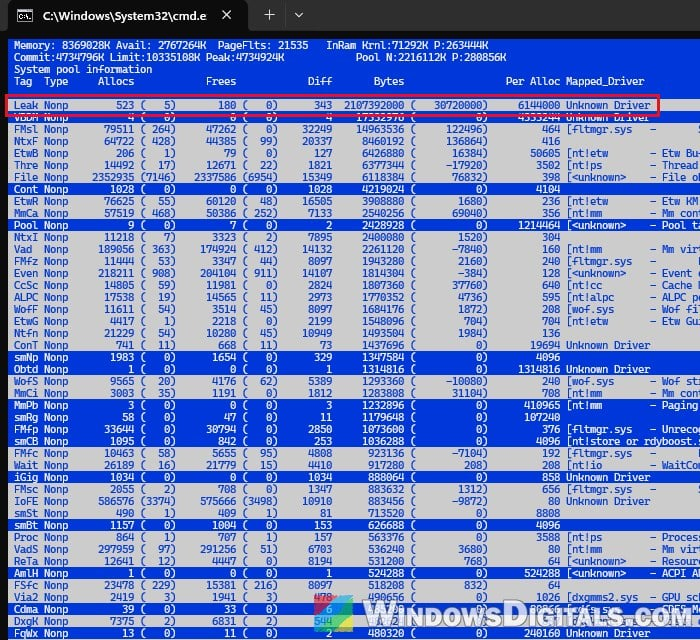
Here’s how to find which driver file uses the tag:
- Press Q to quit PoolMon, then run these commands one by one in Command Prompt, replacing
TAGwith your tag:cd /d C:\Windows\System32\drivers findstr /m /l TAG *.sys
Type the tag with the same capital and small letters as PoolMon shows it, since
findstrtreats them as different. In the example below, the tagsmRgturns out to berdyboost.sys, the ReadyBoost driver.
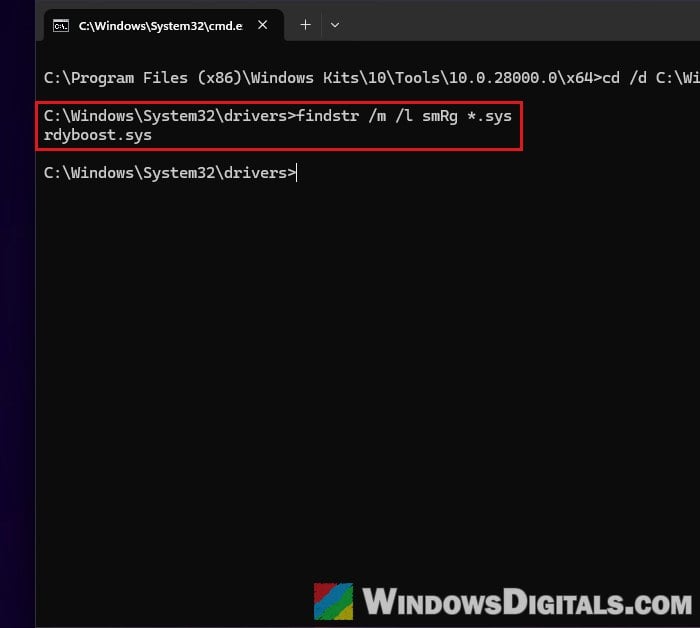
- If nothing comes up, search the Driver Store too, since many drivers (graphics drivers especially) run from there:
cd /d C:\Windows\System32\DriverStore\FileRepository
findstr /s /m /l TAG *.sys
It takes longer and also prints the driver’s folder.
- To see whose driver it is, open that folder in File Explorer, right-click the
.sysfile and select Properties. - Go to the Details tab and read the File description, Product name and Copyright.
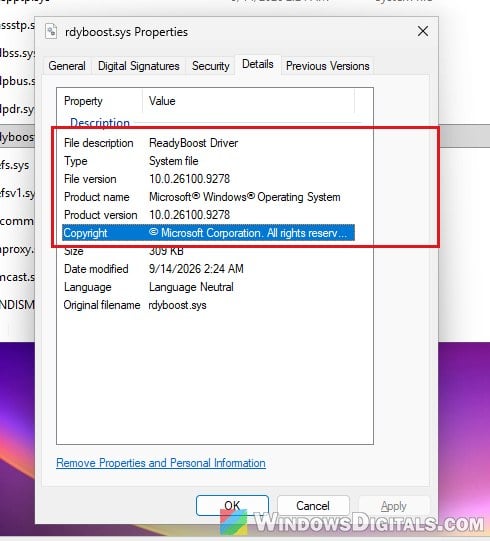
If findstr finds nothing, or finds the tag in several drivers, search the tag online with the words “pool tag”.
Fix the driver behind the leak
In the cases users on Reddit traced, the leak came from a graphics driver (NVIDIA or AMD), a network adapter driver, HP’s OMEN Gaming Hub on OMEN and Victus laptops, or a game’s anti-cheat driver (Valorant’s Vanguard, for example).
Here’s what you can do, roughly in this order:
- Update the driver from its maker’s website (your PC maker or the device maker), starting with graphics, network or Wi-Fi, and chipset drivers.
- Close or uninstall the software that brought the driver in. On HP OMEN and Victus laptops, ending the “Omen Command Center Background” process in Task Manager brought the non-paged pool right down. VPN, firewall, antivirus and anti-cheat software also install drivers of their own.
- Disable a device you don’t use. Open Device Manager, right-click the device (for example a second onboard network port you never plug into) and select Disable device.
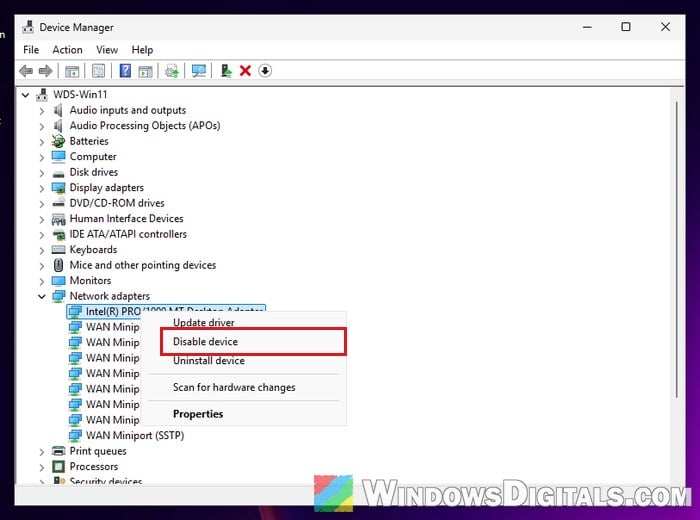
- Try a clean reinstall or an older version of a graphics driver. In the cases reported, it often didn’t stop the leak, so check the pool again afterwards to see if it made any difference.
After each change, restart and check the Non-paged pool value again after a few hours. If it now stays flat, you’ve found it. To remove a driver completely, see how to uninstall drivers in Windows 11.
Related problem: OMEN Gaming Hub constant high CPU and RAM usage
What if the tag belongs to Windows itself?
Some tags, such as EtwR and the other Etw tags, File, DEVI or NtFC, are used by Windows on behalf of many drivers (event tracing, file activity, device objects), so they don’t point to a single culprit.
In that case, narrow it down by elimination. Update the drivers mentioned above first. Then stop or uninstall third-party software that comes with drivers (VPN, firewall, antivirus, anti-cheat, your PC maker’s utilities) one at a time, restarting and watching the non-paged pool after each. When it stops growing, the last thing you removed is the one to update, replace or leave off. A Windows Performance Recorder trace can also show which driver makes the allocations, but it’s an advanced tool meant for developers.