Discord’s desktop app shows a small window that says “Starting…” for a few seconds every time you open it, and then the main window takes over. But every now and then, that little window stays on “Starting…” forever (sometimes right after “Checking for updates…”), the app never opens, and even uninstalling and reinstalling it doesn’t change a thing. This guide will show you what usually causes it and how to fix it on Windows 11 and 10.
Also see: Discord Won’t Connect to Voice Channel (Fix)
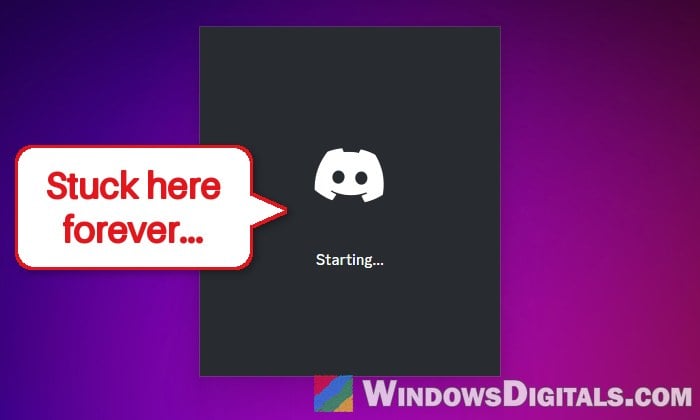
Why does Discord get stuck on “Starting…”?
Discord doesn’t say what causes it, but the cases reported by users usually come down to one of these:
- Discord can’t reach its servers from your network. This can be a Discord outage, or a problem between your internet provider and Discord, which is why the phone app or another connection sometimes works fine at the same time. A VPN, proxy or DNS problem can do the same.
- Discord processes still running in the background from an earlier launch, which keep the new one from starting.
- Damaged local files, either the cache in the
%AppData%\discordfolder or Discord’s updater and app files in%LocalAppData%\Discord. This can follow a crash, a blue screen or a sudden power cut.
A plain uninstall can leave Discord’s folders behind, especially the one in %LocalAppData%, so a reinstall may pick up the same broken files again. That’s why reinstalling alone so often doesn’t help.
First, check if Discord itself is down
Before you start deleting anything, make sure the problem is actually on your PC. Open https://discordstatus.com in your browser and see if Discord reports an outage.
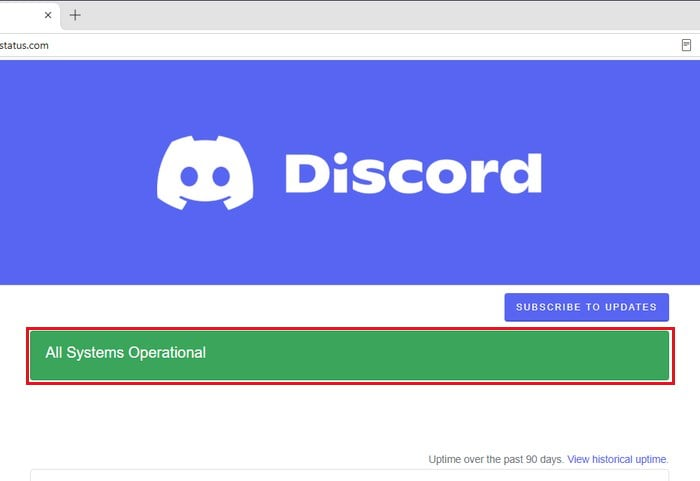
Also try Discord in your browser at https://discord.com/app. If the web version loads and works, Discord’s servers are fine and the problem is with the desktop app on your PC. If the website won’t load either, while other sites do, it points to your network instead (see the network section below). Keep in mind the status page doesn’t always show problems that only hit some regions or providers.
End every Discord process and open it again
Discord can leave a few processes running in the background after it’s closed. If one of them got stuck, opening Discord again just brings you back to the same frozen window. It’s the quickest thing to try, and it may save you from deleting anything.
- Press Ctrl + Shift + Esc to open Task Manager.
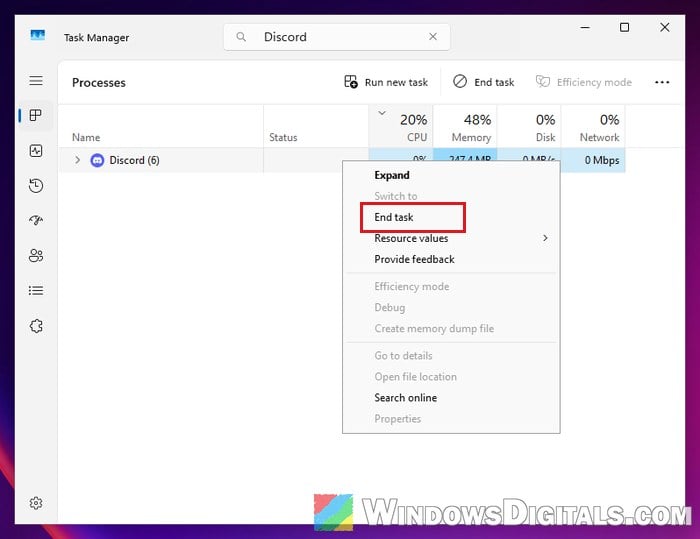
- On the Processes tab, find Discord. It usually shows as one entry with a number after it, such as Discord (6), which holds all its processes.
- Right-click Discord and select End task. If more than one Discord entry is listed, do the same for each of them until none are left.
- Open Discord again from the Start menu or the desktop shortcut.
If it still stays on “Starting…”, end the processes again before moving on, since most of the fixes below need Discord fully closed first.
Pro tip: Force Close Program in Windows 11 without Task Manager
Run Discord as administrator
Running Discord with admin rights is worth a try, since it got the app past the “Starting…” window for some people.
- Make sure Discord is fully closed (see the previous section).
- Open the Start menu and search for “Discord“.
- Right-click Discord and select Run as administrator, then click Yes in the prompt.
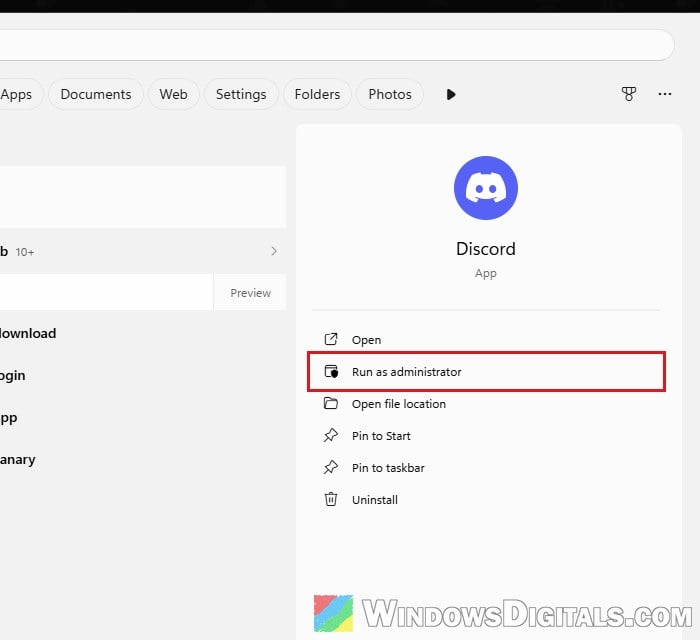
This doesn’t work for everyone, and sometimes it only brings up a blank gray window instead. If that happens, close it and go on to the next fix.
Clear Discord’s cache files
Discord keeps a cache of files in your AppData folder. If those files got corrupted, Discord can hang while loading them. Deleting the cache is safe, since your servers and messages are stored on your Discord account.
- Close Discord completely, including in Task Manager.
- Press Win + R, type
%appdata%\discordand press Enter. - Select the folders Cache, Code Cache and GPUCache, and delete them.
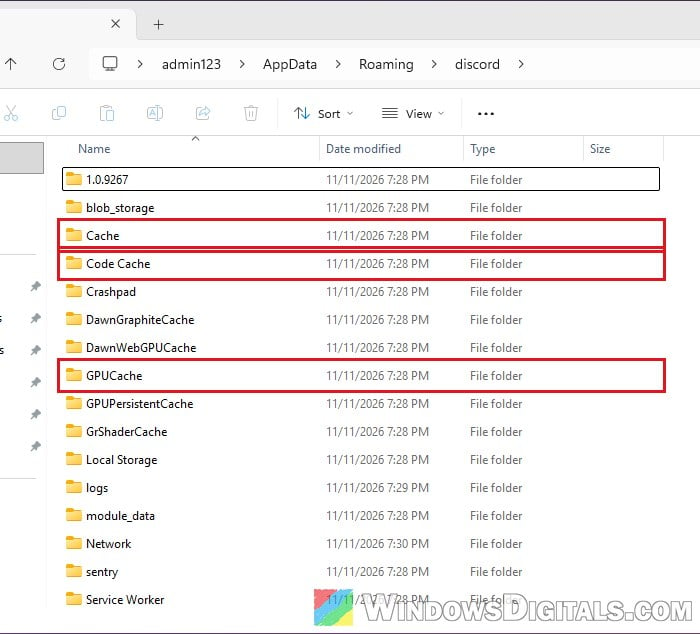
- Open Discord again.
If that doesn’t help, close Discord again, go back to %appdata% and delete the whole discord folder there. Discord will build it again from scratch the next time it opens. You’ll have to sign in again after that.
Might be useful: How to Clean Up AppData Folder in Windows 11
Try another network, restart the router or flush DNS
If Discord can’t reach its servers, it just keeps waiting on the “Starting…” window. Sometimes the problem is between your internet provider and Discord, not your PC, and Discord loads as soon as you switch to another connection. Here’s what you can try:
- Restart your router (switch it off, wait a minute, then switch it back on), then open Discord again.
- Turn off any VPN or proxy you use and try again.
- Flush the DNS cache. Open Command Prompt, type the following command and press Enter:
ipconfig /flushdns
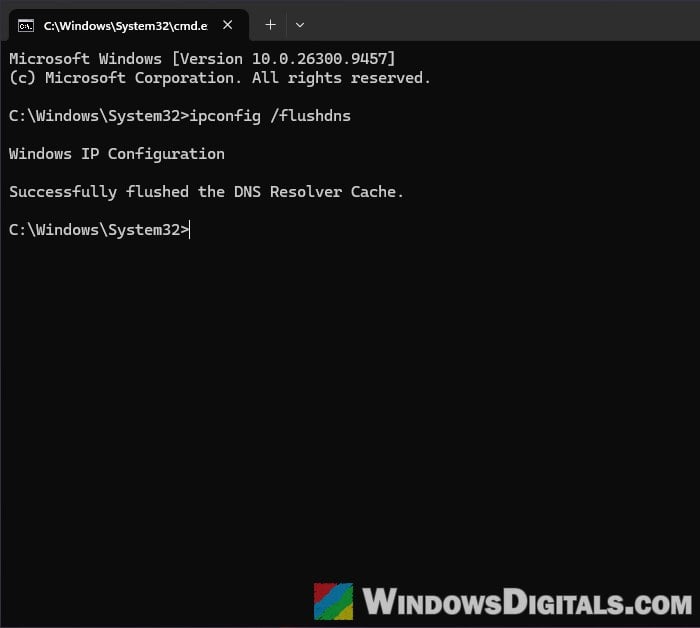
- Try another connection once. Turn on your phone’s hotspot, connect your PC to it and open Discord. If it starts, you can switch back to your usual network afterwards. A VPN can do the same: if your provider is the problem, turning one on can get Discord going.
Related guide: Change DNS to Google or Cloudflare in Windows 11/10
Check that your date and time are correct
It sounds unrelated, but a wrong date or time on your PC can stop Discord from connecting, and correcting it has gotten Discord going again. Go to Settings > Time & language > Date & time, turn on Set time automatically, and click Sync now.
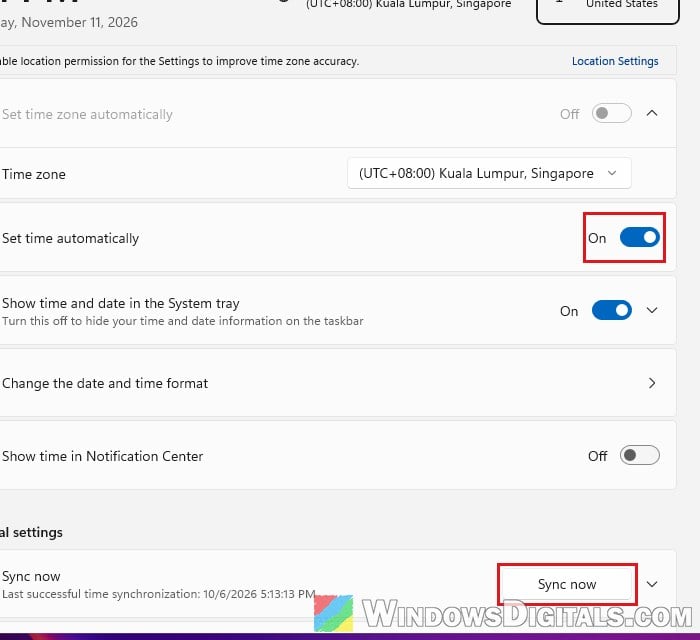
Linked issue: Date and Time is Always Wrong on Windows 10
Rename Update.exe and start Discord directly
Update.exe is Discord’s updater. If the updater is what’s stuck, you can skip it and open Discord’s app file directly. It doesn’t work for everyone, but it’s worth a try before a full reinstall.
- Close Discord completely.
- Press Win + R, type
%localappdata%\Discordand press Enter. - Right-click Update (it shows as Update.exe if you have file extensions turned on), select Rename, and give it another name, such as “Update-old” (if file extensions are shown, keep the ending: “Update-old.exe“).
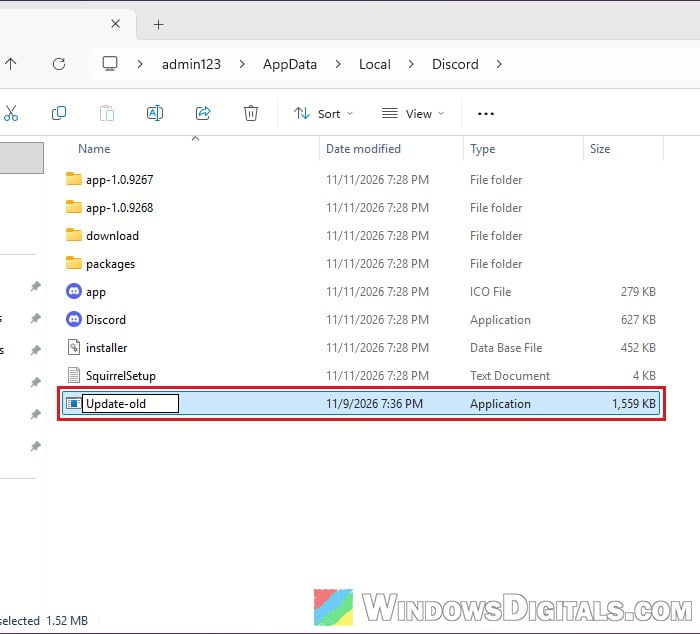
- Open the folder that starts with app-1.0. (the numbers after it are Discord’s version and differ from PC to PC). If there’s more than one, open the one with the highest number.
- Double-click Discord (Discord.exe) in that folder to start Discord.
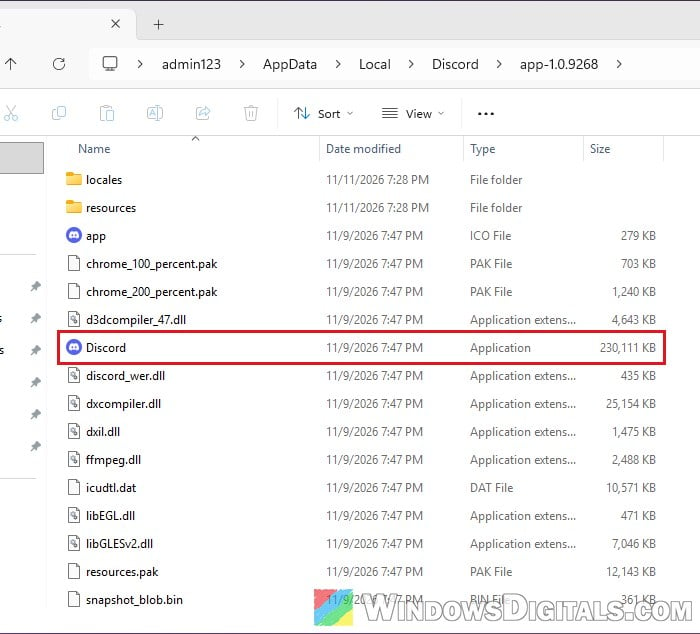
Please note that Discord can’t update itself while Update.exe is renamed. Once Discord is working again, close it, rename the file back to “Update” (“Update.exe” if extensions are shown) and open Discord the normal way. If it gets stuck again after that, do the clean reinstall below.
Do a clean reinstall of Discord
If nothing else worked, remove Discord completely and install it fresh. The key part is deleting both of Discord’s leftover folders after uninstalling, which is also what Discord’s own support suggests for its installer problems.
- Close Discord completely, including in Task Manager.
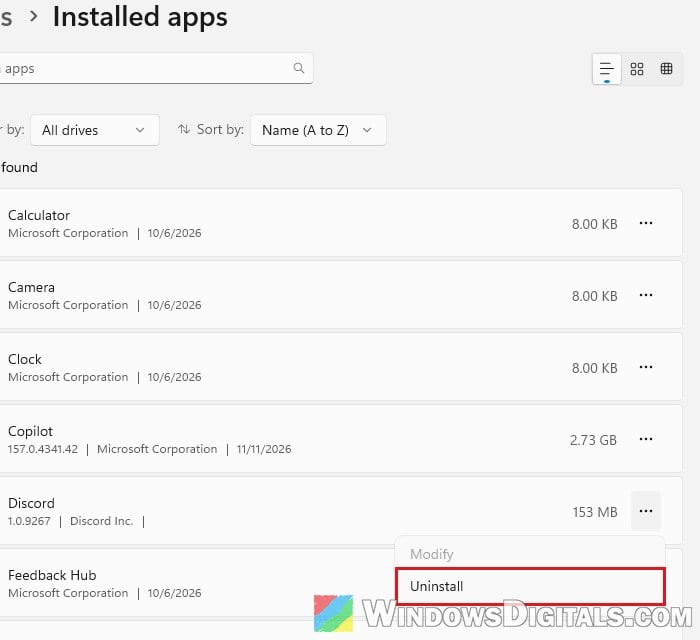
- Go to Settings > Apps > Installed apps, click the three dots next to Discord, and select Uninstall.
- Press Win + R, type
%appdata%and press Enter, then delete the discord folder. - Press Win + R again, type
%localappdata%and press Enter, then delete the Discord folder. If Windows says a file is in use, a Discord process is still running: end it in Task Manager and try again. - Restart your PC.
- Download Discord again from
https://discord.com/downloadand install it.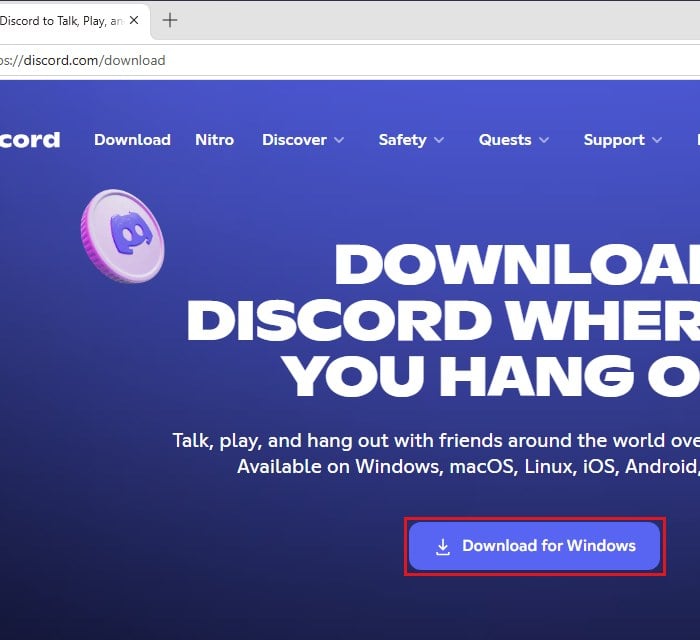
Until the desktop app works again, you can use Discord in your browser at https://discord.com/app with the same account.