If Windows Security pops up while you’re on a website, often a free streaming site, and says it found “Trojan:Win32/Suschil!rfn” (Severe) in a file inside your browser’s Cache folder, it most likely means Defender caught something the page tried to load before it could do anything. This guide will explain how to check that, clean it up, and tell when it’s worth doing more.
Also see: Trojan:Win32/Yomal!rfn on Epic Games or Firefox Installer
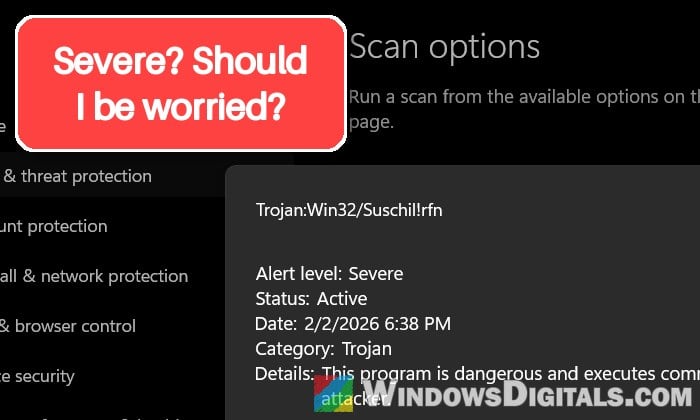
What is Trojan:Win32/Suschil!rfn?
It’s a detection name from Microsoft Defender. “Trojan” is the kind of threat Defender thinks it is, and “Win32” means it’s a Windows program. According to Microsoft, the part after the ! is only an internal marker, and Microsoft has no public write-up on Suschil itself. It’s most likely a generic detection: Defender flags a file because it looks like something bad, not because it matched one known virus. So it can be a real threat, or just a false alarm.
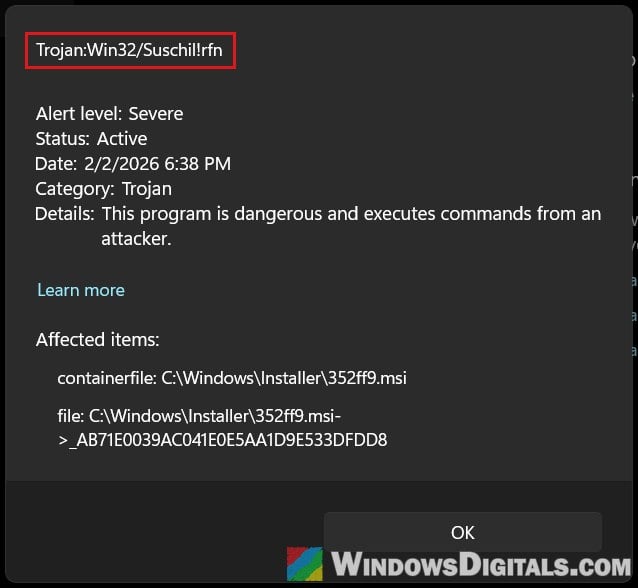
What matters most is where the file was, which Defender lists under Affected items. In the screenshot above, it’s an old installer file (that case is covered near the end). In most reports of this detection, though, it’s a file in the browser’s cache folder, in a path like this one (Brave here; Chrome’s is the same from User Data on, under Google\Chrome):
C:\Users\<name>\AppData\Local\BraveSoftware\Brave-Browser\User Data\Default\Cache\Cache_Data\f_00005c
Why does it show up in the browser cache?
Your browser saves parts of every page you open, like images, scripts and ads, in its cache folder so the page loads faster next time. Free sports streams, PPV sites and other sites full of shady ads often try to push a file onto your PC through those ads. When that happens, the file lands in the cache first, and Defender scans it right there.
A file sitting in the cache isn’t run by itself. So if you didn’t download and open anything, it most likely just means Defender caught it in time. Since late October 2026, several people on Reddit have reported exactly this, mostly in Brave.
Related concern: What is Trojan:Win32/Casdet!rfn and How to Remove it
Check what Defender did with it
The alert’s details tell you which file was caught and whether Defender has already dealt with it. Here’s how to see them:
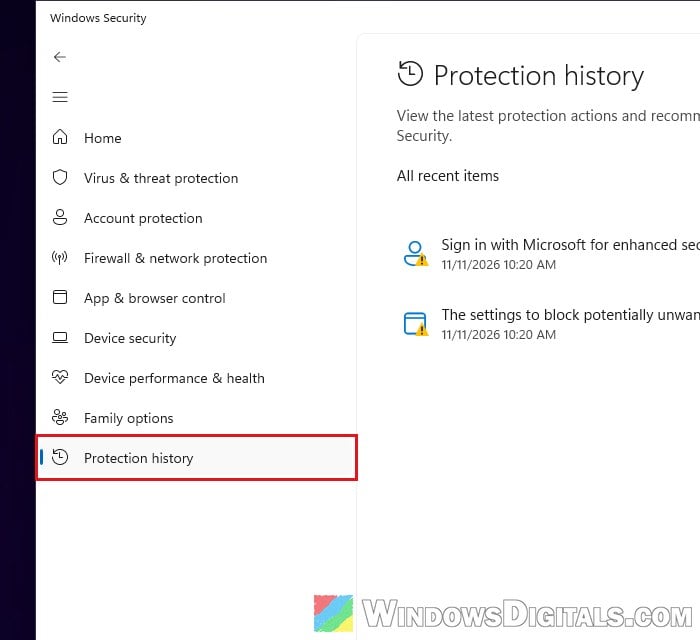
- Open Windows Security from the Start menu and click Protection history.
- Click the entry that says Trojan:Win32/Suschil!rfn to expand it, and click Yes if Windows asks for admin permission.
- Look at the path under Affected items. If it has
\Cache\orCache_Datain it, it’s the browser cache case above. - Check the status:
- Threat blocked or Removed: Defender already removed it. Nothing else is needed here.
- Threat quarantined: It’s locked away and shouldn’t be a risk. You can click Remove to get rid of it for good.
- Threat found – action needed: Choose Quarantine. Microsoft’s own advice is to quarantine whenever you’re not sure.
Don’t click Restore or Allow on device. Nothing on that website needs the cached file, and restoring it just puts it back on your PC.
Pro tip: Can’t Clear Protection History in Windows 11/10 Defender
Close the site and clear your browser’s cache
Close the tab with that website first, so the page can’t load the same file into the cache again. Then delete the cached files, so nothing else from that site stays in there. You don’t need to delete your cookies or passwords for this.
In Brave:
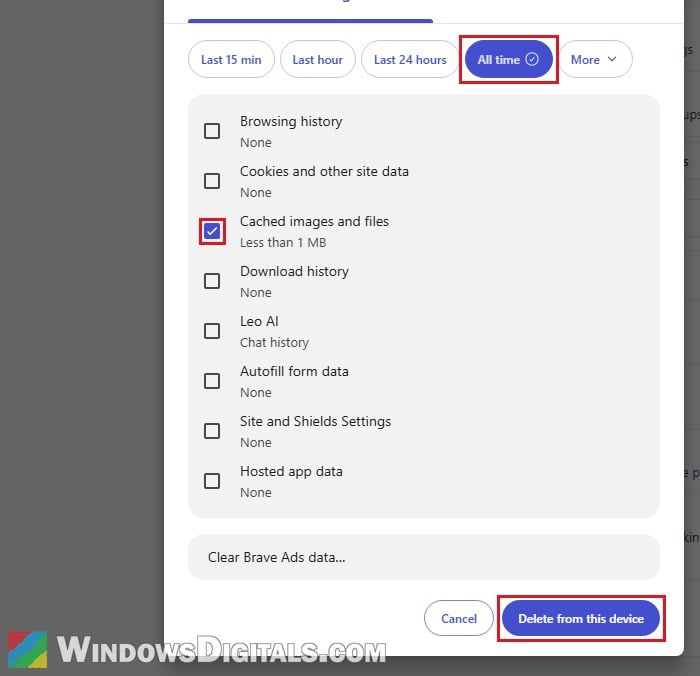
- Press Ctrl + Shift + Delete, or go to Settings > Privacy and security > Delete browsing data.
- Click More and select All time.
- Check “Cached images and files” and uncheck the other boxes, so only the cached files go.
- Click Delete from this device.
In Microsoft Edge:
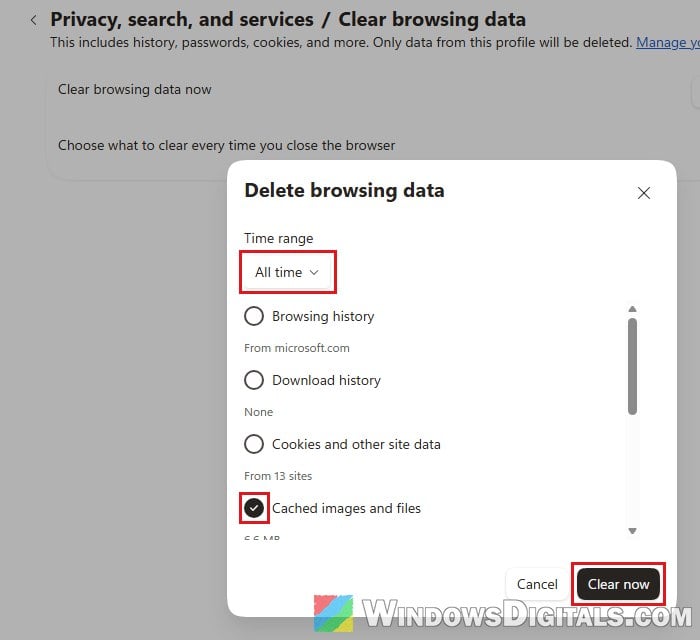
- Press Ctrl + Shift + Delete, or go to Settings > Privacy, search, and services > Clear browsing data > Choose what to clear.
- Set Time range to All time.
- Check “Cached images and files” and uncheck the other boxes.
- Click Clear now.
In Chrome:
- Click the three-dot menu and select Delete browsing data.
- Pick All time as the time range.
- Check “Cached images and files” and uncheck the other boxes.
- Click Delete data.
Once that’s done, close and reopen the browser.
Update Defender and run a full scan
A full scan checks every file on your PC, not just the one that triggered the alert. Update Defender first so it knows about the newest threats.
- In Windows Security, go to Virus & threat protection > Protection updates.
- Click Check for updates and wait for it to finish.
- Go back to Virus & threat protection and click Scan options.
- Select Full scan and click Scan now.
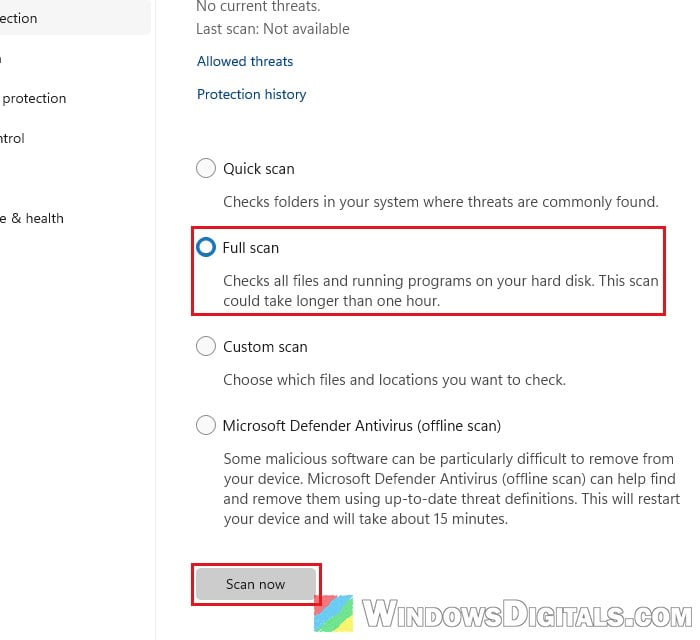
Windows warns that a full scan could take longer than an hour, so let it run. If it comes back with no threats and the alert doesn’t return after you’ve cleared the cache, you can stop here.
Linked issue: Defender Asks to Restart to Remove Threats, but They’re Still There on Windows 11
When it’s more than a cached file
The cache case is usually harmless, but a few things make it more serious. Take a closer look if any of these happened on that site:
- You downloaded and opened a file from it.
- The page showed a “verify you’re human” box that asked you to press Win + R and paste something, and you did. If you didn’t paste anything, that part is fine.
- You typed a password on it.
- You’ve noticed browser extensions you didn’t add or sign-ins to your accounts you don’t recognize.
If so, here’s what to do:
- Open your browser’s extensions page (
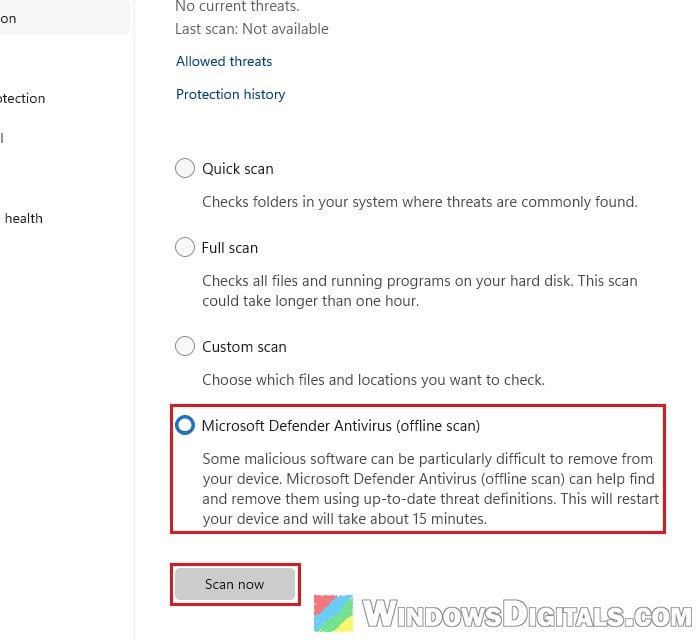
brave://extensions,edge://extensionsorchrome://extensions) and remove any extension you don’t recognize. - Save your open files, because the offline scan restarts the PC.
- In Windows Security, go to Virus & threat protection > Scan options.
- Select “Microsoft Defender Antivirus (offline scan)” and click Scan now.
- From your phone or another computer, change the passwords for your email, bank and other important accounts, and turn on two-step verification.
The offline scan checks your PC before Windows starts, and its results show up in Protection history once Windows is back.
What if the file isn’t in the browser cache?
The same name also shows up on files that have nothing to do with browsing. If it points to an old installer in C:\Windows\Installer that belongs to your laptop maker’s own software, it can be a false alarm that came with a definition update, and letting Defender remove it shouldn’t cause problems. If it’s a ZIP or ISO you downloaded but never opened, just delete it.
If Defender hasn’t already removed it, you can upload it to https://www.virustotal.com/ first to see what other antivirus engines think. And if you’re sure a flagged file is clean and came from its real maker, you can send it to Microsoft as a false positive at https://www.microsoft.com/en-us/wdsi/filesubmission.
Cracked software and game “fixes” are a different story. Suschil!rfn often shows up there alongside other detections, and cracks are a common way to slip real malware onto a PC. Remove the crack, run the full and offline scans, and change your passwords from another device. If you ran it and the detection keeps coming back after all that, it’s time to reset Windows. Back up your files to an external drive or cloud storage first, since a reset can remove your apps and, depending on the option you pick, your files too.