There is a common issue in Windows 11 where, when you try to safely remove a USB flash drive or an external hard drive, Windows refuses with “Problem Ejecting USB Mass Storage Device” and tells you “This device is currently in use“, even though you’ve already closed every file and window that used it. This guide will explain what’s actually holding on to the drive and how to get it out without risking your files.
Also see: How to Eject USB or External Hard Drive in Windows 11
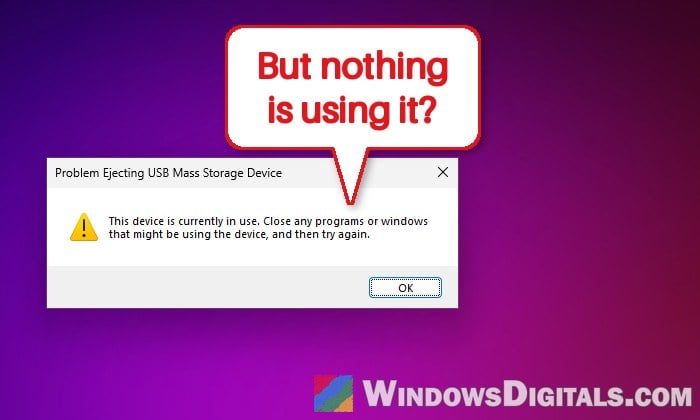
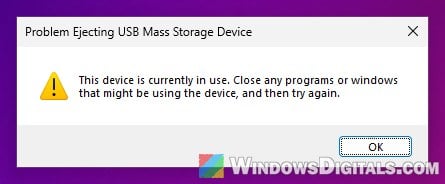
The full message reads “This device is currently in use. Close any programs or windows that might be using the device, and then try again.” Another version says Windows can’t stop the device “because a program is still using it“, which is the same problem.
Why does Windows say the drive is still in use?
Windows won’t stop a drive while any program still has a file or folder on it open (what Windows calls a “handle”). The program doesn’t have to be something you opened yourself. Some common reasons are:
- File Explorer, one of the usual culprits, can keep the drive open, sometimes even after you’ve closed its window.
- Antivirus scanning the drive, Microsoft Defender included.
- Windows is still writing in the background. The copy window can close a little before Windows has actually finished writing the data.
- Background apps such as backup or sync tools, search indexing, media players, or third-party file managers and search tools (Everything and XYplorer, for example).
- Sometimes it’s “System” itself holding the drive, which you can’t close.
Many people say this started after a recent Windows update, especially with external hard drives and SSDs, but Microsoft hasn’t listed it as a known issue, so there’s no official fix to wait for yet.
Pro tip: How to Know Which Process is Using a File in Windows 11
Is it safe to just unplug the drive?
In most cases, yes, as long as nothing is being copied to or from it. Since Windows 10 version 1809, external drives use the Quick removal policy by default. According to Microsoft, with Quick removal Windows doesn’t cache writes to the drive, so you can disconnect it without using Safely Remove Hardware. Only drives set to Better performance really need to be ejected first, or you risk losing data.
To check which policy your drive is using, follow the steps below:
- Right-click the Start button and select Disk Management.
- In the lower part of the window, right-click the box on the left that represents your USB drive (not the partition next to it), and then select Properties.
- Go to the Policies tab. If you don’t see it, open the Hardware tab, select your USB drive in the list, click Properties, and look for Policies there (you may need to click Change settings first).
- See whether “Quick removal (default)” or “Better performance” is selected.
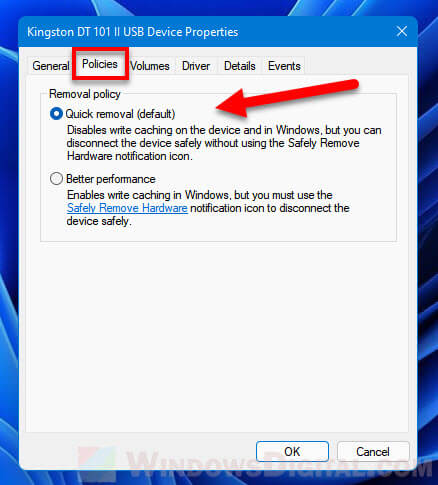
If it’s on Quick removal, wait until any copying is done and the drive’s activity light (if it has one) stops blinking, then you can simply unplug it. If it’s on Better performance, don’t pull it out while Windows says it’s in use, and use the methods below.
Wait a few seconds and try “Eject” again
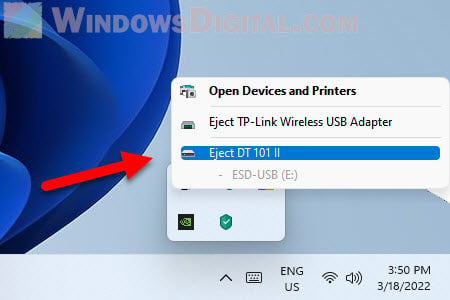
Yes, this sounds a little silly, but very often the second try works. If you’ve just copied files or opened the drive, Windows or your antivirus may still be finishing up with it. Often the drive ejects fine if you wait a moment (up to a minute for a big drive) and click Eject again from the Safely Remove Hardware and Eject Media icon on the taskbar.
Close File Explorer and restart Windows Explorer
File Explorer is one of the programs that most often keeps the drive busy, so close every File Explorer window first, including any that show a folder on the USB drive. If it still won’t eject, restarting Windows Explorer can make it let go of the drive. Here’s how to do it:
- Press Ctrl + Shift + Esc to open Task Manager.
- On the Processes tab, find Windows Explorer (type “explorer” in the search box at the top).
- Right-click Windows Explorer and select Restart.
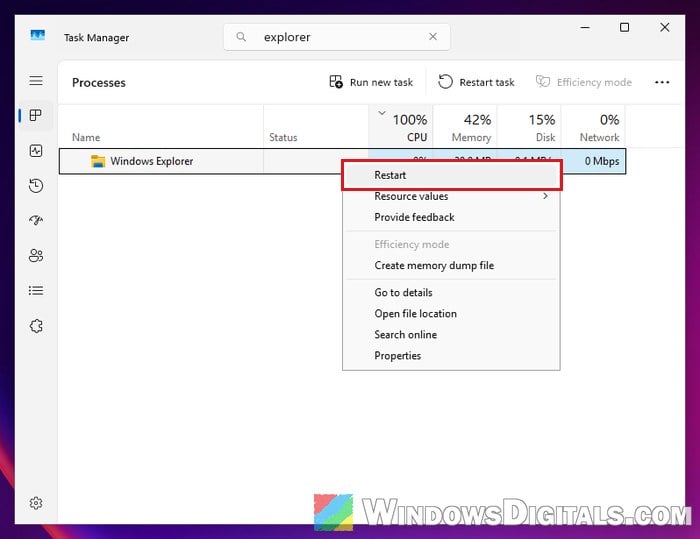
Your taskbar will disappear for a second and come back. Then try ejecting the drive again from the taskbar icon.
Related guide: Restart Explorer.exe with CMD or PowerShell in Windows 11
Eject the drive from This PC instead
For some people, the drive refuses to eject from the taskbar icon but ejects fine from File Explorer. Here’s how to do it:
- Open File Explorer and click This PC in the left pane.
- Right-click your USB drive and select Eject.
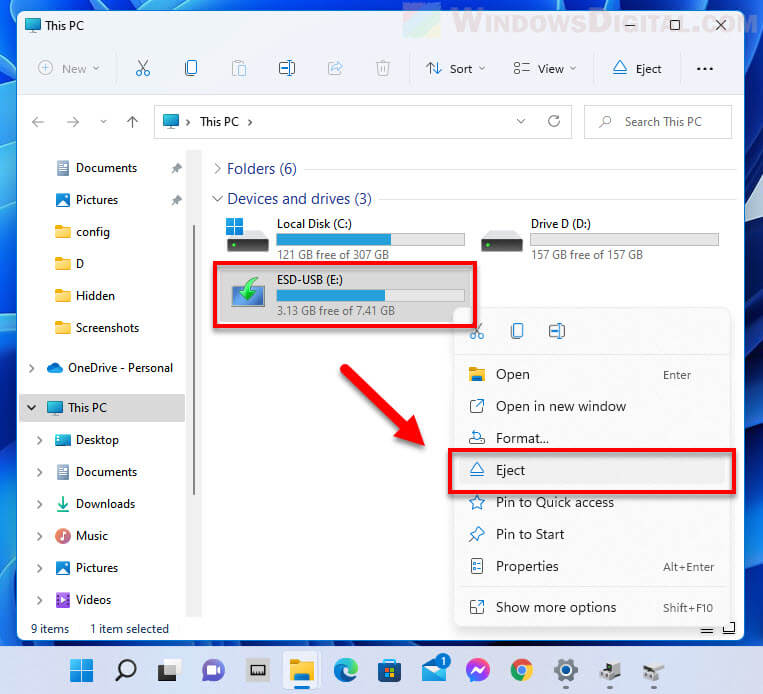
Note that the Eject option here only shows up for drives Windows treats as removable, such as USB flash drives. An external hard drive or SSD usually doesn’t have it, so use the other methods for those.
Find out which program is using the drive
If the drive still won’t eject, find the program that’s holding it and close it. Windows has two built-in tools for this.
Check Event Viewer
When Windows refuses to eject a drive, it usually logs which program stopped it. To see it:
- Right-click the Start button and select Event Viewer.
- In the left pane, expand Windows Logs and select System.
- In the right pane, click Filter Current Log.
- Click the box that says
<All Event IDs>, type “225” and click OK.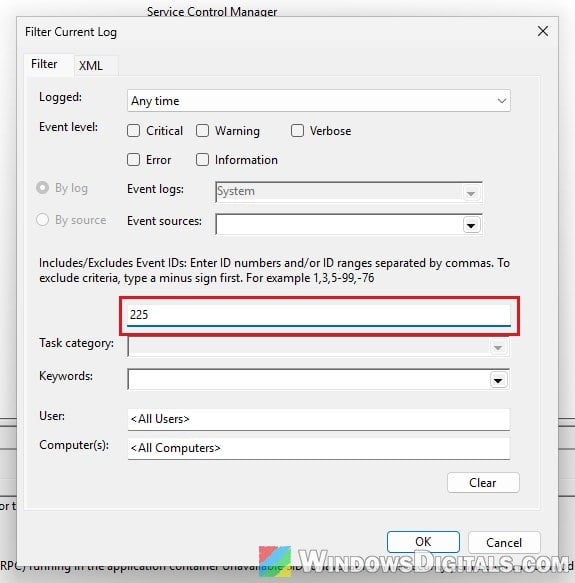
- Open the newest event. It says “The application … with process id … stopped the removal or ejection for the device …“, where the part after “The application” is the program holding the drive.
Use Resource Monitor
Resource Monitor can show every program that has something open on the drive right now:
- Press Win + R, type “resmon” and press Enter.
- Go to the CPU tab and expand Associated Handles.
- In the Search Handles box next to it, type the letter of your USB drive followed by a backslash, for example
E:\, and press Enter. - Check the list. Every program in it has a file or folder open on that drive.
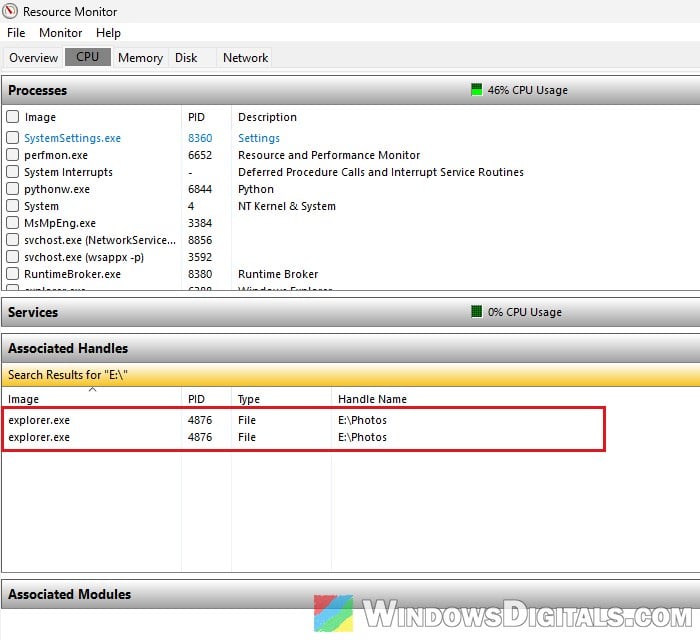
You can also use Microsoft’s free Process Explorer (from Sysinternals at https://learn.microsoft.com/en-us/sysinternals/downloads/process-explorer): run it as administrator, go to Find > Find Handle or DLL (Ctrl + F), type the drive letter (such as E:) and click Search.
Once you know the program, close it normally from its own window or tray icon, or select it in Task Manager and click End task. If it’s explorer.exe, restart Windows Explorer as shown above. If it’s System (process ID 4), don’t try to end it. Give it a minute, or use the next method. If the same program shows up every time, close it before you eject.
Might be useful: How to Force Delete a File in Use by Another Program on Windows 11/10
Sign out, or shut down and unplug
If nothing else works, sign out, then sign back in and try ejecting again. Signing out closes the programs you were running, which often frees the drive. If it doesn’t, shut down. That almost always works, and once your PC is fully off, unplugging the drive is completely safe, even on Better performance.
What if Windows doesn’t see the drive after you pulled it out?
If you unplugged the drive while Windows still said it was in use, Windows might not recognize it, or any other USB drive, the next time you plug it in. This usually means the device got stuck in Windows, not that your drive is broken. Restart your PC and plug the drive back in, and try another USB port if it still doesn’t show up.