An app you disable in the “Startup apps” list of Task Manager is supposed to stay off until you turn it back on yourself. With Microsoft Edge, though, the entry can be enabled again after a restart, or you might see two or three “Microsoft Edge” entries in the list. This guide will explain where these entries come from and how to get rid of them so they don’t come back.
Also see: How to Disable Startup Programs in Windows 11
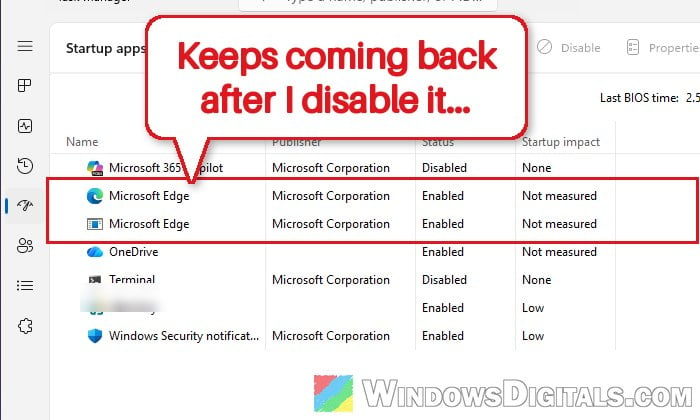
Why does Edge keep adding itself to “Startup apps”?
Two of Edge’s features are meant to start it when you sign in, and each can leave its own entry:
- Startup boost: This Edge feature starts the core Edge processes in the background when you sign in, so the browser opens faster later. According to Microsoft, it’s turned on by default on Windows PCs with enough memory where Edge is used every few days. When it’s on, Edge writes its own startup entry to the registry, a value named
MicrosoftEdgeAutoLaunch_followed by a long string of letters and numbers, and that’s the “Microsoft Edge” you see in Task Manager. - Sites you installed as apps: A website you installed as an app through Edge can be set to start when you sign in. Each one set that way shows up as an extra “Microsoft Edge” entry in Settings > Apps > Startup and in Task Manager (where it’s sometimes named “msedge_proxy” instead), which is one way Edge ends up listed more than once.
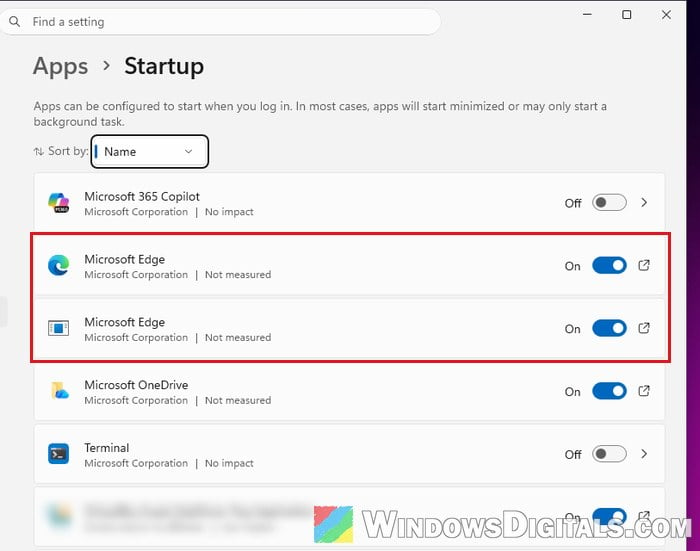
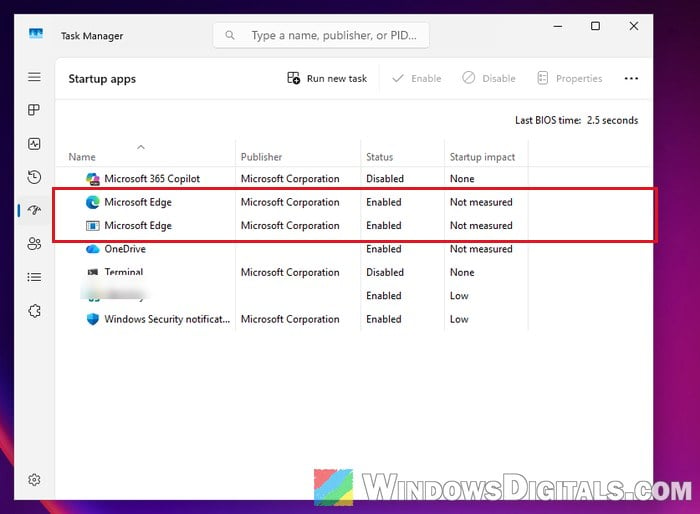
Also, clicking “Disable” in Task Manager doesn’t remove the entry. Windows only marks it as disabled, and the registry value stays where it is. Some people found that Edge had added a new entry after the next restart anyway. So the real fix is to switch off whatever is adding the entry inside Edge, and then clean up what’s left behind.
Related concern: Microsoft Edge Keeps Opening Facebook or YouTube by Itself, Virus?
Turn off “Startup boost” in Edge
Turning off Startup boost is what worked for people on Microsoft’s forums whose Edge entry kept coming back no matter how often they disabled or deleted it, so it’s the one to try first. When we turned Startup boost on in Edge, the “Microsoft Edge” entry showed up in Task Manager right away, and when we turned it off, the registry value behind it was gone just as fast.
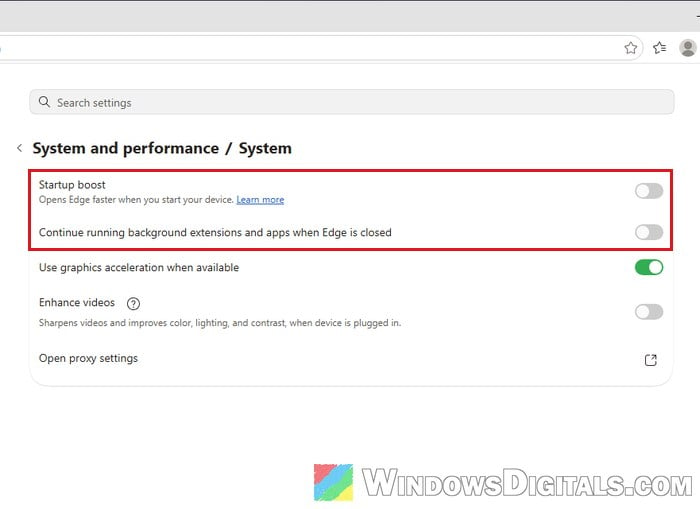
While you’re there, also turn off the option that keeps Edge running in the background after you close it, so no Edge processes stay running when you don’t need them. Here’s how to do both:
- Open Microsoft Edge, click the three dots (“Settings and more“) at the top-right corner, and select “Settings“.
- Click “System and performance” on the left, then click “System“. You can also paste
edge://settings/system/manageSysteminto the address bar to go straight there.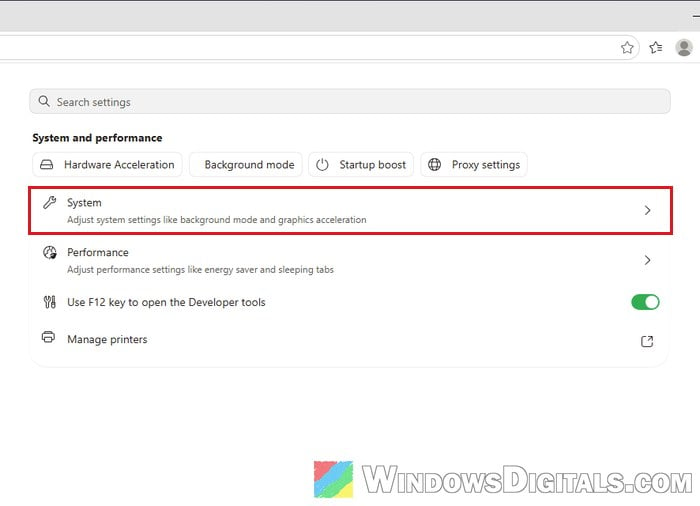
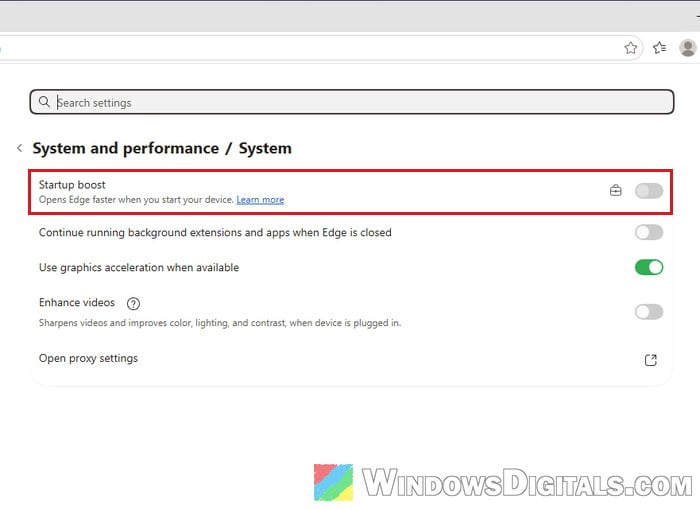
- Turn off the “Startup boost” toggle.
- Turn off the “Continue running background extensions and apps when Edge is closed” toggle.
Now press Ctrl + Shift + Esc, go to “Startup apps” and check that the Edge entry is gone, then restart and check again.
If the toggle is greyed out with a small briefcase icon next to it, a policy on your PC controls it. On a work or school PC, ask your IT admin. On your own PC, the policy section below shows where that setting lives.
Turn off auto-start for apps you installed through Edge
If you still see a second “Microsoft Edge” entry (or an “msedge_proxy” one in Task Manager) after turning off Startup boost, it may well be a website you installed as an app at some point, with “Auto-start on device login” turned on. Edge offers this checkbox right after you install a site as an app, so it’s easy to tick. When it’s on, Edge puts a shortcut for the app in your Startup folder.
Here’s how to turn it off:
- In Edge, paste
edge://appsinto the address bar and press Enter. - Click “Details” under the app you want to stop from starting with Windows.
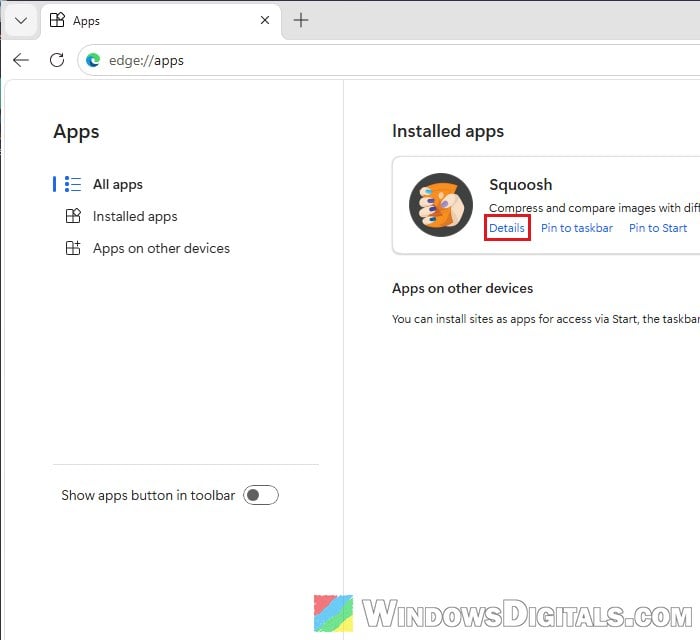
- Turn off the “Auto-start on device login” toggle. If you don’t use the app anymore, you can click “Uninstall” instead.
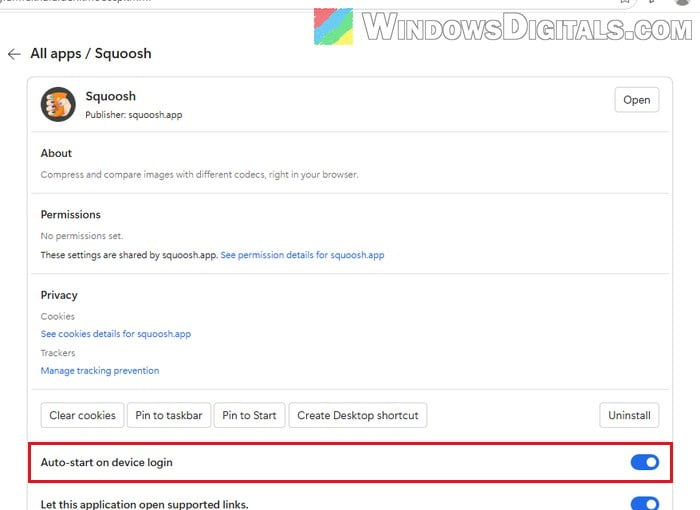
Do this for every app on the list. The extra “Microsoft Edge” entry should then be gone from Settings > Apps > Startup.
Learn more: Where is the Startup Folder in Windows 11/10 for All Users
Delete the leftover Edge entries in the registry
If old “Microsoft Edge” entries are still in the list after the two fixes above, you can delete them instead of just disabling them. Do this after turning off Startup boost, otherwise Edge can simply write a new one.
Incorrectly editing the registry can cause problems with Windows, so only delete exactly the values described below. Please at least create a system restore point first. If you’re not comfortable with it, get someone who knows to help you instead. Here’s how to do it:
- Press Win + R, type “regedit” and press Enter. Click “Yes” if User Account Control asks.
- Copy and paste the following path to the address bar of Registry Editor and press Enter:
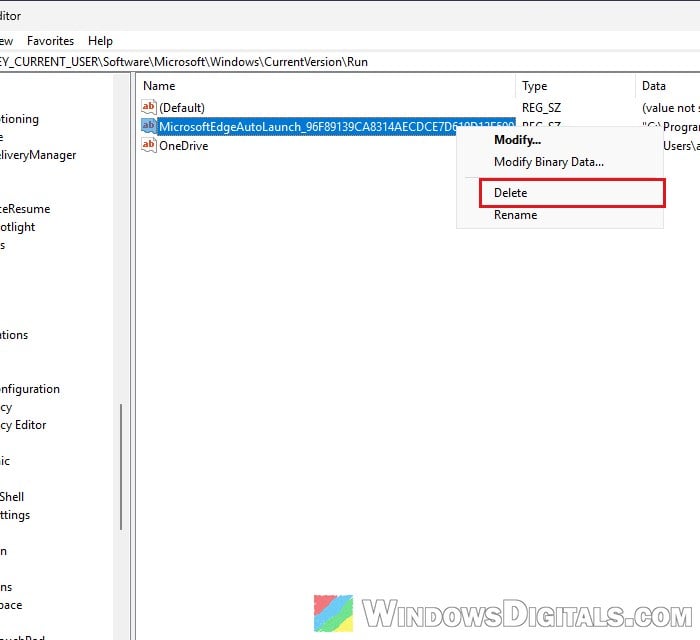
HKEY_CURRENT_USER\Software\Microsoft\Windows\CurrentVersion\Run
- To keep a backup, right-click the “Run” folder on the left, select “Export” and save the file somewhere.
- On the right, right-click each value whose name starts with “MicrosoftEdgeAutoLaunch_” and select “Delete“, then click “Yes” to confirm.
- Also check
HKEY_LOCAL_MACHINE\SOFTWARE\Microsoft\Windows\CurrentVersion\Run, and delete any value there whose name starts with “MicrosoftEdgeAutoLaunch_” the same way.
Restart your PC and open Task Manager’s “Startup apps” page again. The leftover Edge entries should no longer be listed.
Keep “Startup boost” off with a policy
If the Edge entry still comes back even though the Startup boost toggle shows off, you can lock it off with Edge’s “StartupBoostEnabled” policy, which you can set in the registry. Once it’s set, the Startup boost toggle in Edge is greyed out and can’t be switched back on.
As with the registry fix above, please create a restore point first, and only add the value described below.
- Open “Registry Editor” as shown in the previous section.
- Copy and paste the following path to the address bar and press Enter:
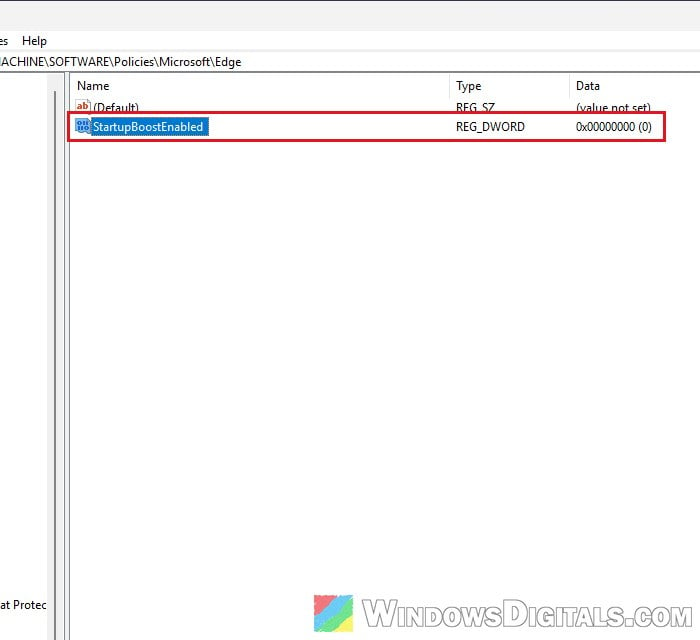
HKEY_LOCAL_MACHINE\SOFTWARE\Policies\Microsoft
- If there’s no “Edge” key under “Microsoft“, right-click “Microsoft“, select “New” > “Key” and name it “Edge“.
- Select the “Edge” key, right-click an empty area on the right, and select “New” > “DWORD (32-bit) Value“.
- Name it “StartupBoostEnabled” and leave its value data at “0“.
Edge picks up the policy by itself, but you can also paste edge://policy into its address bar and click “Reload Policies” to apply it right away. Then go back to Edge’s System settings, where Startup boost should now show as off, with the “This setting is managed by your organization” briefcase icon next to it.
To get Startup boost back, delete the “StartupBoostEnabled” value.
Edge still opens or comes back after all this?
If Edge still starts with Windows after the fixes above, a few other things are worth checking:
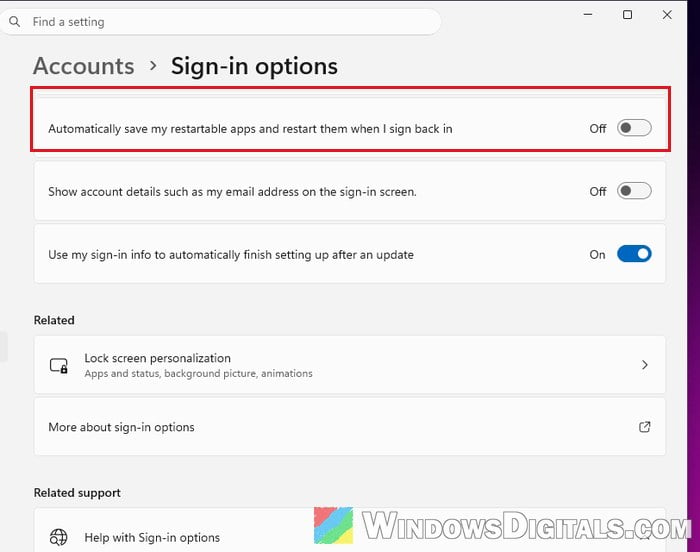
- Windows reopening your apps: Go to Settings > Accounts > Sign-in options and turn off “Automatically save my restartable apps and restart them when I sign back in“. With it on, Windows can reopen an Edge window you left open when you shut down or restarted.
- Another startup location: Microsoft’s free Autoruns tool (part of Sysinternals) lists every program set to start with Windows. Check its “Logon” and “Scheduled Tasks” tabs for entries that start
msedge.exeand untick them, but leave the Edge Update tasks alone, or Edge stops updating. It doesn’t always find the culprit, but it shows more than Task Manager does.