Google Lens in Chrome opens its results in a side panel next to the page, with a small X at the top that closes it once you’re done. Since a recent Chrome update, though, the top of that panel is missing on some PCs, so there’s no close button at all, and the only way to get rid of the panel seems to be closing the whole tab. This guide will show you how to close it without losing your tab, and what else you can do until Google fixes it.
Also see: How to Stop Gemini in Chrome from Reading Your Open Tab
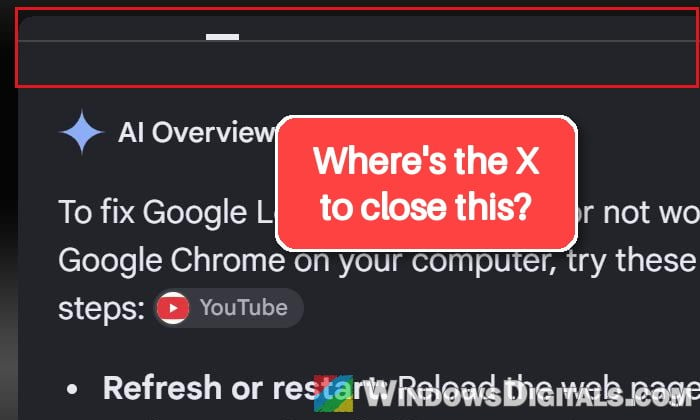
Why does the Lens panel have no close button?
Google hasn’t said anything about it yet, but it looks like a layout bug in the new Lens side panel. Lens now opens on an AI Overview of the image or page in that panel, and on the affected PCs the panel is drawn too high, so its top row (with the pin, help and X buttons) is cut off above the visible area. The scroll bar can end up partly off-screen too. For one user, the panel also moved to the left side.
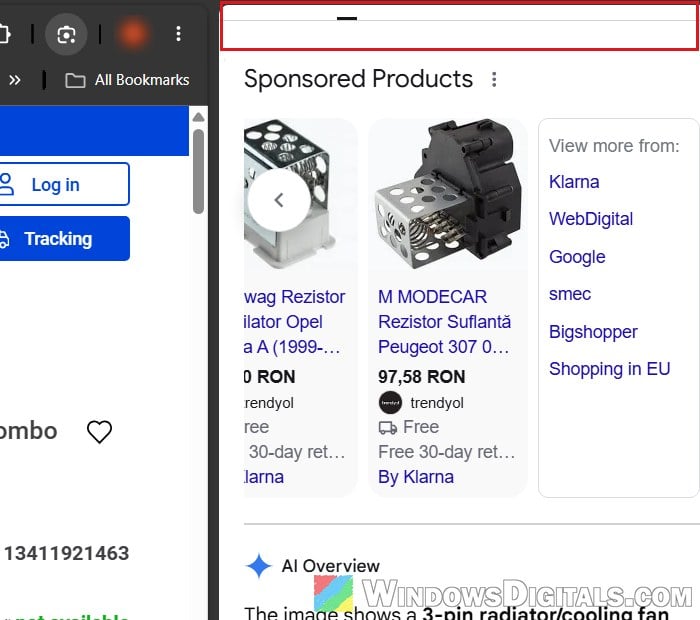
It happens on a normal 1080p screen too. Zooming the page in or out or changing the display scaling doesn’t bring the buttons back, and neither does clearing Chrome’s cache and cookies or restarting Chrome, since the problem seems to be in the panel itself.
There’s also a second X that’s easy to mix up with the panel’s. When Lens opens, it puts a selection box over the page with its own X at the top right. That X, and pressing Esc, only close that selection box. The side panel stays open.
Click the Google Lens button in the toolbar
While the Lens panel is open, Chrome shows a Google Lens button in the toolbar, to the right of the address bar next to the bookmark star. It’s highlighted for as long as the panel is open. Since it sits in the toolbar and not in the panel, it should still be there when the panel’s top row is missing, and clicking it should close the panel and leave your tab as it is.
Here’s how to do it:
- Look at the right end of the address bar. Next to the star icon, you’ll see a highlighted button with the Google Lens icon (Chrome calls it “Search this tab with Google Lens“).
- Click that button once.
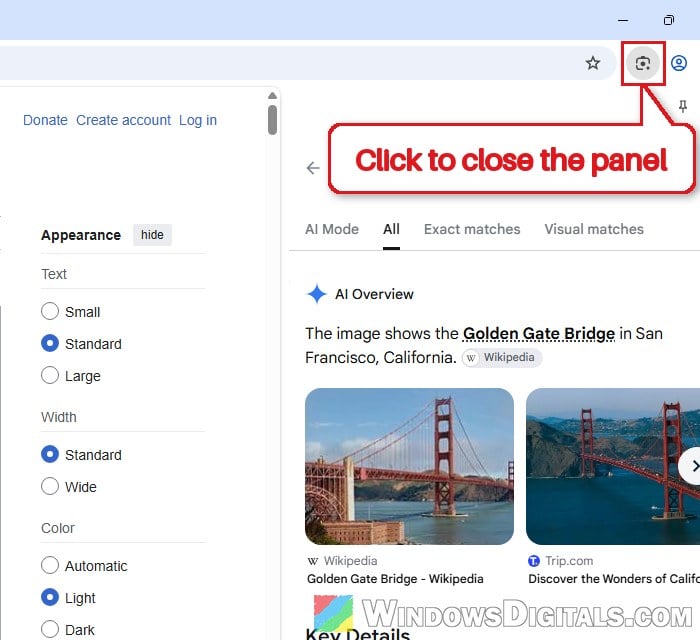
The bug didn’t show up on our test PC (Chrome 157), but there, clicking the page or pressing Esc (which Google’s own help page mentions) only closed the selection box, while the toolbar button closed the panel itself. People who have the bug still have this highlighted button in their toolbar, so it’s the first thing to try.
Suggested read: Shortcut for “Save image as” on Chrome or Windows 11
Close the tab and open the page again
If the toolbar button isn’t there for some reason, closing the tab is what most people do, and it does get rid of the panel. You don’t have to lose the page, though. Here’s how:
- Click the address bar of the tab with the stuck panel and press Ctrl + C to copy the page’s address.
- Press Ctrl + W to close the tab.
- Press Ctrl + T to open a new tab, paste the address with Ctrl + V and press Enter.
This might only get rid of the panel for now, so it can come back the next time you use Lens.
Update Chrome
Since this is a bug in Chrome’s new Lens panel, the real fix has to come from Google in an update. Google hasn’t announced one yet, so it’s worth checking for Chrome updates now and then until the panel gets its buttons back. To check for updates:
- Click the three-dot menu at the top right of Chrome.
- Go to Help > About Google Chrome.
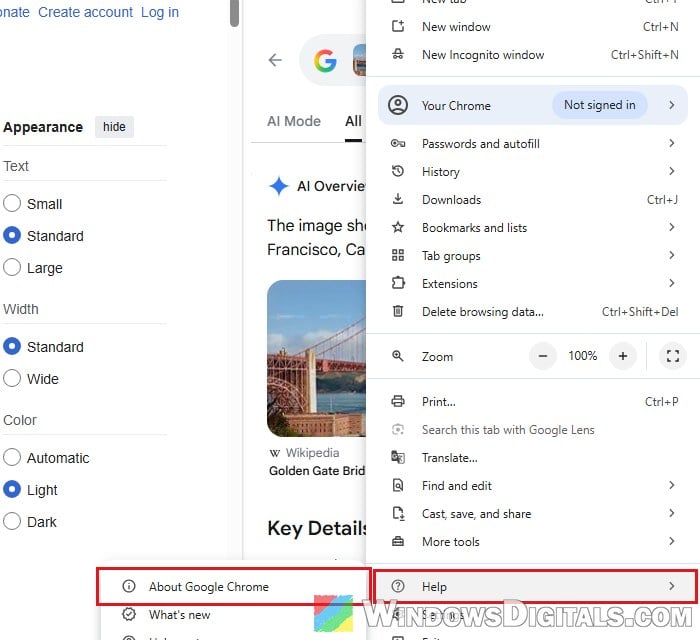
- Chrome checks for updates and downloads them. If you see a Relaunch button, click it to restart Chrome with the new version. If there’s no Relaunch button, you’re already on the latest version.
Chrome reopens your saved tabs after the relaunch. You can also let Google know about the missing buttons from the same menu, through Help > Report an issue.
Might be useful: Remove the New Left Sidebar on Google Search in Chrome
If the panel also moved to the left side
The update can also move Chrome’s side panel from the right to the left side of the window. That’s a Chrome setting, so you can put it back where it was.
- Click the three-dot menu and select Settings.
- Select Appearance on the left.
- Under Side panel position, open the drop-down next to Chrome Panels and choose Right (or Left if you prefer it there).
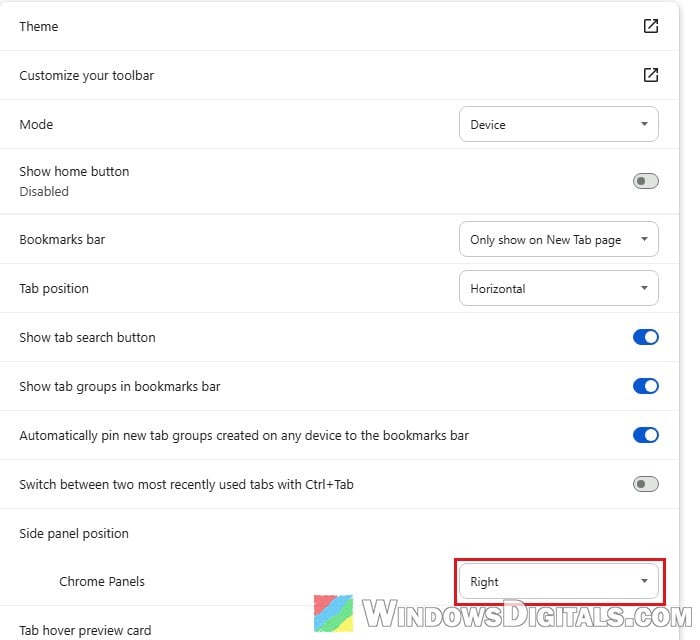
Nobody has reported that this brings the close button back, so you’ll likely still need the toolbar button or a reopened tab from above to close the panel.