If you’ve opened the Goddess of Victory: NIKKE launcher on your Windows PC since late September, it may have quietly run a remote-access agent that can grab saved browser passwords, cookies and crypto wallet data, because someone tampered with the script files the launcher downloads. This guide will walk you through how to check your PC for it, what to remove, and what to do about your accounts.
Also see: How to Uninstall Games on Windows 11
What happened to the NIKKE PC launcher?
According to Level Infinite, the publisher, four script files the PC launcher downloads were changed by a third party on September 27, and malicious programs were sent to players’ PCs from October 30, by its count (researchers saw the agent about a week earlier). The files were replaced on November 4. Level Infinite says anyone who opened the Windows PC launcher at least once since September 27, 15:41 (UTC+9) should check their PC. Mobile-only players don’t need to.
The program, called K2F by researchers, ran while the launcher was open and could run commands, download your files, and collect saved passwords, cookies and crypto wallet data. On some PCs it also planted a DLL that Chrome loads, which keeps running after the launcher is closed. Replacing the files on Level Infinite’s servers doesn’t remove anything that’s already on your PC.
Close the launcher and go offline
First make sure the launcher isn’t running, then cut the PC off from the internet so nothing gets sent out while you clean up.
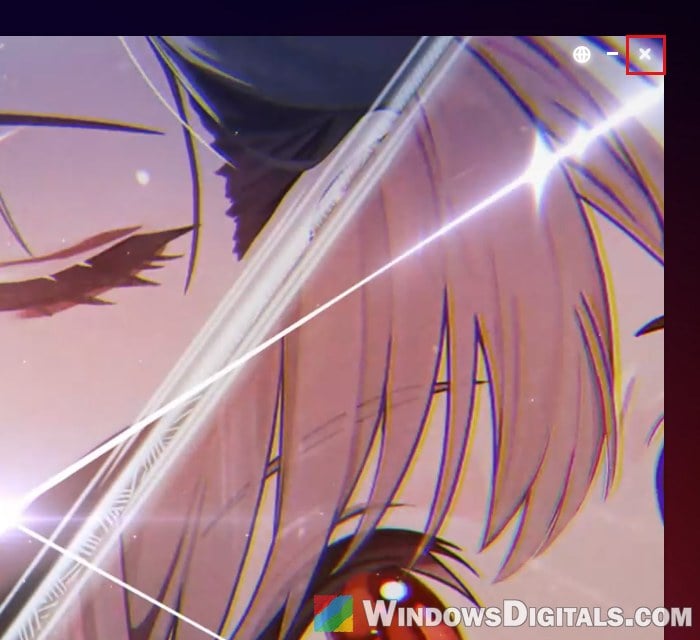
- Close the NIKKE launcher with the X at its top right, and make sure it isn’t still running in the system tray.
- Press Ctrl + Shift + Esc to open Task Manager and type “nikke” in its search box. On the Details tab, select nikke_launcher.exe if it’s still there and click End task.
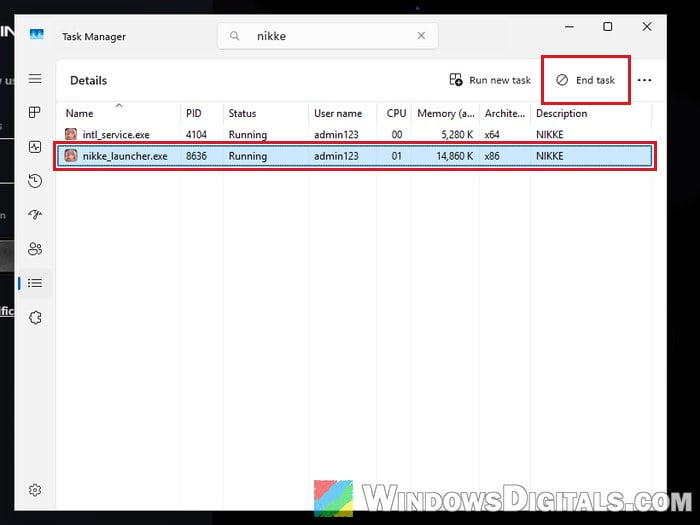
- Unplug the network cable or turn off Wi-Fi.
Check debug.log for “k2f_chan”
The quickest way to tell whether the agent ran is the launcher’s log file: when the agent starts, it writes “k2f_chan registered” into it.
- Open File Explorer and go to the folder where you installed NIKKE (for example
C:\NIKKEorD:\NIKKE). - Open the launcher folder, then intl_service. With file extensions hidden, debug.log shows as just debug (a Text Document).
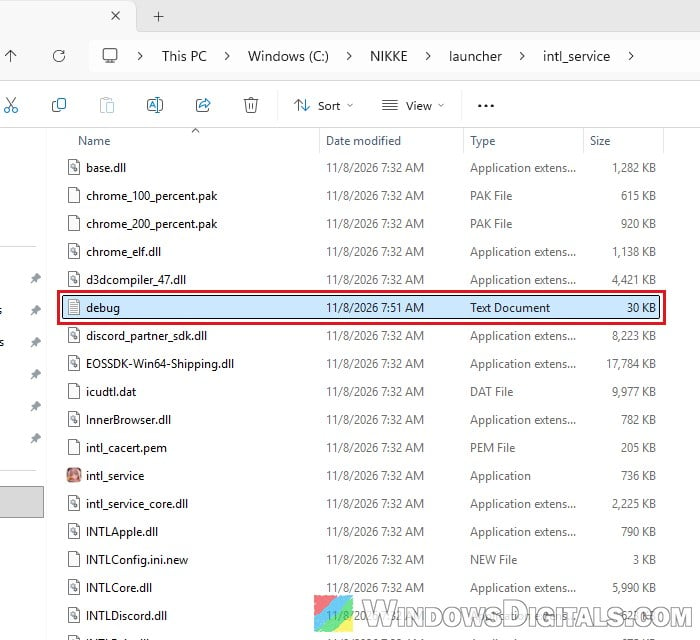
- Right-click debug (debug.log) and select Edit in Notepad.
- Press Ctrl + F and search for “k2f_chan“.
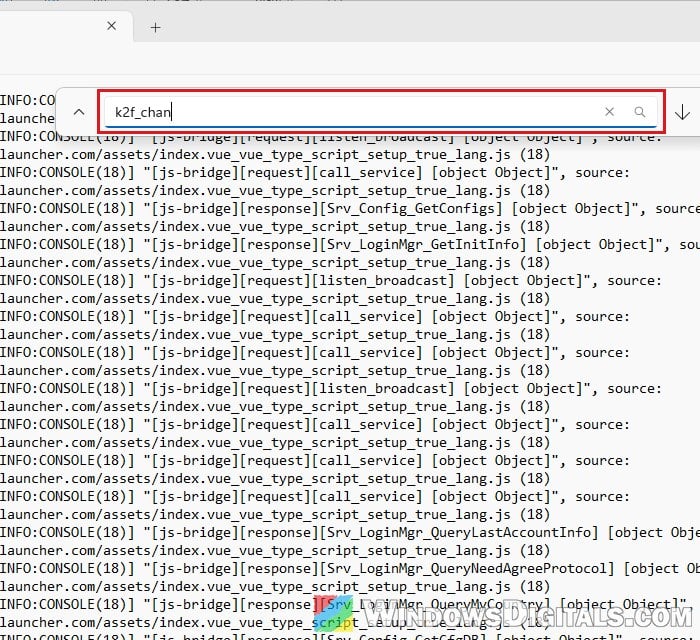
If it finds “k2f_chan registered”, the agent ran on your PC, so go through every section below. If not, Level Infinite still recommends the scans further below.
If Notepad says the file is too large
You can search the log with PowerShell instead. Right-click the Start button, open Terminal (or Terminal (Admin)), and run this (change the path to your own install folder):
Select-String -Path "C:\NIKKE\launcher\intl_service\debug.log" -Pattern "k2f_chan"
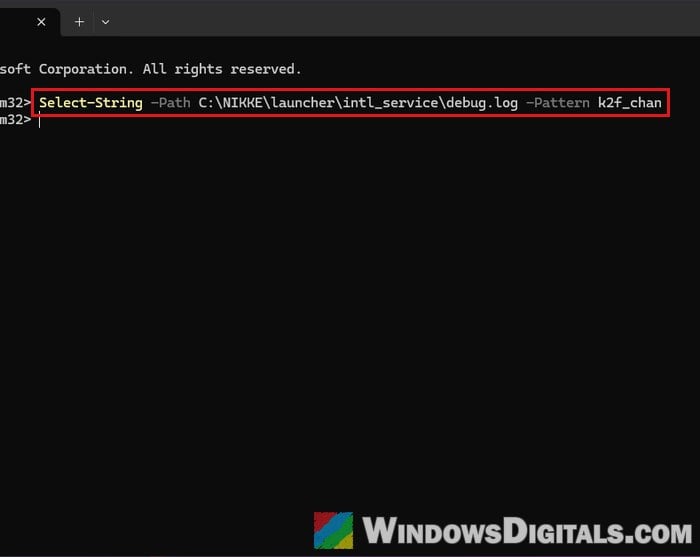
If it prints a line, the agent ran.
What if debug.log is missing?
Uninstalling or reinstalling the launcher erases this log, and updates after November 4 may delete it too. Then search the launcher’s cache for “k2f.agent” instead, with this command in a normal Terminal:
Select-String -Path "$env:APPDATA\nikke_launcher\tbs_cache\Local Storage\leveldb\*" -Pattern "k2f.agent"
If it prints any line, the agent ran on your PC. If that folder is gone too, rely on the scans below.
Related concern: What is Trojan:Win32/Casdet!rfn and How to Remove it
Let the updated launcher scan and clean your PC
Since November 5, the official launcher has a built-in check that finds and removes the malware. It’s Level Infinite’s own fix, and the easiest option if the game is still installed.
- Close every web browser first, since a DLL a browser is using can’t be removed.
- Reconnect to the internet and start the NIKKE launcher so it updates.
- If it finds the malware, a pop-up shows up. Agree to the removal, and the launcher deletes the related logs, DLL files and registry entries.
If nothing is found, there’s no pop-up. A DLL may stay behind if a browser was still open, but Level Infinite says it won’t run anymore.
Remove the leftovers by hand
If you’d rather not open the launcher again, you can remove the same things yourself: a registry key the malware adds, the DLL’s folder, and the launcher’s cache. Editing the registry the wrong way can break Windows, so delete only the exact key below, and create a system restore point first. If you’re not sure what you’re doing, get someone to help you instead.
- Press Win + R, type “regedit” and press Enter.
- Copy and paste the following path into the address bar and press Enter:
HKEY_CURRENT_USER\Software\Classes\CLSID\{E77CC89B-7401-4C04-8CED-149DB35ADD04}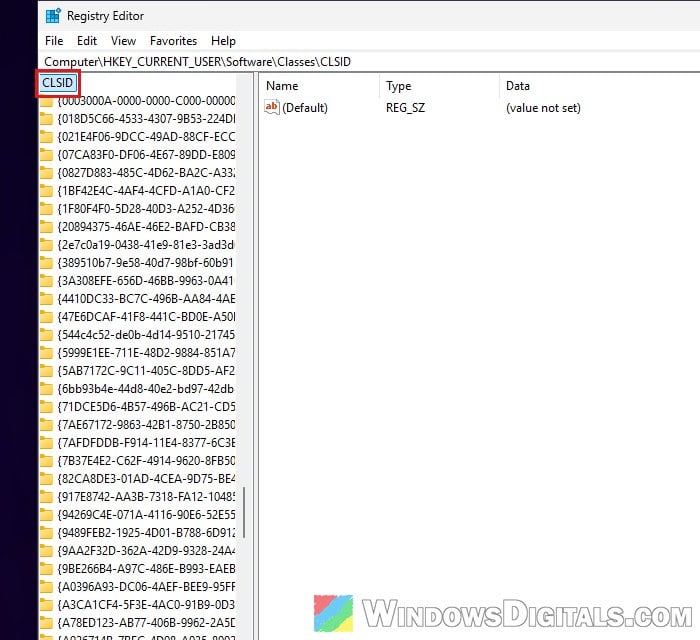
- If Registry Editor stops at CLSID instead, the key isn’t there. If it exists, right-click it and select Delete. Only delete it under HKEY_CURRENT_USER. The key with the same number under HKEY_LOCAL_MACHINE belongs to Windows, so leave it alone.
- Restart your PC.
- Paste
%LOCALAPPDATA%\Google\Chrome\User Data\PlatformExperienceHelperinto File Explorer’s address bar. If the folder isn’t there, there’s nothing to delete. If it is, delete only the subfolder with a long, 64-character name that contains platform_experience_helper.dll, and leave the rest of it alone. - Delete the launcher’s cache folder at
%APPDATA%\nikke_launcher\tbs_cachebefore you open the launcher again.
If you also delete your whole NIKKE folder and Windows asks for administrator permission, that’s normal. Allowing it only lets File Explorer delete the folder; it doesn’t give the files inside any rights.
Run a full scan and a Microsoft Defender offline scan
Level Infinite recommends a full antivirus scan, then a Microsoft Defender offline scan, even if you didn’t find k2f_chan. The offline scan restarts the PC and scans before Windows loads, so save your work first.
- Open Windows Security and go to Virus & threat protection.
- Click Scan options, select Full scan, click Scan now and let it finish.
- Back in Scan options, select “Microsoft Defender Antivirus (offline scan)” and click Scan now.
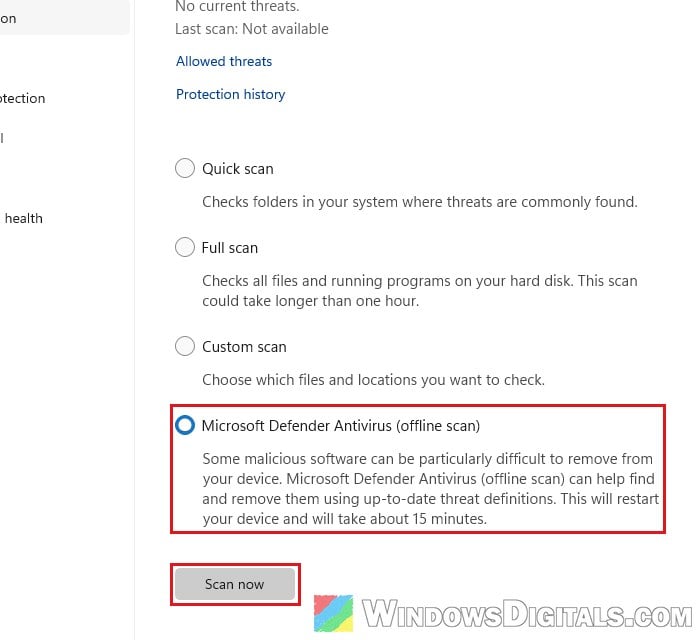
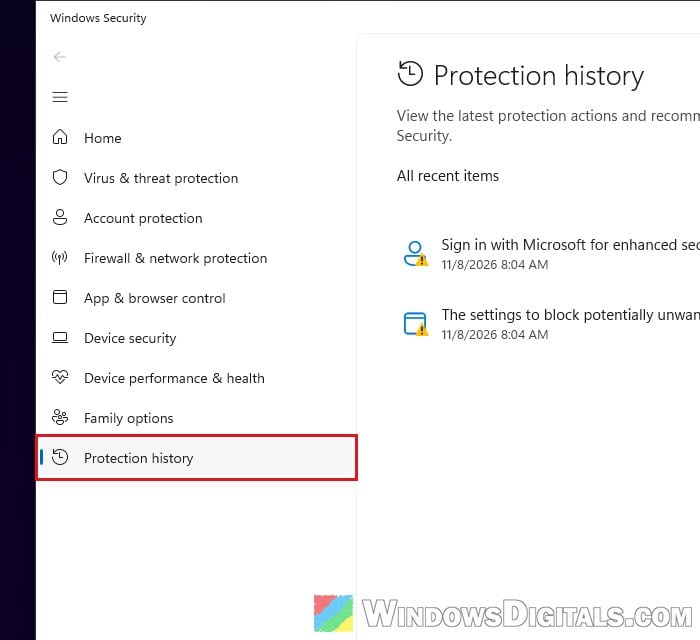
When the PC is back, open Windows Security > Protection history to see what was found.
Malwarebytes added detections for this attack, and many players on Reddit used its free scan as a second opinion. Keep in mind that Defender’s offline scan missed the Chrome DLL on some infected PCs, so a clean scan isn’t proof on its own. Don’t skip the log check and the cleanup above, whether the launcher’s or your own.
If Defender flags something else and you’re not sure it’s from NIKKE, check its file path and date in Protection history. Keep it quarantined either way, and don’t restore it.
Might be useful: Can’t Clear Protection History in Windows 11/10 Defender
Change your passwords from another device
This matters most if the agent ran. Use your phone or another PC that never had the NIKKE launcher, never the one that may be infected.
- Change your NIKKE / Level Infinite password first, then email, Discord, banking and anything saved in your browser.
- Use “sign out of all devices” wherever you can. Stolen cookies let someone in without your password, so a new password alone isn’t enough.
- Turn on two-step verification for important accounts.
- Revoke and replace any API keys, access tokens or SSH keys kept on the PC.
- Move crypto wallet funds to a new wallet with a new recovery phrase, created on a clean device.
If you lost money or an account was taken over, Level Infinite says to contact NIKKE’s customer support.
Should you reinstall Windows?
If “k2f_chan registered” was in your log, the agent ran with your account’s rights, and there’s no way to be sure everything it changed is gone. The cleanup above removes what’s known, but reinstalling Windows is the safest choice if you want to be completely sure. Back up your personal files first, then follow: How to Reset Windows 11/10 to Factory Default.
If the string was never in your log and the scans came back clean, a reinstall often isn’t needed, though changing your important passwords from another device is still a good idea.