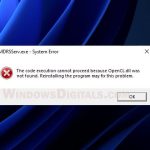
There is a fairly common error with games like Fortnite, Helldivers 2, Dead by Daylight, Rust and VRChat where the game won’t start and says “Please unload MsIo64.sys before starting the game“, even if you’ve deleted the file or can’t find it anywhere. This guide will explain what the file is and how to get your game running again.
Also see: Memory Integrity Can’t Be Turned On (Windows 11)
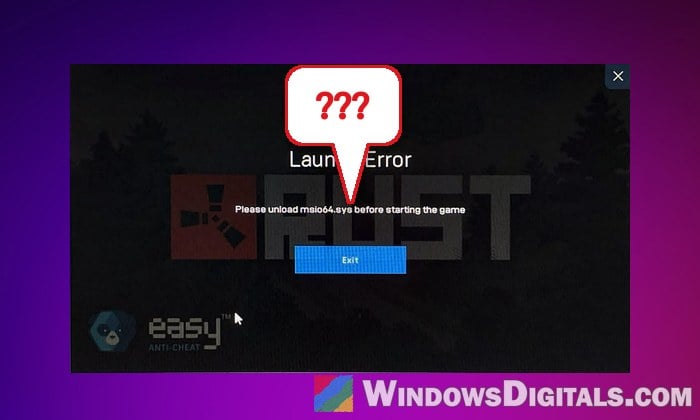
Why do games ask you to unload MsIo64.sys?
MsIo64.sys is a driver that comes with RGB lighting software, not a Windows file or part of the game. It’s made by a company called MICSYS and is used by tools that control your PC’s RGB lighting, such as:
- Patriot Viper RGB (Patriot’s lighting app for its Viper RAM)
- GALAX GAMER RGB
- ASUS Aura and Armoury Crate
- ASRock’s RGB software and older versions of MSI Dragon Center
This driver has known security holes that can give a program full access to the Windows kernel. Easy Anti-Cheat, which most of these games use, refuses to start while a driver like that is loaded, because cheats could use it to get around the anti-cheat. It doesn’t mean you’re accused of cheating. It just wants the driver gone first.
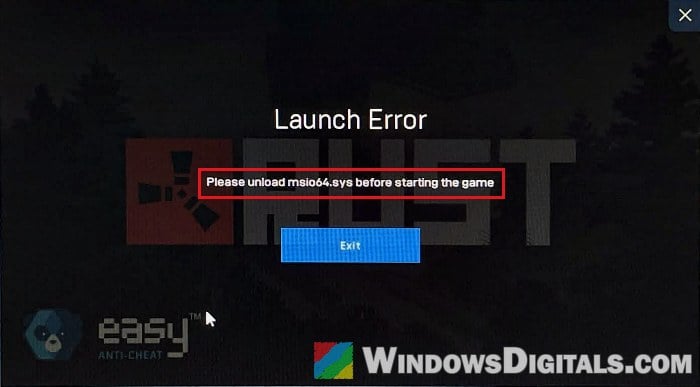
A lot of people only notice this after coming back to a game they haven’t played for months, and many don’t even know they have RGB software installed. EA games show the same problem in a different way: “EA AntiCheat has detected an incompatible driver“, with the path to msio64.sys and the code (119).
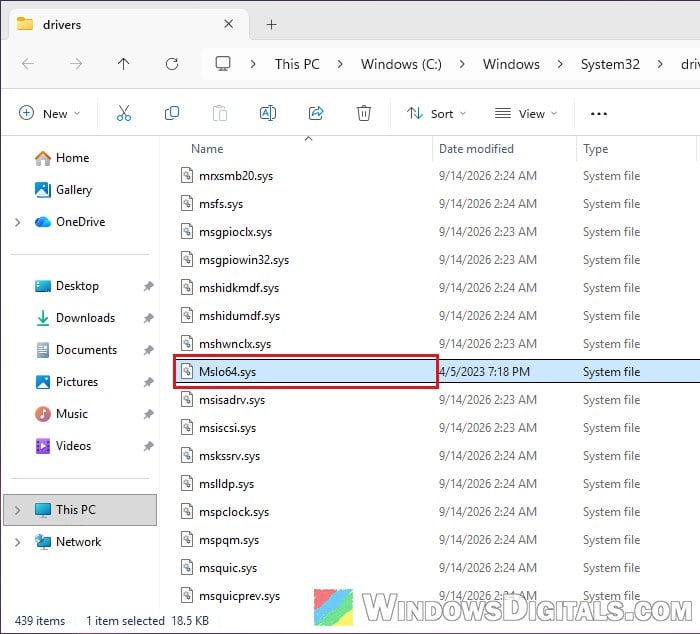
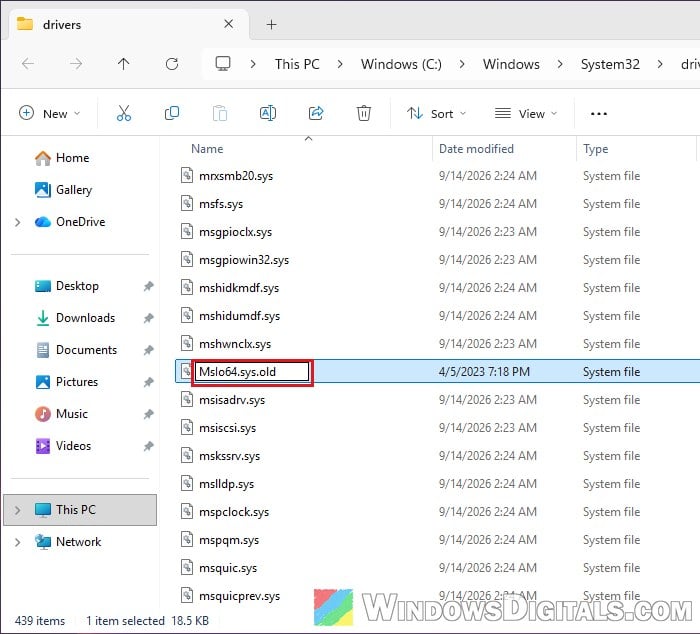
Also note that the name is easy to misread. It’s MsIo64 with a capital “I”, not a lowercase “L”. If you’ve been searching your PC for “Mslo64.sys”, that’s why nothing came up.
Linked issue: Battlefield 6 Crashes After a Minute, EAAntiCheatService Terminated Error
Rename MsIo64.sys and restart your PC
The quickest fix, and the one that has worked for most people on Reddit and the game forums, is to rename the driver file so Windows can’t load it the next time it starts. Renaming is safer than deleting, since you can always change the name back if you want your RGB software to work again.
Here’s how to do it:
- Open File Explorer and go to the following folder (you can paste it into the address bar):
C:\Windows\System32\drivers
- Find the file named MsIo64.sys. It may also show up as msio64.sys or msIo64.sys, and if file name extensions are hidden, just as MsIo64.
- If you want a backup, copy the file to your desktop first.
- Right-click the file, select Rename, and add .old to the end of the name, so it becomes MsIo64.sys.old.
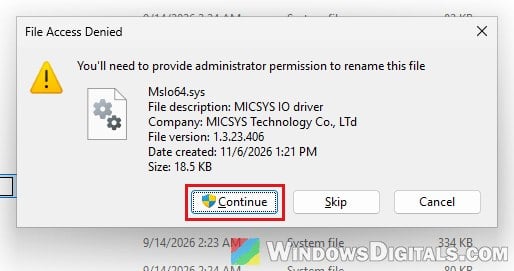
- When the “File Access Denied” box asks for administrator permission, click Continue, then click Yes on the User Account Control prompt. The box also shows the file’s description, MICSYS IO driver, so you know you’ve got the right file.
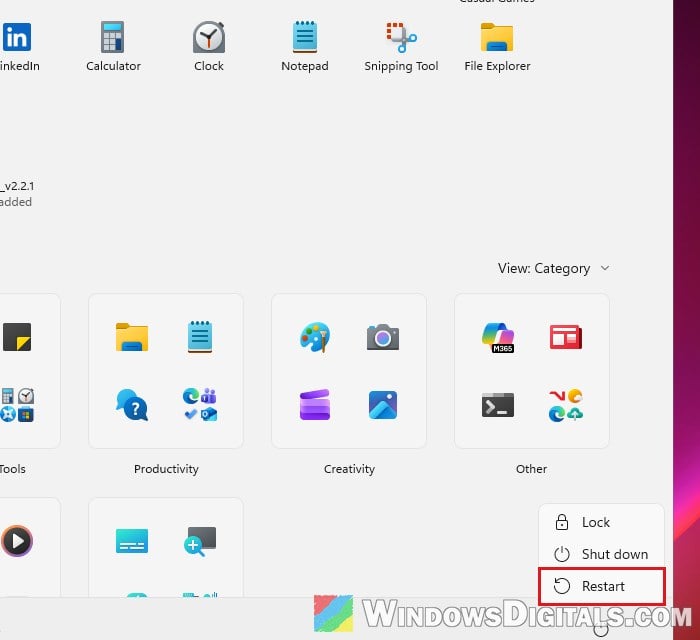
- Restart your PC from the Start menu (choose Restart, not Shut down).
After the restart, launch the game again. It should now start without the message. The catch is that your RGB software can’t control the lights while the driver is renamed.
Pro tip: How to Show Hidden File Name Extensions in Windows 10 File Explorer
Why didn’t deleting the file fix it?
The driver is loaded into memory when Windows starts, and it stays there until Windows fully restarts. Deleting or renaming the file doesn’t unload it from the running system. On top of that, Windows uses Fast startup by default, which means a normal Shut down saves the running kernel, including its loaded drivers, and loads it back the next time you turn on your PC. According to Microsoft, a Restart always does a full shutdown. So if you deleted the file and then shut down, the game can still see the driver.
What if the file isn’t in the drivers folder?
Some RGB tools keep their own copy of the driver in their install folder. Some Patriot versions keep one in C:\Program Files\Patriot\Aac_Patriot Viper RGB, the current Viper RGB app in C:\Program Files (x86)\PATRIOT\ViperRGB_v2.2.1\driver, and GALAX GAMER RGB in its own “GALAX GAMER RGB” folder. If the error message shows a path, go to that exact location, as there can be more than one copy on your PC. Rename every copy you find, then restart.
Update or uninstall the RGB software that installed it
Renaming the file is a workaround. The software that put it there is still installed, and it may bring the driver back. If you don’t use the RGB control, uninstalling it is the cleaner fix. If you do, updating can help with some makers, since a newer version may come with a fixed driver (MSI patched the security hole in its driver with Dragon Center 2.0.98.0, for example). Patriot’s current Viper RGB app still installs MsIo64.sys, though, so updating it won’t get rid of the driver.
Here’s how to do it:
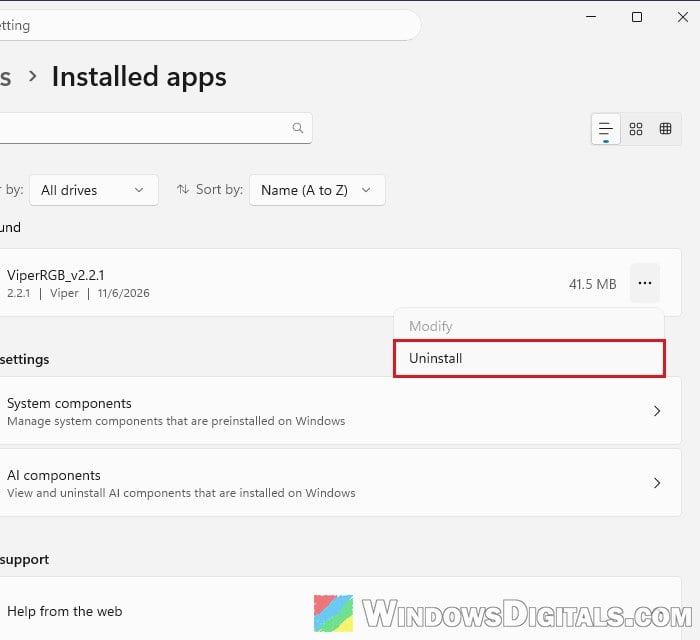
- Open Settings > Apps > Installed apps.
- Look for the RGB software, for example Patriot Viper RGB, GALAX GAMER RGB, Armoury Crate, Aura or MSI Dragon Center. If you’re not sure which one it is, the folder where you found MsIo64.sys is a good hint. Some are listed under a different name, such as ViperRGB_v2.2.1 for Patriot’s app, so search for “viper”, “aura” or the maker’s name.
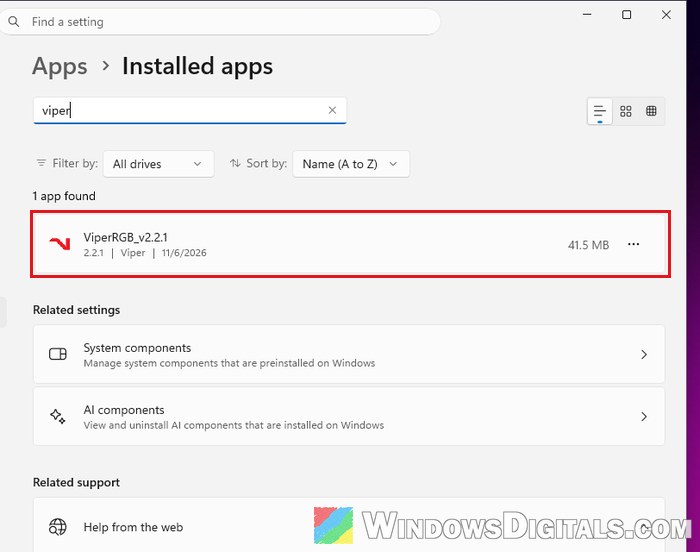
- Click the three dots next to it and select Uninstall, then confirm and follow the uninstaller’s prompts.
- Restart your PC.
After the restart, launch the game again and see if the message is gone.
For ASUS software, use ASUS’s own Armoury Crate Uninstall Tool instead, from ASUS’s support site (the Driver & Utility tab). Restart when it’s done, and if it fails the first time, restart and run it again, as ASUS suggests.
If you still want the lighting control from ASUS or MSI software, install the latest version from the maker’s website afterwards and check whether the game starts. Reinstalling a fresh copy of Aura Sync has fixed it for some people. Patriot’s current app brings the driver back, though.
Related guide: Can’t Completely Uninstall a Driver in Windows 11 (Fix)
Remove the leftover MsIo64 driver service
Sometimes the game keeps asking even after the software is gone and the file is renamed or deleted. That can be because the driver’s service is still registered in Windows, left behind even after the software is gone. Removing that service gets rid of the last trace.
Only do this after uninstalling the RGB software, otherwise it may simply add the service back. Deleting a driver service can’t be undone with a click, so please at least create a system restore point first, and if you’re not sure what you’re doing, it’s better to get someone to help you.
Follow the steps below:
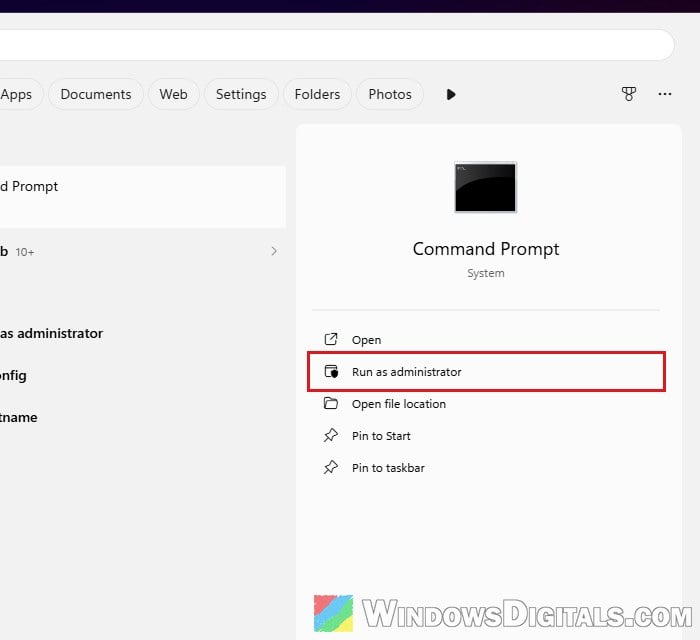
- Open Command Prompt as administrator.
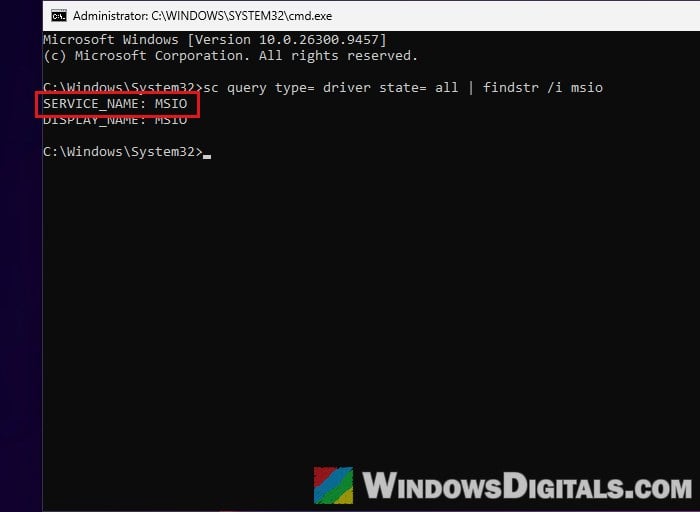
- Type the following command and press Enter to find the driver’s service:
sc query type= driver state= all | findstr /i msio
Note the name shown next to SERVICE_NAME. With Patriot Viper RGB, for example, it’s MSIO.
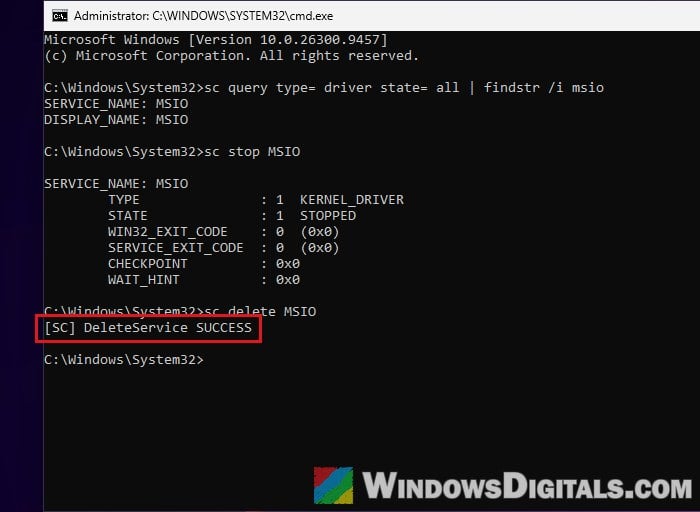
- Type the following commands one by one, replacing
<name>with that name (for example,sc stop MSIO), and press Enter after each:sc stop <name> sc delete <name>
You should see “[SC] DeleteService SUCCESS“.
- Restart your PC.
If the driver can’t be stopped, Windows still marks the service for deletion and removes it on the restart. After the restart, launch the game again and see if the message is gone.