If you’re trying to create a new Microsoft account, or a new Outlook.com or Hotmail address, and the sign-up page stops you with “Account creation has been blocked” and a short line saying Microsoft detected some unusual activity, it’s a common block Microsoft puts on new sign-ups. It can show up even if you haven’t made an account in months, and the page doesn’t tell you what you did wrong or how long it lasts. This guide will explain why Microsoft blocks the sign-up and what you can do to get your account created.
Also see: “We Couldn’t Find an Account With That Username” but Email Is Already in Use
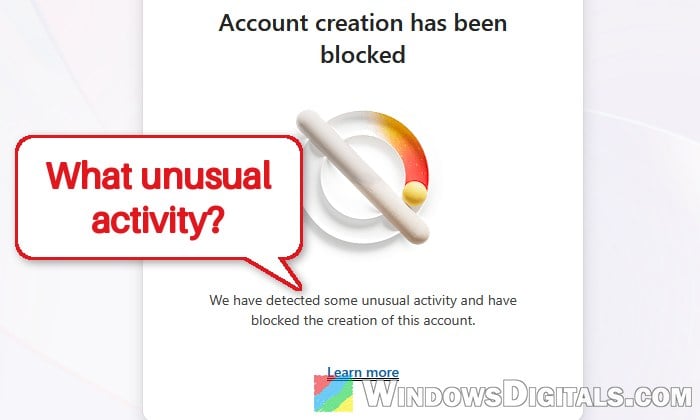
On the sign-up page, the full line reads “We have detected some unusual activity and have blocked the creation of this account.”
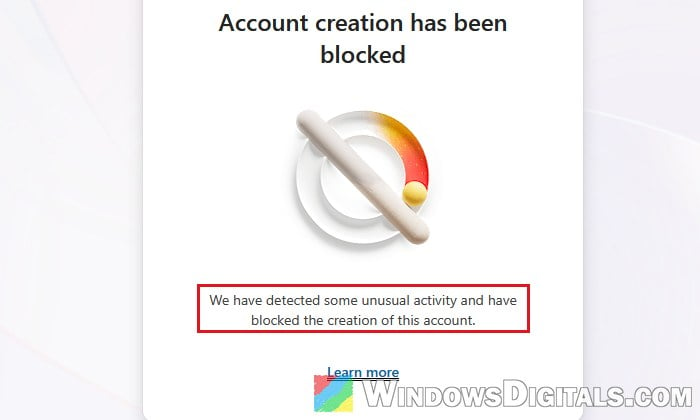
The same block can also appear when you make an account while activating Office, setting up an Xbox, or adding a child’s account in Windows. Some people see it worded as “account activation has been blocked“, and some see a page titled “Creating a blocked account” with a line saying it blocked the account creation process.
Why does Microsoft block account creation?
Microsoft runs automatic checks on every new sign-up to stop automated and bulk-made accounts. When something about your attempt looks unusual, it simply refuses to create the account, without saying which check you failed. Some common reasons are:
- Too many attempts or accounts from the same device or network in a short time. This includes retrying the sign-up over and over after the first failure.
- Many verification codes sent to the same phone number or email address.
- A VPN, proxy or ad-blocking DNS that makes your connection look suspicious or hides it.
- The browser itself: JavaScript turned off, privacy or ad-blocking extensions, and possibly old cookies from earlier attempts.
- Your network or region: unusual activity from your IP address, for example a network where several accounts were made recently.
Microsoft says it does this to protect all of its customers. The bad news is that there’s no button to appeal it on the spot, but the block often lifts once you wait and change what made the attempt look unusual.
Might be useful: How to Login Windows 11 Without Microsoft Account
Stop retrying for a while, then try only once
This one sounds silly, but it matters the most. Every new attempt after the block counts as more unusual activity, so retrying the sign-up over and over can make the block last longer.
Stop all sign-up attempts and wait at least 24 hours. For most people who report it, the block lifts after a day or two, but some wait a week or longer. Microsoft doesn’t give a set time.
Use the waiting time to go through the fixes below, so your one attempt has the best chance.
Turn off VPN, proxy or ad-blocking DNS
A VPN or proxy hides where you’re really connecting from, which is exactly the kind of thing the sign-up check doesn’t like. Disconnect from any VPN or proxy before you try again.
Ad-blocking DNS services like AdGuard DNS or Control D can trigger the block too. Turning them off has worked for a couple of users on Reddit: on Android, they turned off Private DNS, or on an iPhone, set DNS back to Automatic.
If you’ve set a custom DNS server on your Windows PC, set it back to automatic for the attempt:
- Open Settings and go to Network & internet.
- Click Ethernet. If you’re on Wi-Fi, click Wi-Fi > Manage known networks and select your network instead.
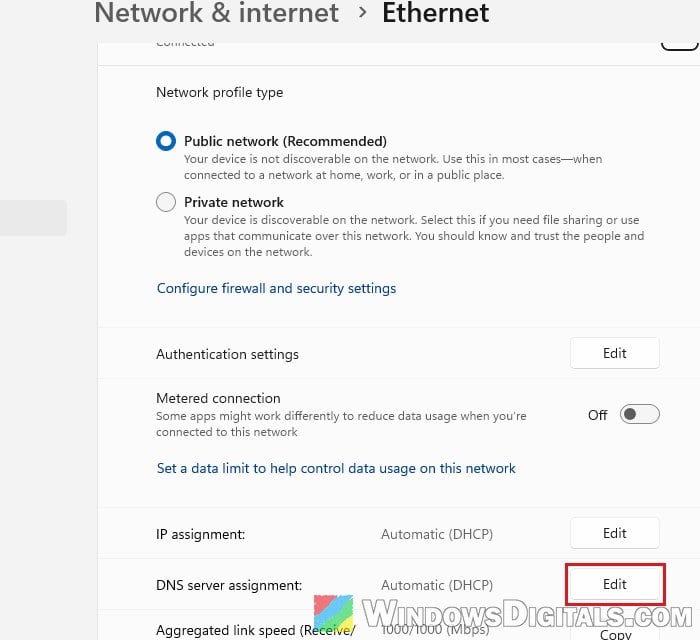
- Next to DNS server assignment, click Edit.
- Select Automatic (DHCP) from the dropdown and click Save.
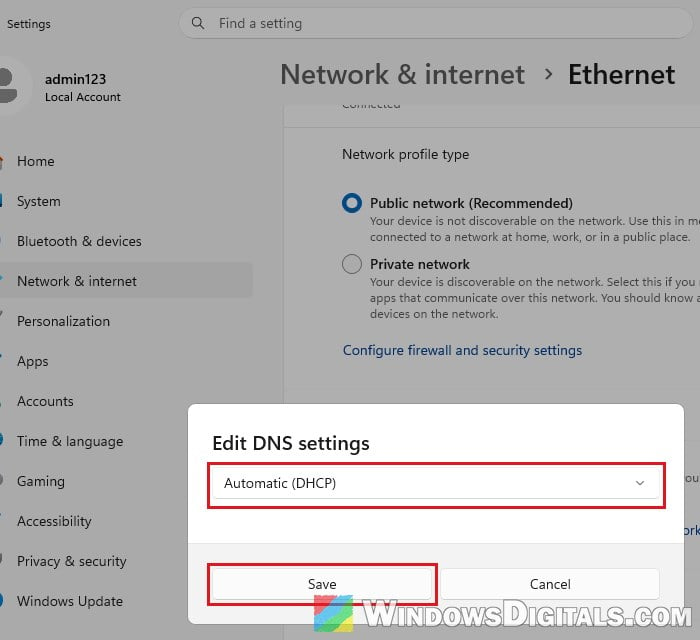
You can set your custom DNS back once the account is created.
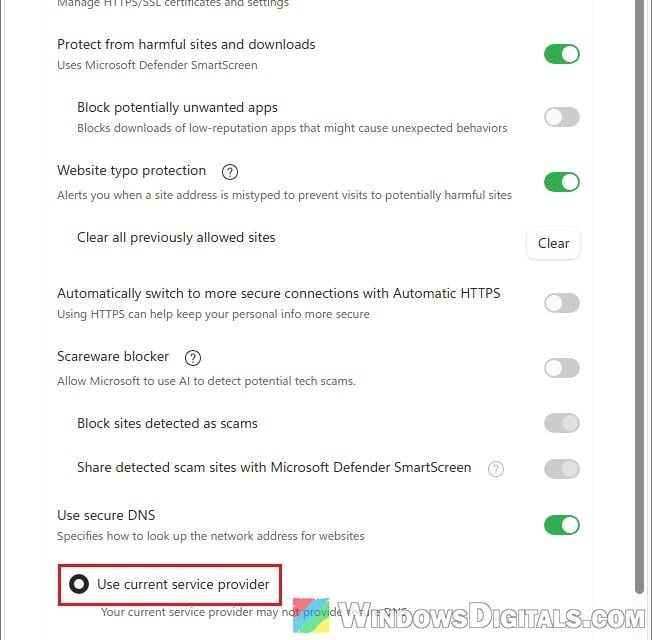
If you use Microsoft Edge with a custom secure DNS provider, you can also switch it back under Settings > Privacy, search, and services > Security > Use secure DNS, and pick Use current service provider.
Pro tip: How to Disable VPN in Windows 11
Try another network or device
Since the check also looks at your IP address, a different network can get you through. The easiest way is to turn off Wi-Fi on your phone and sign up using its mobile data, or connect your PC to your phone’s hotspot.
You can also restart your router. Turn it off, wait a minute, and turn it back on, which often gives your home connection a new IP address.
Microsoft itself suggests trying a different device, for example your phone’s browser instead of your PC. It doesn’t work every time, since some people are blocked on both Wi-Fi and mobile data, but it’s worth a single try after waiting.
Clear your browser’s cookies and cache, and don’t use private mode
Microsoft’s own advice for this error is mostly about the browser: clear your browser’s cache, enable JavaScript, try a different browser, and don’t use private mode (InPrivate or Incognito). Old cookies from your failed attempts may play a part, and clearing them is sometimes enough to get past repeated blocks.
In Microsoft Edge, here’s how to do it:
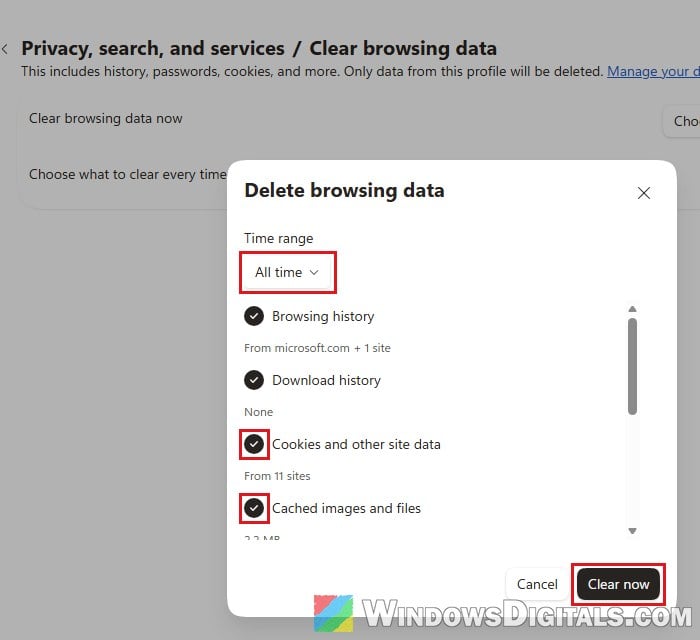
- Press Ctrl + Shift + Delete to open Delete browsing data.
- Set Time range to All time.
- Tick “Cookies and other site data” and “Cached images and files“. Untick Browsing history and Download history if you want to keep them.
- Click Clear now. Clearing cookies signs you out of most websites.
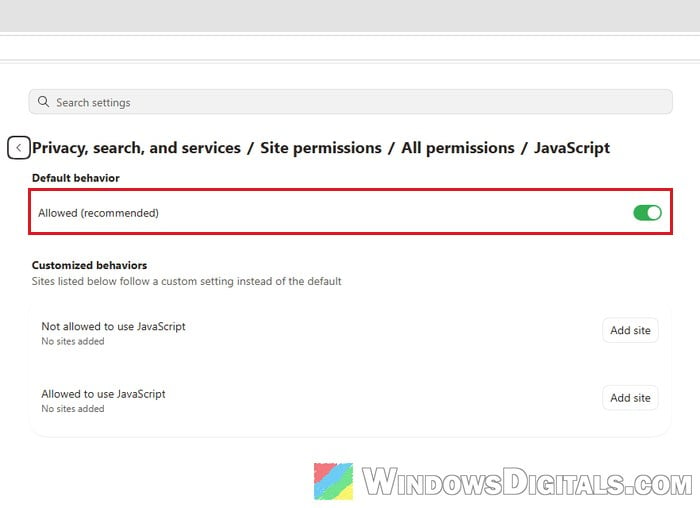
- Go to Settings > Privacy, search, and services > Site permissions > All permissions > JavaScript and make sure Allowed (recommended) is turned on.
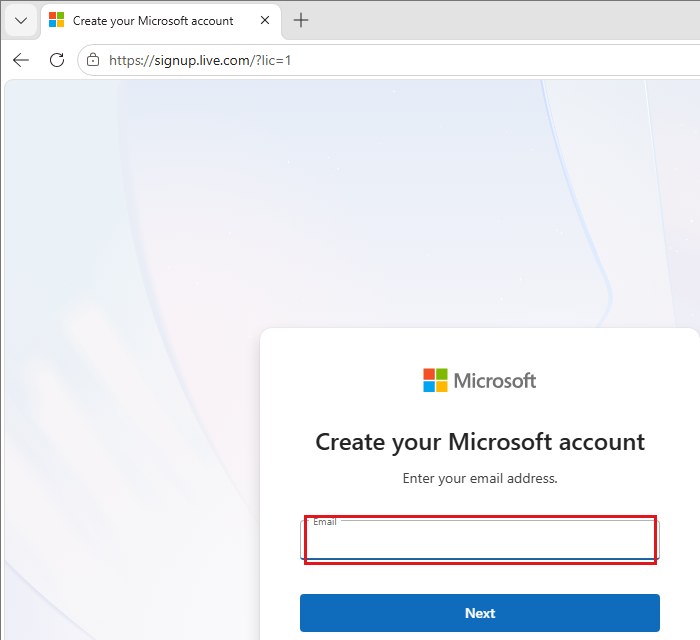
Also turn off any privacy or ad-blocking extensions for the attempt. Then open the sign-up page again at https://signup.live.com in a normal window and go through it once. If it fails in Edge, your next try (after waiting) can be in another browser, like Firefox or Chrome.
Learn more: How to Clear Cookies in Windows 11
Need another email address? Add an alias instead
If you already have a Microsoft account and just want a new Outlook.com address, you don’t need a second account. You can add the new address as an alias to the account you have. An alias is another email address on the same account. It shares the same inbox, contacts and settings, and you can sign in with it too.
To add one, sign in to your account, go to https://account.live.com/names/manage and click Add email. From there you can create a new Outlook.com address and add it as an alias.
This is also the better way if you were setting up several accounts for yourself, since creating many accounts is one of the things that triggers the block. If you need accounts for employees, personal Outlook.com accounts aren’t meant for that, so look at a Microsoft 365 business plan instead.
Contact Microsoft support
If you waited, changed your network, device and browser, and it’s still blocked, the last option is Microsoft support. The catch is that support’s chat asks you to sign in, which is hard when you can’t make an account. If you already have another Microsoft account, or a family member can sign in with theirs, go to https://support.microsoft.com/contactus and describe the problem as “account creation blocked”.
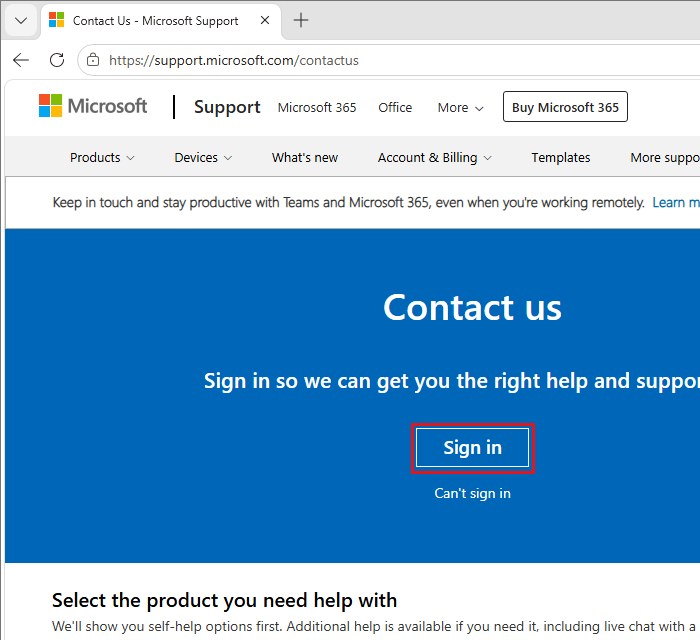
Tell them the exact message you see. Keep in mind that support may not be able to lift an automatic block for you. If you were creating the account to activate Office you bought, keep the receipt and product key.