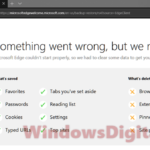
If your Microsoft Edge profile keeps saying “Setting up sync…” and never gets past it, and your favorites, passwords and history stop syncing between your devices (or even go missing from the PC), it’s a known problem that has been going around since mid-October 2026. This guide will explain why it’s happening, how to protect your data, and what you can do to get sync working again.
Also see: How to Delete All Saved Passwords in Microsoft Edge at Once
Why is Edge stuck on “Setting up sync…”?
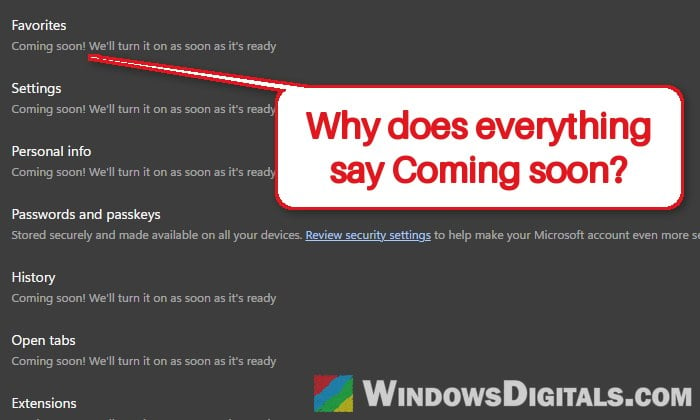
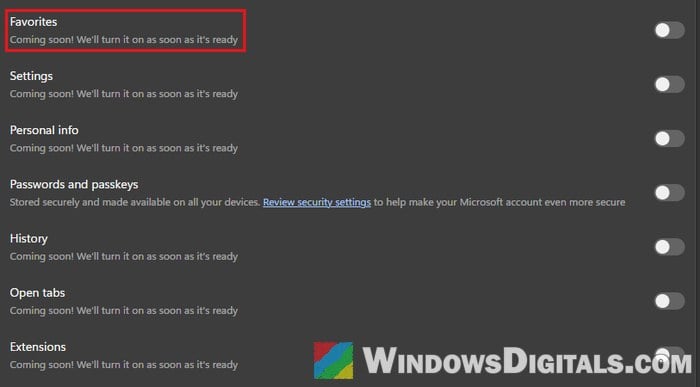
Since around mid-October 2026, a lot of people have been reporting the same thing on Microsoft’s forums and Reddit. Their Edge profile shows “Setting up sync…” under their name, and nothing syncs. It has been reported on Edge 155 and 156, on Windows 11 and 10, and also on Mac and Linux. In an earlier wave in April, the sync options even said “Coming soon” for almost everything.
Most reports have two things in common:
- It mostly hits profiles signed in with a personal Microsoft account. Work or school profiles on the same PC keep syncing just fine.
- Signing out and back in makes sync work again, but only until Edge is closed. The next time you open it, it’s back to “Setting up sync…”.
It doesn’t seem to be anything on your PC either: in at least one case, even a full reset of the computer didn’t fix it.
As of late October, Microsoft hadn’t said anything about it. Users who dug into it believe it’s a bug that came with Edge 155, where Edge fails to fetch the key it needs to read your synced data when it starts. If that’s right, the real fix has to come in an Edge update. For one person, the missing favorites and passwords even came back on their own after about two weeks.
Back up your favorites and passwords first
Before you try anything else, save a copy of what’s on your PC. Favorites and passwords can vanish while sync is stuck, the sync reset below replaces what’s in Microsoft’s cloud, and even signing out and in can bring back old entries, so without a backup you can end up with an older or emptier set of favorites. Microsoft also recommends exporting your favorites before any reset.
To export your favorites:
- In Edge, press Ctrl + Shift + O to open your favorites.
- Click “More options” (the “…” button) and select “Export favorites“.
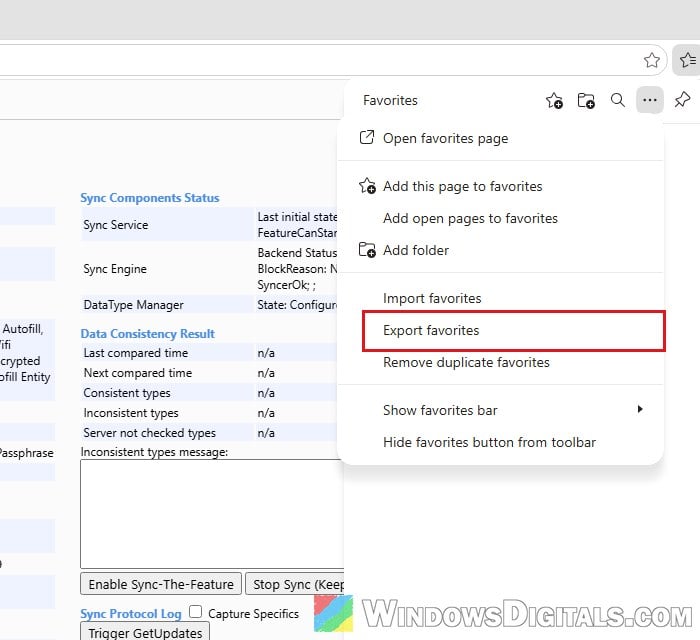
- Choose where to save the file and click “Save“. Edge names it something like “favorites_month_day_year.html”, and you can import it back later if you need to.
To export your saved passwords:
- Type
edge://settings/autofill/passwordsin the address bar and press Enter. - Click the “…” button next to “Add” above your password list.
- Select “Export passwords” and save the file.
Keep the exported file somewhere safe, and delete it once you no longer need it.
Might be useful: How to Bookmark All Tabs in Firefox, Chrome or Edge
Sign out of Edge and sign back in
This is the one thing that gets sync working for almost everyone with this problem, and it’s also Microsoft’s first step for a profile stuck on “Setting up sync…”. With the current bug it only lasts until you close Edge, but if you need your data to come through right now (say, on a new PC), it does the job.
Here’s how to do it:
- Click “Settings and more” (the “…” button at the top right) and select “Settings“.
- Go to “Profiles” and click “Sign out” next to your profile.
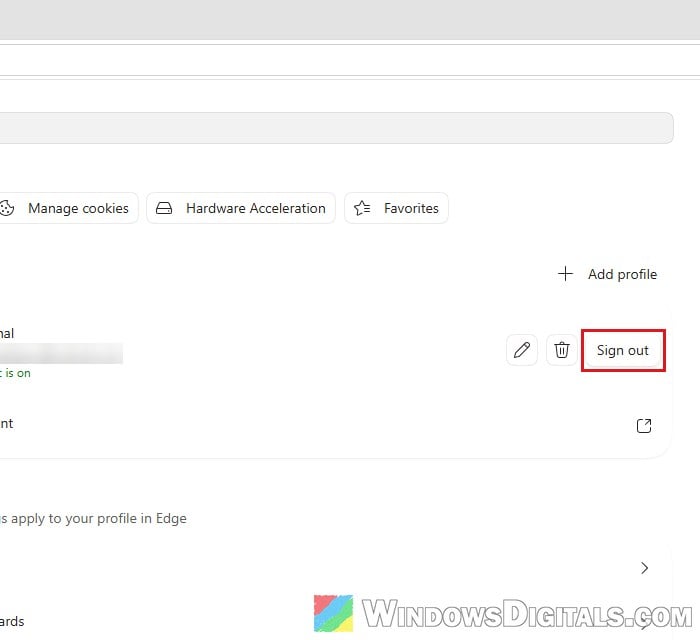
- In the “Are you sure you want to sign out?” window, untick “Clear favorites, history, passwords, and other browsing data from this device.” It’s ticked by default, and leaving it ticked wipes that data from the PC. Then click “Sign out“.
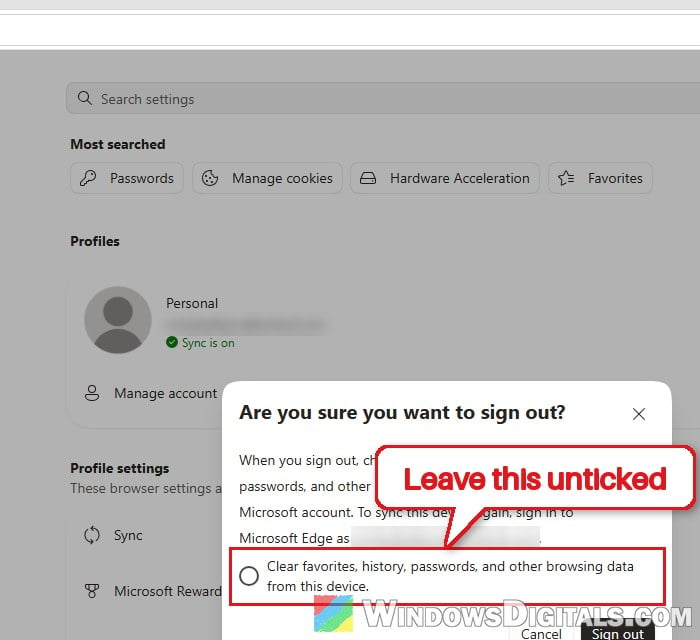
- Sign back in to your profile with the same Microsoft account, and turn sync back on if Edge asks.
Go to “Settings” > “Profiles” > “Sync” and check that it now says sync is on.
Please note that after doing this, sync can sometimes bring back an older version of your favorites, so look through them for old or duplicate entries. That’s what the export is for.
Related concern: How to Clear Cookies in Windows 11
Keep Microsoft Edge up to date
Since the bug seems to have come with an Edge update, the fix will most likely come in one too. Edge normally updates itself, but checking by hand makes it install a waiting update right away. Here’s how to check:
- Open “Settings and more” > “Settings“.
- Click “About Microsoft Edge” in the left menu.
- Edge checks for updates and installs them. Restart Edge if it asks you to.
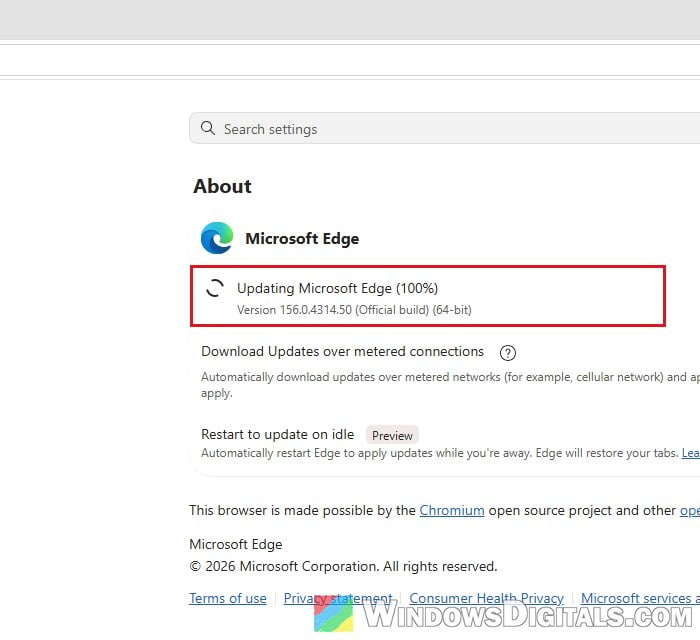
As of late October 2026, the problem was still there on Edge 156.0.4314.50, so updating may not fix it just yet.
Check edge://sync-internals and send feedback
Edge has a hidden page that shows what sync is really doing. Type edge://sync-internals in the address bar and press Enter. On the “About” tab, the “Summary” section shows the real sync state (“Transport State“) and any error. Profiles hit by the current bug usually show “Initializing” there instead of “Active“, and “Fail” next to “Download Key Result” under “MSA Account Key Status“.
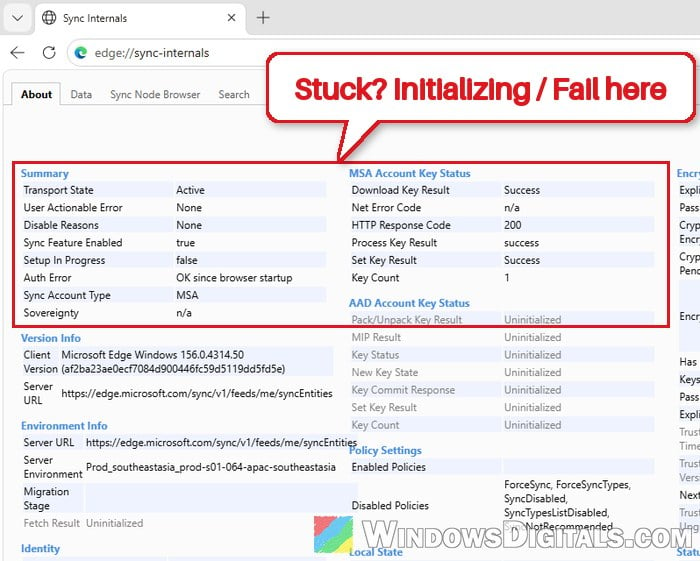
If you see a “cryptographer error” in the “Type info” section of the same page, Microsoft’s troubleshooting guide says your synced data in the cloud needs to be reset (see the reset section below).
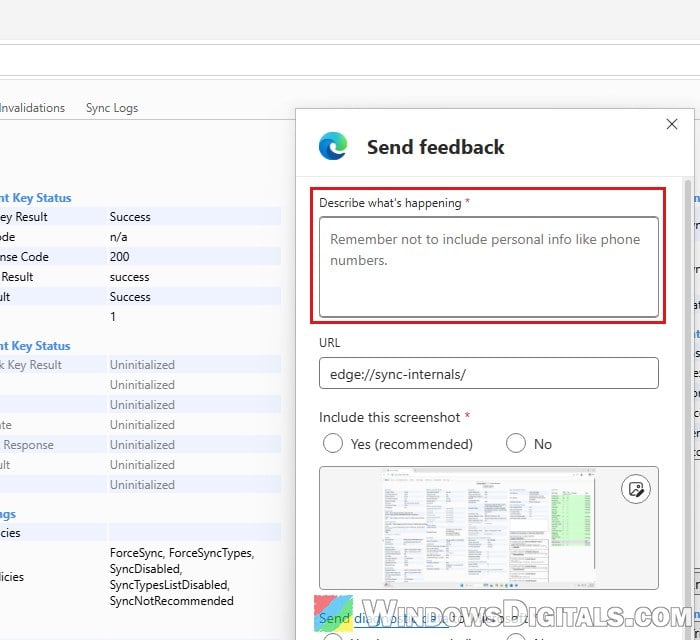
Either way, tell Microsoft about it. Press Alt + Shift + I in Edge to open the feedback window, describe the problem, and paste what the Summary section of sync-internals says.
Linked issue: Microsoft Edge Not Loading Google Sites (Gmail, YouTube, Search)
If sync is stuck on only one PC
When Edge is stuck on “Setting up sync…” on just one computer while your other devices sync fine with the same account, something on that PC may be blocking the connection to Microsoft’s sync servers. According to Microsoft, Edge needs to reach https://edge.microsoft.com and https://*.cloudmessaging.edge.microsoft.com/ to sync. If you use a third-party antivirus or a firewall, temporarily turn it off or allow those addresses, then sign out of Edge and back in.
Also open edge://policy and look for a “SyncDisabled” policy. Microsoft lists it as something that can stop sync. If it’s set, whoever manages the PC (or the program that set it) has to remove it.
Re-sync or reset sync (only after a backup)
Microsoft’s standard fix for sync problems is to re-sync the data to this device, and if that doesn’t help, to reset sync. The reset clears all of your synced Edge data (favorites, passwords, history and the rest) from Microsoft’s servers and then uploads what’s on this PC again. Your other devices will have to sign in again afterwards.
Be warned: users found that resetting sync does not fix the current personal-account bug. It can also replace good data in the cloud with whatever is on this PC. So only use it if your problem looks different (for example, sync-internals shows a cryptographer error, or signing out and in doesn’t help at all), and only after exporting your favorites and passwords.
Here’s how to do it:
- Go to “Settings” > “Profiles” > “Sync“.
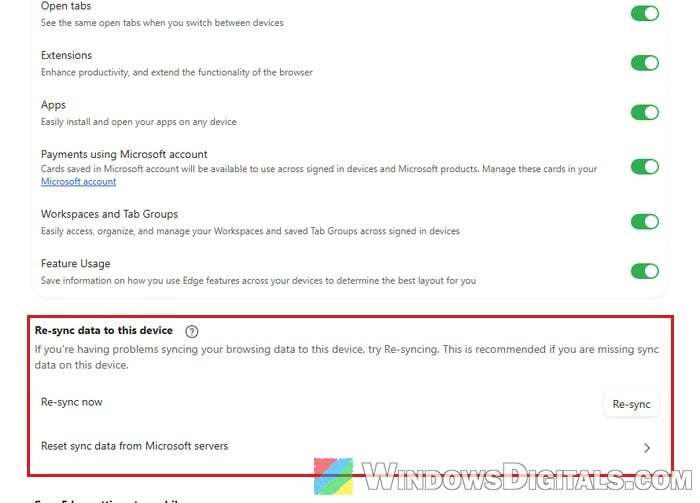
- Under “Re-sync data to this device“, click the “Re-sync” button next to “Re-sync now“. It can take from a few seconds to a few minutes.
- If sync is still stuck, click “Reset sync data from Microsoft servers” in the same section, then “Reset sync“, and keep Edge open until it finishes.
If the reset fails, wait a few hours and try again.