If your FPS counter says your game is running at 100 or 200 FPS but it looks and feels more like 30, and the moment you press the Windows key or Alt-Tab out of the game everything suddenly becomes smooth, you’re not imagining it. This guide will show you what usually causes this on Windows 11 or 10 and how to fix it.
Also see: How to Fix Game Stuttering on Windows 11
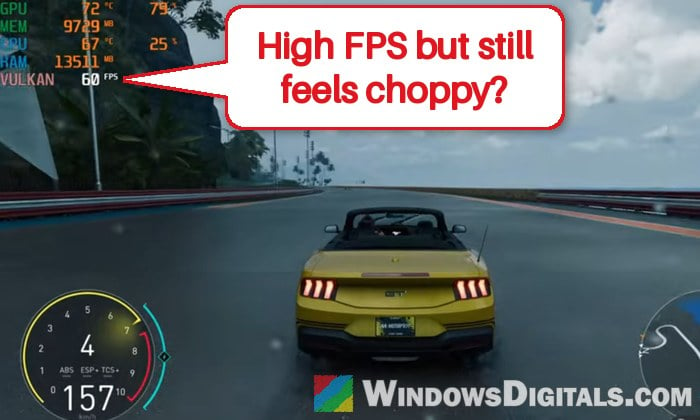
Why does the game only run smoothly when it’s not focused?
When the game is focused, it receives your input and shows its frames its own way (exclusive fullscreen, or a borderless window with variable refresh rate). Once you press the Windows key or Alt-Tab, Windows’ desktop takes over how the picture is shown. So the problem is usually something tied to that focused state:
- An input device (such as a virtual controller) that floods the game with input
- The display mode the game uses (fullscreen vs borderless)
- Variable refresh rate (FreeSync or G-SYNC) misbehaving with the game
- An overlay (Discord, Steam and so on) hooked into the game
- Windows’ own game optimizations for fullscreen and windowed games
No single fix works for everyone, so go through the sections below and test the game after each one.
Check for a virtual controller or a stuck input device
Start with this one, since it’s the only fix that’s been confirmed for this exact problem. A virtual joystick driver such as vJoy is a known culprit among PC gamers on Reddit. In one case, disabling it took a game from 1-2 FPS to a smooth 60.
Any device that keeps sending input can do the same: a racing wheel, a second keyboard with something resting on a key, or a forgotten controller. Unplug every input device except your main keyboard and mouse, then try the game again. For virtual devices that can’t be unplugged:
- Right-click the Start button and select “Device Manager“.
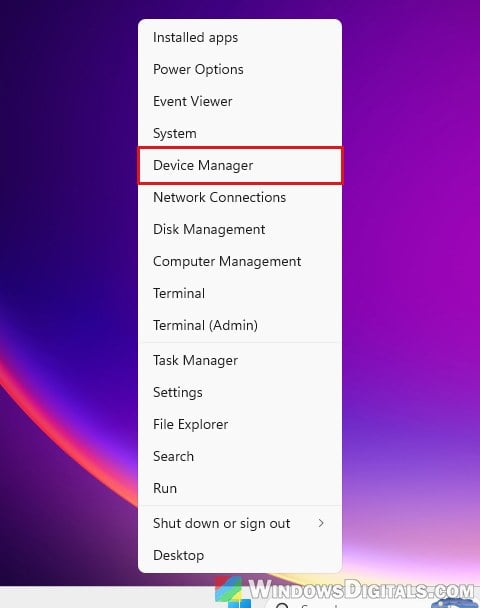
- Expand “Human Interface Devices” and look for a vJoy device or anything else you don’t recognize as one of your real devices.
- Right-click it and select “Disable device“, then confirm.
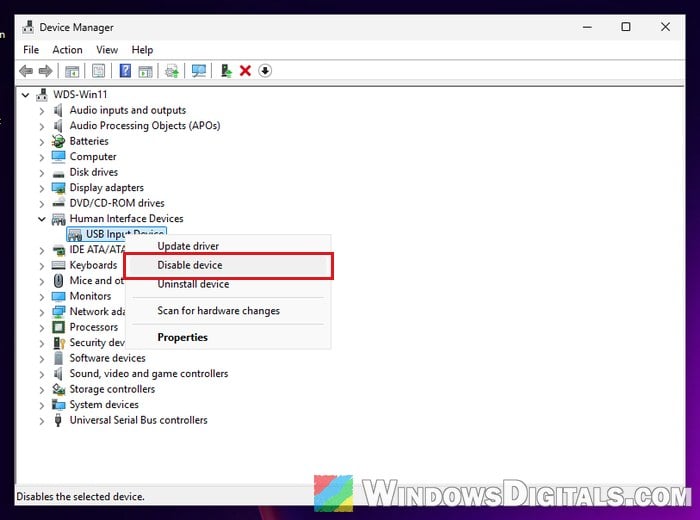
- Restart the game and see if it’s smooth now.
If this fixes it, you can uninstall the app that installed the virtual controller, or just disable the device whenever you play.
Switch between fullscreen and borderless mode
Another common cause is the display mode itself. If the game is set to borderless (or “windowed fullscreen”), switch it to exclusive fullscreen in the game’s video or display settings, and if it’s already fullscreen, try borderless instead. In many games, you can also press Alt + Enter to switch between windowed and fullscreen quickly.
Note that many DirectX 12 games don’t offer exclusive fullscreen at all, so you might only see borderless and windowed options.
Might be useful: How to Show FPS in Games on Windows 11
Turn off FreeSync or G-SYNC for the game
Variable refresh rate is meant to make games smoother, but with some games it does the opposite, so it’s worth turning off as a test.
- NVIDIA: Open the NVIDIA Control Panel and go to Display > Set up G-SYNC. Either select “Enable for full screen mode” instead of “Enable for windowed and full screen mode” (NVIDIA itself suggests this if G-SYNC has issues with windowed games), or uncheck “Enable G-SYNC, G-SYNC Compatible” to turn it off completely.
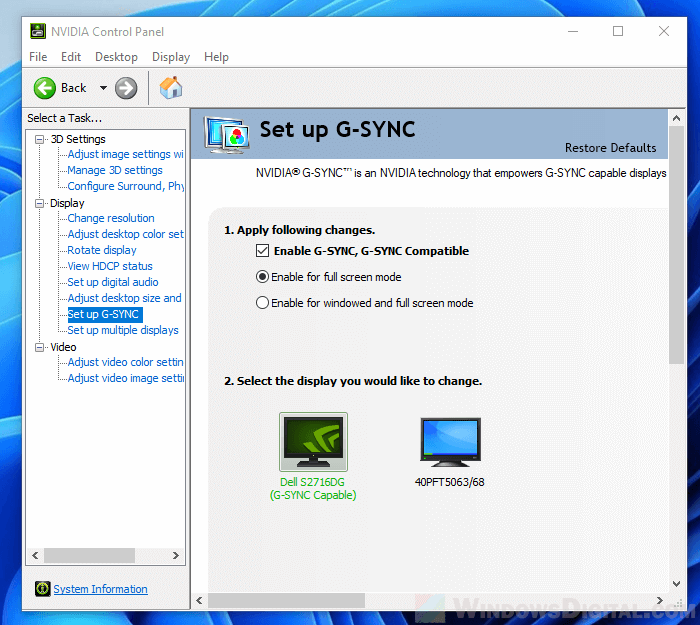
- AMD: Open AMD Software: Adrenalin Edition, go to the “Gaming” tab and select the game. Set AMD FreeSync from “AMD Optimized” to “Off” for that game. While you’re there, also turn off Enhanced Sync and AMD Fluid Motion Frames (AFMF) for the game, since both have been linked to this kind of problem on Radeon cards.
- The monitor: Most FreeSync and G-SYNC Compatible monitors also have an Adaptive Sync or FreeSync option in their own on-screen menu.
If that helps and you’re on AMD, you can leave FreeSync off for that game only and keep it on for everything else.
Linked issue: Games Stutter With G-SYNC and Frame Generation On, Why?
Turn off in-game overlays
Overlays only draw over the game while it’s focused, which is when the stutter happens. Discord’s overlay is a common suspect, but Steam’s overlay, Xbox Game Bar and your GPU’s own overlay can do it too. Turn them off one at a time and test.
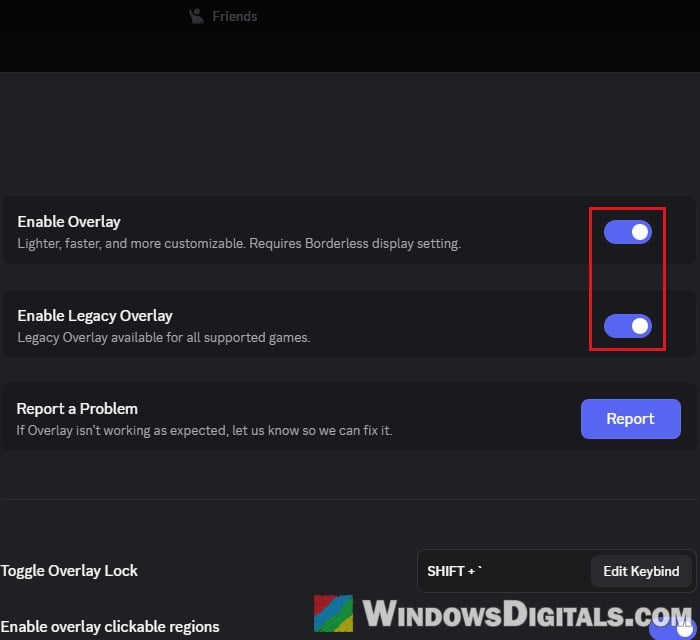
Discord: Open “User Settings” (the gear icon next to your name), select “Game Overlay” under “Games & Apps“, and turn off both “Enable Overlay” and “Enable Legacy Overlay“.
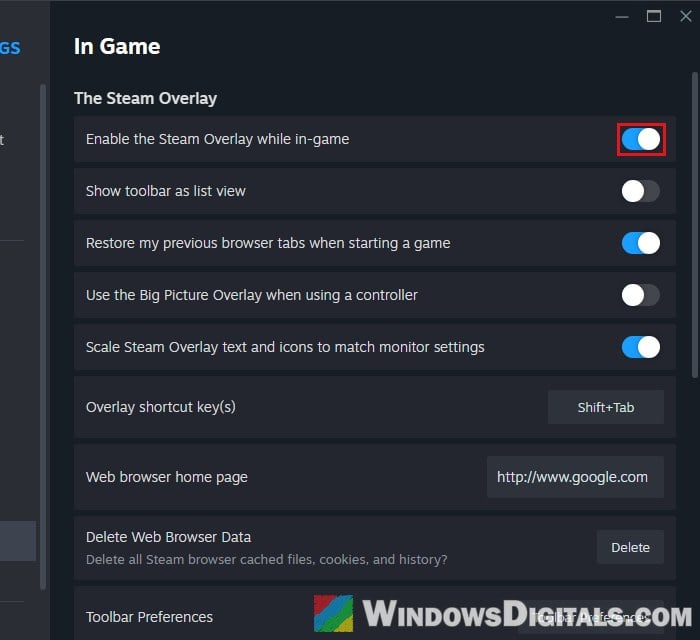
Steam: Go to Steam > Settings > In Game and turn off “Enable the Steam Overlay while in-game“.
Disable fullscreen optimizations for the game
Windows runs most “fullscreen” games in an optimized borderless window behind the scenes, according to Microsoft, so that Alt-Tab is faster and overlays work. This is called fullscreen optimizations, and for some games, turning it off makes a difference.
- Find the game’s main .exe file. For a Steam game, right-click the game in your library and select Manage > Browse local files.
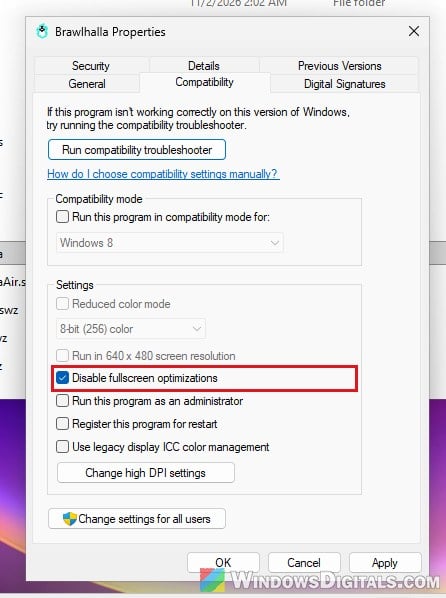
- Right-click the game’s .exe file and select “Properties“.
- Go to the “Compatibility” tab.
- Check “Disable fullscreen optimizations” and click “OK“.
Launch the game from its usual place and see if the choppiness is gone.
Turn off “Optimizations for windowed games”
Windows 11 has a similar feature for windowed and borderless games, called Optimizations for windowed games. It changes how DirectX 10 and 11 games show their frames to lower latency, but it’s worth turning off when a game stutters in borderless mode.
- Open Settings and go to System > Display > Graphics.
- To turn it off for all games, switch off “Optimizations for windowed games” under the default settings.
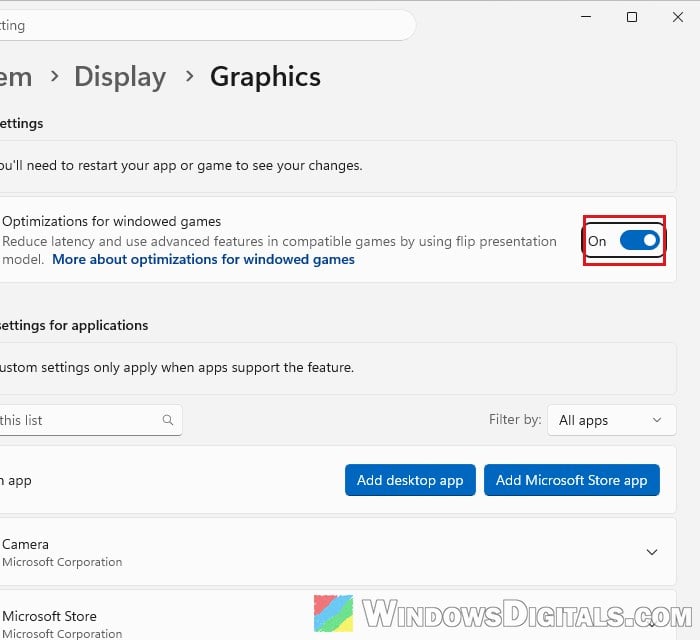
- To turn it off for one game only, find the game under “Custom settings for applications” (or add it with “Add desktop app“), expand it and switch the setting off there.
- Restart the game.
If Auto HDR is on, turn it off first.
Try toggling hardware-accelerated GPU scheduling
Hardware-accelerated GPU scheduling (HAGS) changes how Windows hands work to your graphics card. There’s no rule on which way is better, so just try the opposite of what you have now. You’ll find it in the same Settings > System > Display > Graphics page, but only if your graphics card and its driver support it. It needs a restart to take effect.
Make sure your monitor is still at its full refresh rate
Windows can quietly reset your monitor to a lower refresh rate, and that alone makes a 200 FPS game feel slow. Go to Settings > System > Display > Advanced display and check that “Choose a refresh rate” is set to the highest value your monitor supports.

For detailed steps, see: How to Change Desktop Screen Refresh Rate in Windows 11.
If your monitor is connected with HDMI, it’s also worth trying a DisplayPort cable, especially if you use FreeSync.
Other things you can try
If the game is still only smooth when you’re tabbed out, here are a few more things to try:
- Press Win + Ctrl + Shift + B. If the stutter goes away for a while, it points to how the picture is shown rather than the game itself. It’s only a temporary fix, though.
- You can also try to disable MPO (Multiplane Overlay). It’s not a confirmed fix for this problem, but it’s easy to undo.






