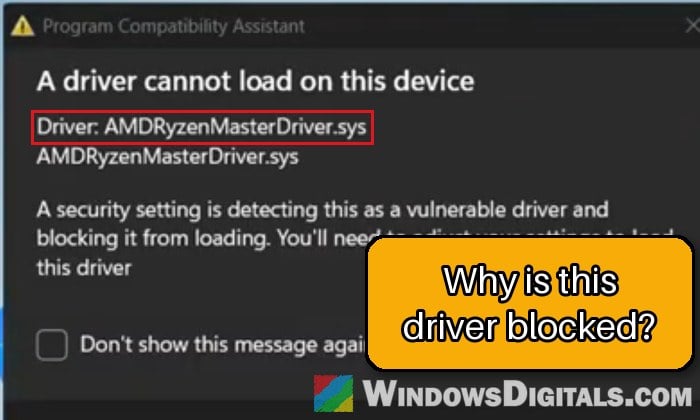
If you’re seeing a pop-up that says “A driver cannot load on this device” with the driver named as AMDRyzenMasterDriver.sys, usually after a Windows update or an upgrade to Windows 11, it means Windows found an old AMD Ryzen Master driver with a known security hole and blocked it from loading. It often comes with a second problem: Memory integrity refuses to turn on while that driver is still on your PC. This guide will explain why it happens and how to get rid of the warning for good.
Also see: Memory Integrity Can’t Be Turned On (Windows 11)
Page Contents
Why is AMDRyzenMasterDriver.sys being blocked?
AMDRyzenMasterDriver.sys is the kernel driver of AMD Ryzen Master, AMD’s tool for tuning and overclocking Ryzen processors. The pop-up comes from the Program Compatibility Assistant, and its full message reads: “A security setting is detecting this as a vulnerable driver and blocking it from loading. You’ll need to adjust your settings to load this driver“.
The “security setting” here is the Microsoft vulnerable driver blocklist. It’s a list of drivers with known security holes that an attacker could use to get into the core of Windows. According to Microsoft, it has been on by default since the Windows 11 2022 update, and it’s enforced whenever Memory integrity, Smart App Control or S mode is on. The list is updated through the monthly Windows updates, which is why the warning can suddenly start after an update even though nothing else changed.
Older versions of the Ryzen Master driver had exactly that kind of hole (a privilege escalation bug from 2020, fixed in later Ryzen Master versions). Microsoft says the blocked driver is most likely not malicious. It’s just an old driver with a known hole, so Windows won’t load it.
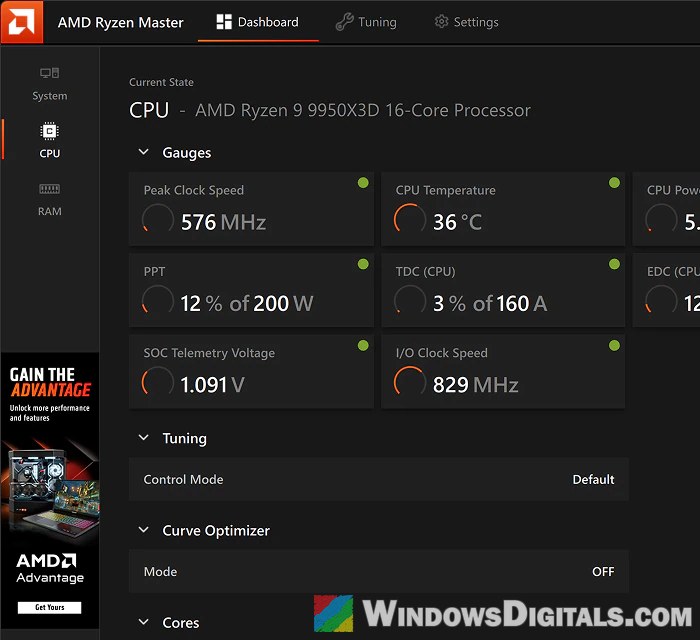
What confuses a lot of people is that they’ve never installed Ryzen Master. It’s a pretty common situation discussed on Reddit and Microsoft’s forums, and the driver usually comes from one of these:
- Leftovers from an older Ryzen Master: uninstalling it can leave the driver file and its service entry behind.
- AMD Software: Adrenalin Edition: on PCs with both an AMD processor and an AMD graphics card, AMD’s graphics software has had Ryzen Master’s module built in since 2022, for CPU tuning and metrics.
- Motherboard utilities: some board makers’ tools, such as Gigabyte’s, can install their own copy of the Ryzen Master driver.
Linked issue: PC Keeps Restarting When Opening Ryzen Master
Uninstall AMD Ryzen Master if you don’t need it
If you don’t overclock or tune your CPU, you don’t really need Ryzen Master, and removing it is the quickest fix. This is especially true on laptops, where most people never use it at all. Here’s how to do it:
- Press Win + I to open Settings.
- Go to Apps > Installed apps.
- Find AMD Ryzen Master in the list, click the three dots next to it and select Uninstall.
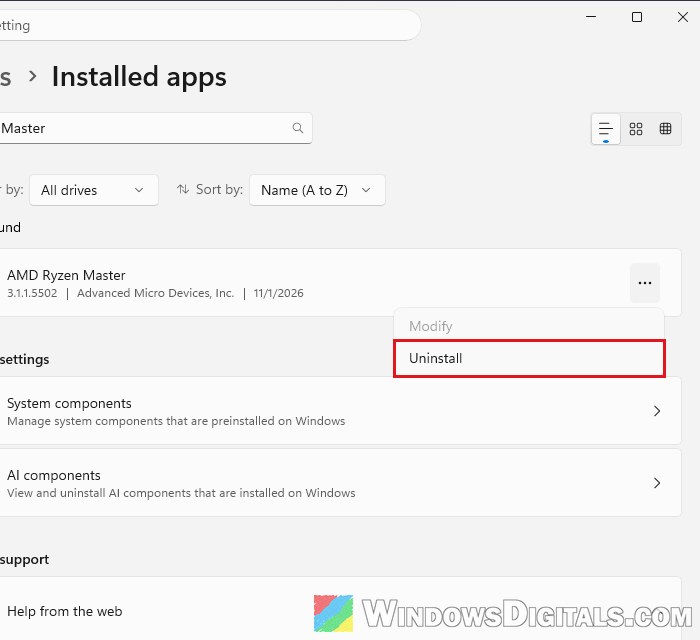
- Confirm the uninstall and follow the uninstaller if it opens its own window.
- Restart your PC.
After the restart, the warning should no longer appear. If it does, or if Ryzen Master wasn’t in the list to begin with, skip to the Autoruns section below to remove the driver entry.
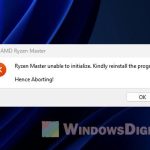
Related problem: Ryzen Master unable to initialize Kindly reinstall the program
Install the latest Ryzen Master from AMD (desktops only)
If you do use Ryzen Master on a desktop PC, you don’t have to give it up. Newer versions come with a driver that has the old security hole fixed, and AMD’s installer removes all the older driver versions before it installs the current one. Here’s what you should do:
- Go to AMD’s Ryzen Master page at
https://www.amd.com/en/products/software/ryzen-master.html. - In the Download section, click Download Now under the line that matches your processor: “For Ryzen 5000 Series processors and later“, “For Ryzen 3000 Series to 4000 Series processors” or “For Ryzen 2000 Series processors and earlier“.
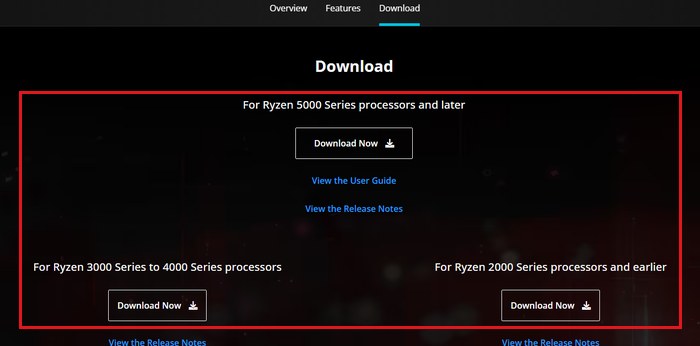
- Run the installer and follow its steps.
- Let it finish, then restart your PC.
After the restart, check whether the warning still appears.
Please note that Ryzen Master is made for desktop Ryzen processors only. On a laptop, the installer just cleans up the old driver versions and doesn’t install anything, so if you’re on a laptop, uninstall it as shown in the section above.
Remove the AMDRyzenMasterDriver entry with Autoruns
If Ryzen Master isn’t installed but the warning keeps coming back, Windows is trying to load the driver from a service entry that’s still there (a leftover, or one added by AMD Software or a board utility). Autoruns, a free tool from Microsoft’s Sysinternals, shows every driver Windows tries to load at startup and lets you delete the entry, without digging through the registry yourself.
Only delete the AMDRyzenMasterDriver entries, since removing the wrong driver can stop a device from working. If you’re not sure, create a system restore point first. Here’s how to do it:
- Download Autoruns from Microsoft’s page at
https://learn.microsoft.com/sysinternals/downloads/autorunsand extract the ZIP file. - Right-click Autoruns64.exe and select Run as administrator. Accept the license terms if asked.
- Open the Drivers tab.
- Look for the entry that starts with AMDRyzenMasterDriver (there may be more than one, with a version number at the end).
- Right-click it and select Delete, then confirm.
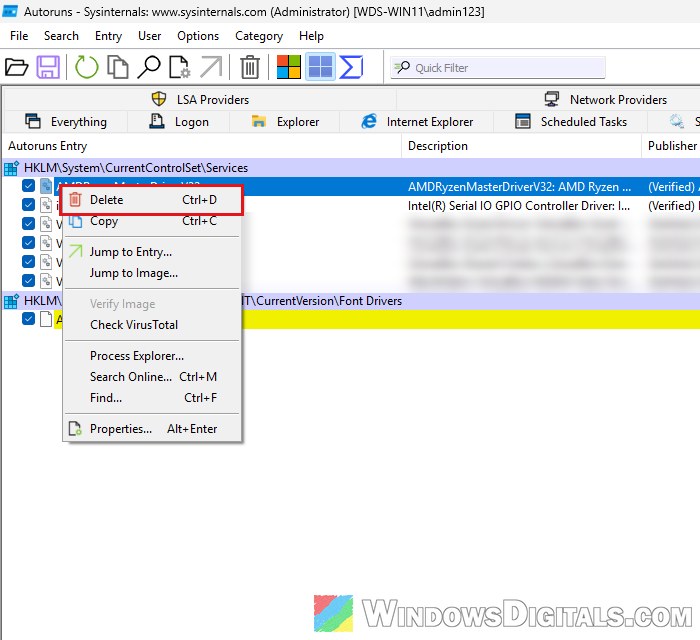
- Restart your PC.
If you have AMD Software: Adrenalin Edition with an AMD processor, the driver may come from AMD Software itself rather than a leftover. In that case, updating AMD Software to the latest version might help, though it’s not a guaranteed fix.
Once the warning is gone, you can turn Memory integrity on in Windows Security > Device security > Core isolation details. Keep in mind that it needs hardware virtualization (SVM on AMD systems) to be on in your BIOS or UEFI.
Might be useful: How to Uninstall & Disable Gigabyte App Center from BIOS
Turn off Memory integrity (not recommended)
There’s also a way to let the old driver load: turning off Memory integrity. Microsoft lists it as an option, but it’s a last resort. With Memory integrity on, the vulnerable driver blocklist is on too, and the blocklist has its own switch on the same page. Turning them off lets the old driver load, but it also leaves your PC open to exactly the kind of attack the block is meant to stop.
Please be warned that on a Secured-core PC, turning Memory integrity off also takes it out of the Secured-core state. If you only want the warning gone, the fixes above are the better way to do it.
If you still want to go ahead, here’s how:
- Open the Start menu, search for “Windows Security” and open it.
- Select Device security, then click Core isolation details.
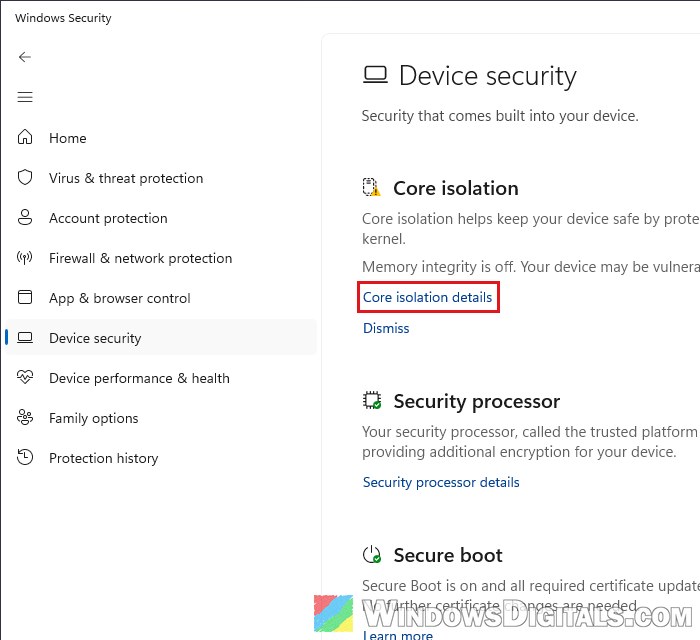
- Switch Memory integrity to Off.
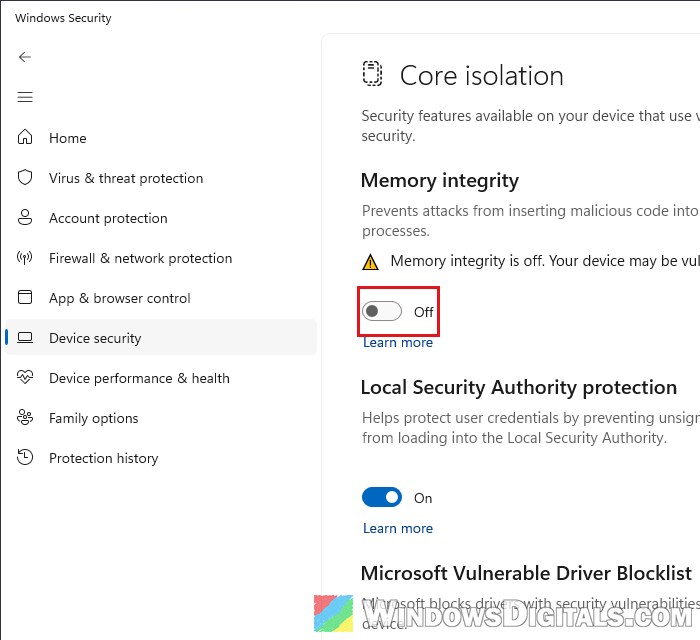
- Restart your PC.
- If the warning still shows after the restart, switch Microsoft Vulnerable Driver Blocklist (further down the same page) to Off too, and restart again.
Once you’ve updated or removed the AMD driver later on, go back to the same page and switch Memory integrity (and the blocklist, if you turned it off) back on.