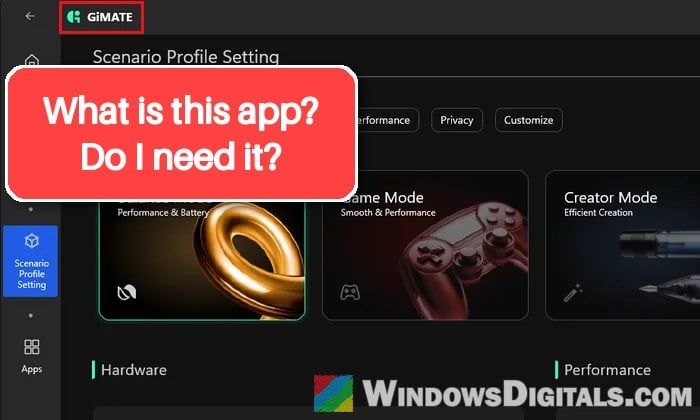
If you’ve just set up a new Gigabyte, AERO or AORUS laptop and found an app called GiMATE that keeps switching power modes, downloads AI models or simply takes up a lot of space, you’re probably wondering what it is and whether you can safely remove it. This guide explains what GiMATE does, what you’d lose without it, and how to uninstall or reinstall it properly.
Also see: How to Uninstall & Disable Gigabyte App Center from BIOS
Page Contents
What is GiMATE?
GiMATE is Gigabyte’s own “AI agent” app for its AI laptops, first shown at CES 2025. It comes with models like the AORUS MASTER, AERO X16 and GIGABYTE GAMING A16 or A18, and it’s made only for Gigabyte’s own laptops.
It’s really two things packed into one app:
- The laptop’s control center: performance modes (Balance, Game, Creator and Power Saving), fan modes, the battery charge limit, keyboard RGB lighting, display presets and AI audio features, and AI Power Gear, which decides when the discrete graphics card is used and when it’s switched off to save battery.
- The AI part: a built-in language model you can talk to with “Press and Speak” to change settings, plus extra apps like GiMATE Creator (AI image generation) and GiMATE Coder (code from text requests).
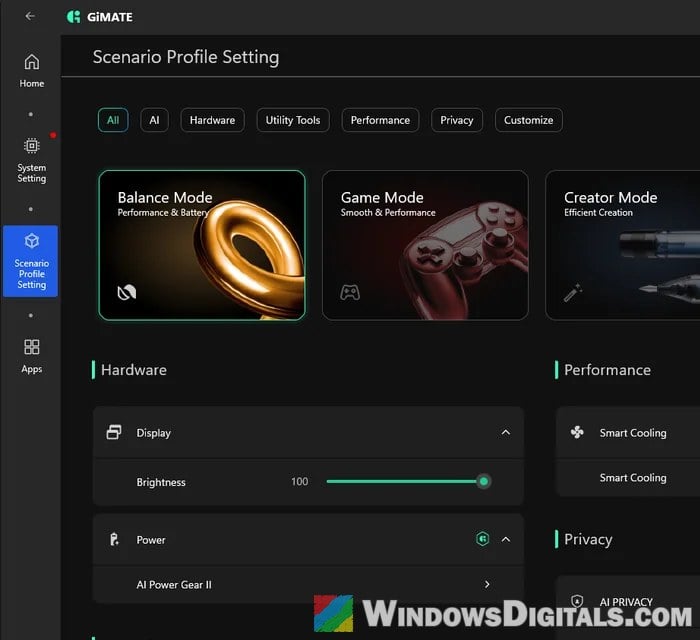
According to PCWorld’s review of the AORUS MASTER 16, the AI agent runs on the laptop itself rather than in the cloud. That’s good for privacy, but it also means the AI models have to be downloaded and stored on your drive.
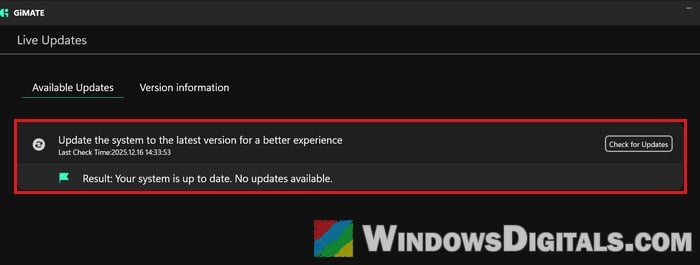
GiMATE also has a Live Updates page where it checks Gigabyte’s server for the drivers and apps your laptop needs. On these laptops, it’s one of the main ways to get Gigabyte’s driver and BIOS updates.
Is GiMATE the same as GIGABYTE Control Center?
No. Older Gigabyte laptops use GIGABYTE Control Center (GCC) for these settings, while newer ones moved to GiMATE. On the newer models, GCC can’t really control things like the keyboard lighting or the power modes, so it isn’t a replacement. Some models have been reported to need parts of both. Your laptop’s own support page on Gigabyte’s website lists the app made for it.
Related concern: OMEN Gaming Hub constant high CPU and RAM usage
Why do people want to get rid of GiMATE?
GiMATE is official Gigabyte software, so it’s not a virus or anything shady. The complaints are about how heavy and pushy it is. It’s a pretty common topic on Reddit and other forums, and these are the usual reasons:
- Storage: the full installation package alone is close to 10 GB, and GiMATE Creator’s image models can take several GB more, sometimes tens of GB each, all on the C: drive.
- Memory: GiMATE’s background services have been seen using about 5 GB of RAM on a GAMING A16. With the AI files deleted, the app itself used about 400 MB.
- It changes things on its own: it can switch the Windows power mode and refresh rate without asking, and AI Power Gear turns the discrete GPU off when the charger is unplugged, with pop-ups about “power saving”.
- Updates that take features away: after one GiMATE update, several people found the Turbo Fan option gone.
- Bugs: on some GAMING A16 laptops, GiMATE got stuck holding the CPU at a very low power limit while plugged in, so games ran a lot slower than they should.
If your problem is that last one, uninstalling isn’t the only fix. Resetting GiMATE’s settings can sort it out: open GiMATE, click the settings gear icon at the bottom left and choose “Reset All Settings“. If that alone doesn’t do it, switch between a couple of the performance and fan modes, then run a game or benchmark again to see if the CPU now goes past its low limit.
Pro tip: How to Disable Startup Programs in Windows 11
Should you uninstall GiMATE?
You can, and Windows will keep working without it. GiMATE is an app, not a driver. People who removed it, sometimes along with every other Gigabyte tool, report their laptops running normally.
The catch is what goes with it. On the newer models, GiMATE is usually the only way to change these:
- performance and fan modes
- the battery charge limit (for example, stopping at 60% to keep the battery healthy)
- keyboard RGB lighting
- when the discrete GPU is used or switched off
- Gigabyte’s driver and BIOS updates through Live Updates
What isn’t clear is whether your last settings stay after GiMATE is gone. It’s been suggested that the fan mode and charge limit are stored in the laptop’s own controller, but nobody has confirmed it. If those two matter to you, set them the way you want in GiMATE before you uninstall it, and check them afterwards (see below).
If it’s mainly the AI side that bothers you, you don’t have to remove everything. GiMATE Creator and GiMATE Coder install as separate apps, so you can uninstall just those and keep GiMATE for the laptop’s settings. The AI models are what take most of the space and memory, so that should help, as long as the models they downloaded go with them. Check your free space on the C: drive before and after to be sure.
How to uninstall GiMATE
GiMATE is removed like any other app in Windows 11. Here’s how to do it:
- Press Win + I to open Settings.
- Go to Apps > Installed apps.
- Type “GiMATE” in the Search apps box at the top of the list.
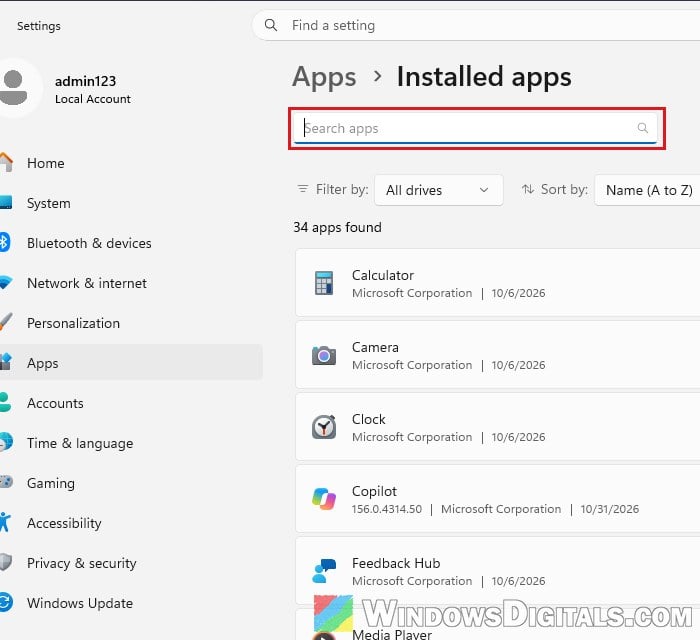
- Click the three-dot menu next to the GiMATE entry you want to remove and select Uninstall, then confirm.
- Repeat for any other GiMATE entries in the list (such as GiMATE Creator or GiMATE Coder) if you want those gone too.
- Restart your laptop.
After the restart, check whether the battery still stops charging at your limit, how the fans sound under load, and what the keyboard lighting does. That tells you which of GiMATE’s settings stayed and which didn’t.
Might be useful: How to Disable Startup Services on Windows 11 or 10
How to get GiMATE back if you need it
If you change your mind, or you want the controls back for a while, GiMATE can be downloaded again from Gigabyte’s website. Make sure you pick it from your exact model’s support page. Here’s how:
- Go to
https://www.gigabyte.com, search for your laptop’s model, and open its Support tab. - Under Select your model, pick your exact model variant.
- Click Utility on the left and download the GiMATE Full Installation Package. Be ready for a big download (the current version is close to 10 GB).
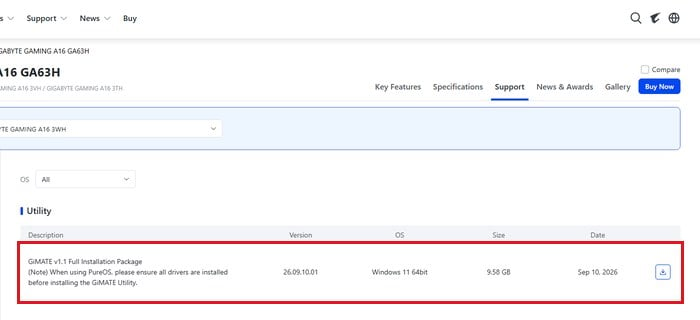
Gigabyte recommends installing all of the model’s Windows drivers from the same page first, and only then GiMATE. If GiMATE keeps loading forever or won’t open at all, this order often fixes it, starting with the chipset driver.