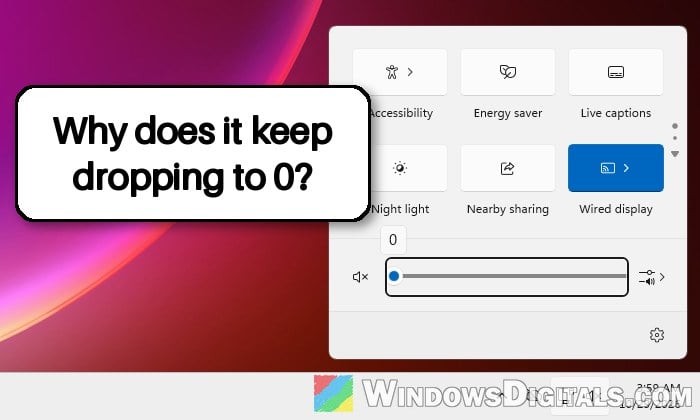
If you drag the volume slider up in Windows 11 (or press the volume-up key) and it jumps straight back to 0, or slowly slides down to 0 by itself a moment later, something is usually turning it down without you knowing. The same can happen to the microphone level, which drops back to 0 seconds after you set it. This guide will show you what could be causing it and how to fix it.
Also see: How to Stop Mouse Scroll From Changing Volume
Page Contents
Something is probably holding the volume down
In most cases, Windows isn’t the one lowering the volume. A device is sending “volume down” or mute presses non-stop, and Windows just does what it’s told. It could be a stuck volume key, a keyboard with a volume wheel, a headset’s inline volume control or mic mute button, a USB microphone, a game controller, a loose volume knob, or even a faulty speaker or audio cable. It’s a pretty common issue you’ll find discussed on Reddit and Microsoft’s forums, and most of the time it turns out to be a faulty accessory.
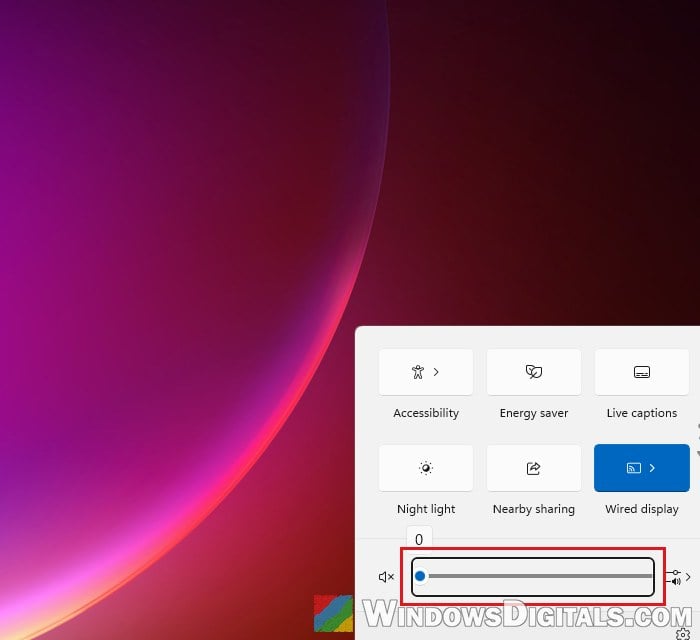
A quick way to tell: leave your keyboard and mouse alone and watch the screen. If the volume pop-up keeps showing up on its own and the level keeps dropping, something is pressing the button for you. Here’s how to find it:
- Press each volume key a few times to free one that might be stuck, and check around the keys for anything wedged under them.
- Unplug your external devices one at a time (or turn off the wireless ones), and try the volume slider again after each one: the keyboard, the headset, the USB microphone, the game controller, any wireless dongles, and speakers with their own volume knob.
- Check the speaker and headphone cables. A faulty audio cable can be enough to cause it.
If the volume stays put after you unplug a device, that device (or its cable) is the problem.
Pro tip: How to Change Volume of Different Apps on Windows 11
On a laptop, power drain it to reset the volume keys
On many laptops, the volume keys are driven by a small controller on the motherboard. When it glitches, it can keep reporting the volume-down key as pressed. Holding the power button with the laptop shut down and unplugged drains the leftover power and resets it. Here’s how to do it:
- Shut down the laptop completely.
- Unplug the charger.
- Press and hold the power button for 45 seconds, then let go.
- Plug the charger back in and turn the laptop on.
Try the volume slider again once Windows has started. If the problem comes back after a while, clean around the volume keys. If one of them is physically faulty and the laptop is still under warranty, contact the manufacturer to have the keyboard looked at.
Close apps that change your audio levels
Some apps adjust the volume or the mic level by themselves, and they can keep pulling it back down. Headset software (such as Razer Synapse), voice chat apps and game overlays are the most common ones. To check whether an app is the cause, follow the steps below:
- Press Ctrl + Shift + Esc to open Task Manager.
- Look for audio-related apps like the ones above.
- Right-click the app and select “End task“.
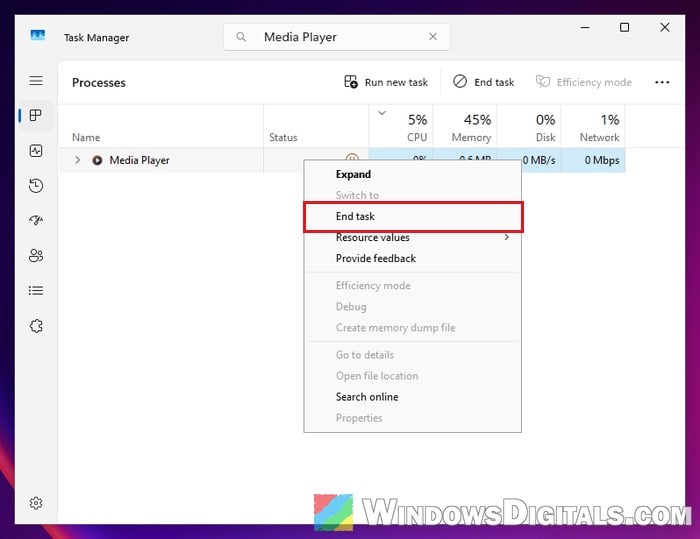
- Try changing the volume again.
If the problem stops, check that app’s own audio settings. In headset software, look for mic enhancements or automatic level options and turn them off, and if that doesn’t help, reinstall it. If it’s your microphone level that keeps dropping and you use Discord, go to User Settings > Voice & Video and turn off “Automatic Gain Control“, which lets Discord adjust your input level by itself.
Might be useful: How to Increase or Boost Microphone Volume in Windows 11
Restart the Windows audio services
If the slider still snaps back to 0 after you’ve unplugged everything, or the volume keys don’t work at all, the audio services behind it might not be running properly. One clue is an empty “Levels” tab when you open your speakers’ properties in “More sound settings“. Restarting the services is one of the fixes Microsoft suggests for audio problems. Here’s what you should do:
- Press Win + R, type
services.mscand press Enter. - Right-click “Windows Audio” and select “Restart“.
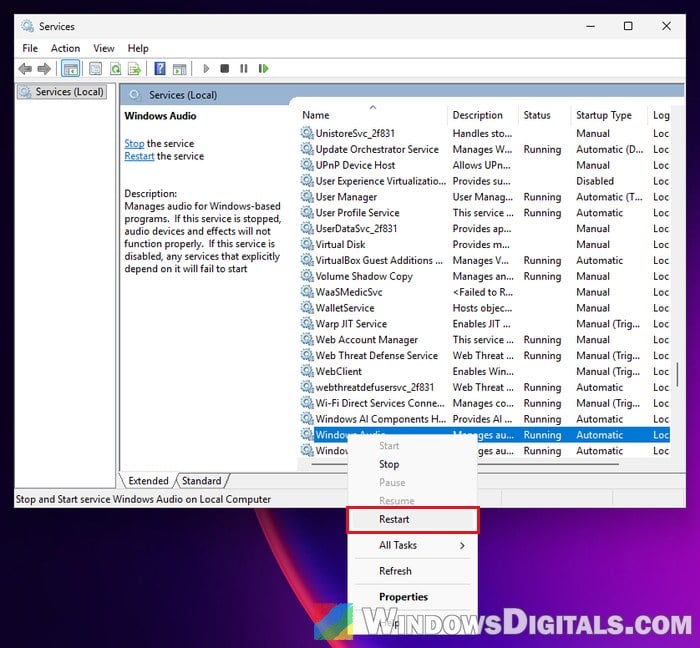
- Right-click “Windows Audio Endpoint Builder” and select “Restart” as well. If Windows asks to restart other services along with it, click “Yes“.
- Double-click “Windows Audio” to open its properties.
- Make sure its “Startup type” is set to “Automatic“, which is the default.
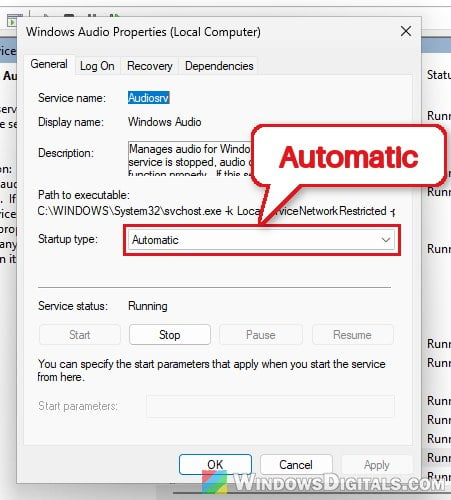
- If you changed it, click “Apply” and then “OK“.
Once both services are running again, try the volume slider and see if it stays where you put it.
Turn off audio enhancements and exclusive control
Audio enhancements are extra sound processing from Windows or your audio driver, and a buggy one can mess with the volume. Turning them off is quick and easy to undo. Here’s how to do it:
- Open Settings > System > Sound.
- Select your speakers or headphones under “Output“.
- Set “Audio enhancements” to “Off“.
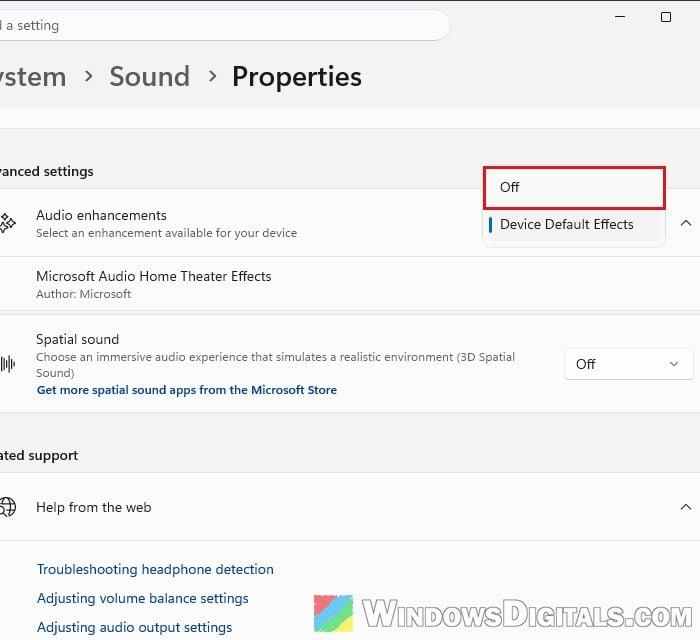
While you’re there, you can also stop apps from taking full control of the device. This one is less likely to be the fix, but it only takes a few seconds:
- In Settings > System > Sound, click “More sound settings“.
- On the “Playback” tab (or “Recording” for a microphone), select your device and click “Properties“.
- Go to the “Advanced” tab and uncheck “Allow applications to take exclusive control of this device“.
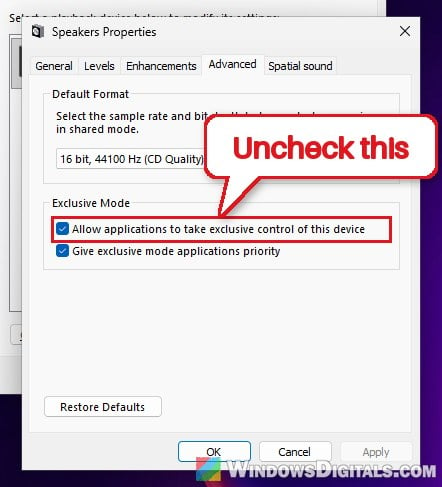
- Click “OK“.
Now turn the volume up again and see if it stays there.
Run the audio troubleshooter
It’s well known that the troubleshooters in Windows aren’t that useful most of the time, but Microsoft still lists the audio one as a first step for sound problems. To run it, follow the steps below:
- Open Settings > System > Troubleshoot > Other troubleshooters.
- Click “Run” next to “Audio“, and follow the steps it shows.
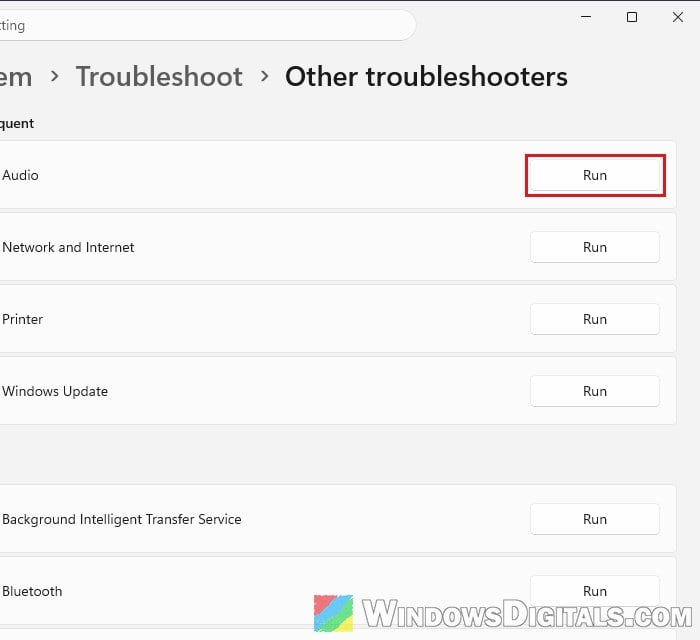
Once it’s done, try the volume slider again.
Linked issue: No Sound in Windows 10 or 11 After Update (Fix)
Reinstall the audio driver
A broken audio driver can also cause the volume to keep resetting. Uninstalling the device makes Windows install its driver again from scratch when you restart. Here’s how:
- Right-click the Start button and select “Device Manager“.
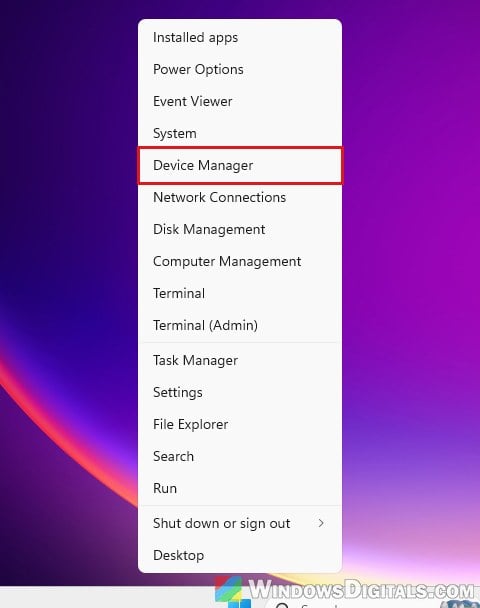
- Expand “Sound, video and game controllers“.
- Right-click your audio device and select “Uninstall device“.
- Tick “Attempt to remove the driver for this device” if you see it, then click “Uninstall“.
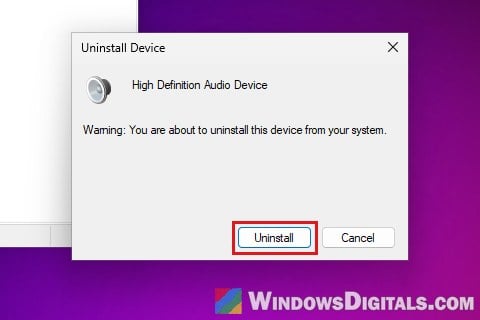
- Restart your PC. Windows will reinstall the audio device.
If the problem started after an update, also try the audio driver from your PC or laptop maker’s support page instead of the one Windows picks. For more ways to remove a driver properly, see: How to Uninstall Drivers in Windows 11.
Are you on a Windows Insider build?
If you’ve joined the Windows Insider Program, the problem might come from the preview build itself. In May 2026, a Release Preview build broke headset volume (it showed as a huge negative number) until a later build fixed it, and a similar report has come up with recent Insider builds. Go to Settings > Windows Update and click “Check for updates” to get the newest build.
If it still happens, you might want to leave the program under Settings > Windows Update > Windows Insider Program. Going back to the normal release isn’t always instant, though: you may have to wait for the next regular build to reach you, and sometimes reset Windows (keeping your files) after that.