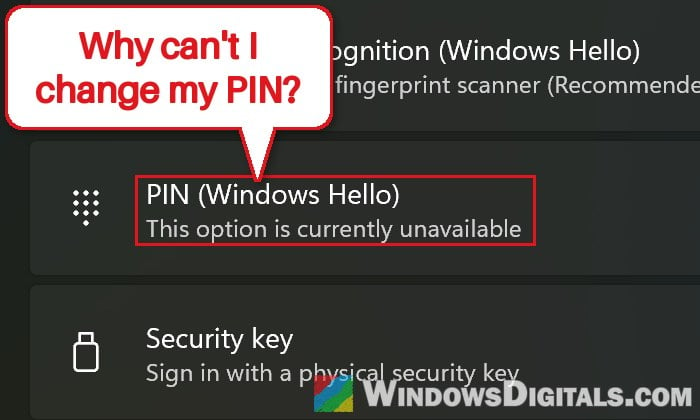
If you can still sign in to Windows 11 with your PIN, but the PIN options in Sign-in options say “This option is currently unavailable“, or changing the PIN tells you that “Your organization requires you to set up Windows Hello for your work or school account” even though it’s your own personal PC, Windows most likely still thinks a work or school account is attached to it. This guide will show you how to find that account and remove it so you can manage your PIN again.
Also see: Windows 11 Hello Fingerprint This option is currently unavailable
Page Contents
Why does Windows think you have a work or school account?
When a work or school account is added to Windows (for example, an old Microsoft 365 account from a job or school), Windows can register that account on the PC. Microsoft calls this a “Microsoft Entra registered” or “workplace joined” account. While it’s there, Windows seems to treat your PIN as something your organization has a say in, so it locks the PIN settings and asks for the work or school account instead.
The tricky part is that this registration can stay behind for years. It can come from a work account you stopped using long ago, even on a PC that only has a local account, and it might not show up in the usual place where you’d remove it. PIN sign-in keeps working the whole time, which is why it’s so confusing.
A less common reason is a PC that used to belong to a company. If a policy called “Use Windows Hello for Business” is still turned on, Windows won’t let you set up a normal PIN unless the PC is joined to the company’s Microsoft Entra ID.
If the PC is still managed by a company or school (for example, a work laptop you take home), don’t change any of the things below yourself. The PIN rules come from your organization on purpose, so ask its IT support instead.
Related concern: Can’t Remove School or Work Email from Windows 11 or 10
Check if a work or school account is registered
Before you change anything, check what Windows sees with a built-in command that only reads the status. Here’s how:
- Search for “cmd” in the Start menu and open Command Prompt normally (not as administrator, since the command needs to read your own user’s status).
- Type the following command and press Enter:
dsregcmd /status
- Scroll to the User State section and look at the WorkplaceJoined line.
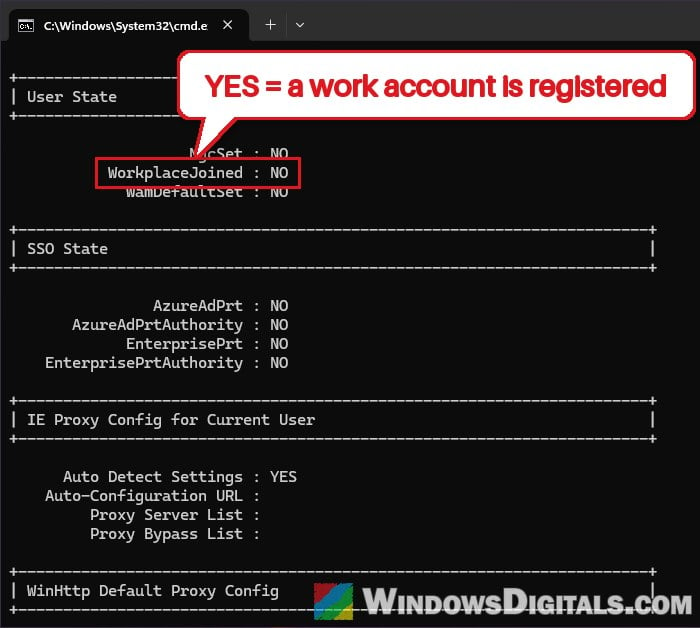
If it says WorkplaceJoined : YES, a work or school account is registered for your user, and that’s most likely what’s locking your PIN settings. If it says NO, skip to the last section about the Windows Hello for Business policy.
Disconnect the work or school account in Settings
The normal way to remove a registered work or school account is from Settings, and it’s usually all it takes when the old account is still listed there. Follow the steps below:
- Open Settings and go to Accounts > Access work or school.
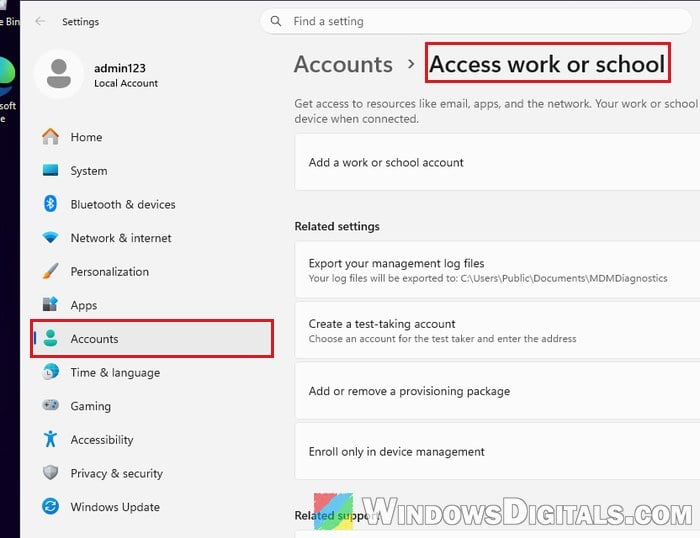
- Click the work or school account listed there to expand it.
- Click Disconnect and confirm.
- Restart your PC, then go back to Settings > Accounts > Sign-in options and check if the PIN options are available again.
Please note that disconnecting the account also signs it out of apps that used it, so they’ll ask you to sign in again. If you used face recognition, you may also need to set it up again afterwards.
Related problem: MSConfig “Something happened and your PIN isn’t available”
Remove the leftover registration from the registry
If dsregcmd says WorkplaceJoined : YES but there’s nothing to disconnect under Access work or school, the registration is probably a leftover that Settings no longer shows. In that case, it can be removed from your user’s part of the registry.
Incorrectly changing the registry can cause serious problems in Windows. Please at least create a system restore point first, and if you’re not sure what you’re doing, it’s better to get someone to help you instead.
- Press Win + R, type
regeditand press Enter to open Registry Editor. - Copy and paste the following path into the address bar and press Enter:
HKEY_CURRENT_USER\Software\Microsoft\Windows NT\CurrentVersion\WorkplaceJoin
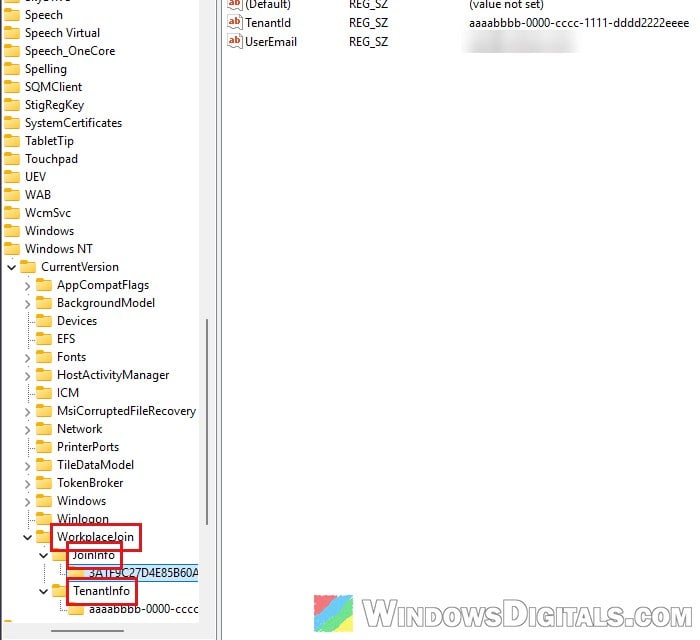
- Right-click the WorkplaceJoin key, select Export and save a backup of it somewhere safe.
- Expand WorkplaceJoin and look under JoinInfo and TenantInfo. Delete the entries inside them that belong to the old work or school account. If you delete the wrong one, double-click the backup you exported to put it back.
- Close Registry Editor and restart your PC.
After the restart, run dsregcmd /status again. If WorkplaceJoined now says NO, go to Settings > Accounts > Sign-in options and your PIN settings should work normally again.
Microsoft also has a script called WPJCleanUp for removing workplace joined accounts, but it doesn’t always clear a leftover registration like this one, which is why the registry is used here.
Linked issue: Work or school account problem keeps popping up Windows 11
Check the Windows Hello for Business policy (Pro only)
If dsregcmd shows no work or school account but the PIN option is still unavailable, the PC may still have a policy from a company that used to manage it. According to Microsoft, when “Use Windows Hello for Business” is enabled on a PC that isn’t joined to Microsoft Entra ID, a normal PIN can’t be created. This needs Group Policy Editor, which is only in Pro and higher editions.
- Press Win + R, type
gpedit.mscand press Enter. - Go to Computer Configuration > Administrative Templates > Windows Components > Windows Hello for Business.
- Double-click “Use Windows Hello for Business“, set it to Not Configured and click OK.
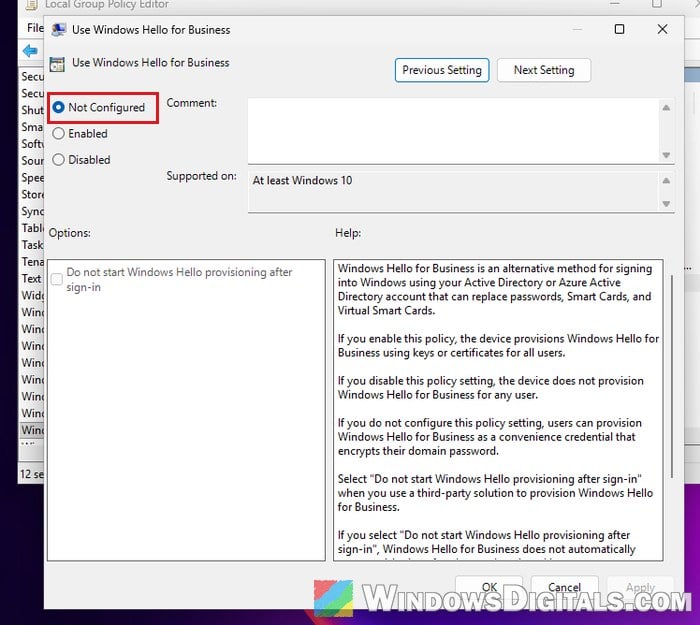
- Go to Computer Configuration > Administrative Templates > System > Logon.
- Double-click “Turn on convenience PIN sign-in“, set it to Enabled and click OK.
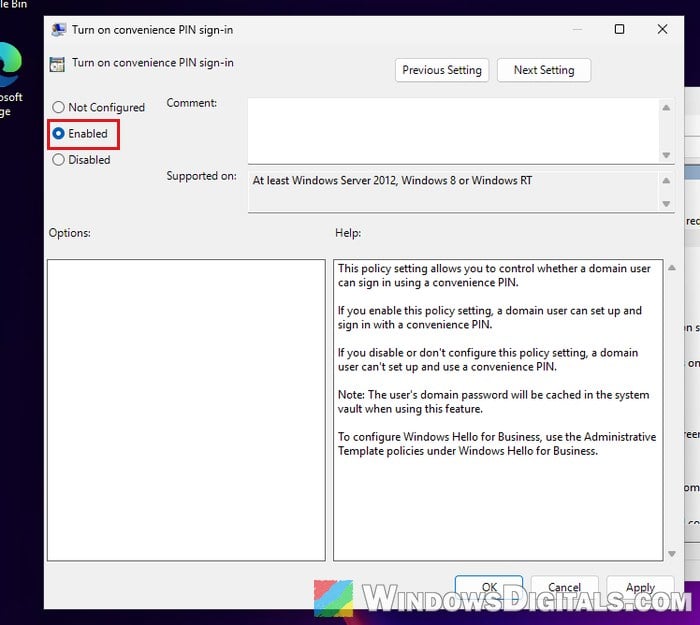
- Restart your PC and try setting up or changing your PIN again in Sign-in options.
If the PIN options are available again after the restart, the old company policy was what blocked them.