If you open System Restore in Windows 11 and find only one restore point (often just the last one you made yourself), with all the older ones gone, it doesn’t mean System Restore is broken. Windows 11 deletes restore points on its own for a few different reasons, and on newer versions it’s stricter about it than it used to be. This guide explains why your restore points keep disappearing and what you can do to keep more of them.
Also see: How to Create System Restore Point in Windows 11/10
Page Contents
Why are your older restore points gone?
There usually isn’t one single reason. Windows removes restore points automatically in several situations, and any of them can leave you with just one:
- They’re older than 60 days. According to Microsoft, after the June 2025 security update (KB5060842), Windows 11 24H2 keeps system restore points for up to 60 days. Before that, they could last up to about 90 days.
- The space for restore points is full. Restore points can only use a set amount of disk space. Once that’s used up, Windows deletes the oldest restore points to make room for new ones.
- Point-in-time restore is sharing that space. Newer Windows 11 versions have a second restore feature called Point-in-time restore, and it shares the same storage limit with System Restore (more on this below).
- A big Windows update came in. When a feature update or a version upgrade installs, Windows usually clears out the old restore points, since they no longer match the new system files. It’s a pretty common complaint on forums like Microsoft’s and ElevenForum.
- Windows just didn’t make many. System Restore only creates restore points when something happens, like installing an app or an update, or when you make one yourself. On a PC where not much changes, there may only be one or two to begin with.
Pro tip: How to System Restore Windows 11/10 to a Previous Date
Are they really gone, or just hidden?
System Restore doesn’t always list every restore point at first, so you may need to tick a box to see the rest. Here’s how to check:
- Press Win + R, type
rstrui.exeand press Enter to open System Restore. - If the first screen shows Recommended restore, select Choose a different restore point, then click Next.
- Select the Show more restore points check box below the list, if it’s there.
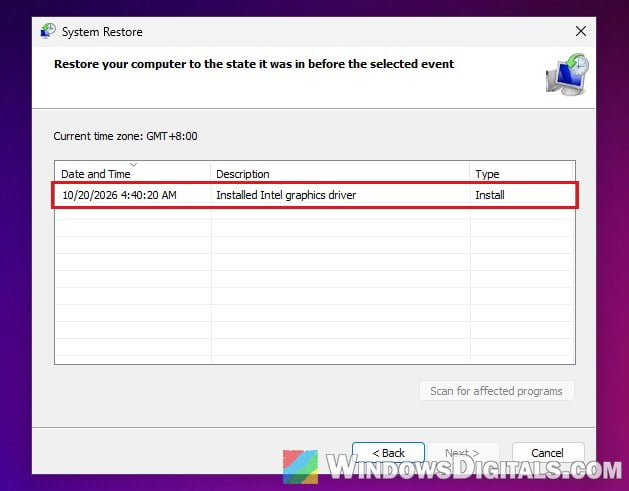
If that check box isn’t there at all (like in the screenshot above), there’s simply nothing else to show, and you really do have only one restore point.
Check how much space restore points can use
A very common reason for losing older restore points all at once is that the space set aside for them has run out. You can see how much space they’re using, and how much they’re allowed to use, with one command:
- Search for “cmd” in the Start menu, right-click Command Prompt and select Run as administrator.
- Type the following command and press Enter:
vssadmin list shadowstorage
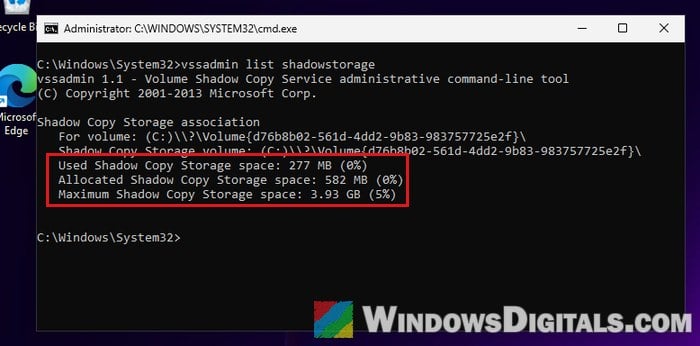
- Look at the Used Shadow Copy Storage space and Maximum Shadow Copy Storage space lines for your C: drive.
If the used space is close to the maximum, that’s most likely why Windows keeps deleting the older restore points. The maximum is what you’ll want to raise in the next section.
Might be useful: What files can I delete from C: drive to free up space?
Give System Restore more disk space
The space limit is set in System Protection, and you can raise it with a slider. Keep in mind that the bigger the limit, the more disk space restore points can take up, so only give it what your drive can spare. Here’s how to do it:
- Click Start, type “Create a restore point” and open it from the results.
- In the System Protection tab, select your system drive (usually C:) and click Configure.
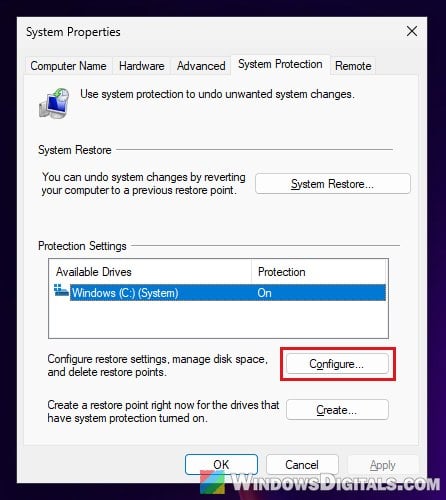
- Make sure Turn on system protection is selected.
- Move the Max Usage slider to the right to give restore points more space, then click OK.
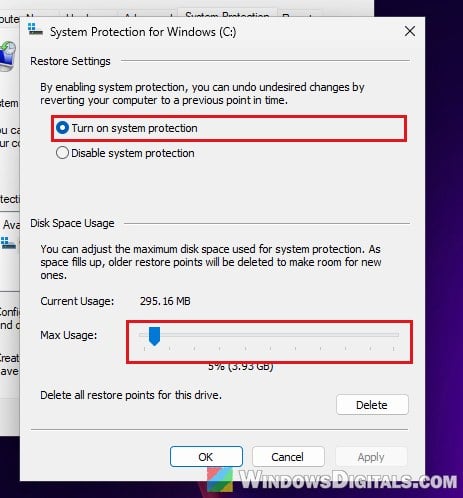
To check that it took, run vssadmin list shadowstorage again and see if the Maximum Shadow Copy Storage space line shows the new size. If it doesn’t, see the next section. More space means Windows can keep more restore points before it starts deleting the oldest ones. It won’t bring back the ones that are already gone, though, and it can’t keep any restore point past the 60-day limit.
If Point-in-time restore is on, change the limit there too
Point-in-time restore is a newer recovery feature in Windows 11. It takes a full snapshot of your system about every 24 hours and keeps each one for up to 72 hours. According to Microsoft, it’s turned on by default on Home and personal Pro PCs whose system drive is 200 GB or larger.
The catch is that Point-in-time restore and System Restore share the same storage space. Microsoft says the storage limit for all restore points on the drive follows the one set for Point-in-time restore, which is 2% of the disk by default. On a 500 GB drive, that’s only about 10 GB for both features combined, so older System Restore points can get pushed out quickly. On some PCs, the System Protection slider even keeps going back to the Point-in-time restore value after you raise it.
So if Point-in-time restore is on, raise the limit in its own settings:
- Open Settings and go to System > Recovery.
- Next to Point-in-time restore, click View or edit, then click Yes on the User Account Control prompt.
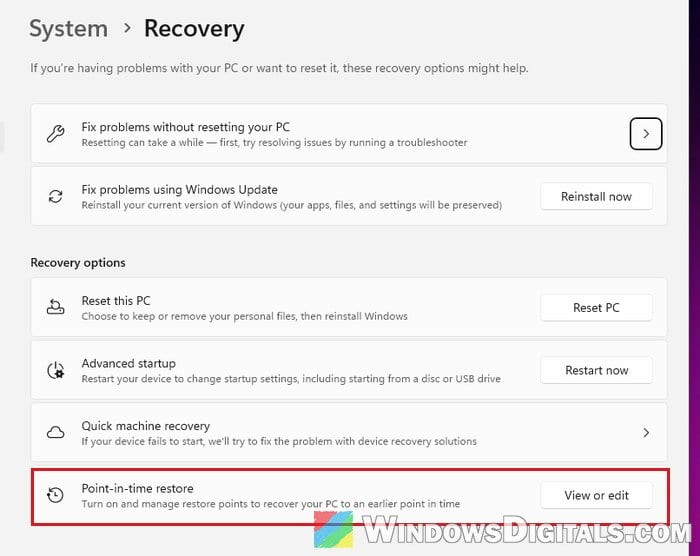
- Under Restore point disk usage, move the Max usage slider to the right (it goes from 2 GB up to 50 GB), then click Save.
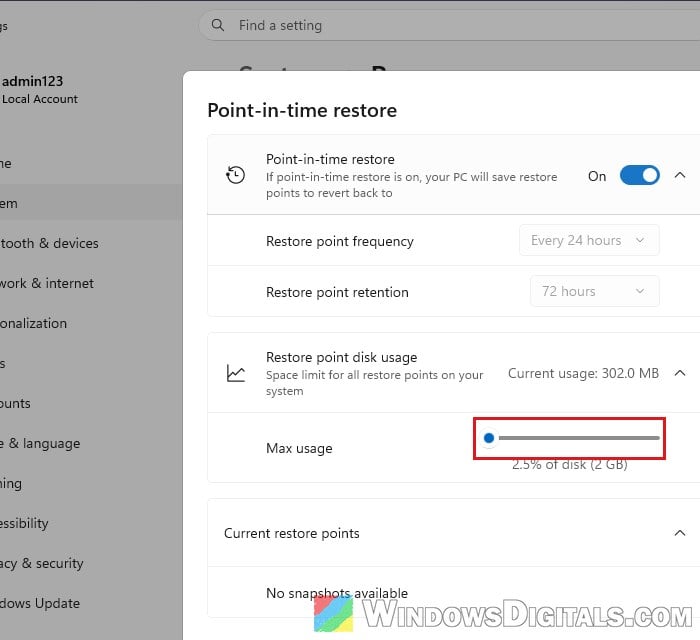
Afterwards, run vssadmin list shadowstorage again and check the Maximum Shadow Copy Storage space line.
You can also turn Point-in-time restore off in the same window if you’d rather not use it. Its existing restore points then stay until they expire or the space is needed.
Learn more: How to Clean C: Drive in Windows 11
Can you keep restore points for longer than 60 days?
Not really. There’s no setting that lets System Restore keep restore points past the 60-day limit, and a feature update can still clear them all regardless of how much space you give them.
The best you can do is create a restore point yourself right before any big change, like installing a new driver or a major app. For anything you might need to go back to months later, make a full system image backup instead. Restore points were never meant to be long-term backups.