If you’ve enrolled your Windows 10 PC in Extended Security Updates (ESU) and installed the latest ESU update, but Windows Update still shows the red “Your device is missing important security and quality fixes” message, the warning is most likely stuck on an old status and not a sign of a real missing update. This guide will show you how to check that your PC is really covered and how to clear the stale message.
Also see: Why is the Windows Update Settings Page Blank?
Page Contents
Why does Windows 10 still say your device is missing fixes?
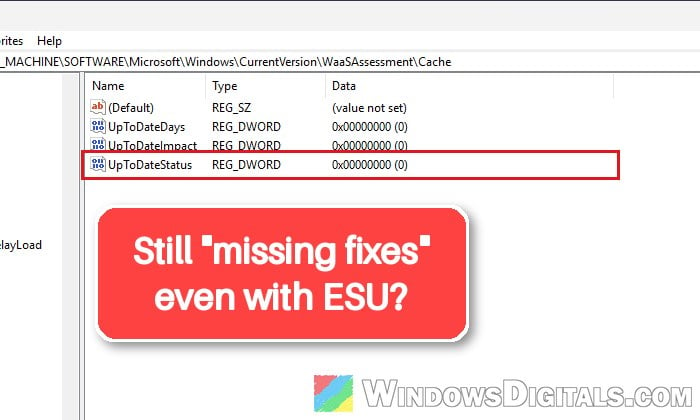
This message is meant for Windows 10 PCs that aren’t enrolled in ESU and so no longer get security updates. On some PCs, though, it stays after enrollment and after the newest ESU update is installed, while Check for updates says the PC is up to date.
The usual reason is a stale status in the registry. Windows keeps a record of whether the PC is up to date under a key called WaaSAssessment (short for “Windows as a Service” assessment). Going by the names of its values (UpToDateDays, UpToDateImpact), it also seems to track how far behind the PC is and how serious that is. If that record doesn’t get refreshed after you enroll, Windows Update keeps showing the old “out of date” result, even though nothing is missing.
That’s also why the usual Windows Update fixes (the troubleshooter, SFC, DISM, resetting the update cache) often don’t help here: they don’t touch that stored status.
The message has shown up again after the October 2026 update. KB5126657, released on October 13, 2026, brings Windows 10 22H2 to build 19045.7807, and that same date marked the end of ESU’s first year. According to Microsoft, the consumer ESU program runs until October 12, 2027, and PCs that are already enrolled carry on automatically with nothing to do. So if your PC was enrolled and has KB5126657 installed, ESU hasn’t run out.
Linked issue: Windows Update Troubleshooter Not Working Windows 10/11
First, check that your PC is really enrolled
Before changing anything, make sure the message is actually wrong. If the enrollment has lapsed, the warning is real, and the fix is to enroll again, not to edit the registry. Here’s how to check:
- Open Settings > Update & Security > Windows Update.
- Look at the text on the right side of the page. If your PC is enrolled, the first line says “Your PC is enrolled to get Extended Security Updates“.
- If you see an Enroll now link instead, the PC isn’t enrolled. Click it and sign in with your Microsoft account to enroll again. Microsoft requires that account to be an administrator on the PC and not a child account.
- Click View update history and check that the latest ESU update is listed as installed (in October 2026, that’s KB5126657). You can also press Win + R, type
winverand press Enter; with that update, it shows OS build 19045.7807 or higher. If the update is listed as failed, skip to the “If Windows Update really has an update to install” section below instead.
If you live in the European Economic Area, Microsoft says ESU updates stop after up to 60 days if you don’t keep signing in to the PC with the Microsoft account you enrolled with. If that happened, sign in with that account and enroll again from the same link, then install the update Windows Update offers.
If the PC is enrolled and the latest update is installed but the red message stays, move on to the next fix.
Reset the WaaSAssessment registry key
This is the fix that has cleared the message for most people on Microsoft’s forums since the first ESU updates came out in late 2025. It deletes the WaaSAssessment key and creates it again with its status values set back to 0, so Windows has to work out from scratch whether the PC is up to date. It doesn’t install, remove or block any update.
Microsoft hasn’t documented this key, so this is a fix found by users, not an official one. Changing the wrong thing in the registry can cause serious problems, so please at least create a system restore point first. If you’re not sure what you’re doing, it’s better to get someone who knows to help you instead.
Follow the steps below:
- Press Win + R, type
regeditand press Enter, then click Yes if User Account Control asks. - Copy and paste the following path to the address bar of Registry Editor and press Enter:
HKEY_LOCAL_MACHINE\SOFTWARE\Microsoft\Windows\CurrentVersion\WaaSAssessment
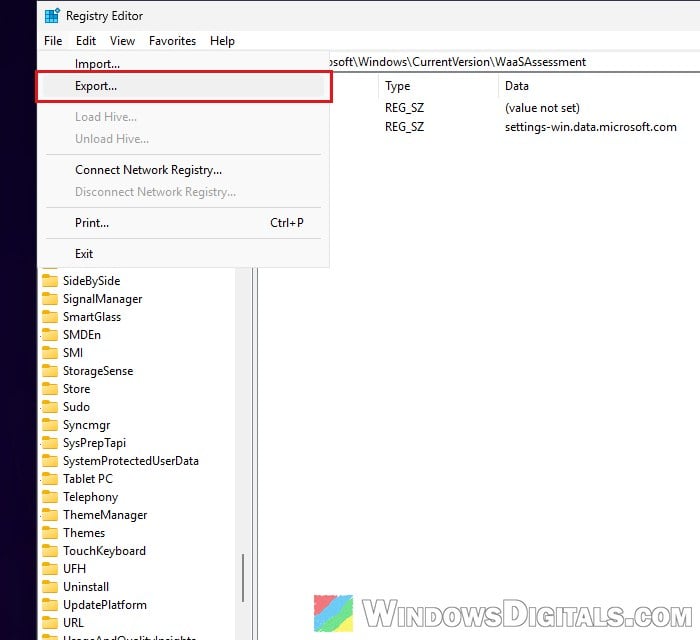
- Back up the key first: with WaaSAssessment selected in the left pane, click File > Export…, and save the file somewhere you’ll find it again. Double-clicking that file later puts the old values back.
- Close Registry Editor, open Notepad, and paste the following text into it (the first block deletes the key, and the rest creates it again with the three status values set to 0):
Windows Registry Editor Version 5.00
[-HKEY_LOCAL_MACHINE\SOFTWARE\Microsoft\Windows\CurrentVersion\WaaSAssessment]
[HKEY_LOCAL_MACHINE\SOFTWARE\Microsoft\Windows\CurrentVersion\WaaSAssessment]
"Endpoint"="settings-win.data.microsoft.com"
[HKEY_LOCAL_MACHINE\SOFTWARE\Microsoft\Windows\CurrentVersion\WaaSAssessment\Cache]
"UpToDateStatus"=dword:00000000
"UpToDateImpact"=dword:00000000
"UpToDateDays"=dword:00000000
- Click File > Save As, set “Save as type” to All Files, and save it to your desktop as “WaaS-reset.reg“. The name must end in .reg, not .txt, or Windows won’t treat it as a registry file.
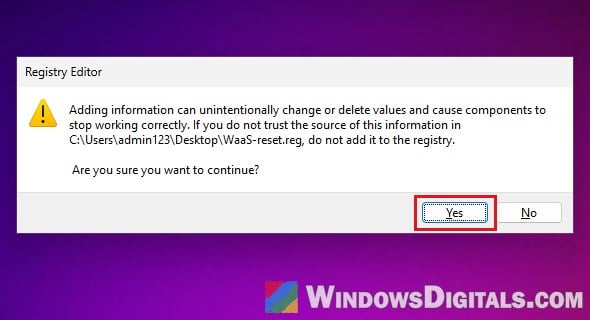
- Double-click WaaS-reset on your desktop (Windows usually hides the .reg part of the name). Click Yes in the User Account Control prompt, then Yes when Registry Editor asks “Are you sure you want to continue?“, and OK once it says the keys and values have been successfully added to the registry.
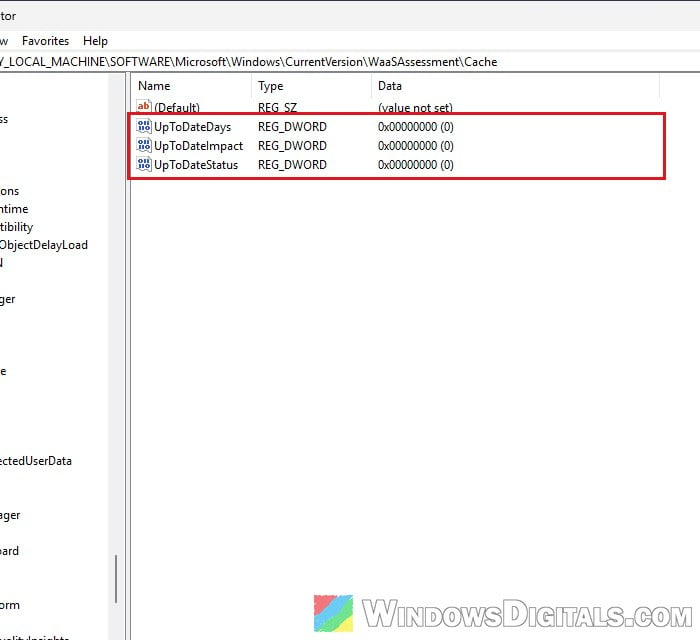
- To check it worked, open Registry Editor again: the Cache key under WaaSAssessment now holds UpToDateStatus, UpToDateImpact and UpToDateDays, all set to 0.
- Restart your PC.
- Go to Settings > Update & Security > Windows Update and click Check for updates.
The red message should now be gone, and Windows Update should only say that you’re up to date.
If double-clicking the file opens it in Notepad instead, it was saved as WaaS-reset.reg.txt. Save it again with All Files selected, or rename it so it ends in .reg.
Related problem: Windows Registry Key “Access is Denied” Error
Run the reset with commands instead
If you’d rather not make a .reg file, the same changes can be made with commands. Back up the key first as in step 3 above, since the first command deletes it. Then open Command Prompt as administrator, type the following commands one by one, and press Enter after each:
reg delete "HKLM\SOFTWARE\Microsoft\Windows\CurrentVersion\WaaSAssessment" /f
reg add "HKLM\SOFTWARE\Microsoft\Windows\CurrentVersion\WaaSAssessment" /v Endpoint /t REG_SZ /d settings-win.data.microsoft.com /f
reg add "HKLM\SOFTWARE\Microsoft\Windows\CurrentVersion\WaaSAssessment\Cache" /v UpToDateStatus /t REG_DWORD /d 0 /f
reg add "HKLM\SOFTWARE\Microsoft\Windows\CurrentVersion\WaaSAssessment\Cache" /v UpToDateImpact /t REG_DWORD /d 0 /f
reg add "HKLM\SOFTWARE\Microsoft\Windows\CurrentVersion\WaaSAssessment\Cache" /v UpToDateDays /t REG_DWORD /d 0 /f
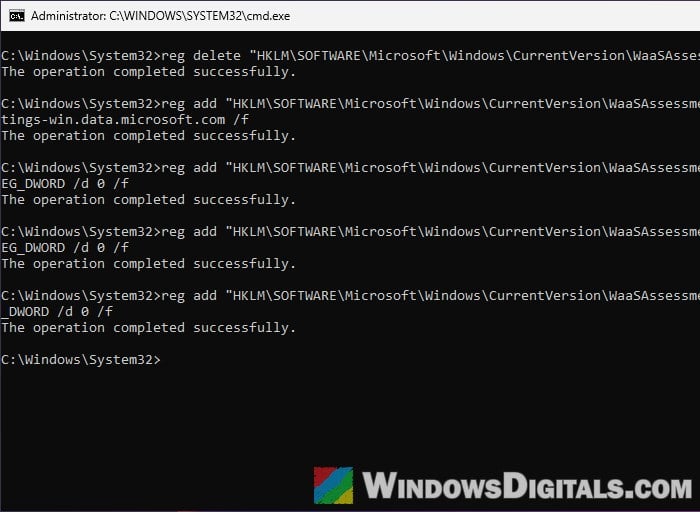
Each command should answer “The operation completed successfully.” Then restart the PC and check for updates again, the same as above.
If Windows Update really has an update to install
Sometimes the message is right after all: Check for updates finds an update that won’t install, or the update history shows the latest ESU update as failed. Then you need to get that update installed first.
A common way to do that is to reset Windows Update’s cache folders. Open Command Prompt as administrator, then type the following commands one by one, and press Enter after each:
net stop bits
net stop wuauserv
net stop cryptsvc
ren %systemroot%\SoftwareDistribution SoftwareDistribution.old
ren %systemroot%\System32\catroot2 catroot2.old
net start bits
net start wuauserv
net start cryptsvc
Restart your PC and check for updates again. If the update goes in but the red message stays, it’s the stale status again, so use the registry reset above.
Might be useful: 0x80244011 Windows Update Error (How to Fix)
Is your PC actually unprotected?
Not if it’s enrolled and has the latest ESU update. In that case, the warning is simply wrong, and your PC still gets the ESU security updates.
ESU won’t last forever, though. Microsoft’s consumer program ends on October 12, 2027, and after that, home PCs on Windows 10 get no more security updates. If your PC can run Windows 11, it’s worth planning the upgrade before the warning becomes true.