If you sometimes send or receive app packages ending in .msix or .msixbundle by email, you’ll soon run into a new block: Outlook on the web and the new Outlook for Windows will start blocking these attachments in November 2026. This guide explains what exactly changes, why Microsoft is doing it, and what you can do to still share these files.
Also see: New Outlook Won’t Open Attachments in Windows 11
Page Contents
What exactly is Outlook going to block?
Microsoft is adding two file types, .msix and .msixbundle, to the list of blocked attachments in Outlook. The change was posted in the Microsoft 365 message center on October 5, 2026 (MC1488841). The rollout starts in early November 2026 and should be finished by mid-November.
Once it reaches your account, you won’t be able to open or download an .msix or .msixbundle file that someone emails you in Outlook on the web or the new Outlook for Windows.
MSIX (.msix and .msixbundle) is a package format Windows uses to install apps. The older .appx format is already blocked in Outlook, so this change just adds the newer formats to the same list.
Might be useful: Is wsappx a Virus? Should You Worry About It?
Does it affect classic Outlook or personal Outlook.com accounts?
The block is a change to Exchange Online’s Outlook on the web mailbox policy, which is what work and school accounts in Microsoft 365 use. Microsoft’s notice names Outlook on the web and the new Outlook for Windows. It doesn’t mention classic Outlook or personal Outlook.com accounts either way, so don’t assume they’ll keep letting .msix files through.
Microsoft also says most organizations won’t notice anything, since these file types are rarely used.
Why is Microsoft blocking .msix files?
Microsoft only calls it a security measure, but .msix files have been used to spread malware before. In late 2023, Microsoft’s own threat intelligence team reported several financially motivated groups handing out signed, malicious MSIX packages that pretended to be popular software. They were spread through websites that people reached from malicious ads for that software, and this could lead to ransomware.
MSIX was attractive to them because installing a package straight from a website link (through the ms-appinstaller handler) could get around Microsoft Defender SmartScreen and the warnings browsers show when you download an .exe file. Microsoft then turned that handler off by default. Blocking .msix files in Outlook means the same kind of package can’t be opened straight from an email either.
Microsoft hasn’t pointed to a new attack this time, so this is more of a precaution. Outlook did something similar in 2025, when it blocked .library-ms and .search-ms files after they were used in phishing emails.
How to send an .msix file once the block is in place
If you really do pass app packages around by email, here are the ways Microsoft itself suggests for sharing a blocked file.
Share it as a OneDrive link instead
This is the easiest way. The recipient gets a link and downloads the file from OneDrive, so Outlook never has to handle the package as an attachment. In the new Outlook for Windows, here’s how to do it:
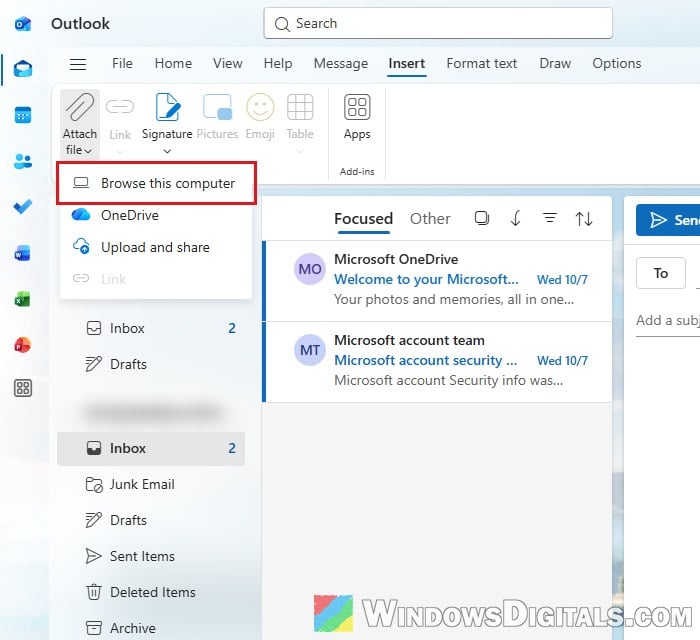
- Open a new message and go to the Insert tab.
- Select Attach file > Browse this computer and pick your .msix file.
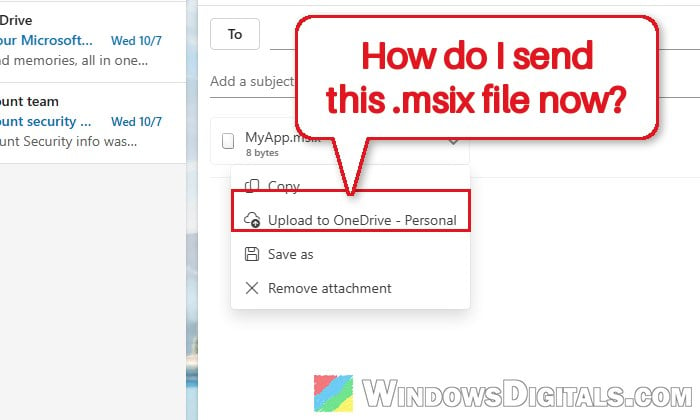
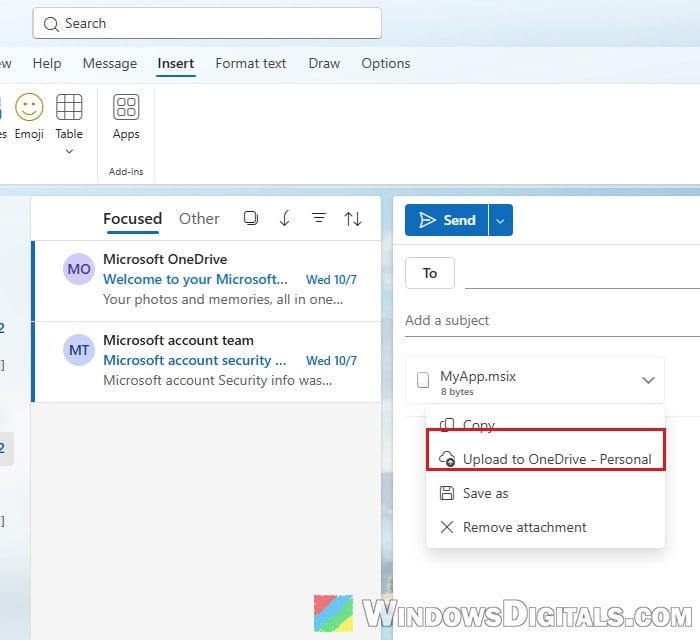
- Select the down arrow (More actions) on the attachment and choose Upload to OneDrive (followed by your OneDrive’s name, like Upload to OneDrive – Personal).
- If Outlook asks where to save it, pick a folder in your OneDrive.
- The attachment turns into a link. Select the link to change who can open it and what they can do (for example, Recipients can view).
Send the email as usual. The recipient gets a OneDrive link instead of the blocked attachment. You can also go straight to Attach file > OneDrive if the package is already in your OneDrive.
Put it in a ZIP file
Microsoft’s support article on blocked attachments also suggests compressing the file. A .zip file is on Outlook’s default list of allowed attachment types. To zip the package in Windows 11:
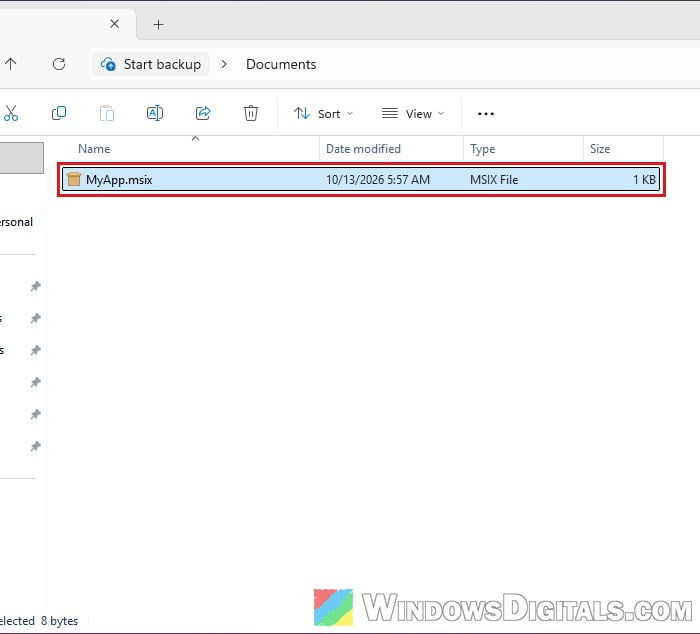
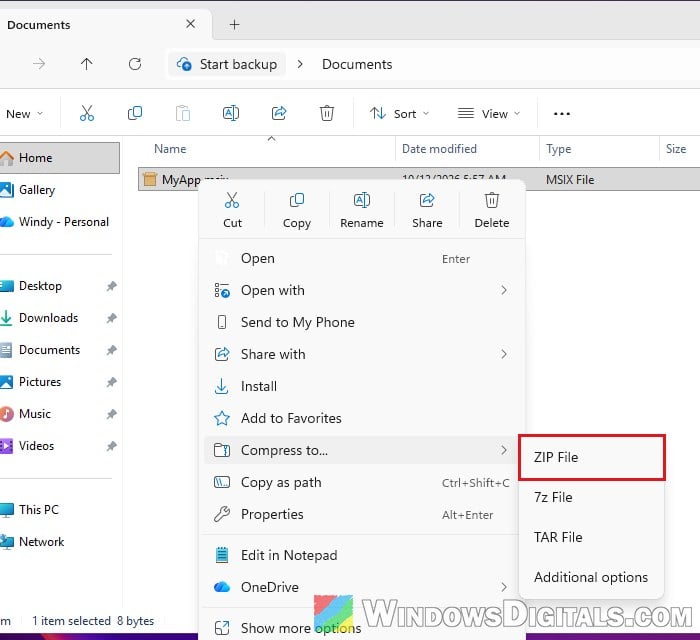
- Right-click the .msix or .msixbundle file in File Explorer.
- Select Compress to… > ZIP File.
- Attach the new .zip file to your email instead.
If the ZIP still doesn’t get through, use the OneDrive link instead.
Learn more: Zip Files and Folders in Windows 11/10 Without Any Software
Rename the file extension (last resort)
Microsoft also lists renaming the file to an extension Outlook doesn’t block, and having the recipient rename it back to .msix before installing it. It works, but it’s not ideal, since getting people used to renaming files from emails is exactly what attackers want. Only do this with people who know what you’re sending.
Related guide: How to Change or Remove File Extension in Windows 11
Got an .msix file by email you didn’t expect?
Don’t install it. There’s rarely a good reason for an app to arrive as an email attachment. If someone you know sent it, check with them another way first. If you need the app, get it from the Microsoft Store, winget, or the developer’s own website instead of the attachment.
Allow .msix attachments again (for admins)
If your organization relies on these files, Microsoft says to add .msix and .msixbundle to the AllowedFileTypes list of your users’ Outlook on the web mailbox policies before the rollout. In Exchange Online PowerShell, for the default policy, that’s:
Set-OwaMailboxPolicy -Identity OwaMailboxPolicy-Default -AllowedFileTypes @{Add=".msix",".msixbundle"}
The @{Add=...} form adds the two types without wiping the rest of the list. Repeat it for any custom policies you’ve created. Keep in mind that Microsoft’s documentation says the blocked list wins when a file type is on both lists, so if the rollout has already added them to BlockedFileTypes for a policy, you’ll likely also need to remove them from that list with -BlockedFileTypes @{Remove=".msix",".msixbundle"}.